



When you open Chrome, Edge, Firefox, or another web browser, the main frame where web pages load is called a browser window. It is the space where your browser shows sites, web apps, and online tools, and where you control how you move around the web. Understanding what a browser window is helps you browse faster and stay safer online.
In simple terms, a browser window is the main interface between you and the internet. It contains the address bar, tabs, navigation buttons, and the large viewing area that displays content. Knowing how this window works, and how it differs from things like browser tabs or pop-up windows, makes everyday browsing less confusing.
This guide explains what a browser window is, the main parts of a browser window, and the functions it handles behind the scenes. You will also see practical tips to manage browser windows more efficiently on Windows and macOS, whether you use Google Chrome, Mozilla Firefox, Microsoft Edge, or another modern browser.
Definition Of A Browser Window
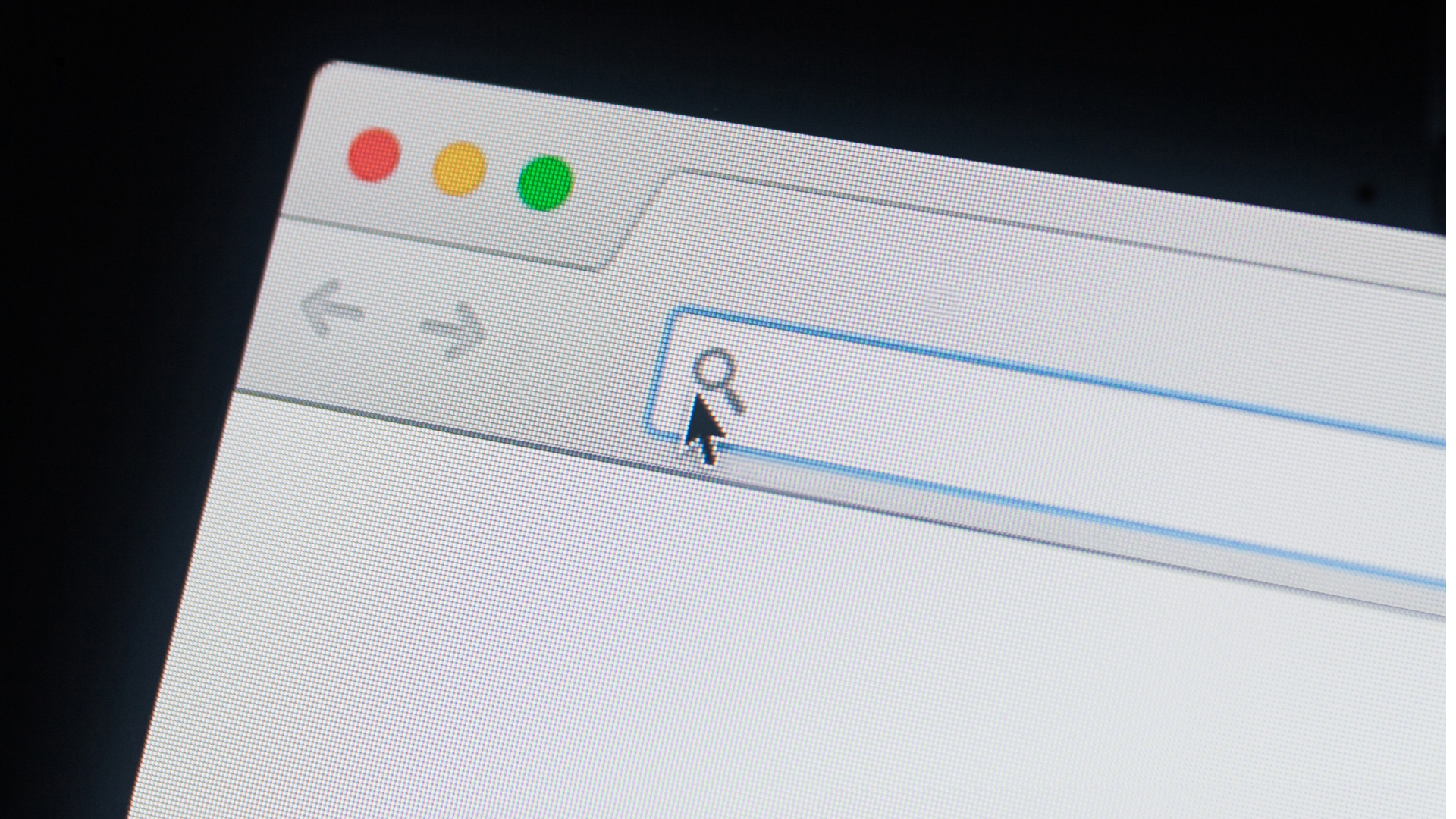
A browser window is the main graphical frame your web browser uses to display sites and web apps. It usually includes the title bar at the top, the address or search bar, navigation controls, tabs, and the central area where each web page loads. When you click the browser icon on your desktop or taskbar and it opens to show a website, that frame is the browser window.
From a technical point of view, a browser window is an application window created by your operating system for the browser process. Inside that window, the browser engine renders HTML, CSS, and JavaScript into the visual page you see. Whether you open one site or ten different tabs, they all live inside at least one browser window.
People sometimes mix up a browser window with a browser tab. A tab is one page within a window, while the window is the larger shell that contains one or more tabs. You can close a tab without closing the whole window, and you can open multiple browser windows if you want to separate tasks or accounts.
Main Components Of A Browser Window
Although each browser has its own design, the core parts of a browser window are very similar. Once you understand these components, using any modern browser becomes easier.
Title Bar
The title bar sits at the very top of the browser window. It usually shows the page title and the browser name, plus standard window controls to minimize, maximize, or close the window. On macOS, these controls sit on the left; on Windows, they sit on the right.
Address And Search Bar
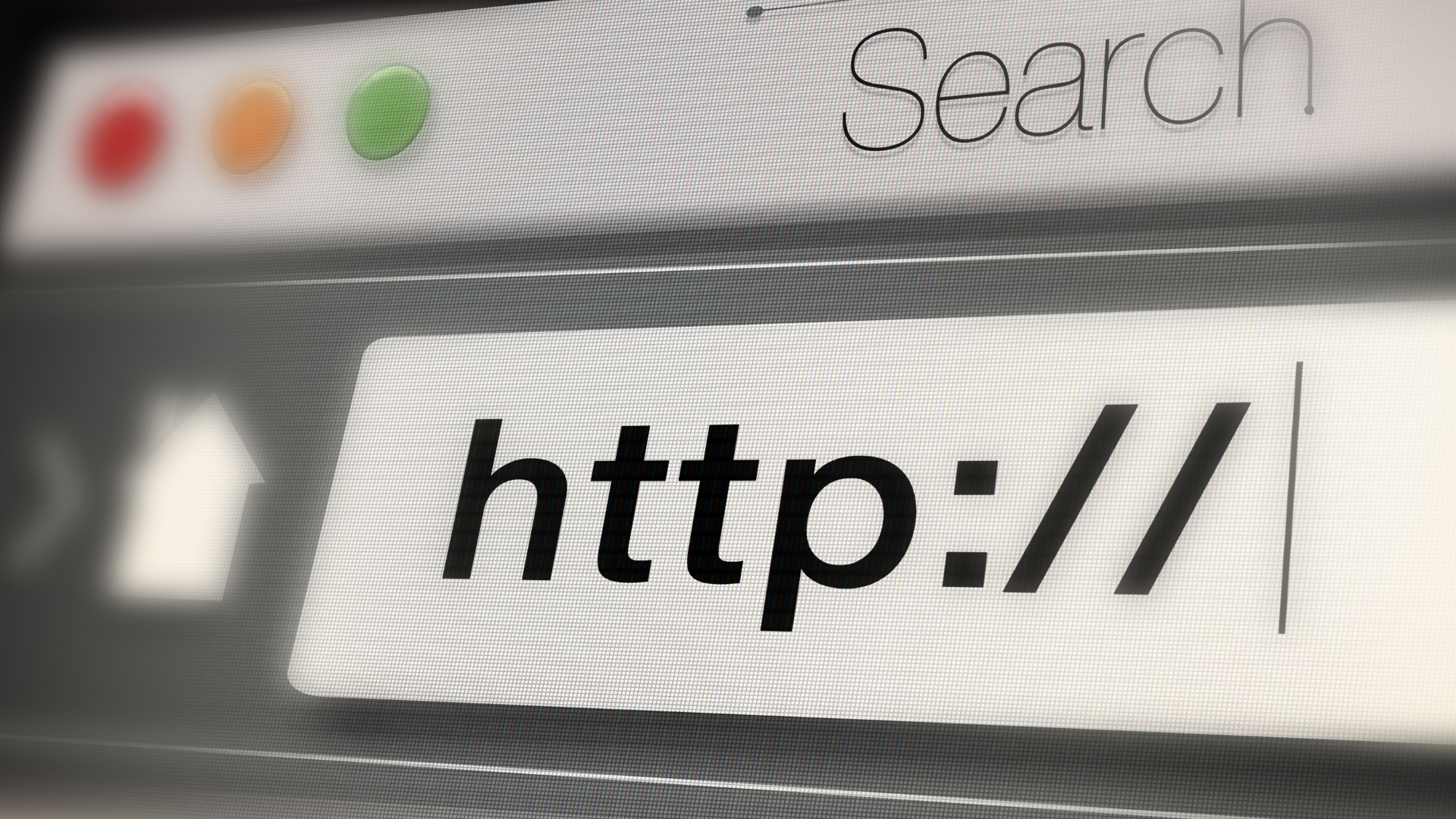
The address bar (also called the URL bar or omnibox) is where you type website addresses such as digitalcitizen.life. In most modern browsers, the address bar doubles as a search bar, so you can type a search term instead of a full URL. This element is one of the most important parts of the browser window because it controls where you go on the web.
Navigation Buttons
Next to the address bar you usually find navigation controls:
- Back moves to the previous page in your history for that tab.
- Forward goes to the page you visited after the current one.
- Reload / Refresh reloads the page to show the latest content.
- Home (if enabled) opens your configured home page.
These buttons make basic web navigation inside the browser window quick and predictable, even for new users.
Tabs Bar
The tabs bar lets you open multiple pages in one browser window. Each tab has its own title and close button, and you can drag tabs to reorder them or move them into a new window. Tabbed browsing is now standard in every major web browser and is one of the main reasons a single browser window can handle so many tasks at once.
Viewing Area
The viewing area, also called the content area, is the large central part of the window where the browser displays web pages, embedded videos, PDFs, and web apps. This is where the browser engine renders the site code into text, images, and interactive elements you can scroll and click.
Menu, Toolbars, And Extensions
Most browsers include a main menu and optional toolbars inside the browser window. From here you can access settings, downloads, bookmarks, and installed extensions such as ad blockers or password managers. Extensions usually appear as small icons to the right of the address bar, and they can change how the browser window behaves on certain sites.
Status Indicators
Modern browsers show connection and security information in or near the address bar. For example, a padlock icon indicates a secure HTTPS connection. When you hover over a link, many browsers show the destination URL at the bottom of the window. These indicators help you spot suspicious pages and protect your privacy while browsing.
What A Browser Window Does
A browser window does much more than just show a web page. It coordinates several important jobs every time you visit a site.
Handles Web Navigation
When you type a URL or click a link, the browser window sends a request to the server and then displays the response. It also tracks your history, so you can move backward and forward or reopen closed tabs. For most users, the browser window is the main way they navigate the internet on a computer.
Renders Web Content
The browser window uses a rendering engine (such as Blink in Chrome or Gecko in Firefox) to turn code into the visual version of a page. It lays out text, loads images and videos, and runs scripts that power interactive elements like forms, menus, and web apps. All of this happens inside the viewing area of the browser window.
Manages Tabs And Windows
The browser window keeps your tabs organized and lets you decide how to work. You can:
- Open multiple tabs for research or work.
- Use separate browser windows for different projects or accounts.
- Pin important tabs so they stay visible even with many pages open.
- Use private or incognito windows to reduce local tracking.
This tab and window management is a key part of how a browser window supports multitasking on a PC or laptop.
Provides Security And Privacy Controls
A modern browser window includes built-in tools to help you stay safe online. These may include:
- Warnings for unsafe or deceptive sites.
- Indicators for secure HTTPS connections.
- Controls for cookies, site permissions, and trackers.
- Private browsing modes that reduce local history and cookie storage.
Using these browser window features wisely improves your privacy and reduces the risk of malware or phishing attacks.
Common Browser Window Features You Will Use Daily
Most users spend hours each day in a browser window, often without realizing how many helpful features sit just a click away. Here are some of the most useful options you can access in Chrome, Edge, Firefox, and similar browsers.
Bookmarks And Reading Lists
Bookmarks let you save interesting pages inside the browser window for quick access later. Many browsers also offer a reading list or “save for later” feature, which stores articles you want to revisit. Organizing bookmarks into folders keeps your browser window tidy and speeds up your daily workflow.
Download Management
Every time you download a file, the browser window tracks it in a built-in downloads panel. You can check progress, open files, or show the download folder on your PC. This makes it easy to manage documents, installers, and media you grab from the web.
Private Or Incognito Windows
Opening a private or incognito browser window gives you a temporary session where browsing history, cookies, and form data are not saved locally after you close the window. This does not make you anonymous to websites or your internet provider, but it does reduce traces left on your device.
Zoom And Accessibility Options
If text on a site is too small, use the browser window’s zoom controls. You can zoom in or out, change default font sizes, and enable reader or immersive reading modes in compatible browsers. These tools help if you struggle with small text or dense layouts.
Extensions And Add-Ons
Extensions add extra features directly into the browser window. Popular choices include ad blockers, password managers, grammar checkers, and note-taking tools. You can usually manage extensions through a dedicated menu or icon near the address bar.
How To Use Browser Windows More Efficiently
Once you know what a browser window is and how it works, a few simple habits can make everyday browsing faster and easier.
Organize Tabs And Windows
Instead of keeping everything in one cluttered browser window, split tasks when it makes sense. For example, you can:
- Use one browser window for work and another for personal browsing.
- Group related tabs together if your browser supports tab groups.
- Close tabs you no longer need instead of leaving them open all day.
- Use bookmarks for long-term references instead of dozens of pinned tabs.
Use Keyboard Shortcuts
Keyboard shortcuts save time when working inside a browser window. Common examples include:
- Ctrl + T / Command + T to open a new tab.
- Ctrl + W / Command + W to close the current tab.
- Ctrl + Shift + T / Command + Shift + T to reopen a closed tab.
- Ctrl + L / Command + L to jump to the address bar.
Learning a few of these shortcuts makes navigating browser windows feel much more efficient.
Keep Your Browser Window Secure
A secure browser window is critical when you log in to sites, shop online, or handle sensitive data. To stay safer, you can:
- Check for the padlock icon and HTTPS in the address bar before entering passwords or payment details.
- Keep your browser updated so security fixes install automatically.
- Use built-in password managers instead of reusing weak passwords.
- Avoid installing unknown extensions that request broad permissions.
Browser Window Vs Browser Tab Vs Pop-Up
It helps to understand the difference between a browser window, a tab, and a pop-up window, especially when troubleshooting or changing browser settings.
- Browser Window – The main application frame that contains the menu, tabs, and viewing area.
- Browser Tab – A single page inside a browser window. You can have many tabs in one window.
- Pop-Up Window – A smaller, separate browser window that a site opens, often for ads, forms, or chat tools.
Most browsers let you block unwanted pop-up windows while still letting useful ones open when you click them. You can adjust this behavior in the site permissions or privacy section of your browser settings.
Summary
- A browser window is the main frame your web browser uses to display pages, tabs, and controls.
- Key parts of a browser window include the title bar, address bar, navigation buttons, tabs, and viewing area.
- The browser window handles navigation, content rendering, security controls, and tab management.
- Features such as bookmarks, private windows, extensions, and download management live inside the browser window.
- Organizing tabs, using keyboard shortcuts, and keeping your browser updated helps you use browser windows more efficiently and safely.
Once you know what a browser window is and how it works, you can move around the web more confidently on any computer. The same basic ideas apply whether you use Chrome on Windows, Safari on macOS, or another modern browser on your laptop or desktop.


Discussion (0)
Be the first to comment.