




How do you add Bluetooth to a device that does not have it yet? A Bluetooth dongle solves that problem by acting as a tiny wireless bridge between your computer and Bluetooth gadgets.
Most of the time, a Bluetooth adapter looks like a small USB stick. You plug the USB Bluetooth dongle into your computer, the system installs drivers, and you can connect headphones, speakers, keyboards, mice, and game controllers without any cables.
What Is A Bluetooth Dongle Used For?
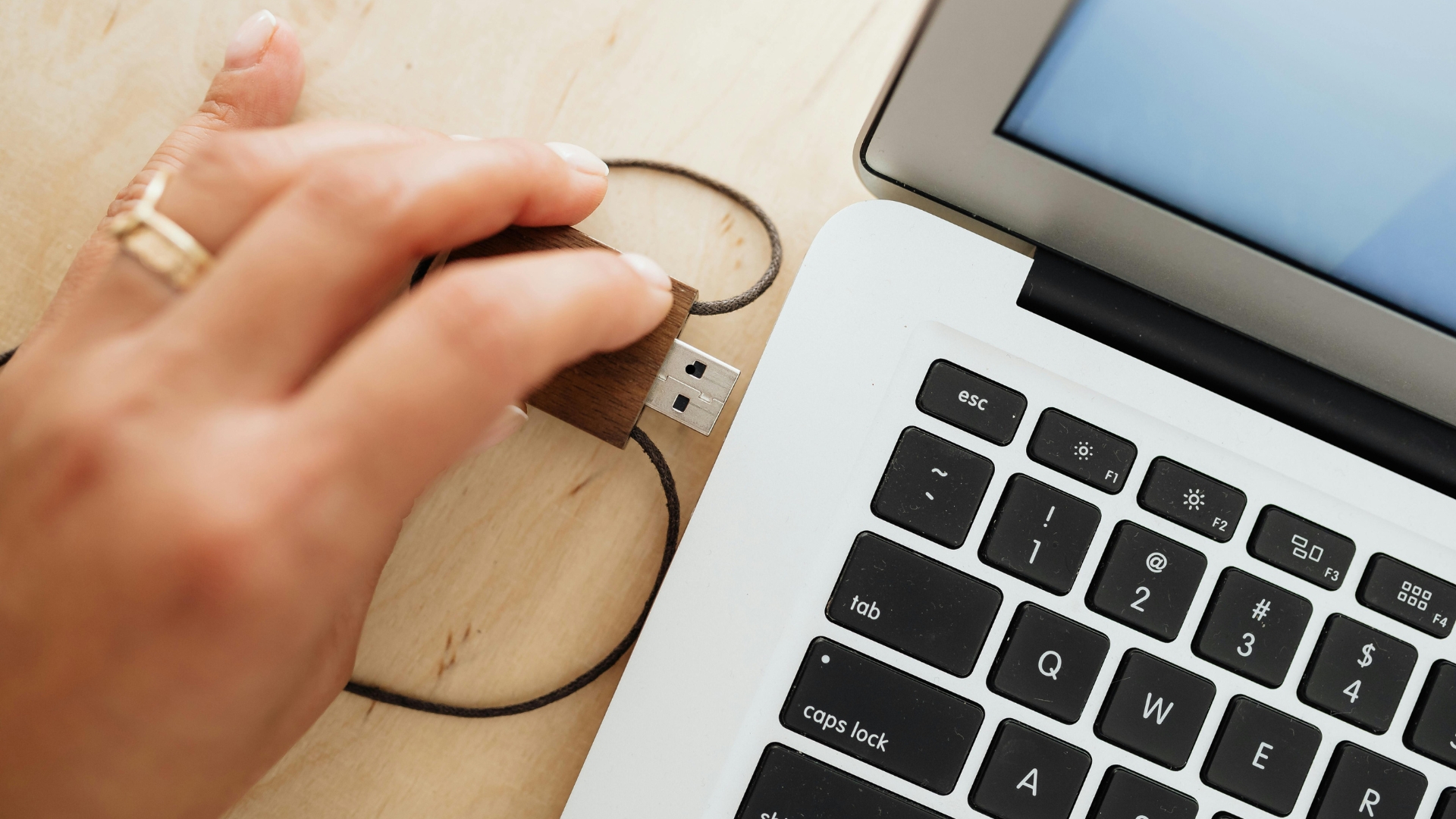
When people ask what a Bluetooth dongle is used for, the answer usually comes down to simple wireless convenience. If your desktop tower or older laptop lacks built-in Bluetooth, a dongle adds that missing feature.
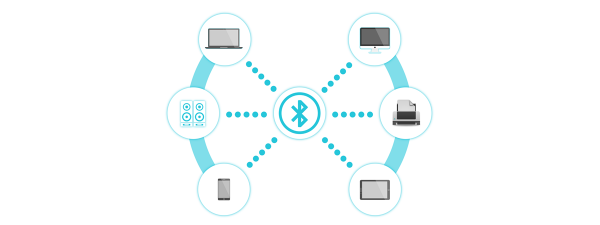
After you install a Bluetooth dongle for a PC or a laptop, you can pair all kinds of wireless gear. That includes headphones, earbuds, speakers, keyboards, mice, gamepads, and even some printers or barcode scanners.
- Listen to music or calls over a Bluetooth dongle for headphones without long cables running across your desk.
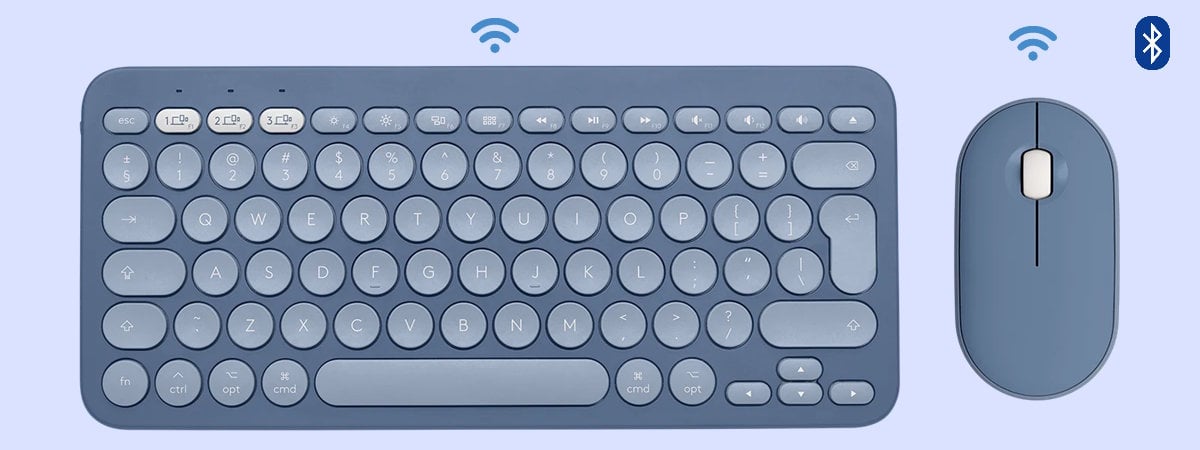
- Use wireless keyboards and mice so you keep your workspace clean and avoid cord drag.
- Connect a Bluetooth gaming dongle to link controllers, racing wheels, or arcade sticks to your PC.
- Pair phones and tablets to transfer files or share internet connections when your computer supports that feature.
How Does A Bluetooth Dongle Work?

A Bluetooth dongle contains a small radio that sends and receives Bluetooth signals in the 2.4 GHz band. The operating system sees the dongle as a standard Bluetooth radio, just like a built-in chip on a newer laptop.
Once the system loads the right driver, the Bluetooth adapter talks to the Bluetooth stack in Windows, macOS, or Linux. That software handles device discovery, pairing, encryption, and data transfer so you can stream audio, send files, and control peripherals.
- The dongle broadcasts that Bluetooth is available and listens for nearby devices.
- You start pairing from your computer or from the peripheral, depending on the device.
- Both sides exchange keys so they can talk over an encrypted link.
- After pairing, your computer reconnects automatically when both devices are on and in range.
Main Benefits Of Using A Bluetooth Dongle
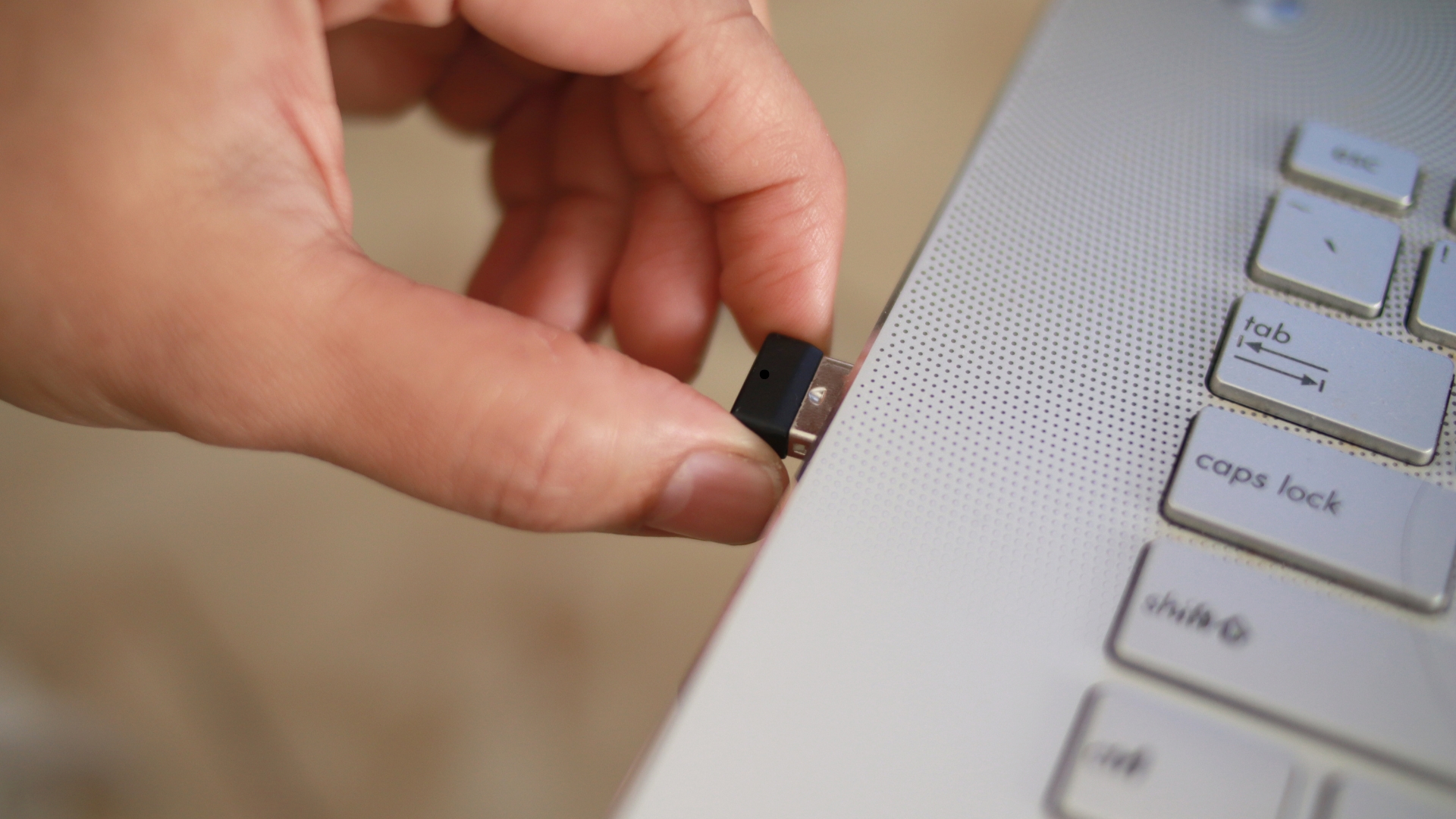
A tiny USB Bluetooth dongle can change the way you use your setup. Instead of replacing an entire computer just to gain wireless features, you drop in a small adapter and unlock modern accessories.
- Wireless Convenience: You move freely without dragging cables when you walk away from your desk wearing headphones.
- Broad Compatibility: A single Bluetooth dongle often handles headsets, speakers, keyboards, mice, controllers, and more.
- Easy Setup: Most modern operating systems install drivers automatically, so you plug in and start pairing.
- Portable Upgrade: You carry a single adapter between your work and home systems instead of buying gear twice.
- Cost-Effective: A dongle costs far less than buying a new laptop just to gain Bluetooth support.
Different Types Of Bluetooth Dongles
When you search for " what is a Bluetooth dongle", you quickly find several shapes and feature sets. They all aim to do the same thing, but some options fit specific use cases better than others.
Standard USB Bluetooth Dongles
Most people buy a simple USB Bluetooth dongle that plugs into a free USB port. These adapters work well for desktops and laptops and support typical Bluetooth accessories like headphones and keyboards.
Nano And Low-Profile Dongles
Nano dongles barely protrude from the port, making them ideal for travel laptops. You leave the Bluetooth dongle in place, without worrying about bumping or breaking it when you move the machine around.
Combo Wi-Fi And Bluetooth Adapters
Some adapters combine Wi-Fi and Bluetooth in one device. This option helps if your PC needs both a wireless internet and a Bluetooth adapter, but only has one free USB port.
Bluetooth Version And Range
Modern dongles support newer Bluetooth versions, which improve range, reliability, and energy use. When you pick a Bluetooth dongle for a PC, look for Bluetooth 4.0 or later so you can connect low-energy accessories like fitness trackers.
How To Use A Bluetooth Dongle
Once you understand what a Bluetooth dongle is, the next step is learning how to set it up correctly. The exact screens differ across Windows, macOS, and Linux, but the basic process remains the same.
- Plug In The Dongle: Insert the USB Bluetooth dongle into an open USB port on your desktop or laptop.
- Wait for Drivers: Let the operating system install drivers automatically, or install the package from the manufacturer if needed.
- Turn On Bluetooth: Open your system settings and ensure Bluetooth is turned on and set to visible or discoverable.
- Put The Device In Pairing Mode: Hold the pairing button on your headphones, speaker, keyboard, or controller until the status light starts blinking.
- Select The Device On Your Computer: In the Bluetooth menu, select the device from the list, then confirm pairing when prompted.
- Test The Connection: Play audio, type on the keyboard, or move the mouse to confirm that the Bluetooth dongle works as expected.
Compatibility Tips For Bluetooth Dongles
Most current dongles work well with modern versions of Windows, macOS, and common Linux distributions. Still, you protect your time by checking compatibility before you buy a Bluetooth dongle for laptop or desktop use.
- Confirm that the dongle supports your operating system version.
- Check the Bluetooth version to see if it supports your headset or other devices.
- Make sure the dongle supports common profiles, such as audio, keyboard, mouse, and gamepad.
- Look for low-latency modes if you plan to use the Bluetooth dongle for gaming or video calls.
Troubleshooting Common Bluetooth Dongle Problems
Even the best Bluetooth dongle can run into pairing or audio glitches. Most problems stem from drivers, interference, or range limitations rather than the adapter itself.
- Restart and Replug: Unplug the dongle, restart the computer, and plug it into a different USB port.
- Update Drivers: Install the latest Bluetooth drivers from your PC maker or the dongle manufacturer.
- Clear Old Pairings: Remove and re-add devices that will not reconnect or keep dropping.
- Reduce Interference: Move away from crowded USB hubs, Wi-Fi routers, and microwaves that share the 2.4 GHz band.
- Stay In Range: Keep devices within the recommended distance, usually around 30 feet for standard Bluetooth.
Do You Really Need A Bluetooth Dongle?
If your computer already has a reliable built-in Bluetooth and connects to all your devices, you may not gain much from another adapter. However, if you own an older desktop tower or a budget laptop without Bluetooth, a Bluetooth dongle is an affordable upgrade.
You might also want a dedicated Bluetooth dongle for pc gaming or calls when built-in Bluetooth feels unstable. Some dongles handle audio better for headsets and keep you connected more consistently in busy office environments.
Conclusion
By choosing the right Bluetooth adapter, checking compatibility, and following a few basic setup steps, you can connect headphones, speakers, controllers, and more with ease. For many users, this tiny USB Bluetooth dongle becomes the easiest and cheapest way to modernize an older computer and enjoy smooth wireless accessories.
Discussion (0)
Be the first to comment.