




Your Ring Video Doorbell works great on a computer, even though Ring discontinued the old desktop app. You now use Ring.com in a browser on your PC or Mac to see Live View, check alerts, and manage settings. At the time of writing, this is the official way to use Ring on desktop, with browser notifications acting as a strong replacement for the retired desktop app.
Prepare Your Ring Doorbell And Account
Before you switch to desktop access, make sure your Ring Video Doorbell and account are ready. This prevents connection errors when you sign in on your PC or Mac.
- Install and set up your Ring Video Doorbell using the Ring mobile app.

- Confirm the doorbell shows as Online in the mobile app.
- Test Live View on your phone to verify the camera works correctly.
- Write down the email address and password for your Ring account.
- Connect your PC or Mac to a stable home network, preferably the same Wi-Fi.
Access Ring Video Doorbell On PC Or Mac Via Ring.com
Ring moved desktop functionality to the web, so Ring.com now acts as your main hub on PC and Mac. You use your browser instead of a separate Ring desktop app.
- Open your preferred browser on your PC or Mac, such as Chrome, Edge, or Safari.
- Go to the Ring.com website.
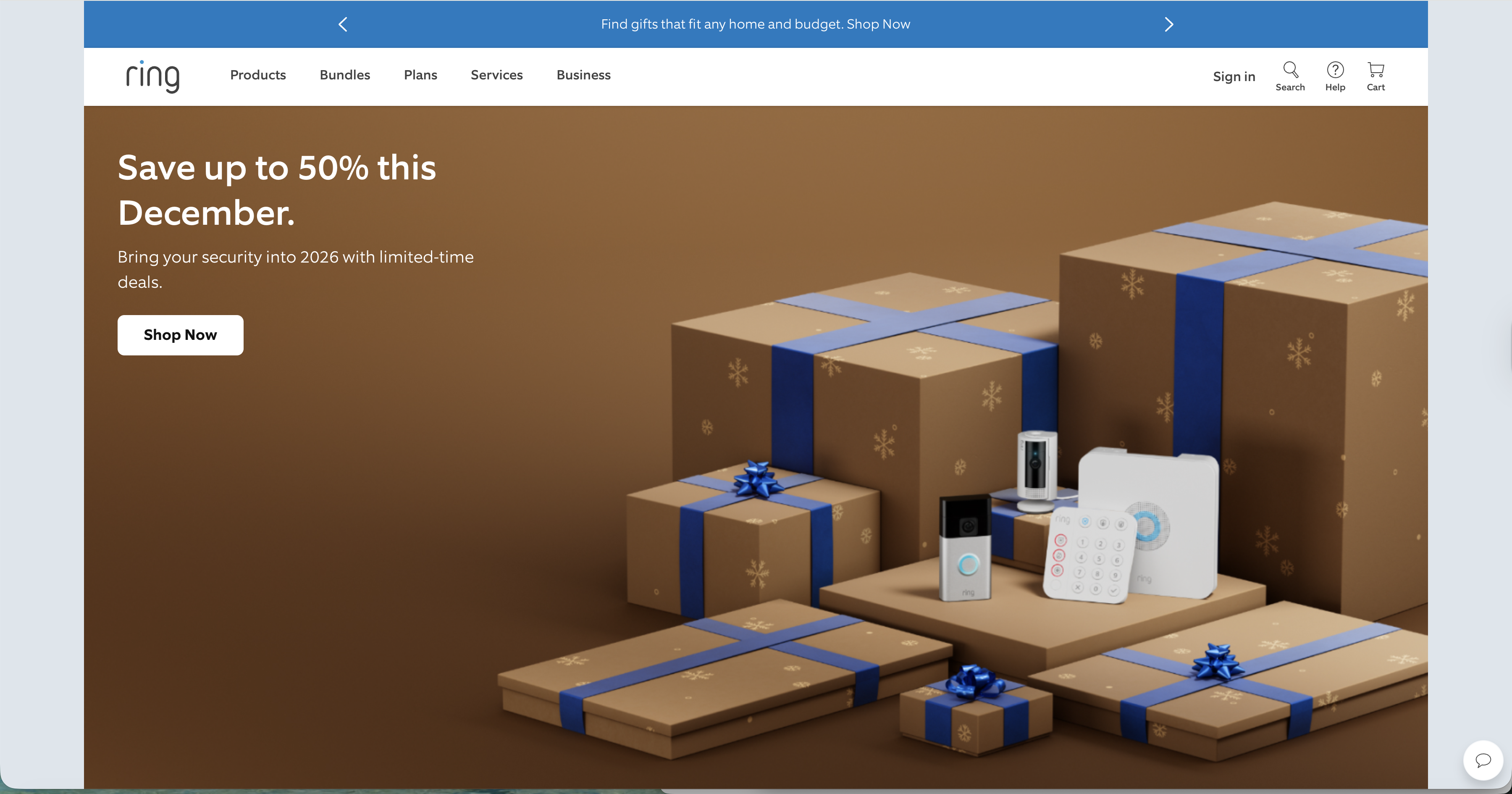
- Click the option to sign in.

- Enter the email and password tied to your Ring account.
- After login, locate your Ring Video Doorbell in the list of devices.
- Click the preview tile for your doorbell to open its camera controls.
Start Live View And Two-Way Talk On Desktop
You can watch the live feed and talk to visitors from your computer once you open the camera view. This setup works on both Windows and macOS as long as your browser supports media permissions.
- Select your Ring Video Doorbell from the device list on Ring.com.
- Click the Live View button to start the video stream.
- Allow browser access to your microphone and speakers if prompted.
- Press the microphone control to speak with visitors at your door.
- Use the speaker option to listen to audio from the doorbell.
- Close Live View when you finish to reduce unnecessary bandwidth use.
Enable Browser Notifications For Ring Alerts
Since Ring no longer offers a desktop app, browser notifications help replace those old system alerts. You can still see motion and ring alerts pop up on your computer.
- Sign in to Ring.com on your PC or Mac.
- Look for any prompt asking to allow notifications from the site.
- Click Allow when your browser asks for notification permission.
- Open your browser settings and confirm notifications stay enabled for Ring.com.
- Trigger a test motion event at your doorbell to verify alerts appear on your desktop.
Customize Motion And Alert Settings From Your Computer
You can tweak motion zones and alert behavior from the web interface just like you do on mobile. These settings help reduce false alerts while keeping important events visible.
- On Ring.com, select your Ring Video Doorbell from the device list.
- Open the settings or motion configuration section for that device.
- Adjust motion zones so the camera focuses on important areas only.
- Change motion sensitivity to reduce constant triggers from traffic or trees.
- Update alert preferences to control which events send notifications.
- Save changes and test again with a walk in front of the doorbell.
Troubleshooting Common Problems
If Ring Video Doorbell will not work correctly on your PC or Mac, these quick checks usually fix the most common issues with Live View and notifications.
- Refresh Ring.com if your device list does not load after login.
- Restart your router if Live View fails or video buffers constantly.
- Try a different browser when video fails in your current one.
- Disable VPNs or strict firewall rules that may block Ring servers.
- Clear cookies and cache for Ring.com if the site behaves inconsistently.
- Verify microphone and camera permissions for your browser if two-way talk fails.
Tips
- Pin Ring.com as a tab or bookmark so you open your doorbell quickly on desktop.
- Use Ethernet on your PC or Mac for smoother Live View and fewer drops.
- Keep your browser and operating system updated for better media support.
- Leave one browser profile signed in to Ring.com for always-ready access.
- Use the Ring mobile app alongside the website when you need alerts on the go.
FAQ
Can I Still Use The Ring Desktop App On Windows Or Mac?
No. Ring discontinued the dedicated desktop app and now directs all desktop users to Ring.com for access.
Do I Need A Special Browser To Use Ring On My Computer?
No. Modern browsers like Chrome, Edge, Safari, and Firefox work as long as you allow audio and notification permissions.
Can I Get Ring Alerts On My Computer Without The App?
Yes. Browser notifications on Ring.com replace the old desktop alerts when you enable them in your browser.
Does Live View Work The Same On PC, Mac, And Mobile?
The core features match, including Live View and two-way talk, but the interface looks slightly different between web and mobile apps.
Summary
- Set up your Ring Video Doorbell and verify it works in the mobile app.
- Sign in to Ring.com on your PC or Mac to access your camera.
- Use Live View and two-way talk through your browser on a desktop.
- Enable browser notifications to replace the old desktop app alerts.
- Adjust motion settings and troubleshoot issues directly from Ring.com.
Conclusion
Ring now routes all desktop access through Ring.com, so you use your browser instead of a dedicated desktop app on PC or Mac. Once you sign in, you can watch Live View, talk to visitors, and manage alerts from the same screen. With browser notifications and tuned motion settings, your computer still works as a powerful control center for your Ring Video Doorbell without any extra software.


Discussion (0)
Be the first to comment.