




Fire tablets run Amazon’s version of Android, which limits you to the Amazon Appstore. If you want a wider selection of apps, you can manually install the Google Play Store. The process works on most Fire models at the time of writing and gives you access to apps like Gmail, Google Maps, Chrome, and thousands more that aren’t available through Amazon.
The setup takes a few minutes, and you only need four APK files plus a quick settings change. Below, you’ll learn exactly how to download Google Play Store on a Fire Tablet safely and correctly.
Enable Installation From Unknown Sources
You must allow sideloading because Fire OS blocks third-party app installs by default.
- Swipe down from the top of the screen and open Settings.
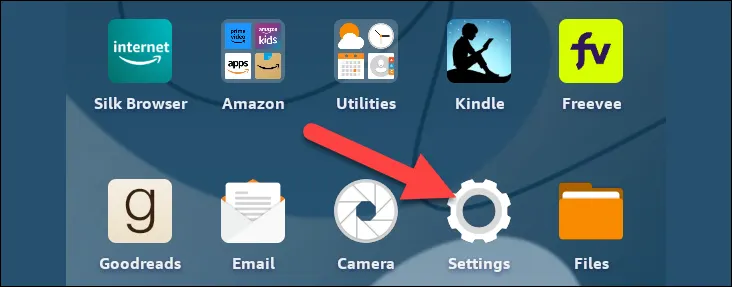
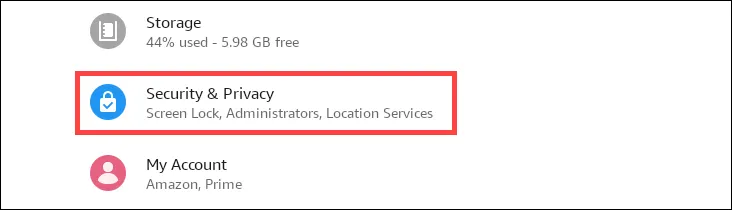
- Select Security & Privacy or Apps & Notifications depending on your Fire OS version.
- Open Advanced and enable Apps From Unknown Sources.
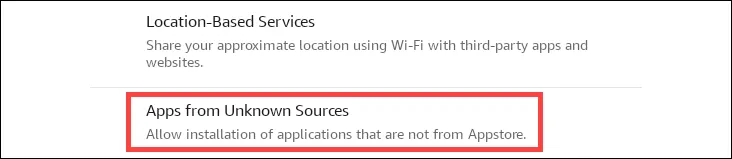
- Confirm the warning to allow manual APK installs.
Download The Required Google APK Files
You need four components for Google Play Store to work correctly on a Fire Tablet. These files include Google Account Manager, Google Services Framework, Google Play Services, and the Google Play Store app.
- Download each APK file from a trusted Android repository.
- Choose versions compatible with your Fire OS (typically Fire OS 5–8 matches Android 5–11).
- Save all four APK files to your Fire Tablet’s Downloads folder.
Install The Google Play Store Components
Install the APKs in the correct order to avoid errors.
- Open the Files or Documents app on your Fire Tablet.
- Go to Downloads and tap each APK one at a time.
- Install in this order: Google Account Manager → Google Services Framework → Google Play Services → Google Play Store.
- Restart the Fire Tablet once all four are installed.
Sign In To Google Play Store
After rebooting, the Play Store loads like it does on an Android phone.
- Open the new Google Play Store icon.
- Sign in with your Google account.
- Allow Google Play Services to update in the background.
- Start downloading apps normally.
Troubleshooting Common Problems
If something doesn’t work after installation, these quick fixes usually resolve it.
- Play Store won’t open: Restart your Fire Tablet and try again.
- App download errors: Open Settings → Apps → Google Play Store and clear cache.
- Google Play Services keeps crashing: Reinstall the Play Services APK using a newer version.
- “Device not certified” message: Restart and allow background updates to finish.
Tips
- Use the latest APK versions for the most stable performance.
- Restart after each major step to avoid installation conflicts.
- Keep Fire OS updated so Google Play runs smoothly.
- Install only apps that are known to work on Fire Tablets to avoid crashes.
FAQ
Is downloading Google Play Store safe for a Fire Tablet? Yes, as long as you use trusted APK sources.
Will this void my warranty? Amazon does not officially support it, but sideloading apps typically does not cause hardware warranty issues.
Do all Google apps work on Fire Tablets? Most do, but some require specific hardware or full Android certification.
Summary
- Enable Unknown Sources to allow third-party apps.
- Download four required Google APK files.
- Install each APK in the correct order.
- Restart the tablet after installation.
- Sign in and use the Play Store normally.
Conclusion
Installing Google Play Store on a Fire Tablet unlocks far more apps than the Amazon Appstore provides. The steps are simple, and once set up, the Play Store works much like it does on any Android device. With proper APK versions and a quick restart, you can turn a basic Fire Tablet into a much more capable device.


Discussion (0)
Be the first to comment.