




When you search for how to download Google Play Store on PC, you usually want one simple thing: a way to run Android apps on your Windows laptop or desktop. Windows does not install the Google Play Store natively, but you can still access most Play Store apps and games through safe, supported tools.
The two main options are Google Play Games for PC, which brings a curated set of Android games to Windows, and Android emulators that include Google Play Store for PC inside a virtual Android environment. Both methods work on most modern Windows 10 and Windows 11 PCs at the time of writing.
This guide explains how to set up Google Play Games, how to use an Android emulator with Google Play Store built in, and what to avoid if you see risky “one-click” hacks. You will see plain, step-by-step instructions so you can decide the best way to use Google Play Store on Windows without breaking your system.
Use Google Play Games For PC
Google Play Games for PC is the official way to run select Android games on a Windows computer. It focuses on games, not every Android app, but it gives you a clean Google Play experience without complicated tweaks.
You sign in with your Google account, sync progress from your phone, and play with keyboard and mouse on your PC. This is the safest answer if your main goal is to play Google Play games on Windows 10 or Windows 11.
Set Up Google Play Games On Windows
- Open your Windows browser and go to the official Google Play Games for PC page.

- Click on Get started on PC.
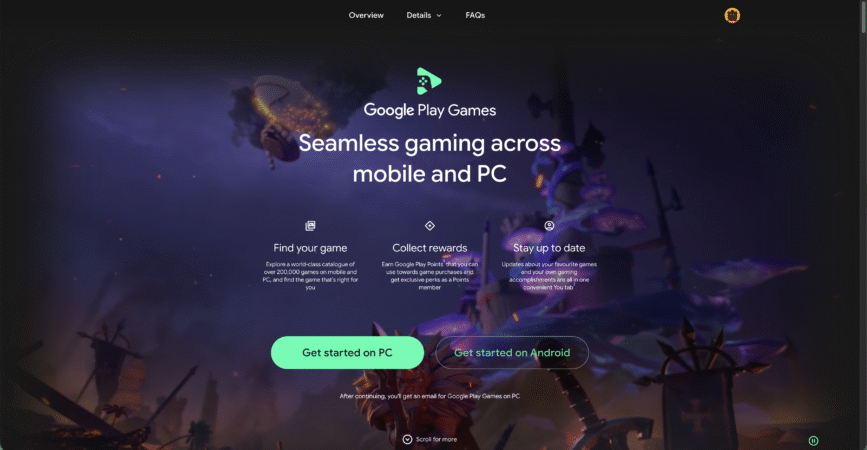
- A message will be sent to your email. Go there and click it.

- Download the Google Play Games installer for PC.
- Double-click the downloaded file and follow the on-screen setup steps.
- Allow Windows to install any required components when the installer asks.
- Launch Google Play Games from your Start menu once the setup finishes.
- Sign in with the Google account you use for the Google Play Store on your Android phone.
- Browse the available games library and click a game you want to install.
- Select the install option and wait for the game to download to your PC.
- Start the game from within Google Play Games and adjust graphics or control settings if needed.
If you only care about Android games, this option usually beats full emulators for simplicity and performance. If you want more apps than Google Play Games offers, move on to an Android emulator for a fuller Google Play Store on PC experience.
Install An Android Emulator With Google Play Store Built In
Android emulators like BlueStacks and similar tools create a virtual Android phone or tablet on your Windows PC. Most modern emulators ship with Google Play Store already installed, so you can sign in and download apps just like you do on a physical Android device.
This method works well if you want more than games, such as messaging apps, productivity tools, or media players from the Play Store on a Windows laptop. It is the most common answer to how to install Google Play Store on PC for everyday users.
Set Up The Emulator On Your PC
- Choose a reputable Android emulator that includes Google Play Store support.
- Check the emulator’s system requirements and confirm your PC meets the minimum specs.
- Download the emulator installer from the official website of the emulator.
- Run the installer and follow the instructions to complete the setup on Windows.
- Restart your PC if the installer recommends a reboot before first launch.
- Open the emulator from your desktop or Start menu after installation.
Sign In And Download Apps From Google Play Store
- Wait for the emulator’s Android home screen to load on your PC.
- Look for the Google Play Store icon in the System Apps or on the main home screen.
- Click the Google Play Store icon to open the Play Store on your virtual device.
- Sign in with your Google account when the Play Store asks for login details.
- Agree to the Play Store terms and set up backup or payment details if you want.
- Use the search bar to find Android apps or games you want to run on your PC.
- Click Install on any app’s page and wait for the download to finish inside the emulator.
- Open newly installed apps from the emulator’s home screen or app drawer.
This path gives you the closest thing to a full Google Play Store for PC, including app updates and library management. It is also the easiest way to run Android apps on a Windows laptop if you do not mind the extra system resources an emulator needs.
Avoid Risky Hacks To Install Google Play Store Directly On Windows
You may see tutorials that promise a native Google Play Store on Windows 11 using modified Windows Subsystem for Android builds or unofficial scripts. These methods change system components, often break when Microsoft updates Windows, and can expose your PC to malware if you download files from unknown sources.
For most users, the safer choice is simple: stick with Google Play Games for PC or a mainstream Android emulator. Both options give you legal access to Google Play content on Windows without deep system changes or unsupported hacks.
Troubleshooting Common Problems
If Google Play Store on PC does not work as expected, you can usually fix things with a few quick checks. Start with your network connection and your Google account, then look at emulator or app settings.
- Google Play Games Will Not Install – Check that you are on Windows 10 or Windows 11, have enough free storage, and meet the minimum RAM and GPU requirements.
- Emulator Runs Very Slowly – Close other heavy apps, enable hardware virtualization in your PC BIOS, and try a “Lite” or lower-performance mode in the emulator settings.
- Play Store Will Not Sign In – Confirm your system time and date are correct, test your Google account in a browser, and disable any VPN temporarily.
- Apps Fail To Download – Clear cache and data for Google Play Store and Google Play Services inside the emulator, then restart both the emulator and your PC.
- Games Crash Or Freeze – Lower graphics settings inside the emulator, switch to a different Android version profile if offered, or try another emulator if issues continue.
- Network Errors On Wi-Fi – Move closer to your router, connect your PC with Ethernet, or reboot your router if every app shows connection problems.
Tips
- Use Google Play Games for PC if games are your only priority and you want the most stable, official setup.
- Pick an Android emulator that clearly lists Google Play Store support and regular updates on its website.
- Allocate enough RAM and CPU cores to your emulator in its settings, but leave room for Windows to stay responsive.
- Create a separate Google account for testing apps on PC if you install many experimental or beta apps.
- Avoid random APK download sites; if you must sideload, use well-known, vetted sources and scan files with antivirus.
- Keep Windows, your GPU drivers, and the emulator itself updated to reduce crashes and compatibility problems.
- Use a wired controller or keyboard shortcuts inside the emulator for smoother control in fast-paced games.
FAQ
Can I Install Google Play Store Directly On Windows Without An Emulator?
No official method lets you install the full Google Play Store directly into Windows. The safe options are Google Play Games for PC and Android emulators that include Google Play Store inside a virtual Android system.
Is It Legal To Use Google Play Store On PC With An Emulator?
Using a reputable emulator with built-in Google Play integration is generally acceptable for personal use. Always follow Google’s terms of service and avoid modified Play Store builds or tools that bypass security checks.
Do I Need To Pay To Download Google Play Store On PC?
The Google Play Store app itself is free. You may pay for some emulators, in-app purchases, or paid Android apps, but accessing the Play Store on a PC through Google Play Games or an emulator does not add an extra Play Store fee.
Will Every Android App Work On My Windows PC?
No. Some apps need phone hardware like GPS, cellular radios, or specific sensors that a PC does not have. Games or apps with strong anti-cheat or root detection may also refuse to run inside an emulator.
Which Is Better For PC, Google Play Games Or An Android Emulator?
Use Google Play Games for PC if you want a simple way to play a curated list of Android games with good performance. Use an Android emulator with Google Play Store if you want a broader range of apps and more control over Android settings.
Summary
- You cannot install Google Play Store directly into Windows, but you can still use it on PC through supported tools.
- Google Play Games for PC offers an official way to play select Android games on Windows 10 and Windows 11.
- Android emulators with built-in Google Play Store let you install many Android apps and games on a virtual device.
- Avoid unsupported hacks that modify Windows system components to force native Google Play Store integration.
- Check system requirements, keep software updated, and use trusted sources to keep your PC secure while using Play Store on PC.
Conclusion
If you want to know how to download Google Play Store on PC, you really want safe ways to bring Android apps and games to Windows. The best options today are Google Play Games for PC for a clean gaming experience and Android emulators with integrated Google Play Store support for broader app access.
Skip risky shortcuts that promise a native Google Play Store on Windows and instead rely on trusted tools that respect both Windows and Google’s rules. With the right setup, you can enjoy most of your favorite Android titles on a bigger screen, while keeping your PC stable and secure.


Discussion (0)
Be the first to comment.