




Amazon’s Parent Dashboard gives you full control over your child’s Fire Tablet. You review activity, set screen-time limits, and approve content from one place, and this guide shows every reliable way to open the dashboard and fix common access issues.
1) Accessing the dashboard from the tablet’s Settings menu
Swipe down from the top of the screen and tap Settings > Profiles & Family Library. Pick your child’s profile, and select Amazon Kids. Now, choose the Parent Dashboard option so you can manage controls without leaving the device.

2) Accessing through the Amazon Kids shortcut
Look for the Amazon Kids tile on the home screen and tap it. When the Amazon Kids screen opens, choose Parent Dashboard to load the same tools with fewer steps.
3) Opening Parent Dashboard from a child profile switch
If the tablet already uses a child profile, swipe down and choose Exit Amazon Kids or Parent Settings. Sign in with your Amazon account so you can enter the dashboard quickly while your child still uses the device.
4) Accessing Parent Dashboard from a phone or browser
On your computer or phone, open a browser and go to the parents.amazon.com page. Sign in with the Amazon account linked to the Fire Tablet so you can see all child profiles, activity reports, and content controls from one place.

Another option is to install the Amazon Kids parent app on your iOS or Android phone and sign in with the same Amazon account you use on the Fire Tablet. The app lets you review activity, approve content, and adjust limits, and it syncs changes to the tablet in real time.
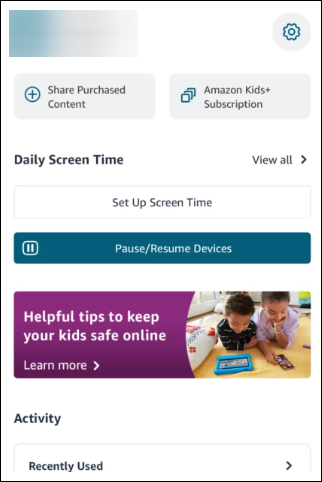
5) What you can manage inside the Parent Dashboard
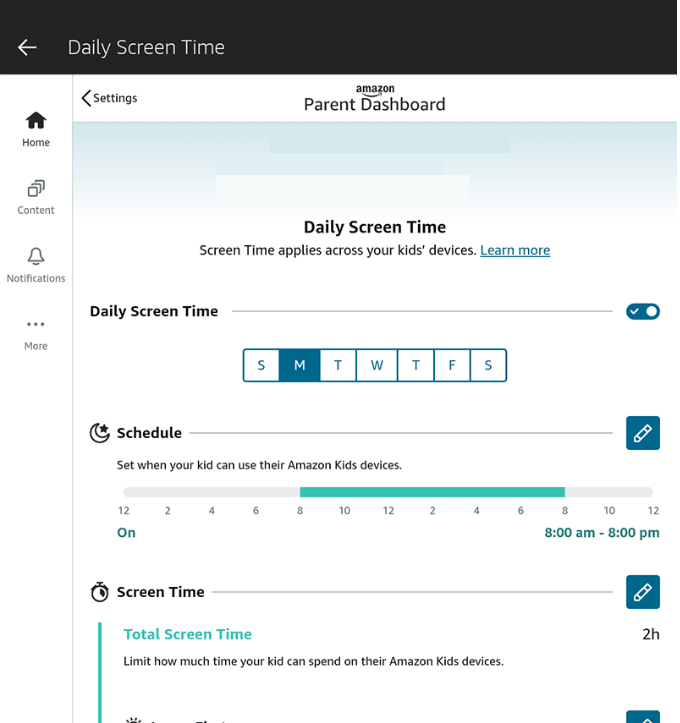
- Screen time and bedtime: You can set daily usage limits so the tablet only works during certain hours. You also define a bedtime schedule so the device powers down automatically at night.
- Content and web controls: Parent Dashboard lets you choose age filters, block specific categories, and manually approve books, apps, or videos.
- Activity reports: The dashboard shows how long your child uses each app, book, or video. You can review these activity reports and then adjust rules to encourage healthier screen-time habits.
Troubleshooting Parent Dashboard not opening on Fire Tablet
- Check account and child profile link: On the Fire Tablet, open Settings and confirm the device signs in with the same Amazon account you use on Parent Dashboard. Make sure the child profile appears under Profiles & Family Library so the dashboard can link correctly.
- Update Fire OS and Amazon Kids app: Open Settings > Device Options > System Updates and install any Fire OS updates. Then open the Appstore, search for Amazon Kids, and update the app.
- Clear app cache and restart device: Go to Settings > Apps & Notifications > Amazon Kids and choose the option to clear cache. After that, restart the Fire Tablet and try opening Parent Dashboard again.
- Reset Amazon Kids settings as a last resort: If nothing else helps, remove the child profile from Profiles & Family Library and create a new one.
Tips to manage Amazon Kids more efficiently
- Use Quick Settings toggles
- Set up learning goals
- Sync rules across multiple Fire Tablets
FAQs about the Parent Dashboard on Fire Tablets
Does Parent Dashboard work on all Fire Tablets? Parent Dashboard works on any Fire Tablet that supports Amazon Kids.
Can a child turn off parental controls? A child cannot turn off parental controls without your account password or PIN.
Do settings sync across devices automatically? Most changes in the Parent Dashboard sync to all linked devices within a few minutes. If you don’t see updates, restart the Fire Tablet to refresh the connection.
Why are time limits not applying? If time limits don’t apply, update Fire OS and restart the tablet so it pulls the latest rules from Parent Dashboard.
Summary
- Open Parent Dashboard from Settings, the Amazon Kids tile, or the child profile switch on your Fire Tablet.
- Use a web browser or the Amazon Kids parent app when you want remote access to controls.
- Manage screen time, content filters, and activity reports from a single dashboard view.
- Use learning goals, Quick Settings, and synced profiles to manage Amazon Kids more efficiently across all Fire Tablets.
Conclusion
Accessing the Parent Dashboard on a Fire Tablet gives you direct control over screen time, app permissions, and content safety. You can open it from a tablet, a phone, or any browser, and each method updates your child’s profile in real time. Most access issues resolve quickly when you check account links, update Fire OS, or refresh Amazon Kids.
With the right setup, the dashboard creates a safer, more structured digital space for your child.


Discussion (0)
Be the first to comment.