



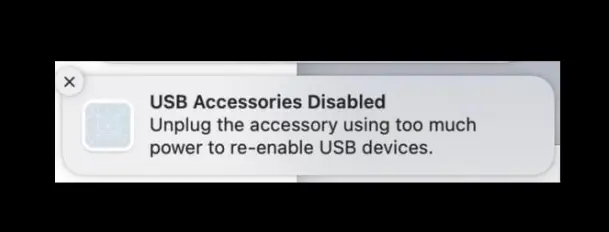
The “USB Accessories Disabled” message appears when macOS detects that connected devices are drawing more power than the USB port can safely supply. When this happens, macOS shuts down USB access to protect your Mac.
At the time of writing, this error most often affects MacBooks with limited USB-C ports, external drives, monitors, and powered accessories. In most cases, you can fix it without hardware repairs.
Start With These Quick Fixes
Begin with simple steps that resolve the majority of USB Accessories Disabled errors. These require no advanced tools and take only a few minutes.
- Disconnect all USB devices from your Mac
- Reconnect one device at a time to identify the problematic accessory
- Try a different USB port if available
- Remove high-power devices such as monitors or external speakers
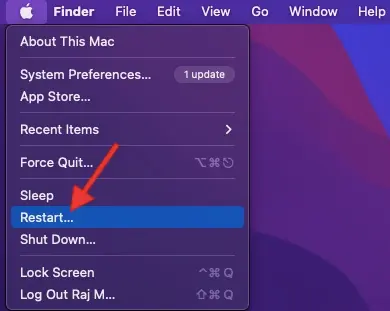
- Restart your Mac
If the error disappears after reconnecting a specific device, that device is likely exceeding the port’s power limit.
Turn Off Low Power Mode And Update macOS
Low Power Mode can restrict USB power delivery. Software bugs can also trigger false USB power errors.
- Open System Settings
- Select Battery
- Turn off Low Power Mode
- Go to General and open Software Update
- Install any available macOS updates
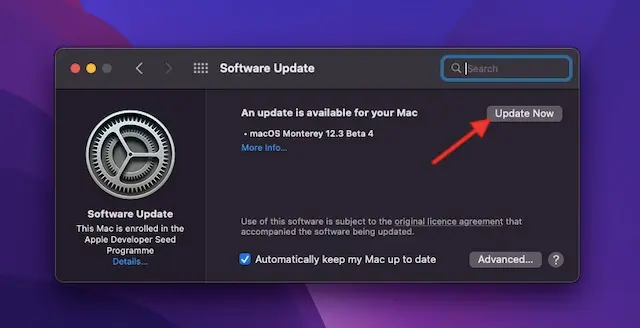
Updates often include USB and power management fixes.
Check Cables And USB Ports
Damaged cables and debris inside ports can interrupt power delivery and trigger the error.
- Inspect USB cables for visible damage
- Clean USB ports gently using compressed air
- Avoid loose or bent connectors
Replace any cable that feels loose or overheats during use.
Reset USB Ports Using Terminal
Resetting the USB daemon forces macOS to reinitialize USB power management. This method works on Intel and Apple silicon Macs.
- Open Terminal
- Enter sudo killall -STOP -c usbd
- Press Enter and enter your password
- Disconnect and reconnect your USB devices
This immediately restores USB power handling in many cases.
Use A Powered USB Hub
If multiple devices are essential, a powered USB hub supplies its own electricity instead of relying on your Mac.
- Connect the hub to an external power source
- Plug high-power devices into the hub
- Connect the hub to your Mac
This is the most reliable solution for power-hungry accessories.
Troubleshooting Common Problems
If the error keeps returning, the issue may involve a faulty USB device or a failing port. Test devices on another Mac to isolate hardware problems.
Persistent errors may require Apple diagnostics.
Tips
- Disconnect non-essential USB devices when possible
- Avoid charging devices from your Mac’s USB ports
- Use certified USB-C cables
- Restart your Mac after major updates
FAQ
What causes USB Accessories Disabled on Mac?
The error appears when connected devices draw more power than the USB port can supply.
Does this mean my USB port is broken?
Not usually. The error is often software or power-related.
Can this happen on Apple silicon Macs?
Yes. Power limits apply on both Intel and Apple silicon Macs.
Will a powered USB hub fix this permanently?
In most cases, yes, especially for external drives and displays.
Summary
- USB Accessories Disabled protects your Mac from power overload
- Most issues come from high-power USB devices
- Quick fixes solve the problem in most cases
- Powered USB hubs offer a long-term solution
Conclusion
The USB Accessories Disabled error looks serious, but it is usually easy to fix. macOS disables USB ports to prevent damage, not because the hardware has failed.
By reducing power load, updating macOS, or using a powered hub, you can restore USB functionality and prevent the issue from returning.

Discussion (0)
Be the first to comment.