



Carrier settings updates help your iPhone stay properly connected to your mobile network. These updates fine-tune call quality, data speeds, messaging reliability, and features like 5G, Wi-Fi calling, and visual voicemail. While most carrier updates install automatically, checking manually can help resolve signal issues and prevent connectivity problems.
If your iPhone shows dropped calls, slow mobile data, or missing carrier features, updating carrier settings is often a quick and effective fix.
What Carrier Settings Updates Do On iPhone
Carrier settings act as a configuration layer between your iPhone and your cellular provider. They control how your device connects to the network for calls, texts, data, voicemail, and roaming.
Unlike iOS updates, you cannot view or customize carrier settings. Your wireless carrier and Apple manage them in the background to keep network behavior optimized.
Why You Should Update Carrier Settings
Installing the latest carrier settings helps ensure compatibility with network changes and new technologies. These updates often address performance issues without requiring a full iOS update.
Keeping carrier settings current can improve signal stability, mobile data performance, and access to carrier-specific features.
How To Check For Carrier Settings Updates On iPhone
You can manually check for a carrier settings update in just a few seconds. Make sure your iPhone is connected to Wi-Fi or has an active cellular connection before starting.
- Open the Settings app
- Tap General
- Select About
- Wait a few seconds for a prompt to appear
- Tap Update if a carrier update is available
If no prompt appears, your carrier settings are already up to date.
How To Check Your Current Carrier Settings Version
You can view your installed carrier version to confirm whether an update recently applied.
- Open Settings
- Go to General
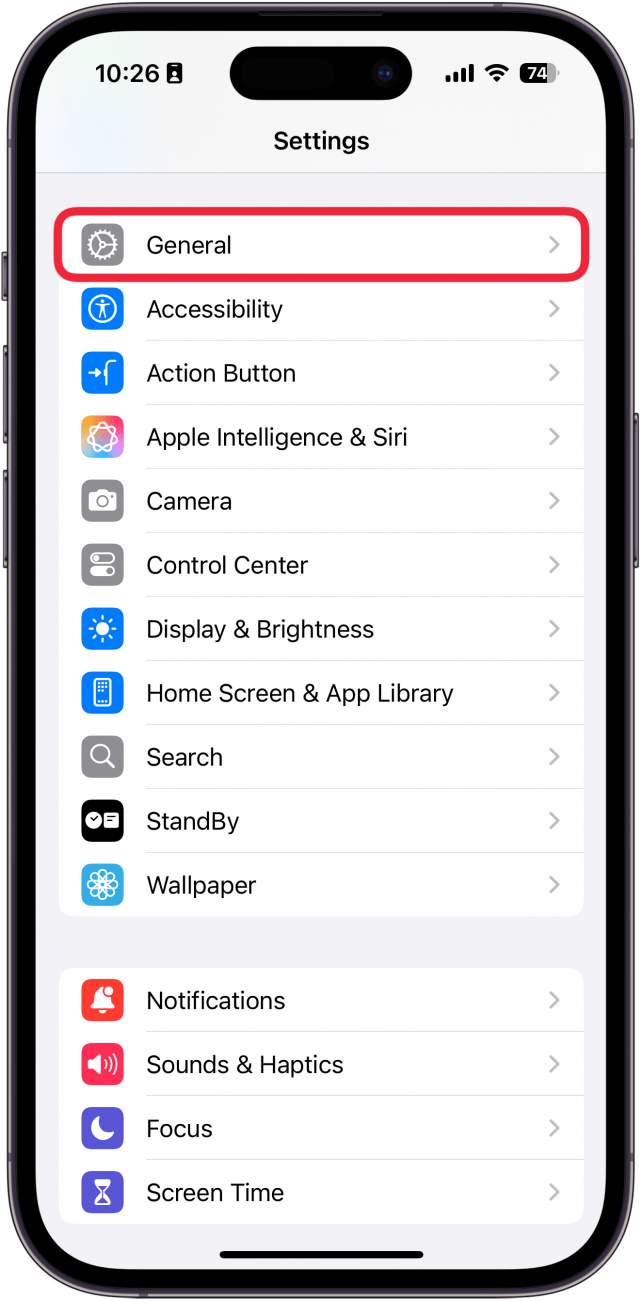
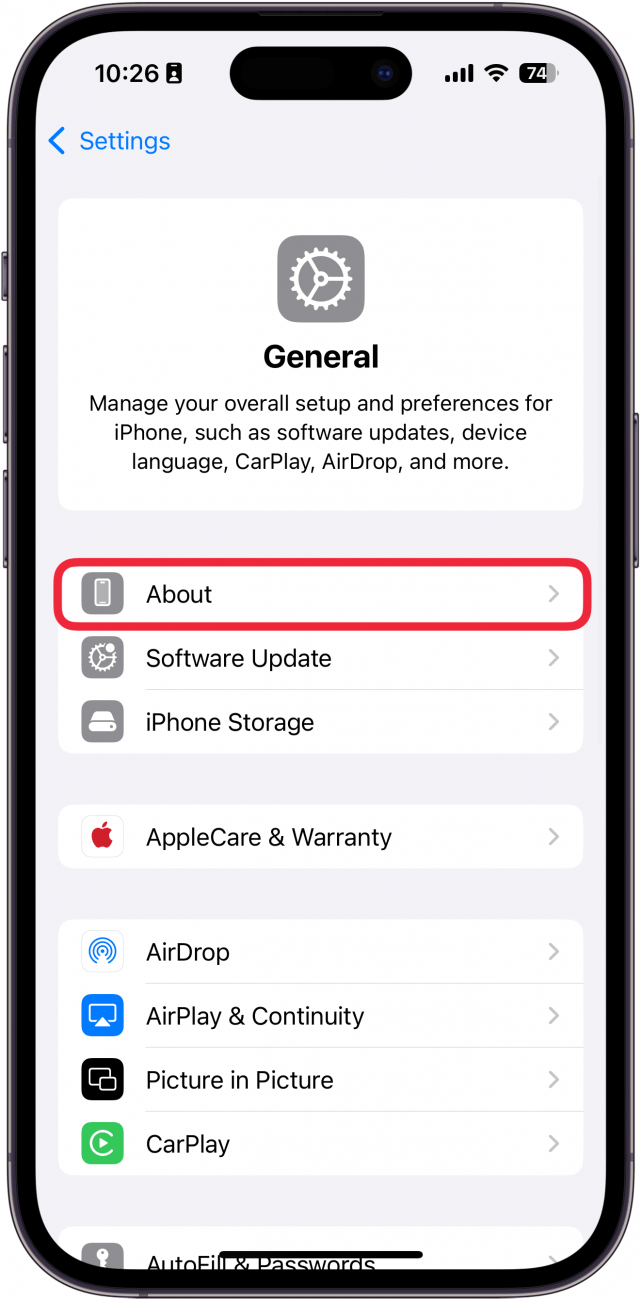
- Tap About
- Scroll to the Carrier section
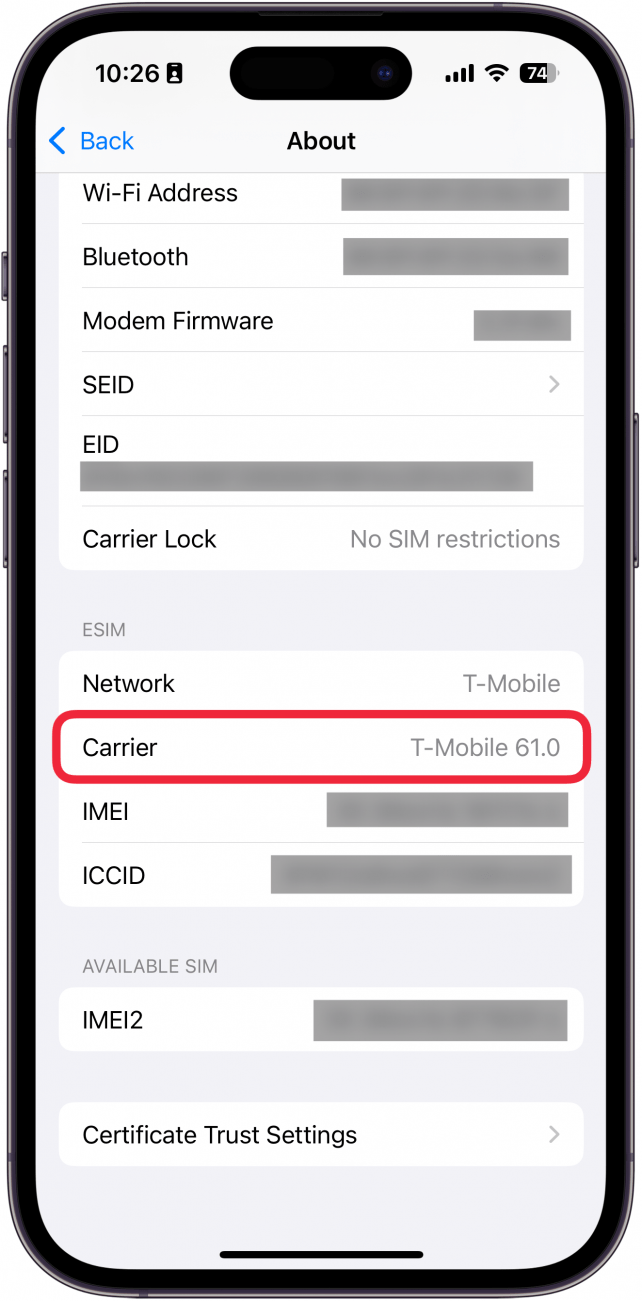
The version number listed reflects your current carrier settings configuration.
What Happens When You Insert A New SIM Card
When you insert a new SIM card, your iPhone may require a carrier settings update to function correctly. This ensures compatibility with the new carrier’s network.
If prompted, install the update immediately to avoid call, data, or messaging issues.
Troubleshooting Common Problems
If you do not see a carrier update prompt or continue experiencing network issues, try the following steps.
- Restart your iPhone and check again
- Toggle Airplane Mode on and off
- Ensure Wi-Fi or cellular data is enabled
- Remove and reinsert your SIM card
- Reset network settings if problems persist
Tips
- Check for carrier updates after major iOS updates
- Install updates promptly when prompted
- Restart your iPhone after applying carrier changes
- Contact your carrier if updates fail repeatedly
FAQ
Are carrier settings updates safe?
Yes. Carrier settings updates are safe and officially provided by Apple and your wireless carrier.
Do carrier updates use mobile data?
Carrier updates are very small and typically use minimal data.
Can I install carrier updates manually?
Yes. You can manually check for updates from the About section in Settings.
Do carrier settings updates affect iOS?
No. Carrier settings updates are separate from iOS updates.
Summary
- Carrier settings updates improve network performance and reliability
- Most updates install automatically, but manual checks are available
- Updating can fix call, data, and messaging issues
- New SIM cards often require updated carrier settings
Conclusion
Carrier settings updates play a quiet but important role in keeping your iPhone connected and performing properly. Checking for updates takes only a moment and can prevent many common network problems.
If your iPhone experiences signal issues or missing carrier features, updating carrier settings should be one of the first troubleshooting steps you try.


Discussion (0)
Be the first to comment.