




If an app is not working or opening on your iPhone or iPad, the cause usually comes down to software glitches, low storage, or compatibility issues. Most problems resolve quickly once you apply the right fix in the correct order.
Table of contents
- Start with quick checks that fix most app issues
- Check for app and system updates
- Fix storage and memory-related launch problems
- Check permissions and background settings
- Fix apps that stopped opening after an update
- iPad-specific fixes if apps won’t open
- Advanced fixes if nothing else works
- When to contact the app developer or Apple Support
- Tips to prevent apps from failing to open again
- FAQs
- Summary
Start with quick checks that fix most app issues
These fixes solve the majority of app launch problems in minutes and require no technical knowledge.
Force close and reopen the app
Force closing clears frozen processes that block the app at launch. Swipe up from the bottom, pause, then swipe the app card away and reopen it.
Restart your iPhone or iPad
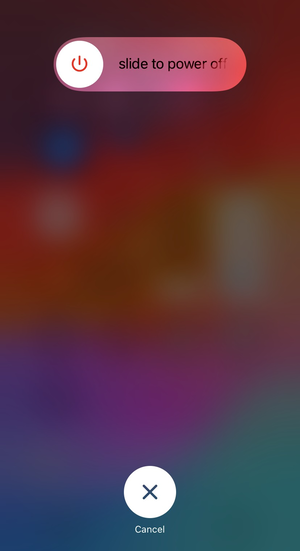
A restart refreshes system services and memory. Hold the power button, slide to power off, wait 30 seconds, then turn the device back on.
Check if the app is down or having server issues
Some apps rely on online servers to open. If the service is down, the app may freeze or crash during launch.
Check for app and system updates
Outdated software often causes compatibility issues that prevent apps from opening.
Update the affected app from the App Store
App updates frequently fix launch bugs. Open the App Store, go to Updates, and install the latest version.
Update iOS or iPadOS
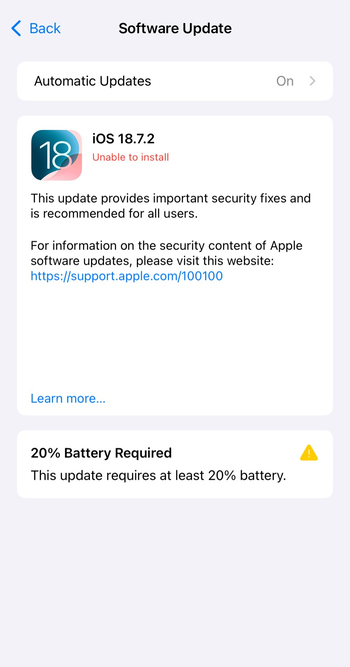
System updates resolve OS-level problems that affect multiple apps. Go to Settings → General → Software Update and install any available update.
Fix storage and memory-related launch problems
Low storage or high memory usage commonly stops apps from launching.
Free up storage space
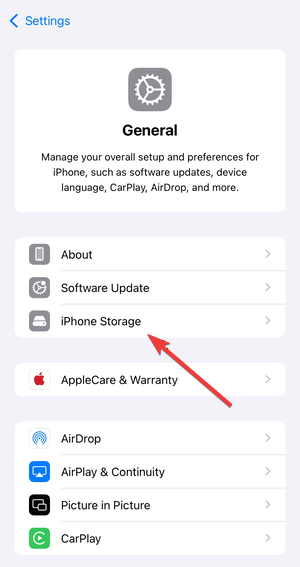
Apps need free space to create temporary files. Go to Settings → General → iPhone Storage or iPad Storage and remove unused apps or files.
Close background apps
Too many background apps increase memory pressure. Close unused apps to give the affected app enough resources to open.
Check permissions and background settings
Incorrect settings can silently block apps during startup.
Review app permissions
Missing permissions can stop an app from loading properly. Open Settings, scroll to the app, and allow required permissions.
Enable background app refresh
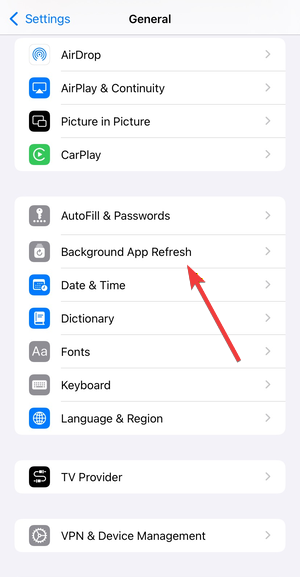
Some apps rely on background activity to initialize. Go to Settings → General → Background App Refresh and enable it for the app.
Fix apps that stopped opening after an update
Post-update issues often stem from corrupted app data or sync problems.
Reinstall the problematic app
Reinstalling removes corrupted files left behind after updates and resets the app. Delete the app, restart the device, then download it again from the App Store.
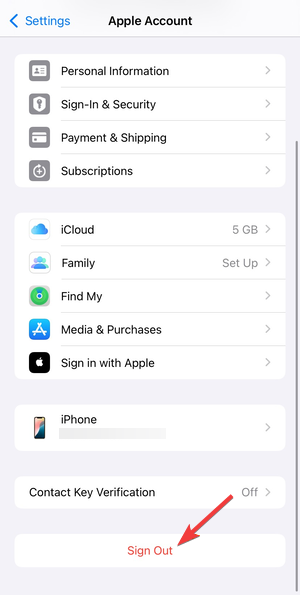
Sign out and back into your Apple ID
Account sync errors can block app authentication. Go to Settings, tap your name, sign out, restart, then sign back in.
iPad-specific fixes if apps won’t open
Some issues affect iPads differently than iPhones.
Disable Stage Manager or split screen temporarily
Multitasking features can conflict with older apps. Turn off Stage Manager in Settings → Home Screen & Multitasking and retry the app.
Check external display or keyboard connections
External accessories may cause display or input conflicts. Disconnect all accessories and test the app again.
Advanced fixes if nothing else works
Use these steps only if simpler fixes fail.
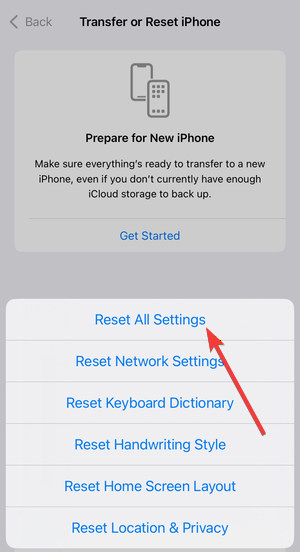
Reset all settings
This clears system configuration issues without deleting personal data. Go to Settings → General → Transfer or Reset iPhone → Reset → Reset All Settings.
Restore iPhone or iPad as a last resort
A full restore fixes deep system corruption. Back up your device first, then restore using Finder or iTunes.
When to contact the app developer or Apple Support
If only one app fails to open after all fixes, the issue likely lies with the app itself. If multiple apps fail, Apple Support can help diagnose hardware or system-level problems.
Tips to prevent apps from failing to open again
- Keep apps and iOS or iPadOS updated
- Maintain at least 5–10 GB of free storage
- Avoid installing unstable beta versions
- Restart your device weekly
- Remove unused apps regularly
FAQs
Why does only one app fail to open on my iPhone? This usually points to a bug or compatibility issue specific to that app.
Will reinstalling an app delete my data? Some apps store data in the cloud, but others erase local data after reinstalling.
Can low battery cause apps not to open? Low battery can restrict background processes and affect app launches.
How long should fixes take to work? Most fixes work immediately, while post-update issues may take a few minutes after reinstalling.
Summary
- Force close and restart the app and device
- Update the app and iOS or iPadOS
- Free storage and reduce background memory usage
- Check permissions and background settings
- Reinstall the app or reset settings if needed
Fixing an app that is not working or opening on iPhone or iPad usually takes only a few minutes. Start with simple restarts and updates, then move to storage and permission checks before using advanced resets. Once the app opens normally, regular updates and basic maintenance help prevent the issue from returning.


Discussion (0)
Be the first to comment.