




If your iPhone stays stuck on Update Requested, the update hasn’t started downloading yet. This usually happens because Apple’s servers delay requests, your device lacks enough free space, or your network blocks the download. The issue looks serious, but most cases resolve with a few targeted fixes.
Table of contents
- How long “Update Requested” should normally last
- Why your iOS update gets stuck at update requested
- Quick checks before trying fixes
- Fix iOS update stuck at update requested
- Advanced fixes if the update is still stuck
- Special cases you should know about
- Tips to avoid iOS update issues in the future
- FAQs
- Summary
How long “Update Requested” should normally last
Under normal conditions, this screen lasts a few minutes. During major iOS releases, it can last one to two hours. If nothing changes after several hours or overnight, the update likely needs intervention.
Why your iOS update gets stuck at update requested
Most stalls trace back to overloaded Apple servers, insufficient storage, unstable Wi-Fi, active VPNs, or configuration profiles. Battery restrictions can also pause the request if your iPhone isn’t charging.
Quick checks before trying fixes
These checks save time and help you avoid unnecessary troubleshooting.
Check Apple system status
If Apple’s update servers experience heavy traffic, your device can’t proceed. Waiting becomes the only option during widespread outages.
Make sure your iPhone meets update requirements
Your iPhone needs enough free storage, at least 50% battery, or a charger connected. If one requirement fails, the update request won’t move forward.
Fix iOS update stuck at update requested
Restart your iPhone
A restart clears temporary system processes that often block update requests. Power your iPhone off completely, wait 30 seconds, then turn it back on.

Check and free up iPhone storage
iOS updates usually require 5–10 GB of free space. Open Settings > General > iPhone Storage and remove unused apps, videos, or large message attachments.

Switch Wi-Fi networks or reset network settings
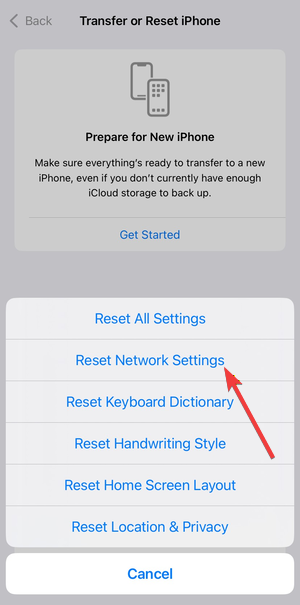
Unstable networks commonly stop update requests. Try a different Wi-Fi network or reset settings from Settings > General > Transfer or Reset iPhone > Reset > Reset Network Settings.
Turn off VPN and device profiles
VPN apps, beta profiles, and work management profiles can block Apple servers. Disable VPNs and remove profiles from Settings > General > VPN & Device Management.

Delete and re-download the iOS update
A corrupted update file can freeze progress. Go to Settings > General > iPhone Storage, tap the iOS update, delete it, then return to Software Update.

Force restart if the update screen won’t progress
If your iPhone ignores all input, perform a force restart using your model’s button combination. This does not erase data and often restores update functionality.
Advanced fixes if the update is still stuck
Update iOS using Finder or iTunes
Connecting your iPhone to a computer bypasses over-the-air delays. Finder on macOS or iTunes on Windows can download and install the update directly.
Use recovery mode only as a last resort
Recovery mode can reinstall iOS if the system becomes unresponsive. This method carries a data-loss risk, so use it only after backups exist.
Special cases you should know about
iOS update stuck overnight
If you are updating your iPhone overnight and it gets stuck, this usually indicate server congestion resolved which should be resolved by morning. If the screen still shows Update Requested the next day, proceed with manual fixes.
Stuck after downloading but before installing
This points to storage or battery issues. Free space and charge your device fully before retrying installation.
iOS update stuck on a new iPhone
New devices often hit server limits during setup day. Waiting several hours or updating later usually resolves the issue.
Tips to avoid iOS update issues in the future
- Keep at least 10 GB of free storage available
- Update during off-peak hours
- Use a stable home Wi-Fi network
- Avoid VPNs during updates
- Install updates while charging
FAQs
Does “Update Requested” mean my iPhone is frozen?
No. Your device waits for Apple’s servers to allow the download.
Can I cancel the update safely?
Yes. You can delete the update file without affecting personal data.
Will forcing a restart delete my data?
No. A force restart only reboots the system.
Summary
- Wait up to two hours during peak release periods
- Restart your iPhone and check storage space
- Change Wi-Fi networks and disable VPNs
- Delete and re-download the update
- Use Finder or iTunes if over-the-air updates fail
If your iPhone stays stuck on Update Requested, start with patience, then move through fixes in order. Most updates resume without data loss, and only rare cases require recovery mode or Apple Support.


Discussion (0)
Be the first to comment.