




If your iPhone started downloading an iOS update and you are not ready to install it, you still have options. Apple does not include a visible pause button, but you can stop an iOS update while it is downloading, delete the update file, and prevent future automatic downloads.
This guide explains how to cancel an iOS update in progress, what works at each stage of the update process, and how to keep control over future iOS software updates.
Can You Stop An iOS Update In The Middle?
You can stop an iOS update depending on its current status. Timing matters, because Apple locks the process once installation begins.
If the update is downloading, you can pause and cancel it safely. If the update is preparing to install, you can usually delete the update file. Once the Apple logo and progress bar appear, the update cannot be stopped.
How To Stop An iOS Update While It Is Downloading
When an iOS update is downloading, your iPhone needs an active internet connection. Cutting that connection immediately pauses the download and gives you time to remove the update file.
- Swipe down from the top-right corner to open Control Center
- Turn on Airplane Mode
- Confirm that Wi-Fi is also turned off
The download stops instantly once the connection is disabled. Keep Airplane Mode enabled until you complete the next step.
How To Delete A Downloaded iOS Update File
Deleting the update file prevents iOS from continuing the installation and frees up storage space.
- Open Settings
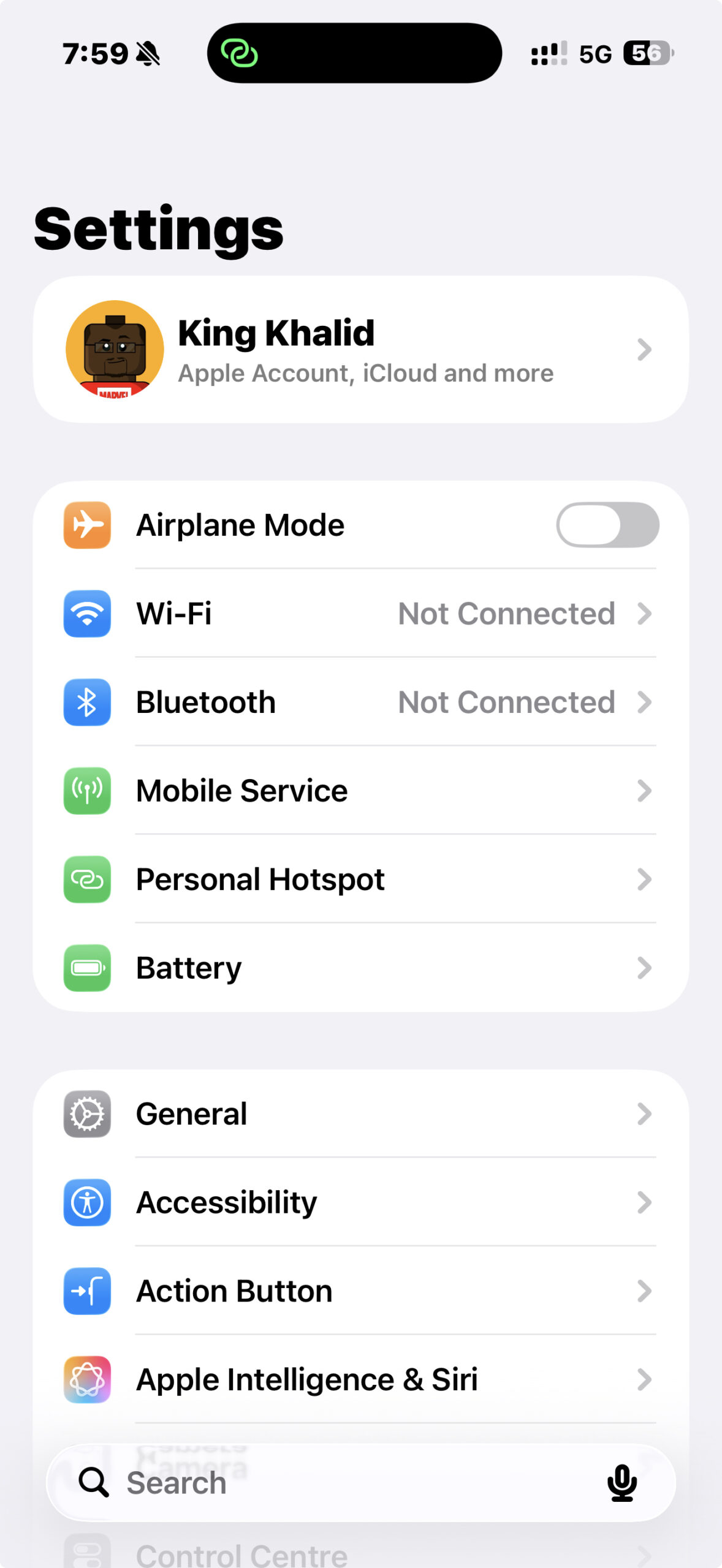
- Tap General
- Select iPhone Storage
- Scroll down and tap the iOS update file
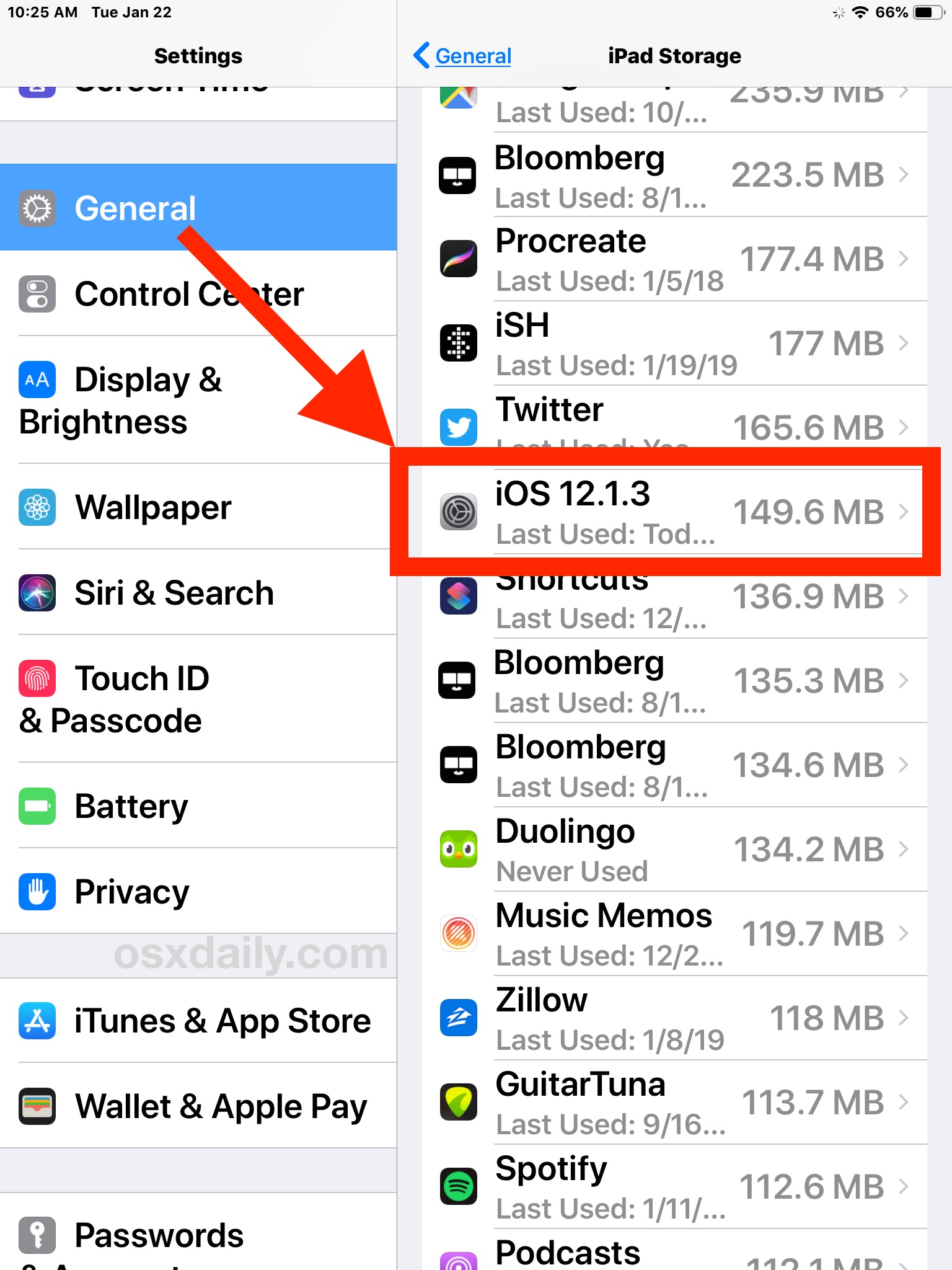
- Tap Delete Update
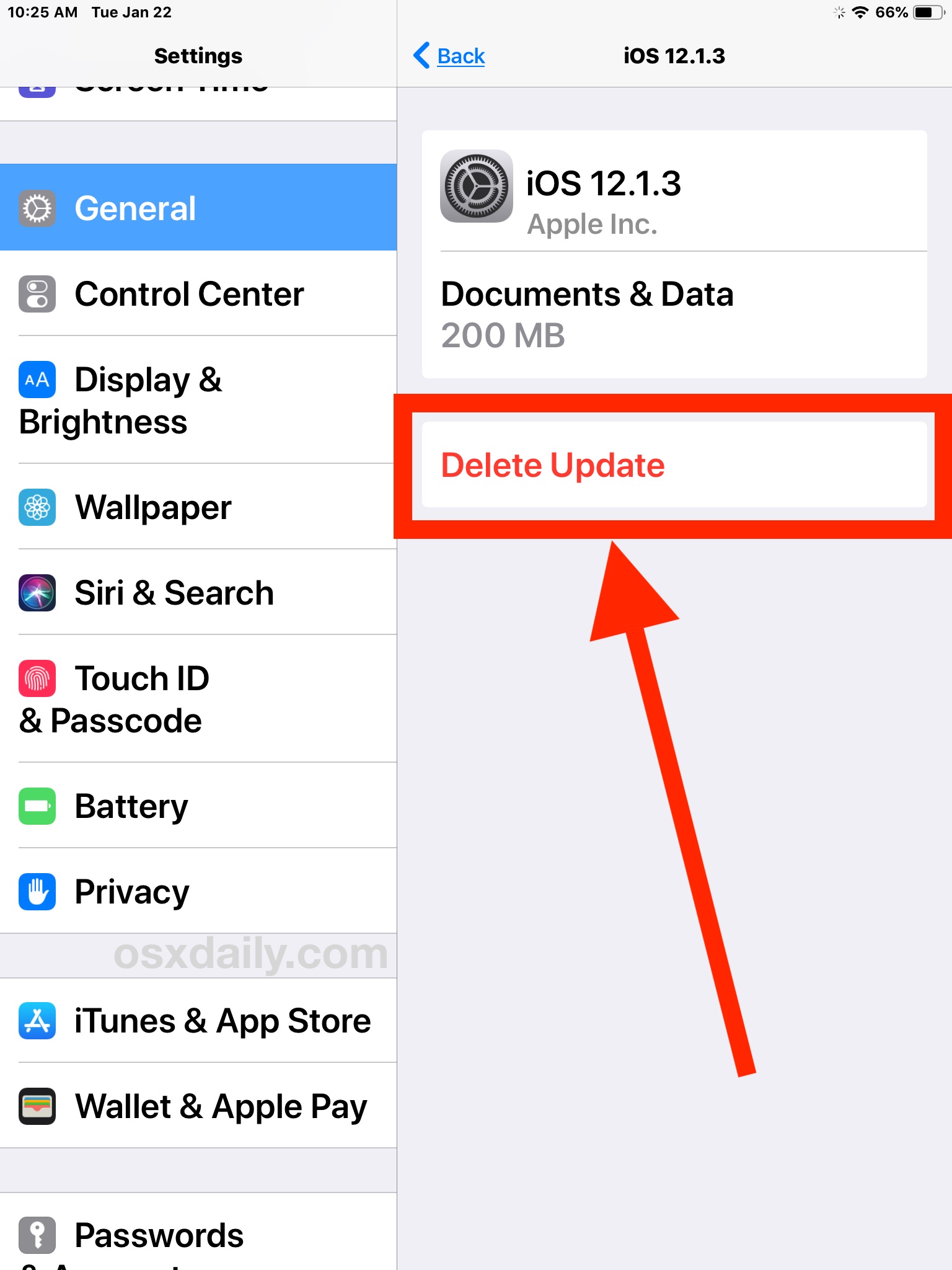
- Tap Delete Update again to confirm
Once deleted, the update is removed from your device and will not install automatically.
Verify The iOS Update Is Fully Canceled
Before turning Airplane Mode off, confirm that the update is no longer queued.
- Turn off Airplane Mode
- Open Settings
- Go to General → Software Update
If you see the standard update screen instead of a progress bar, the update has been successfully stopped.
How To Turn Off Automatic iOS Updates
Disabling automatic updates prevents iOS from downloading software updates in the background without your approval.
- Open Settings
- Tap General
- Select Software Update
- Tap Automatic Updates
- Turn off both Download iOS Updates and Install iOS Updates
Your iPhone will still notify you when a new update is available, but it will not download or install it automatically.
Troubleshooting Common Problems
If the update keeps reappearing, make sure both Automatic Updates toggles are disabled. iOS may re-download updates if only one option is turned off.
If the update does not appear in iPhone Storage, it has not downloaded far enough to create a removable file.
If installation already started, the update cannot be stopped and must complete before any changes can be made.
Tips
- Stop the update as soon as you notice it downloading
- Delete the update file before reconnecting to Wi-Fi
- Keep enough free storage to avoid forced update behavior
- Review Automatic Updates after every major iOS release
FAQ
Can I pause an iOS update without deleting it?
No. iOS does not offer a true pause feature. You must disconnect from the internet and delete the update file.
Will stopping an update harm my iPhone?
No. Canceling a download or deleting the update file does not damage your device.
Can I stop beta iOS updates the same way?
Yes. The same steps apply to beta and public iOS updates.
Will the update come back automatically?
It can, unless Automatic Updates are turned off.
Summary
- You can stop an iOS update while it is downloading
- Deleting the update file prevents installation
- Automatic Updates must be disabled to stay in control
Conclusion
Stopping an iOS update while downloading is possible if you act quickly. By disconnecting from the internet, deleting the update file, and disabling automatic updates, you decide when your iPhone installs new software. This approach works for both standard and beta iOS releases and keeps your device exactly where you want it.


Discussion (0)
Be the first to comment.