TP-Link has recently launched its first line-up of mesh Wi-Fi systems with support for the newest 802.11ax (Wi-Fi 6) standard. The line-up includes three new models: Deco X90, Deco X60, and Deco X20. In this review, we are testing the mid-range model - the TP-Link Deco X60. This mesh Wi-Fi system has a sleek look and powerful hardware that can manage up to 150 devices simultaneously. To learn more about its real-life performance, read our review:
TP-Link Deco X60: Who is it good for?
This mesh Wi-Fi system is an excellent choice for:
People interested in the latest Wi-Fi 6 standard
Users who want excellent security for their smarthome
People who need a simple mesh Wi-Fi system that is easy to use and set up
Users who wish to control their home network using the Alexa voice assistant
Large homes and apartments where the coverage area is an issue
Pros and cons
Here are the things we like about TP-Link Deco X60:
Beautiful design that looks good in any living space
Fast Wi-Fi on both bands (2.4 GHz and 5 GHz)
Support for the new Wi-Fi 6 standard
Can be remotely controlled from a mobile app that is easy to use
Excellent security features for your smarthome
Useful parental controls for families with children
You need to set up only the main unit in the kit. The rest are added automatically
It works with other models from the Deco family
There are also some downsides to consider:
The variability of wireless transfers can be high on the 2.4 GHz band
No USB port
Only two Ethernet ports on each Deco X60
It can't take full advantage of 1 Gbps internet connections
Product rating4/5
Verdict
TP-Link Deco X60 is a beautiful mesh Wi-Fi system that introduces support for the latest Wi-Fi 6 (802.11ax) standard. It features powerful hardware and a simple mobile app that can be used to set up and manage your network. Its security tools and parental controls are top-notch, and so is the maximum speed you get from it. Another positive aspect is that you can use it alongside other Deco devices, and extend your existing network with ease. If you want to jump on the Wi-Fi 6 bandwagon and want a mesh Wi-Fi system for increased wireless coverage, you should consider TP-Link Deco X60.
Unboxing the TP-Link Deco X60 AX3000 mesh Wi-Fi system
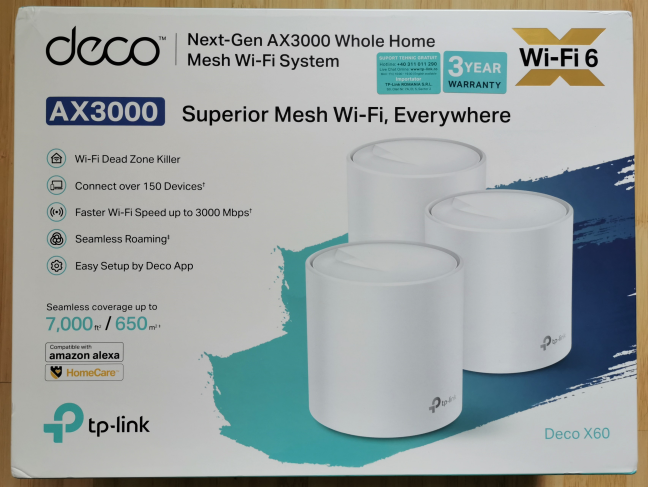
TP-Link Deco X60 comes in a beautiful white box with a picture of the devices that make up the kit. Deco X60 can be purchased in packs of one, two, or three units. As you can see below, we received the 3-pack variant for testing.
The packaging used for TP-Link Deco X60
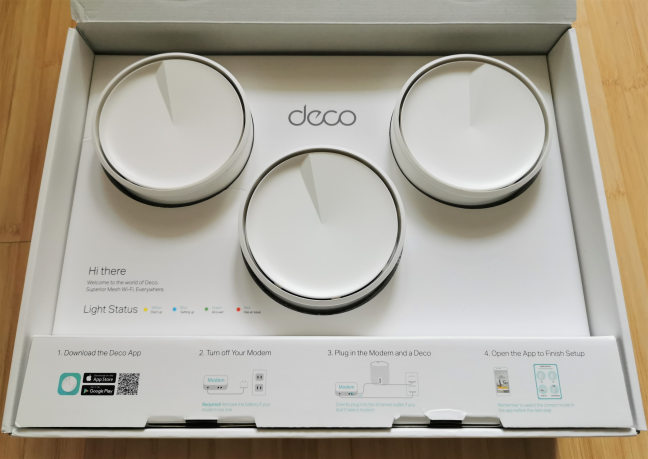
When you open the box, you immediately see the units that make up the kit. Everything looks great, and the whole experience is pleasant, giving you the impression that you are unboxing a premium device.
Unboxing the TP-Link Deco X60
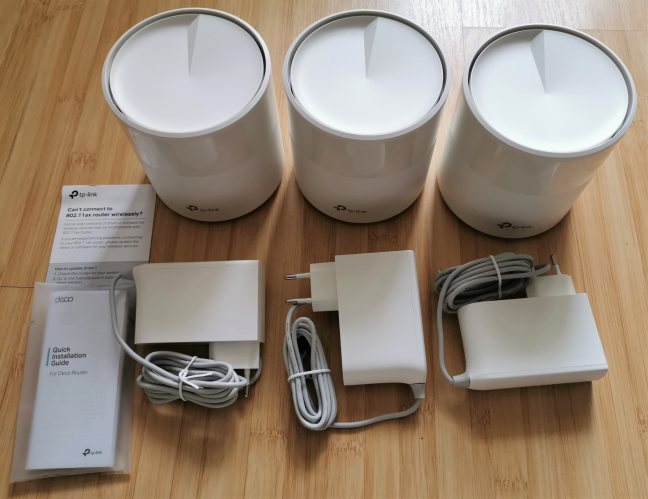
When you take everything out of the box, you find the following items: the Deco X60 units, an Ethernet cable, the power adapter for each unit (they are pretty big), the quick installation guide, and a leaflet with advice about what to do if you can't connect to the Wi-Fi emitted by Deco X60. Unfortunately, the new Wi-Fi 6 standard on the Deco X60 doesn't work well with older devices that do not have up-to-date wireless drivers. This problem is valid for all Wi-Fi 6 routers and mesh Wi-Fi systems, not just the Deco X60.
TP-Link Deco X60 - what is inside the box
The packaging used for the TP-Link Deco X60 looks great, and the unboxing is worthy of a premium device. Inside you have everything you need to get started right away.
Hardware specifications and design
Each TP-Link Deco X60 unit has a quad-core Qualcomm IPQ8071 processor, running at 1 GHz, 512 MB of RAM, and 128 MB of storage space for the firmware. There are four internal omnidirectional antennas inside each unit, broadcasting the wireless signal using all modern standards, including Wi-Fi 6 (802.11ax). This mesh Wi-Fi system is dual-band, and it has a maximum total theoretical bandwidth of 575 Mbps on 2.4GHz band and 2400 Mbps on 5GHz band, when using Wi-Fi 6.
TP-Link Deco X60
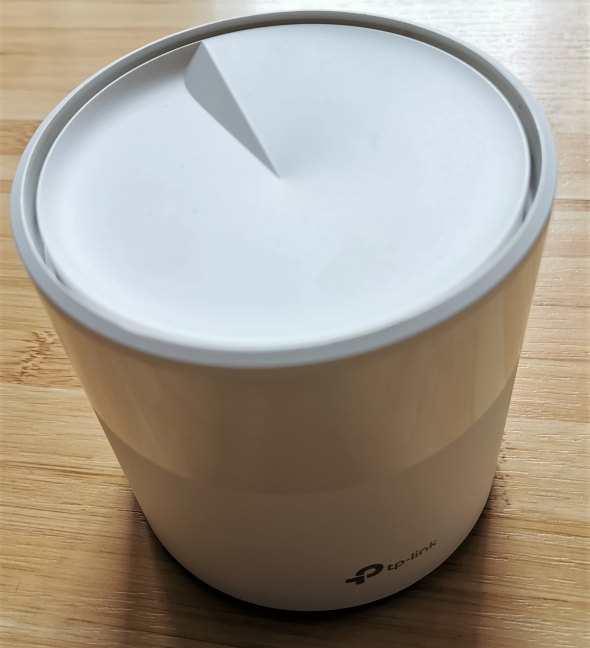
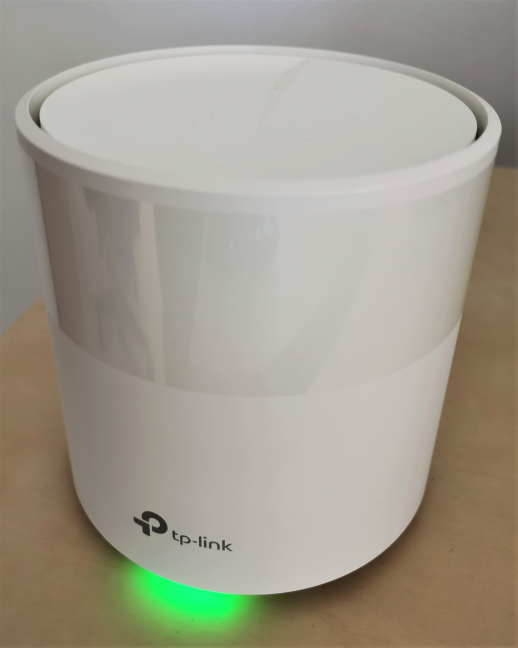
TP-Link Deco X60 has a beautiful and minimalistic design. Each unit is round, with a diameter of 4.33 inches (11 cm) and a height of 4.49 inches (11.4 cm). It also weighs 2.86 pounds or 1.3 kg. The TP-Link logo on the front is discrete, and there's only one LED on the bottom of each unit, signaling its functioning status. As you can see in the picture below, Deco X60 is a good fit for living spaces where design and looks matter.
TP-Link Deco X60
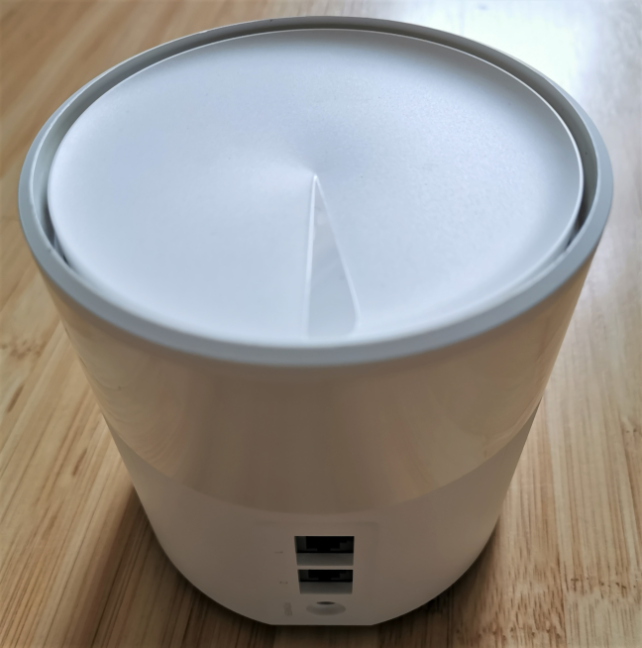
On the back of each Deco X60, there are only two Ethernet ports (at 1 Gbps) and the power jack. This is enough for most people, but advanced users are going to want more Ethernet ports. Also, there is no USB port available on the Deco X60, which may be a downside to some users.
The ports on the back of the TP-Link Deco X60
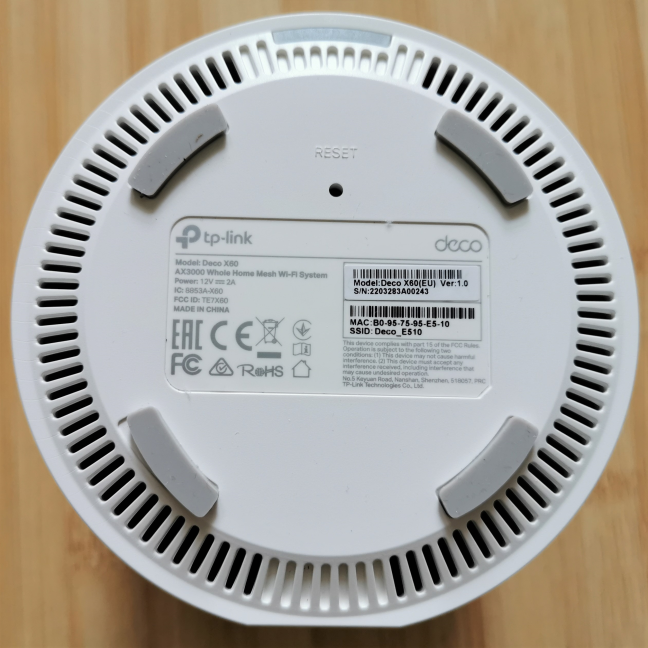
On the bottom of the Deco X60, there are four rubber feet that hold it in place on any surface and the Reset jack. Unfortunately, there are no holes for mounting it on walls.
Setting up and using the TP-Link Deco X60 mesh Wi-Fi system
The setup is done on your smartphone, using the Deco app for Android or iOS. You also need a TP-Link Cloud account, which you can create from the mobile app or your computer. One downside is the lack of two-factor authentication to increase the security of your account. We hope that TP-Link is going to add this security feature in the future.
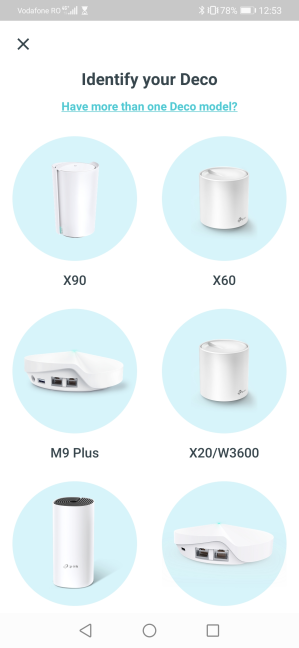
The setup wizard is easy to use, and it starts with choosing the model that you own.
Setting up the TP-Link Deco X60
You are asked to choose the location of your main Deco X60 unit and the type of your internet connection. The app doesn't do a good job of detecting your internet connection, and it is best to enter all the necessary connection details manually.
You create your Wi-Fi network and set up a name and password for it. Then, you can add more Deco units. One cool feature is that the additional Deco X60 units are detected automatically after you turn them on. You don't need to add them manually from the app.
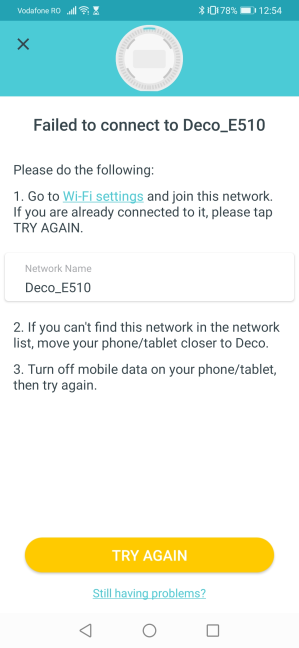
You may encounter a minor annoyance during the setup wizard, with the app failing to connect to the main Deco X60 unit. Follow the instructions given by the app and try again. It usually works after that.
Failed to connect error
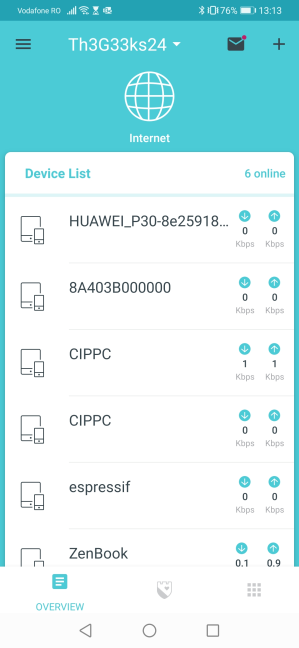
The TP-Link Deco app is simple and easy to use. On the Home screen, you see all the devices that are connected to the network. There is also the HomeCare screen, where you control all the security features of the Deco X60 and the More screen where you get access to the more advanced control options.
The TP-Link Deco app
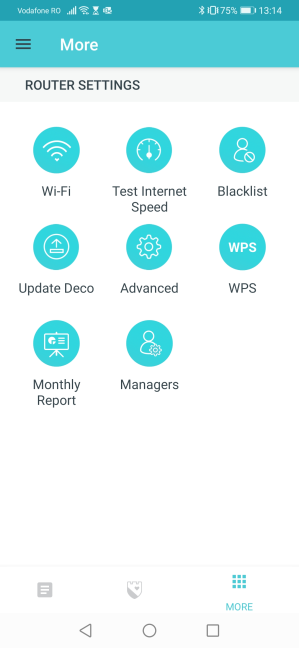
Unfortunately, the list of advanced options is not that long, and power users are going to feel constrained. For example, there is no way to broadcast the Wi-Fi using different names for each band. Also, you can't decide whether you want to turn off Wi-Fi 6 or not.
The settings available in the TP-Link Deco app
One upside to its limited number of advanced options is that everyone can understand the Deco app and use it to easily configure the Deco X60. All the settings are nicely explained, so you should have no issues in setting up your network.
At the beginning of each month, the app offers a report. It includes useful statistics like the devices from your network with the most time spent online, the top internet speed achieved in your network, the number of new devices connected to the network, the malicious attacks blocked, and the internet history of your child if the Parental Controls are set up.
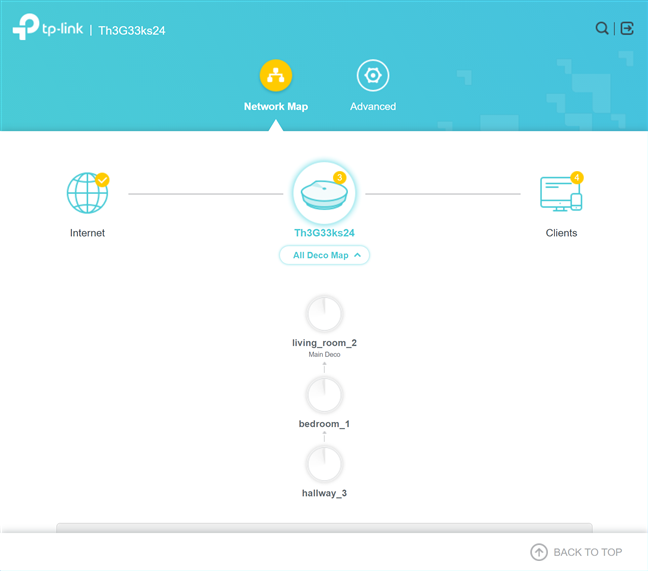
Another positive is that TP-Link offers access to a web-based administration user interface. Unfortunately, the options available here are the same as the ones in the mobile app, and advanced users aren't going to get more out of it, as they would with mesh Wi-Fi systems from other brands.
Setting up the TP-Link Deco X60 from a web browser
We connected more than a dozen devices to the network: desktop PCs, laptops, tablets, several smartphones, one smart plug, one smart bulb, an Xbox One console, and a wireless printer. All of them connected to the network without issues; however, one laptop kept disconnecting from the Wi-Fi. TP-Link's warning about some devices having problems with Wi-Fi 6 is not without reason. Until we updated the drivers on that laptop to their latest version, the Wi-Fi connection stability was an issue.
One aspect that we noticed was that the Wi-Fi speed was excellent in the rooms closest to the main Deco X60 unit, but it dropped quite a bit in the others. However, this doesn't mean that the Wi-Fi was slow anywhere in our apartment. On the contrary, it's just that this drop could have been smaller with a dedicated Wi-Fi backhaul, like other mesh Wi-Fi systems have.
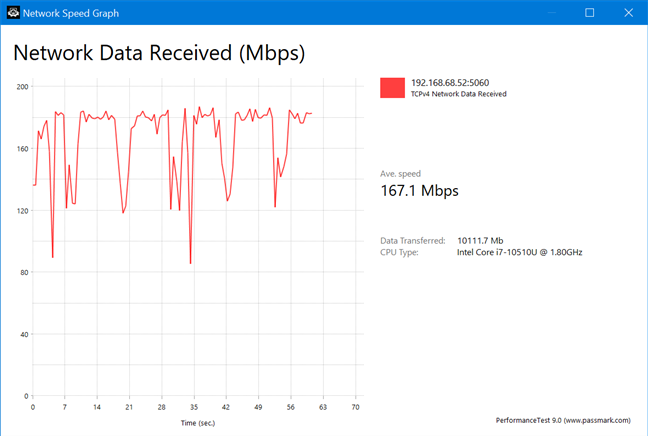
When transferring data through the network, we looked at the variability of network transfers.
We went to a room that is separated from the main Deco X60 unit by a wall. We noticed that the average transfer speed was good when using the 2.4 GHz band and Wi-Fi 4. However, the variability of wireless transfers can be improved through future firmware updates.
TP-Link Deco X60 - Wireless transfer on the 2.4 GHz band with Wi-Fi 4
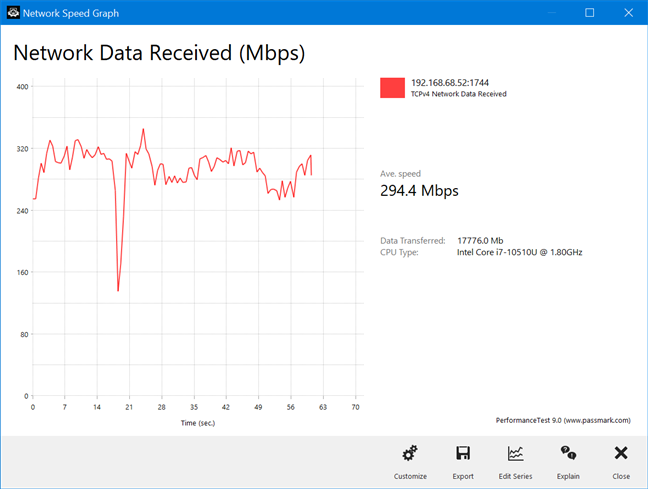
The average speed was higher in the same room when switching to the 5 GHz band and Wi-Fi 5. The variability of wireless transfers was also better than on the 2.4 GHz band.
TP-Link Deco X60 - Wireless transfer on the 5 GHz band with Wi-Fi 5
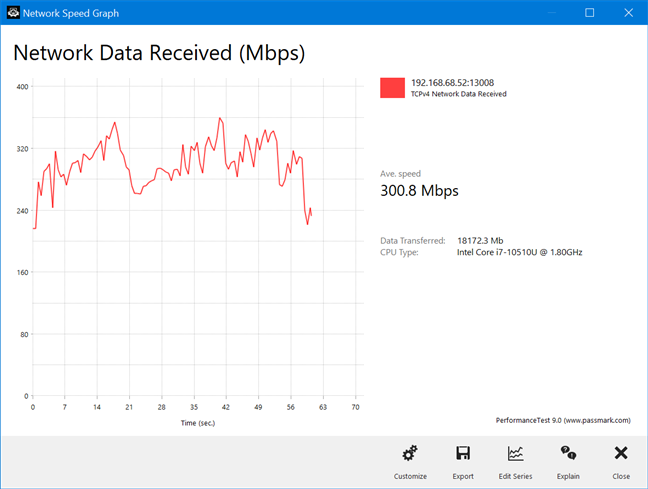
When switching to Wi-Fi 6, the average speed was slightly higher, but by a small margin. We noticed meaningful improvements when using Wi-Fi 6 only in the rooms covered by the main Deco X60 unit. This is a bit of wasted potential, and it is caused by the lack of a dedicated Wi-Fi backhaul, like other mesh Wi-Fi systems have.
TP-Link Deco X60 - Wireless transfer on the 5 GHz band with Wi-Fi 6
If you want to know more about the real-world performance offered by TP-Link Deco X60, including comparisons with other mesh Wi-Fi systems, go to the next page of this review.
Wireless network performance
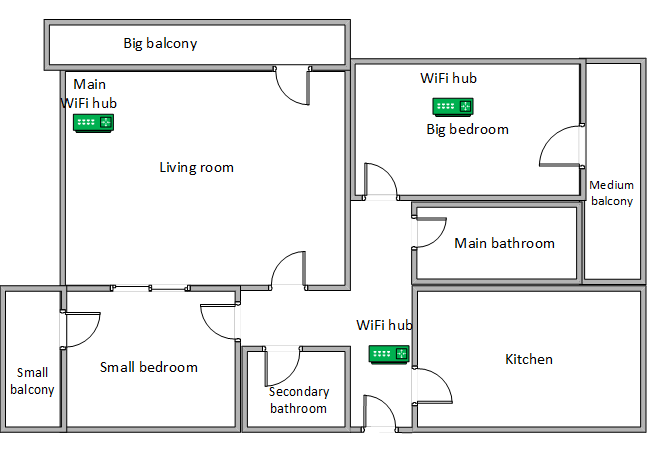
Let's look at the apartment that was used in our testing and how it is set up. You can see that the main TP-Link Deco X60 is placed in the living room. We put the second unit in the hallway, close to the entrance to the kitchen, and the third one in the big bedroom. Our testing was done using a fast 1 Gigabit internet connection that is capable of uploads on the internet of up to 500 Mbps. We used a laptop with a Wi-Fi 6 network card for all our measurements and several software tools.
The apartment in which we tested the TP-Link Deco X60
To get a better idea of the performance offered by TP-Link Deco X60, we compared it with TP-Link Deco M9 Plus and ASUS ZenWi-Fi AC (CT8).
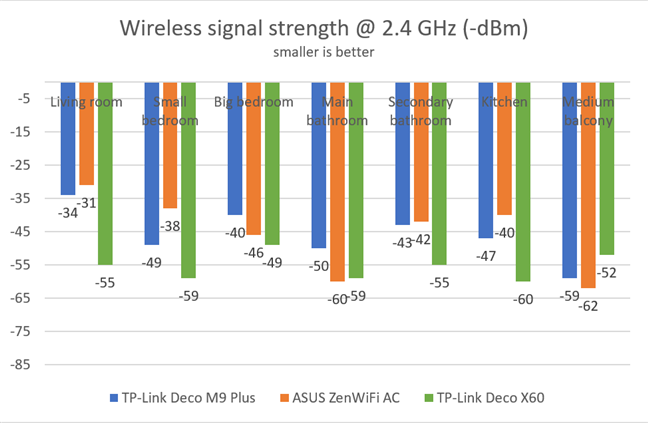
We started by evaluating the 2.4 GHz wireless network and measured the signal strength offered in each room using a tool named NetSpot Pro. We were surprised to see that the signal strength provided by TP-Link Deco X60 was weaker than that of its competitors.
TP-Link Deco X60 - Wireless signal strength on the 2.4 GHz band
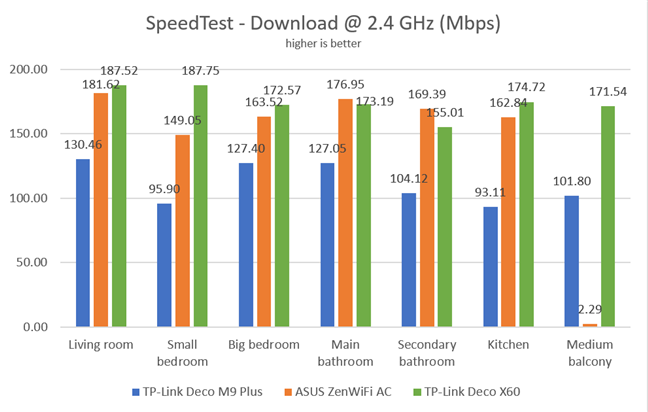
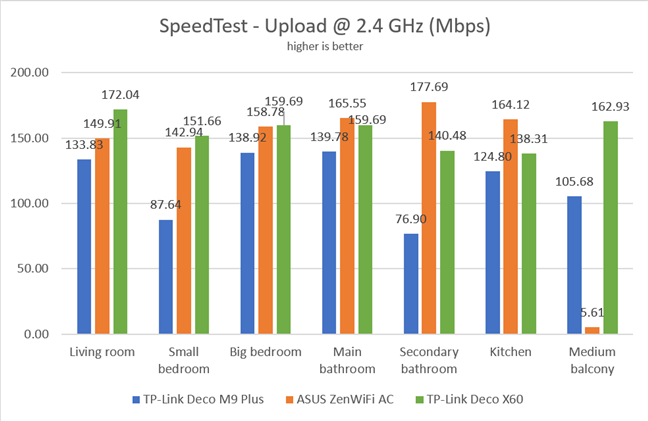
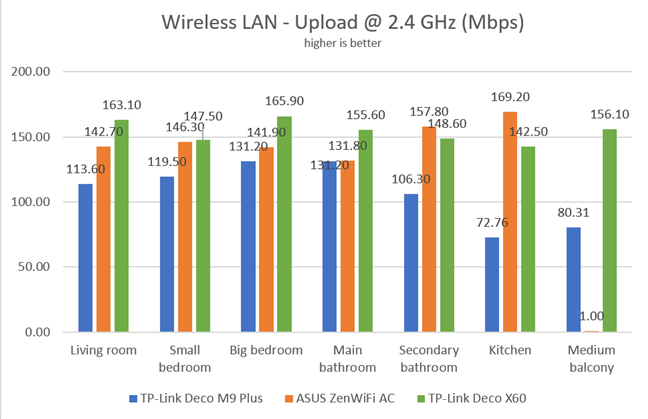
We switched to SpeedTest to see how fast the internet connection is when using the 2.4 GHz wireless frequency and the Wi-Fi 4 standard. TP-Link Deco X60 was the fastest in our comparison. It benefited from the fact that it is a 3-pack kit instead of a 2-pack like the ASUS ZenWi-Fi AC (CT8).
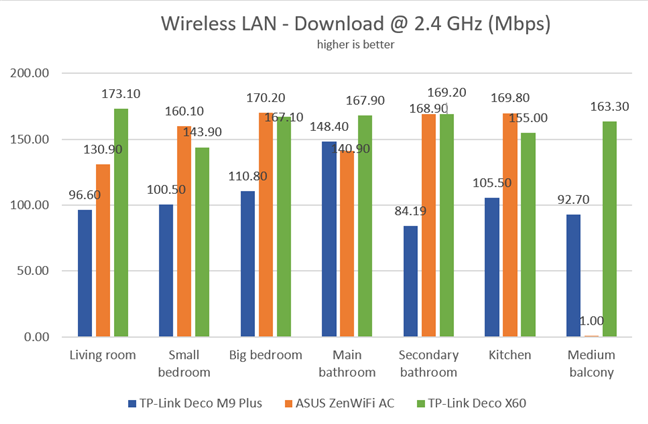
For the next measurements, we used the PassMark Performance test to transfer data between two computers connected to the network, using the 2.4 GHz wireless frequency and Wi-Fi 4. The competition was tight, and there was no clear winner in this comparison.
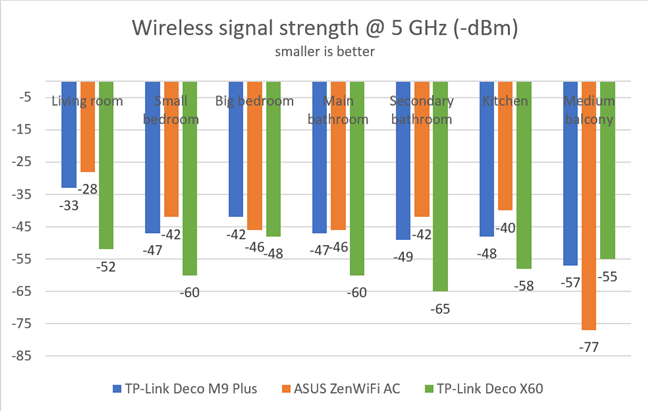
Next, we analyzed the performance offered by the 5GHz wireless network. We started by looking at the evolution of the signal strength. Deco X60 surprised us again by having a relatively low signal strength when compared to other mesh Wi-Fi systems.
TP-Link Deco X60 - Wireless signal strength on the 5 GHz band
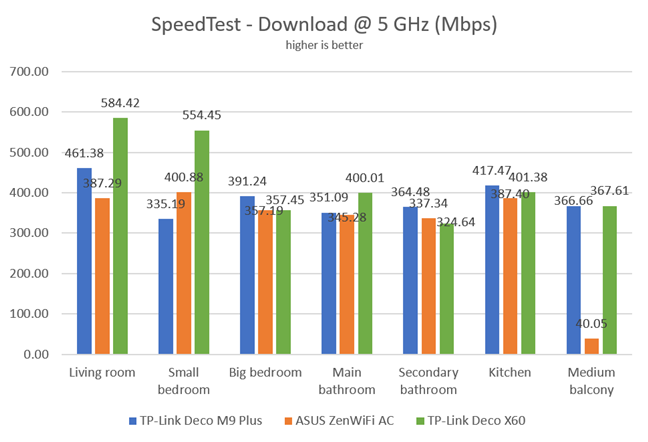
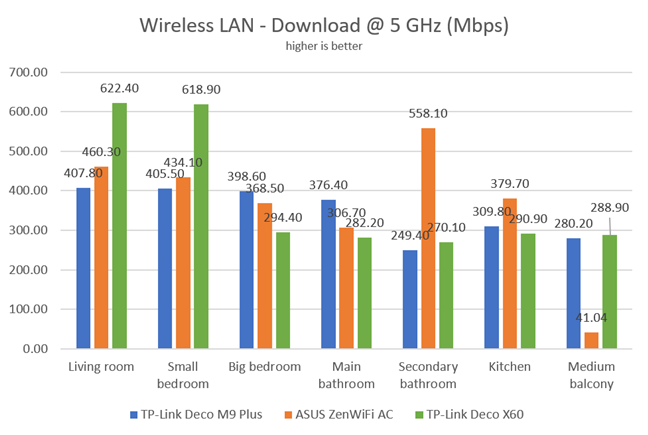
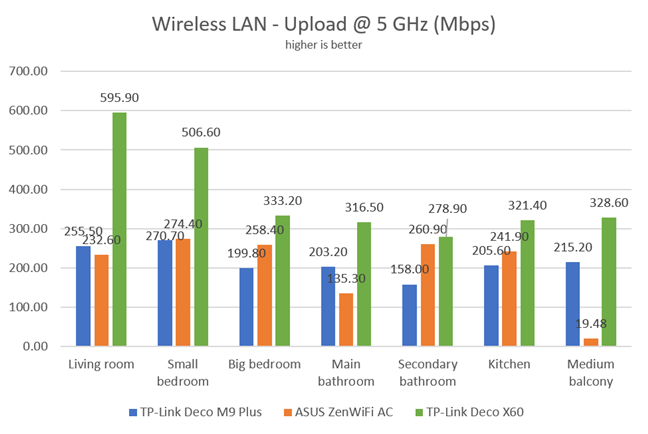
We then ran SpeedTest to see how fast the internet connection is on the 5GHz band when using Wi-Fi 5. In the rooms closest to the main Deco X60 station, this kit was the speed champ. However, in other rooms, it was outmatched by the other mesh Wi-Fi systems in our comparison.
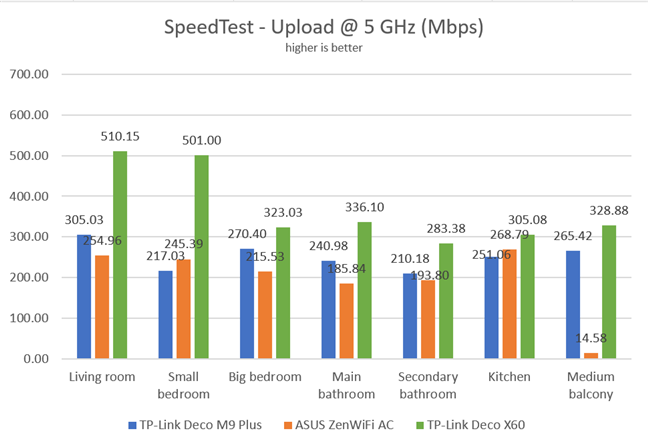
Next, we used the PassMark Performance test to transfer data between two computers connected to the network. In this test too, Deco X60 was the fastest in the rooms closest to the main station, and the download speed dropped quite a bit in the other rooms.
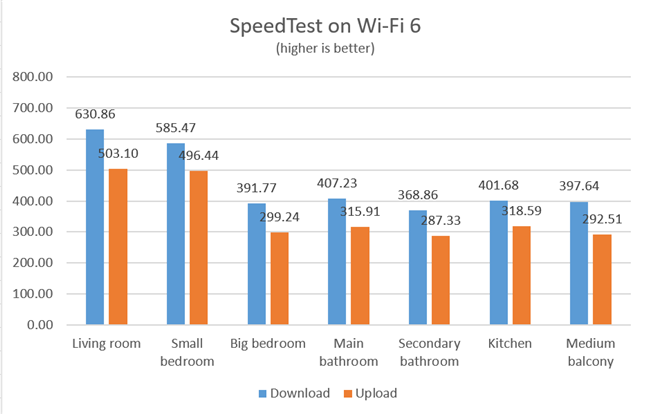
We remained on the 5 GHz band and switched to the Wi-Fi 6 standard. Deco X60 is the first mesh Wi-Fi for which we could adequately test the speed you get with Wi-Fi 6 in all the rooms of our test apartment. Therefore, we don't have data from other mesh Wi-Fi systems to compare it to.
With SpeedTest, you can measure the speed of your internet connection. As you can see below, the speed on Wi-Fi 6 is faster than when using Wi-Fi 5, but not by a large margin. We expected a more significant improvement.
TP-Link Deco X60 - SpeedTest - The speed on Wi-Fi 6
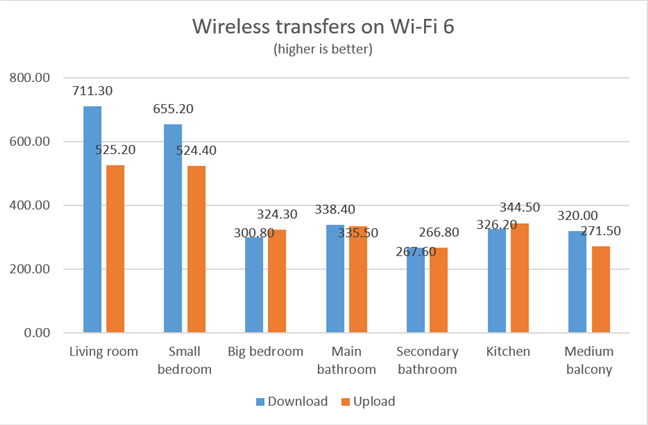
For the last measurements on Wi-Fi 6, we used the PassMark Performance test to transfer data between two computers connected to the network. This tool gives us the average speed you get when making a data transfer. As you can see, in the rooms closest to the main Deco X60 unit, there were important speed improvements when switching to Wi-Fi 6.
TP-Link Deco X60 - Wireless transfers on Wi-Fi 6
TP-Link Deco X60 delivers fast wireless connections on all bands and wireless standards, including Wi-Fi 6. However, we expected a slightly higher speed improvement when switching from Wi-Fi 5 to Wi-Fi 6.
Wired network performance
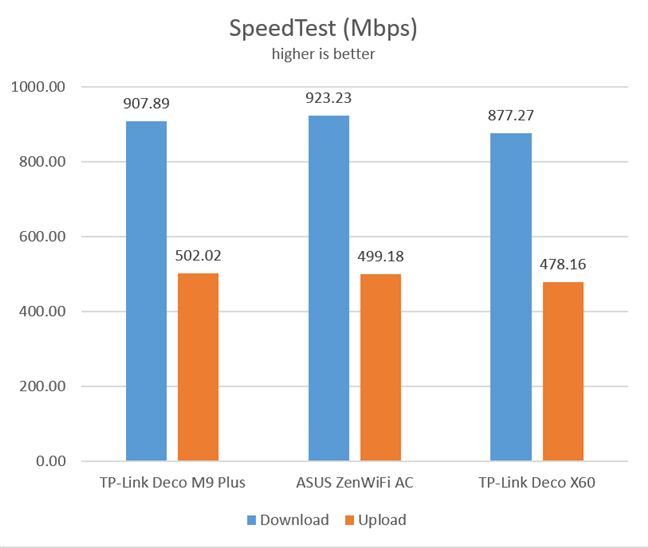
To test the quality of the wired Ethernet connection, we used two PCs. We measured the speed of the internet connection when using a 1 Gbps Ethernet cable with SpeedTest. As you can see below, TP-Link Deco X60 did not reach the maximum potential of our internet connection, as the other mesh Wi-Fi systems in our comparison did. This is an area of improvement for future firmware updates.
TP-Link Deco X60 - SpeedTest on Ethernet connections
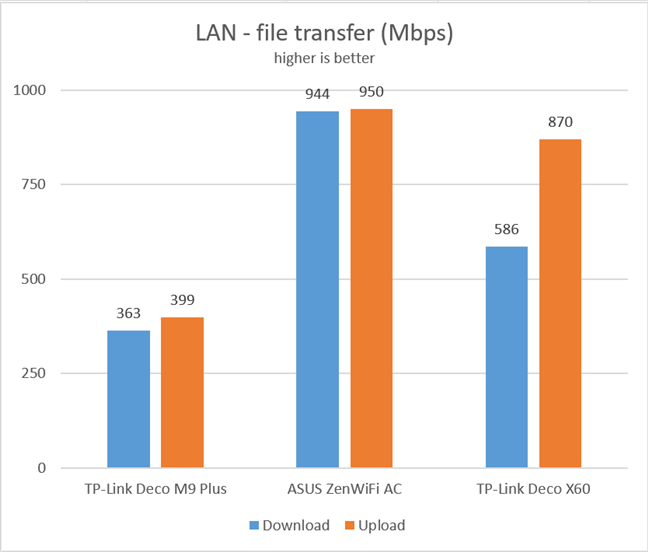
We ran a network transfer between the two computers, each connected with an Ethernet cable to a different Deco X60. Since the units were connected wirelessly, the transfer was mediated through Wi-Fi. We used the PassMark Performance test for this measurement, and the results we measured were close to what we expected.
TP-Link Deco X60 - File transfers on Ethernet connections
The TP-Link Deco X60 has just two Ethernet ports on each unit, and it cannot take full advantage of 1 Gbps internet connections.
Extra features
The TP-Link Deco X60 AX3000 has a couple of advanced and useful features:
Antivirus - the HomeCare module powered by TrendMicro gives you access to useful security tools that filter malicious content, prevent intrusions and external attacks, and quarantine infected devices from sending information outside your network.
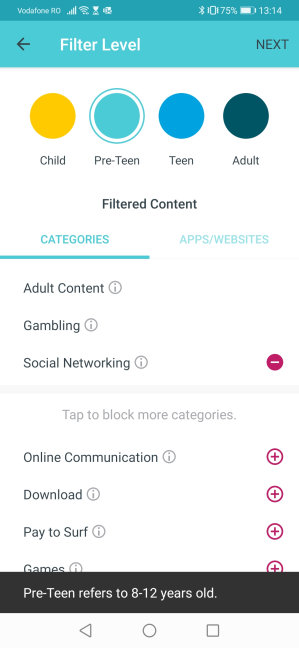
Parental Controls - a simple, cloud-based solution that helps you block inappropriate content online, on all your children's devices, and set limits to how much time children spend online.
Quality of Service - an advanced QoS module that helps you set up with ease how you want your network traffic to be prioritized: for gaming, streaming, chatting, surfing the web, or other activities.
Speedtest - use it to run quick speed tests, and see how fast your internet connection is when using the TP-Link Deco X60.
WPA 3 encryption - a newer, more secure encryption protocol for wireless networks. However, to use it successfully, your network clients need to support WPA3, not just the Deco X60. Therefore, you may find that it doesn't work with some of the devices on your network, and turn it off.
Guest network - enable one Guest wireless network that emits its signal on the 2.4 GHz and 5 GHz bands simultaneously.
IPv6 - support for IPv6 addresses that are going to replace IPv4.
TP-Link DDNS - a service that allows you to connect to the Deco X60 from the internet, even if your internet provider gives you a dynamic public IP address.
Amazon Alexa integration - you can pair an Amazon Alexa device to control the Deco X60 with simple voice commands.
The advanced features on the TP-Link Deco X60 are useful and work well. However, advanced users may feel the lack of a USB port or the fact that there is no support to use this mesh Wi-Fi system as a VPN server.
What is your opinion about the TP-Link Deco X60 mesh Wi-Fi system?
Now you know our opinion about TP-Link Deco X60 and how it performed in our testing. Before you go, tell us if you are interested in mesh Wi-Fi systems with support for the Wi-Fi 6 standard, and why. Also, if you have any questions about Deco X60, do not hesitate to ask. Comment below and let's discuss.































Discussion (0)
Comments are closed.