




Switch Control is an iPhone and iPad accessibility feature designed for users who have difficulty interacting with the touchscreen. It allows you to control your device using external switches, screen taps, sounds, head movements, or camera-based gestures.
When enabled, Switch Control highlights items on the screen one at a time. You trigger actions by activating a switch, making it possible to open apps, type, scroll, and even play games without touching the display.
What Switch Control Is Used For
Switch Control helps users with limited mobility interact with iOS and iPadOS more easily. It replaces traditional touch gestures with customizable inputs that suit different physical abilities.
You can use Switch Control to navigate menus, select buttons, drag items, type text, use system gestures, and run shortcuts across most apps.
How To Set Up Switch Control On iPhone And iPad
Before turning on Switch Control, you should add at least one switch. Enabling the feature without a switch makes the device difficult to control.
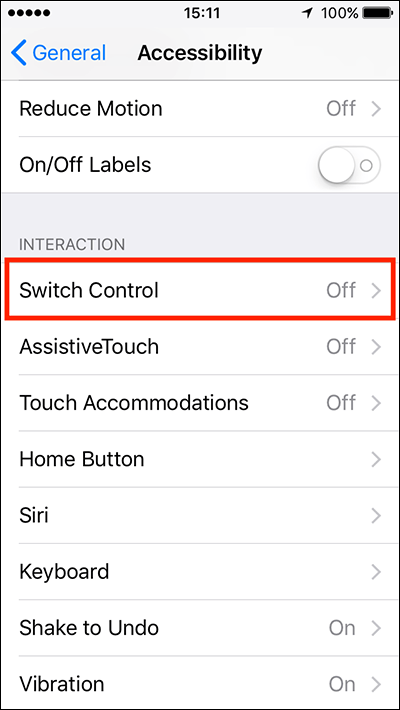
- Open Settings and tap Accessibility

- Select Switch Control, then tap Switches
- Tap Add New Switch

- Choose a switch type: External, Screen, Camera, Back Tap, Sound, or AirPods gestures
- Assign an action such as Select Item or Move To Next Item
How To Turn Switch Control On Or Off
Once at least one switch is configured, you can enable Switch Control from Accessibility settings.
- Go to Settings → Accessibility
- Tap Switch Control
- Toggle Switch Control on
You can also turn Switch Control off at any time by triple-clicking the Side button or Home button, depending on your device model.
How To Customize Switch Control Settings
Switch Control includes advanced customization options that affect scanning behavior, timing, visuals, and input accuracy. These settings help tailor the experience to the user’s needs.
Scanning Style And Mode
You can choose between Auto Scanning, Manual Scanning, or Single Switch Step Scanning. Modes such as Item Mode, Gliding Cursor, and Head Tracking determine how selections move across the screen.
Timing And Tap Behavior
Adjust auto scan speed, pauses, repeat delays, and long-press duration. Tap behavior controls whether the scanner menu appears or actions trigger immediately.
Switch Stabilization
This feature prevents accidental input by requiring a hold duration or ignoring repeated presses. It is useful for users with tremors or inconsistent movement.
Visual And Audio Feedback
You can enlarge the scanning cursor, change its color, enable sound effects, or turn on spoken feedback as items are highlighted.
How To Use Switch Control With Other Apple Devices
Switch Control can also control a Mac or Apple TV connected to the same Wi-Fi network and Apple ID. This allows one switch setup to manage multiple Apple devices.
- Enable Switch Control on your iPhone or iPad
- On a Mac, allow platform switching in Accessibility settings
- Open Devices in Switch Control and connect to the target device
Troubleshooting Common Problems
If Switch Control feels unresponsive, check that at least one switch is assigned to Select Item. Slow scanning speed can also make navigation confusing.
If the screen scans but nothing activates, verify that your switch actions are mapped correctly and that Switch Control is enabled.
Tips
- Start with two switches: one for moving and one for selecting
- Use Back Tap if you do not have external hardware
- Enable Switch Stabilization to reduce accidental input
- Practice with simple apps before using complex ones
FAQ
Can I use Switch Control without extra hardware?
Yes. You can use screen taps, sounds, Back Tap, or head movements through the front camera.
Does Switch Control work with Face ID?
Yes. You can enable confirmation with Switch Control instead of pressing the Side button.
Is Switch Control available on all iPhones and iPads?
It is available on most modern devices running current versions of iOS or iPadOS.
Summary
- Switch Control lets you use iPhone and iPad without touching the screen
- You can control the device using switches, sounds, or movements
- Customization options allow precise control and accessibility
Conclusion
Switch Control makes iPhone and iPad more accessible for users with limited mobility or specific physical needs. While setup requires patience, the flexibility and control it offers can significantly improve daily device use.
With the right switches and settings, Switch Control turns iOS into a fully usable interface without relying on touch gestures.


Discussion (0)
Be the first to comment.