



If you are tired of hearing the same default iPhone ringtones like Reflection or Opening, setting a custom ringtone can make your phone easier to recognize and more personal. Apple officially supports ringtones through purchases or iTunes syncing, but both options come with limitations.
The good news is that you can create and set a custom ringtone directly on your iPhone using free tools, without iTunes or a computer. This guide walks through the most reliable method that works at the time of writing.
What You Should Know Before You Start
Creating a custom ringtone on iPhone has a few technical requirements that Apple enforces system-wide.
- GarageBand is required for exporting ringtones on iPhone.
- The audio file must be DRM-free.
- Streaming songs from Apple Music or Spotify will not work.
- The ringtone length must be 30 seconds or less.
Prepare Your Custom Ringtone Audio
Most carriers only play the first 20–30 seconds of a ringtone, even if iOS allows up to 40 seconds. For best results, trim your audio clip to 30 seconds.
You can use a ringtone-making app to trim the song before exporting it through GarageBand.
- Install a ringtone maker app from the App Store.
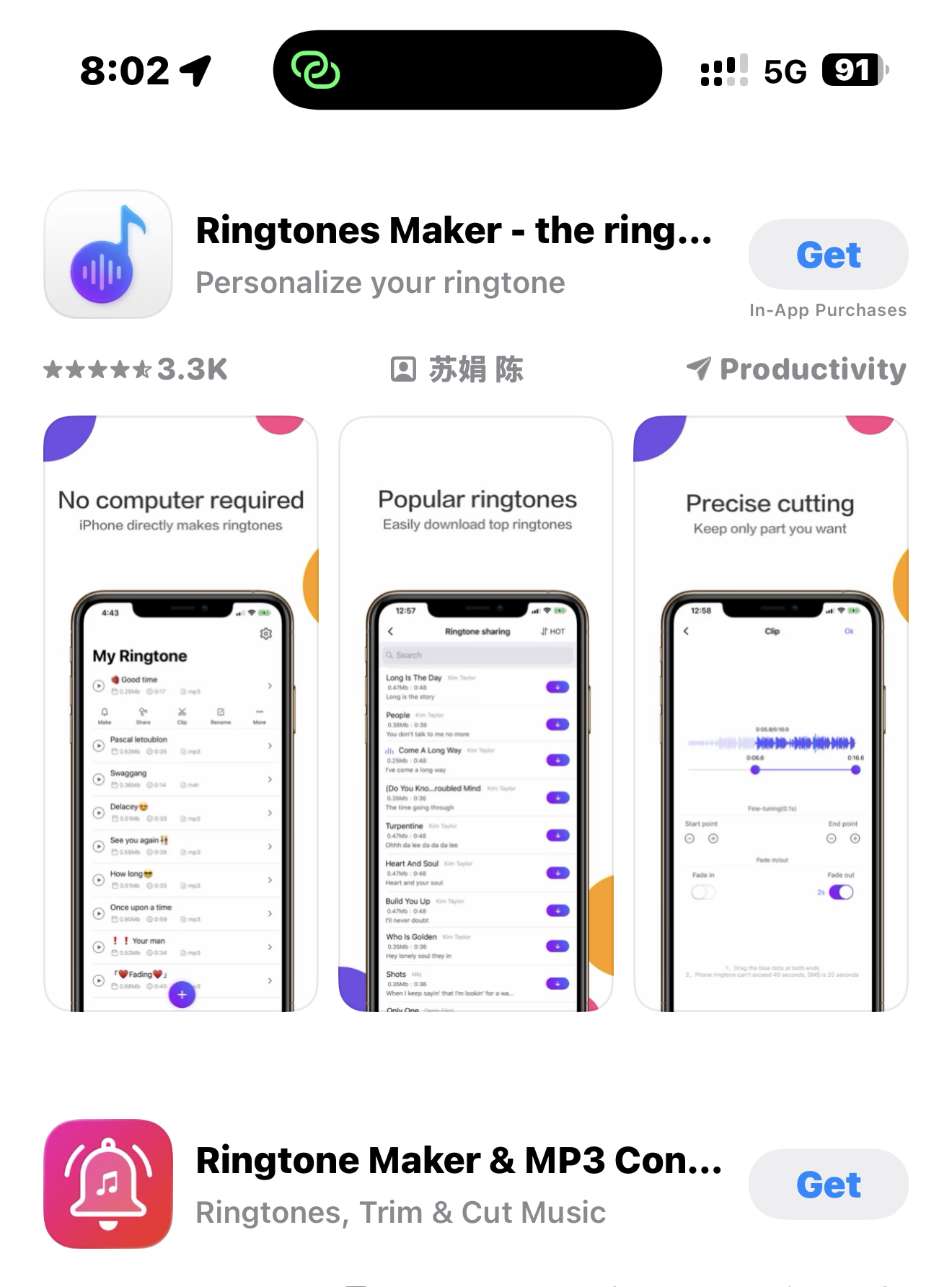
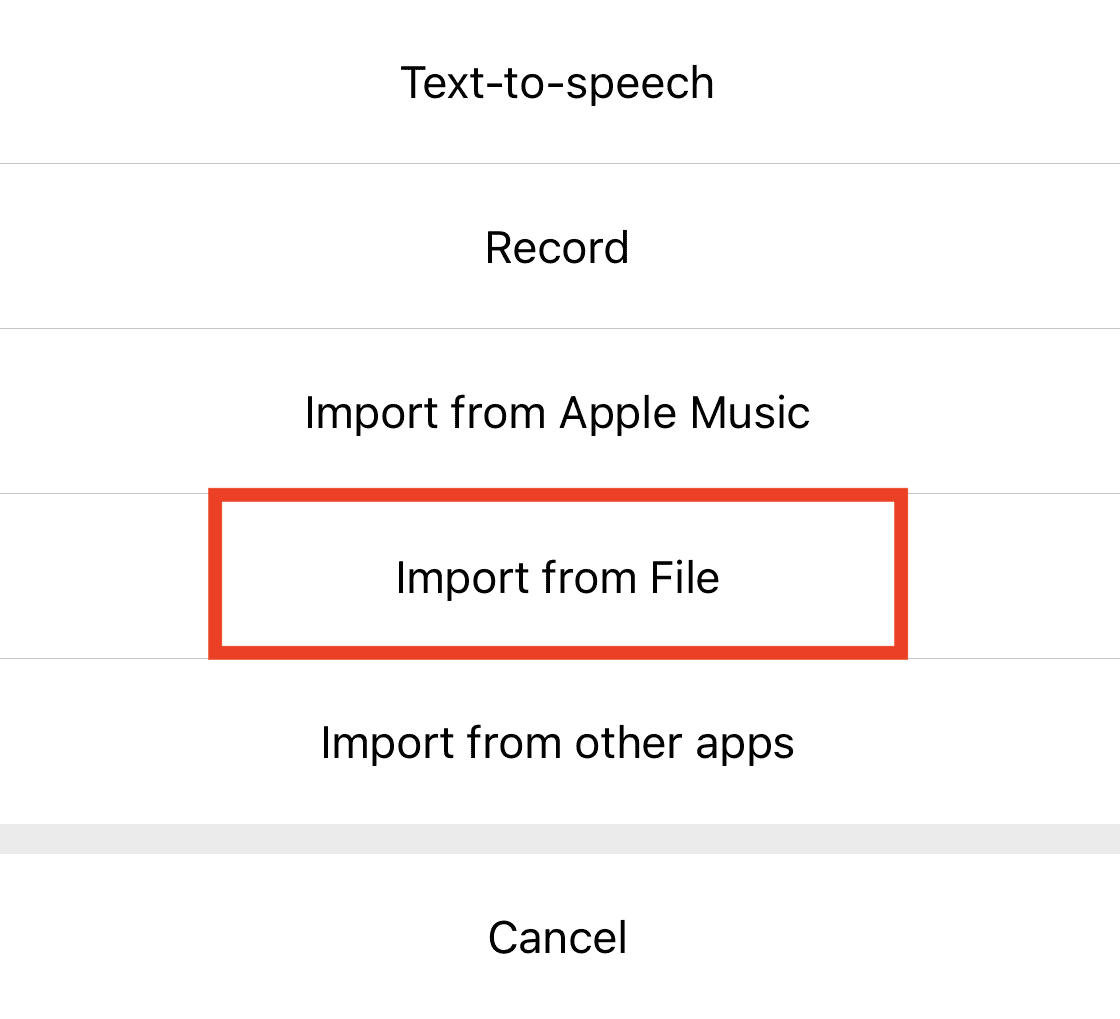
- Open the app and import your audio file from the Files app.
- Trim the song to a maximum of 30 seconds.

- Save the trimmed file in M4R format.
Create And Export The Ringtone Using GarageBand
GarageBand is currently the only iPhone app that allows exporting audio as a system ringtone without a computer.
- Open GarageBand on your iPhone.
- Create a new Audio Recorder project.
- Tap the Loop icon and import your trimmed audio file.
- Drag the audio clip into the timeline.
- Adjust the clip so it starts and ends cleanly.
- Ensure the total length does not exceed 30 seconds.
- Tap the down arrow and select My Songs.
Export The Audio As A Ringtone
Once the project is saved, you can export it directly as a ringtone.
- Tap and hold the GarageBand project.
- Select Share.
- Choose Ringtone.
- Rename the ringtone if needed.
- Tap Export.
After export, iOS will confirm that the ringtone is available.
Set The Ringtone On iPhone
You can apply the ringtone immediately or set it later from system settings.
- Tap Use Sound As.
- Select Standard Ringtone.
If you skipped that step, go to Settings, open Sounds & Haptics, tap Ringtone, and select your custom tone.
Assign A Custom Ringtone To A Contact
Custom ringtones can also be assigned to individual contacts.
- Open the Contacts app.
- Select a contact.
- Tap Edit.
- Tap Ringtone.
- Choose your custom ringtone.
- Tap Done.
Set A Ringtone Without GarageBand Using A Computer
If you do not want to use GarageBand, a computer is required. Third-party desktop apps can create and transfer ringtones without iTunes.
These tools handle audio trimming, conversion to M4R format, and syncing to iPhone automatically. After transfer, the ringtone appears under Sounds & Haptics in Settings.
Troubleshooting Common Problems
If your ringtone does not appear, confirm the file is under 30 seconds and not DRM-protected. Restarting GarageBand or Files can also help refresh export options.
Apple Music tracks cannot be converted into ringtones due to licensing restrictions.
Tips
- Use songs with a clear intro for better ringtone impact.
- Avoid fade-ins that start too quietly.
- Keep original audio files backed up.
- Test the ringtone volume before assigning it.
FAQ
Can I use Apple Music songs as ringtones?
No. Apple Music tracks are DRM-protected.
Why is the ringtone limit 30 seconds?
iOS enforces this limit for consistency and compatibility.
Is GarageBand free on iPhone?
Yes. GarageBand is free and available on the App Store.
Summary
- Custom ringtones make calls easier to recognize.
- GarageBand enables ringtone creation without a computer.
- Audio must be DRM-free and under 30 seconds.
- Ringtones can be assigned system-wide or per contact.
Conclusion
Setting a custom ringtone on iPhone no longer requires iTunes or a PC. With GarageBand and a compatible audio file, you can create, export, and manage ringtones entirely on your device.


Discussion (0)
Be the first to comment.