



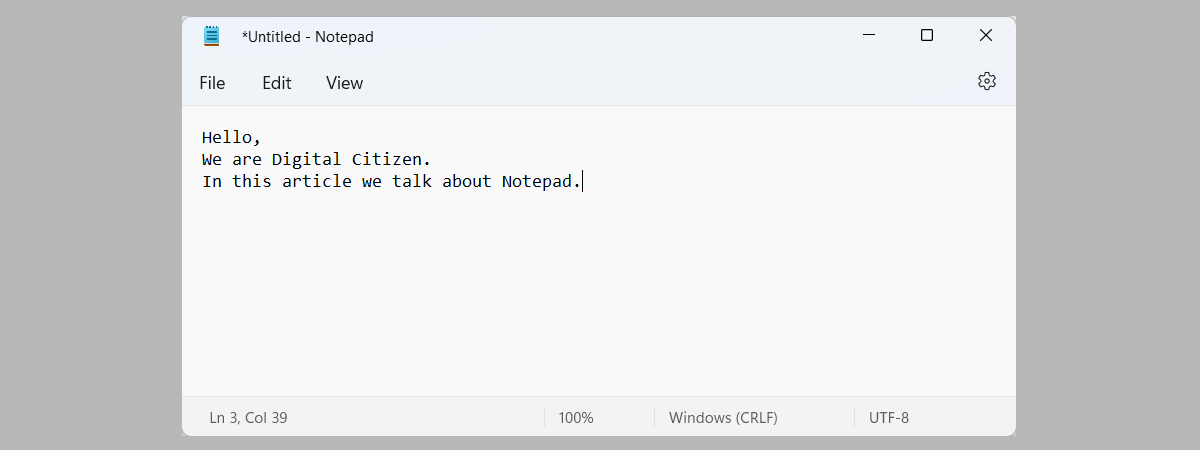
Microsoft is busy infusing many of its Windows apps with features based on artificial intelligence (AI). One of the apps that now benefits from AI is Notepad, but only in Windows 11. Starting in November 2024, Microsoft has added a Rewrite function in Notepad, which helps users improve their writing with the assistance of a sophisticated AI model called GPT. This model can rephrase sentences, alter their tone, or adjust the length of your content according to specific preferences. Whether you aim to condense a paragraph, modify its tone, or completely rewrite sections, Rewrite helps you fast-track your writing with the support of AI technology. Here’s how Rewrite works in Notepad, how to use it efficiently, and how to deal with its limitations:
 Accessing Rewrite in Notepad
In the menu, you can select one of five options:
Accessing Rewrite in Notepad
In the menu, you can select one of five options:
 What Rewrite can do for you
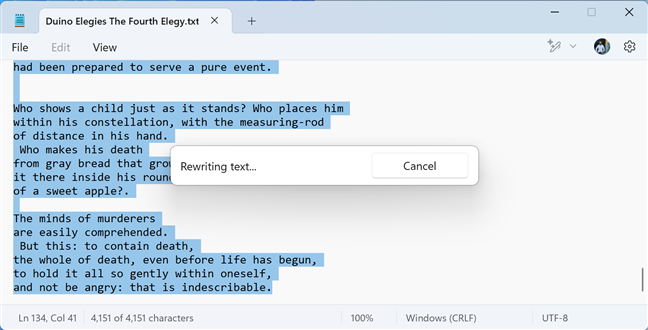
After you select the type of rewrite you want or you press the CTRL + I keys on your keyboard, you are informed that Notepad is rewriting your text. This may take a while, depending on how long the text selection is and how much time Microsoft’s AI needs to come up with the results.
What Rewrite can do for you
After you select the type of rewrite you want or you press the CTRL + I keys on your keyboard, you are informed that Notepad is rewriting your text. This may take a while, depending on how long the text selection is and how much time Microsoft’s AI needs to come up with the results.
 Rewriting text with AI takes a while
Rewrite displays three different versions of the selected text. To navigate between them, use the Next and Previous arrows. If you’re happy with one of the three versions, click or tap Replace to change the initial text with the rewritten one, or use the Copy button, and then paste the rewritten text in another app or file. If you’re not happy with the results, use the options on the toolbar below to adjust the Length, Tone, and Format, and then click or tap the Try again button.
Rewrite then spends some time to generate another three rewrites using your settings. If you don’t plan to use the end result, click or tap Discard. And if you see the AI generated content is incorrect, or it has some important issues that Microsoft should look at, click or tap the Report button to report the problem in the Feedback Hub app.
Rewriting text with AI takes a while
Rewrite displays three different versions of the selected text. To navigate between them, use the Next and Previous arrows. If you’re happy with one of the three versions, click or tap Replace to change the initial text with the rewritten one, or use the Copy button, and then paste the rewritten text in another app or file. If you’re not happy with the results, use the options on the toolbar below to adjust the Length, Tone, and Format, and then click or tap the Try again button.
Rewrite then spends some time to generate another three rewrites using your settings. If you don’t plan to use the end result, click or tap Discard. And if you see the AI generated content is incorrect, or it has some important issues that Microsoft should look at, click or tap the Report button to report the problem in the Feedback Hub app.
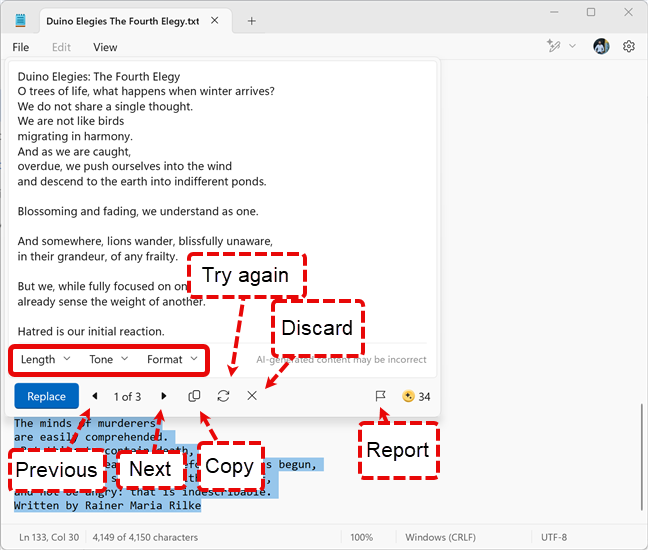
 The options available for handling rewritten text
Now that you know how rewriting text with AI works in Notepad, you should remember its limitations, so keep reading.
The options available for handling rewritten text
Now that you know how rewriting text with AI works in Notepad, you should remember its limitations, so keep reading.
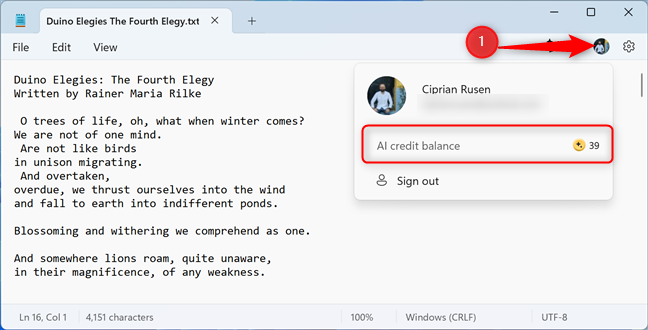 Checking your AI credit balance
TIP: Notepad has received many improvements in Windows 11, and it can do a lot more than its Windows 10 counterpart. For more information, read our tutorial on how to use Notepad in Windows 11.
Checking your AI credit balance
TIP: Notepad has received many improvements in Windows 11, and it can do a lot more than its Windows 10 counterpart. For more information, read our tutorial on how to use Notepad in Windows 11.
How to use Rewrite AI in Notepad
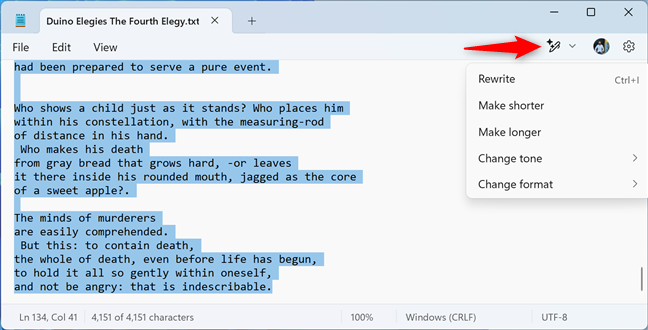
On your Windows 11 computer, open Notepad, and then copy and paste the text you want to rewrite with AI. Or you can open a text file containing what you want to rewrite. For the next step, select the text you want rewritten, and click or tap the Rewrite button on the top right, which looks like a pen with stars (signaling its AI capabilities). Notepad opens the Rewrite menu shown below.- Rewrite - rewrites the selected text using the default settings of this AI feature. If you’re okay with rewriting your texts using the default settings, you can also press the CTRL + I keys to activate this feature. However, I prefer not to, because I like personalizing how texts get rewritten. This keyboard shortcut wastes my AI credit doing something I don’t need. I discuss AI credit more in the next chapter.
- Make shorter - shortens your text while keeping its meaning.
- Make longer - Microsoft’s AI scans the selected text and increases the volume of words and phrases.
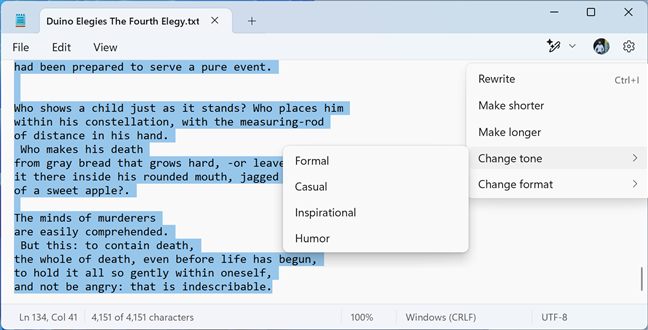
- Change tone - allows you to set the tone for the text generated by AI. You can set it to Formal, Casual, Inspirational, and Humor.
- Change format - you can change the format of the rewritten text to: Paragraph, List, Business, Academic, Marketing, and Poetry.
How to check your AI credit balance
Each time you work with the Rewrite feature in Notepad, you use one AI credit. This happens every time you use a Microsoft AI-based tool on your computer, not just Rewrite in Notepad. For example, the same happens when you use the Image Creator in Paint to create artwork with AI help, or when Copilot answers one of your questions. If you’re unsure how many AI credits you have left, click or tap your Microsoft account icon (or picture) in the top right, and in the menu that opens, you see the AI credit balance.
Discussion (0)
Be the first to comment.