



Having used laptop keyboards for the past few years now, as soon as I decided to build a new PC I was faced with the overwhelming choice of keyboards for desktop computers. Ergonomic keyboards, mechanical keyboards, gaming keyboards and whatnot. Since I didn't want to spend too much money on it and having been satisfied with the quality of Microsoft's keyboards in the past, I decided to check out their offers. And so I ended up buying the Microsoft Comfort Curve 3000. An ergonomic shaped keyboard with multimedia functions that doesn't take up too much space on my desk and has proven to be a great tool for writing articles for Digital Citizen. But let's grab the bull by the horns and see what this keyboard has to offer its users.
Microsoft Comfort Curve 3000 - Unboxing and Specifications
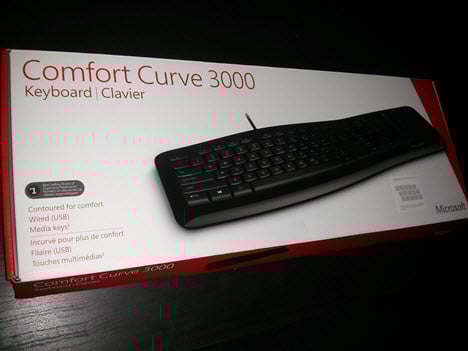
The Microsoft Comfort Curve 3000 comes in a red and white box, somewhat typical to Microsoft's keyboards. The packaging is very similar to that of the Microsoft Sculpt Comfort keyboard that we have reviewed some time ago.
Since I didn't have a proper photo camera around, I used my smartphone's camera to shoot the pictures below, so please excuse the poor image quality.
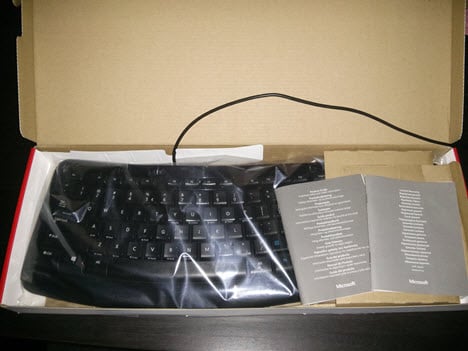
Once you open the box you can find the keyboard wrapped in a protective plastic bag together with the product guide and the warranty.
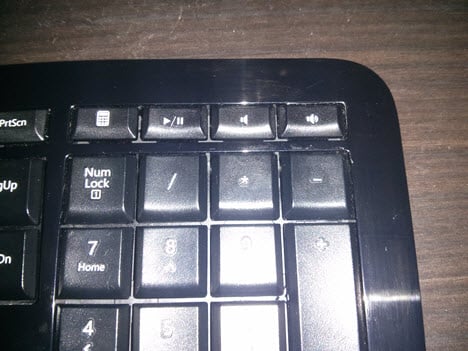
The keyboard has a 104 keys QWERTY layout, it connects to the computer via a USB 2.0 port and it features four multimedia keys: two for controlling the volume, one for playing and pausing audio and one for launching the Windows Calculator. The multimedia keys will definitely be a plus for many users, since Microsoft included only the four most used multimedia keys, instead of a full top row that usually just wastes space without being fully used.
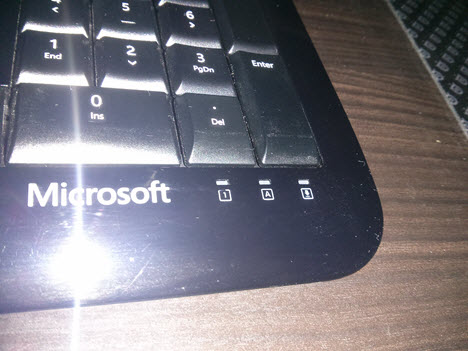
The keyboard has 3 LED indicators for the Caps Lock, Num Lock and Scroll Lock functions.
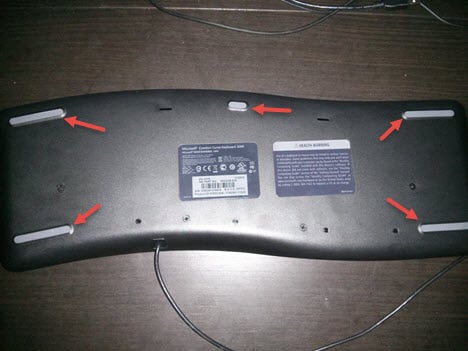
I was rather surprised by the dimensions of the keyboard, since it's very lightweight and thin. Once you flip it over, you can notice five rubber feet that do a great job keeping the keyboard from moving on the desk. Given the ergonomic shape of the keyboard, Microsoft chose not to include foldable feet and I really didn't feel the need for such in my daily use of the keyboard.
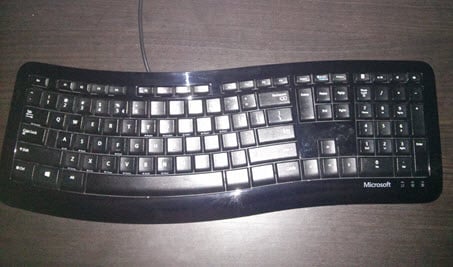
Even though the shape of the keyboard makes it quite comfortable to use, a big downside is the glossy plastic it's made of, which is a big fingerprint and dust magnet. You can see below how it looks like after a couple of weeks of use.
Installing the Microsoft Comfort Curve 3000 in Windows 8.1
The installation of the keyboard under Windows 8.1 was almost instant. I plugged the keyboard into the USB port and the operating system automatically installed the drivers for it and set it up correctly.
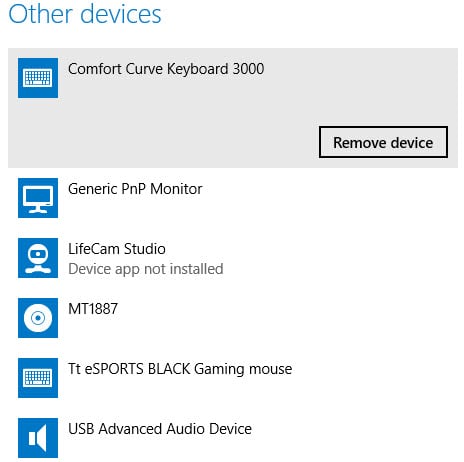
Since the drivers are already included in the operating system, Microsoft does not ship any CD with drivers for this keyboard.
However, Microsoft does offer its Mouse and Keyboard Center application, which, in theory, should detect all of their mice and keyboard. Installing the application on Windows 8.1 did not make any difference as this software did not detect the keyboard. Given the basic layout of the keyboard, I don't see any reason why it would need a dedicated software anyway.
In case your system doesn't properly detect it, you can download the software from the official download page for both Windows 7 and 8..
Using the Microsoft Comfort Curve 3000
The Microsoft Comfort Curve 3000 has been my main keyboard for a while now and I've also written this review on it. I was especially impressed by how silent this keyboard is, even compared to a chiclet laptop keyboard. The keys are sturdy and long typing sessions are quite a pleasure on this keyboard. Very little noise and no wrist injuries thanks to the ergonomic design.
While the curved layout of the keys might take a little time to get used to in the first few days of usage, I've quickly managed to avoid typos and get my typing speed back to normal.
This keyboard is destined for typing and office work and this is even more obvious if we take a look "under the hood". Unlike bulkier, more expensive keyboards, this one is based on a rubber dome system, rather than a mechanical one. And this is where you should pay attention, especially if you are a gamer. I've used the keyboard both for writing and for playing games, gaming is exactly where it falls short. The ghosting level of the keys is rather big and I have often had the experience of lifting my finger from a direction key after keeping it pressed for a while and see the game character keep moving into that direction until I had pressed the key again. This is something that happens quite often, so if you're into PC games, especially shooters, this will be a big problem. If this is the case, I strongly advise you to consider a mechanical or a gaming keyboard.

Verdict
Microsoft has managed once again to build a quality product and offer it a very decent price - around $24.95. If you are looking for an ergonomic keyboard with a standard layout and with only the most useful multimedia keys, then the Microsoft Comfort Curve 3000 is a great bang for your buck. While the build quality and the typing experience are both very good, do keep in mind the glossy material it sports and the fact that it's not a good choice for PC games. Then again, it was never meant to be a gaming keyboard, so this is not really a big downside.
Discussion (3)
Good article. I got the keyboard for gift and started to use it. I noticed (I’m Hungarian and Hugarian key layouts are exist two different arrangement, and this is just one that I did’t used to…) No problem, I thought, I’m gonna used to it. Little Enter and right AltGR in wrong place…
I noticed that the keyboard doesn’t contains a Sleep key! I was searching for a long time but never found. So I need to sleep the pc with the power button. No problem. But this bastard keyboard always wakes up my PC! I had to ban waking up for the device.
There are some little other problems. I don’t have any idea why is not MUTE button on it, and why is CALC button? Mute woud be more clever and the Sleep is missing as well.
In short I am not satisfied with this keyboard at all. I’m just using because I don’t have any other, but slowly I’m thinking on to change back for a basic, standard keyboard. This curved shape comfy and stuff like that, but I can’t take this idiot layout where is everything messed up. Backspace, Enter, AltGR.
Nice review, and I mostly agree. However, under Win 8.1 there is a BIG problem currently.
The issue you describe about characters keeping walking in FPSs is due to the KB going into ‘sleep’ mode after about 6 s without key-press changes. You can see this because any of the LEDs on the device (e.g. Numlock) go out.
However, waking the KB up by typing it doesn’t always send the first key typed. This means that sometimes you have to press the first key twice. Sometimes not. It seems to be related to how long the KB is idle. For tasks where you aren’t typing constantly (e.g. programming) this makes the KB annoying to the point of being useless.
From the forum posts I’ve seen so far, this is a driver problem. MS seem unwilling to acknowledge this or provide a work-around. The only solution for me is to try and get the shop to take it back for a refund or bin it.
Which is a shame because other then that, it does seem to be really good value. I just needed a cheap stand-by while I investigate why my solar-powered Logitech KB is currently not working. But I’m actually finding I like the MS keyboard quite a lot, and might even consider switching to a (fully working) ergonomic shaped KB in the future.
Please see my comment in this reddit post:
https://redd.it/2j40if
Managed to solve this problem for me.