


 Modified on 05.10.2025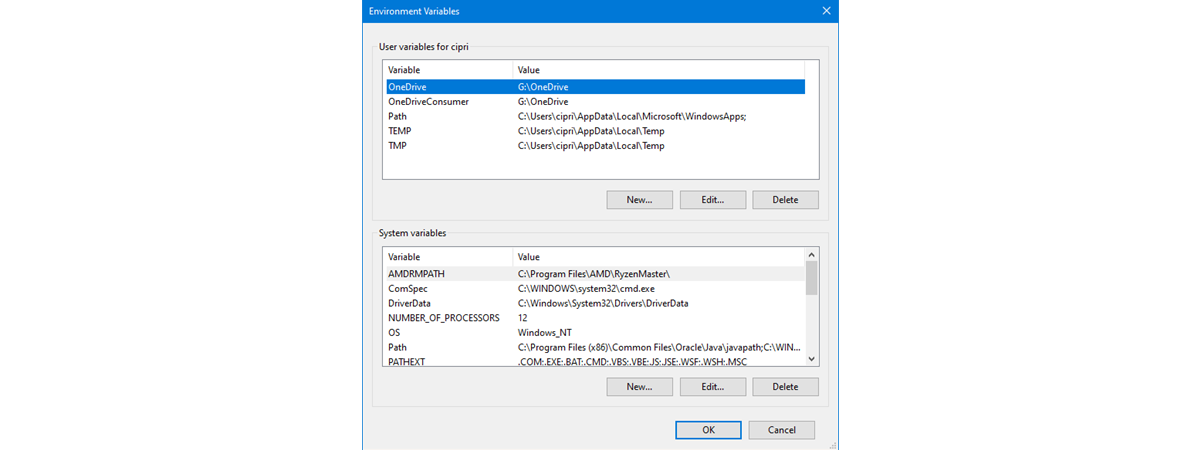
Environment variables are special settings that store information about the system and the programs installed on it. They can be used to customize the behavior of applications, scripts, and commands. But can environment variables be deleted? The answer is yes, and that’s a good thing, as sometimes, you may need to modify or remove an environment variable. For example, to change a configuration option or to fix a problem. In this article, I’ll show you how to edit or delete environment variables, as well as how to unset environment variables in Windows using different methods and tools, including Command Prompt and PowerShell.
NOTE: The instructions in this guide apply to both Windows 11 and Windows 10, as everything related to handling environment variables is the same in both operating systems.
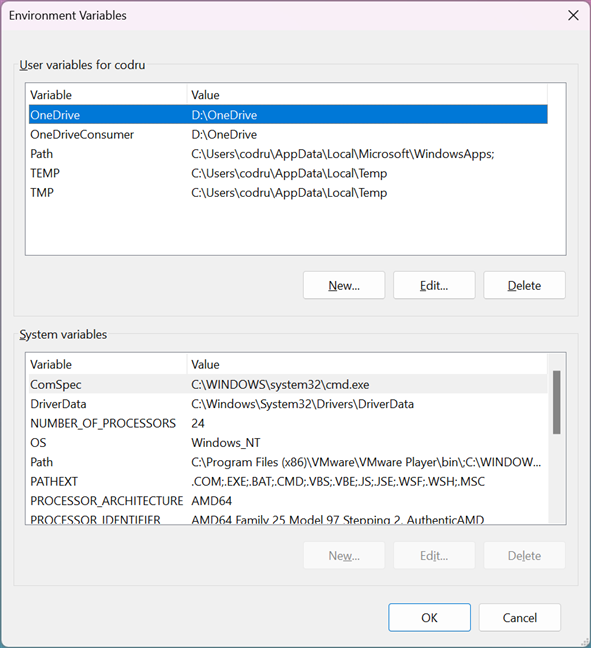
 The Environment Variables window in Windows
If you want to skip reading it, one path that works the same in Windows 11 and Windows 10 is to open the Run window (Win + R) and execute the command:
The Environment Variables window in Windows
If you want to skip reading it, one path that works the same in Windows 11 and Windows 10 is to open the Run window (Win + R) and execute the command:
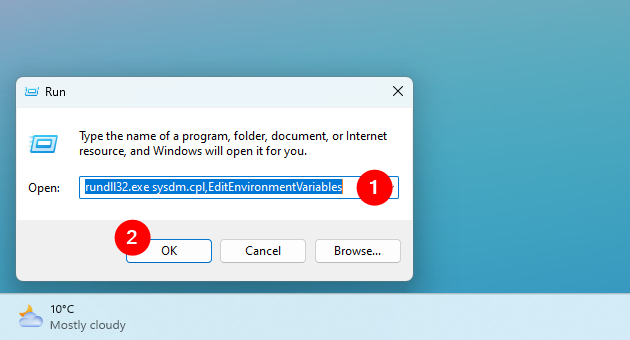
 How to open the Environment Variables in Windows
TIP: You can run the command in Command Prompt, PowerShell, or Windows Terminal to the same end, too.
How to open the Environment Variables in Windows
TIP: You can run the command in Command Prompt, PowerShell, or Windows Terminal to the same end, too.
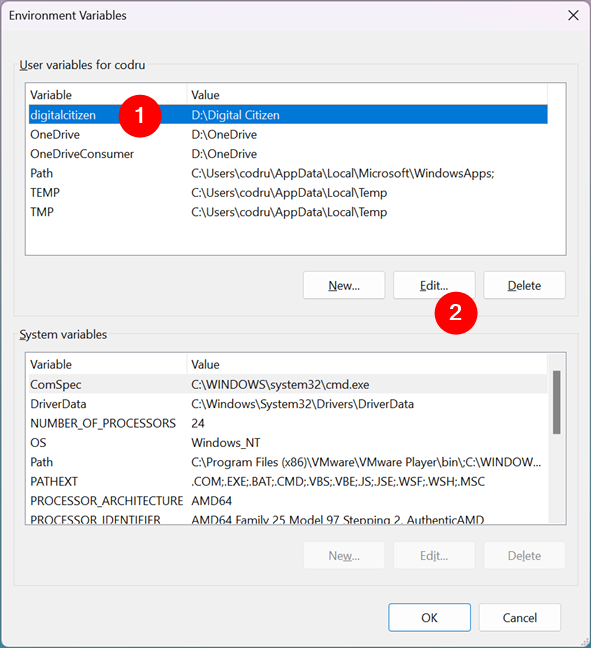 How to edit an environment variable in Windows
You are shown a window where you can edit both the name and the value of the variable. Make the modifications you want and press OK. Then, press OK one more time in the Environment Variables window.
How to edit an environment variable in Windows
You are shown a window where you can edit both the name and the value of the variable. Make the modifications you want and press OK. Then, press OK one more time in the Environment Variables window.
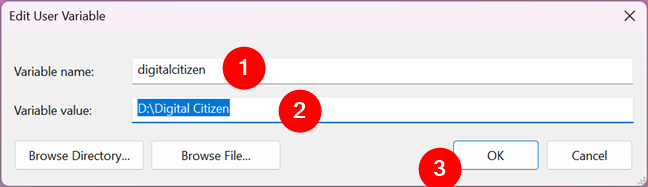
 Editing an environment variable
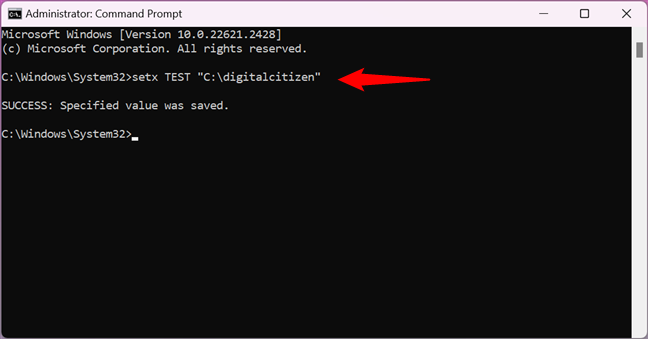
 How to set an environment variable using Command Prompt
To change the value of an environment variable, run the same setx command but specify a new value for the variable. For instance, to change the value of my TEST environment variable to C:\DC, I have to execute this command:
How to set an environment variable using Command Prompt
To change the value of an environment variable, run the same setx command but specify a new value for the variable. For instance, to change the value of my TEST environment variable to C:\DC, I have to execute this command:
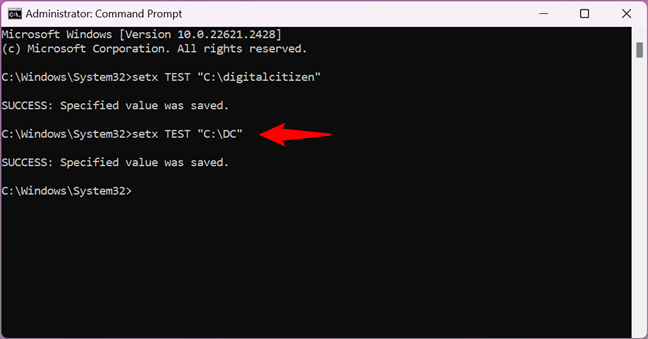 How to change the value of an environment variable in Command Prompt
That works because the setx command rewrites the existing value with the last one you type. Therefore, if you use this command multiple times on the same variable, the variable will keep the last value you typed.
If you want a variable to have multiple paths in its value, you must specify them all in a single setx command, like in the next screenshot. Make sure that each value you enter is separated from the previous one by a semicolon, without spaces.
How to change the value of an environment variable in Command Prompt
That works because the setx command rewrites the existing value with the last one you type. Therefore, if you use this command multiple times on the same variable, the variable will keep the last value you typed.
If you want a variable to have multiple paths in its value, you must specify them all in a single setx command, like in the next screenshot. Make sure that each value you enter is separated from the previous one by a semicolon, without spaces.
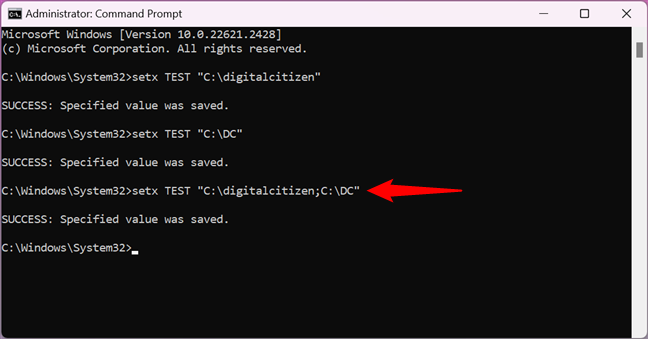 Add multiple values to an environment variable using CMD
TIP: You can get a list of all the environment variables available by running the command:
Add multiple values to an environment variable using CMD
TIP: You can get a list of all the environment variables available by running the command:
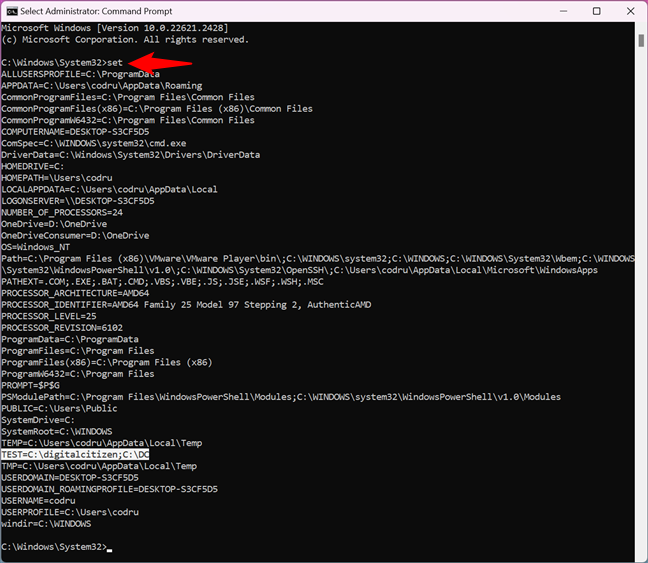
 How to see all the environment variables in Command Prompt
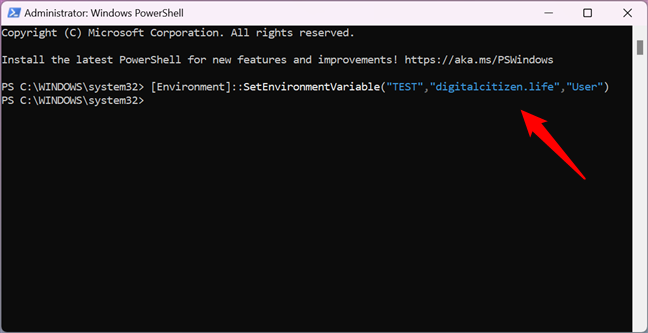
 How to set an environment variable with PowerShell
If you want to assign multiple values to a variable, type all of them in the command, with semicolons between each value, as illustrated below.
How to set an environment variable with PowerShell
If you want to assign multiple values to a variable, type all of them in the command, with semicolons between each value, as illustrated below.
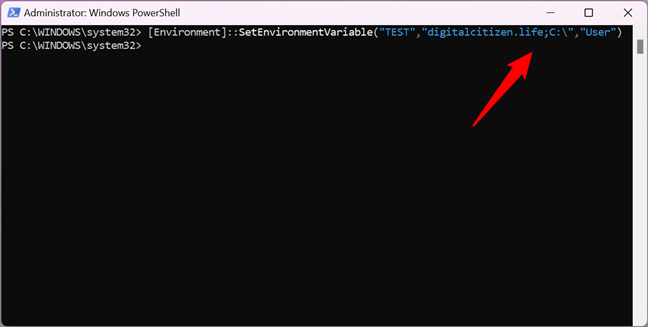
 How to add multiple values to an environment variable in PowerShell
TIP: In PowerShell, you can get a list of all the environment variables by running the command:
How to add multiple values to an environment variable in PowerShell
TIP: In PowerShell, you can get a list of all the environment variables by running the command:
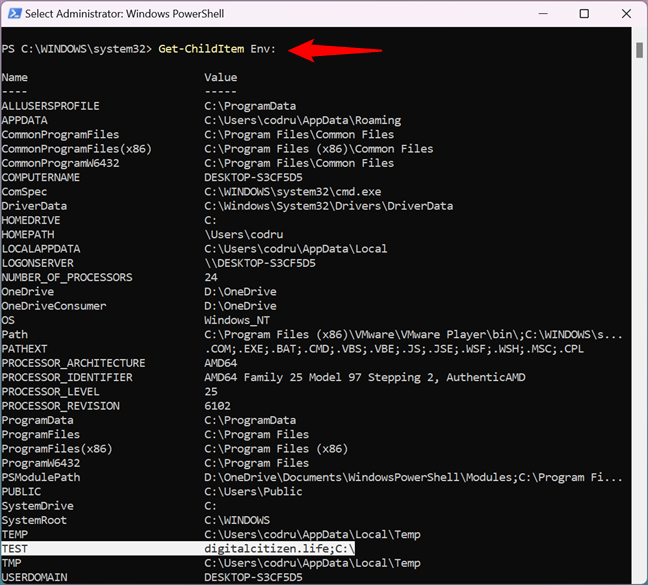
 How to see all the environment variables in PowerShell
 Attempt to clear an environment variable in Windows
However, you can clear the value of an environment variable using Command Prompt. To unset an environment variable from Command Prompt, type the command:
Attempt to clear an environment variable in Windows
However, you can clear the value of an environment variable using Command Prompt. To unset an environment variable from Command Prompt, type the command:
 How to clear an environment variable with Command Prompt
Next, let’s see how to remove an environment variable.
How to clear an environment variable with Command Prompt
Next, let’s see how to remove an environment variable.
 How to delete an environment variable in Windows
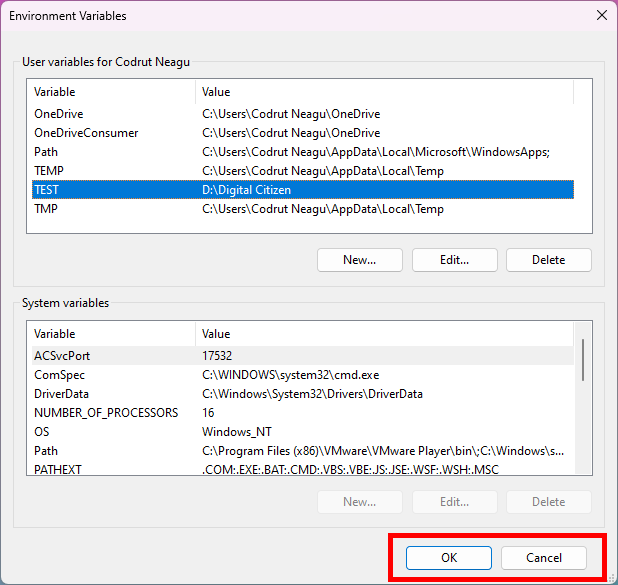
Therefore, if you’ve changed your mind, you must press Cancel to NOT apply the removal. If you want to proceed with the deletion, press OK.
How to delete an environment variable in Windows
Therefore, if you’ve changed your mind, you must press Cancel to NOT apply the removal. If you want to proceed with the deletion, press OK.
 Press OK to delete the variable, or Cancel to keep it
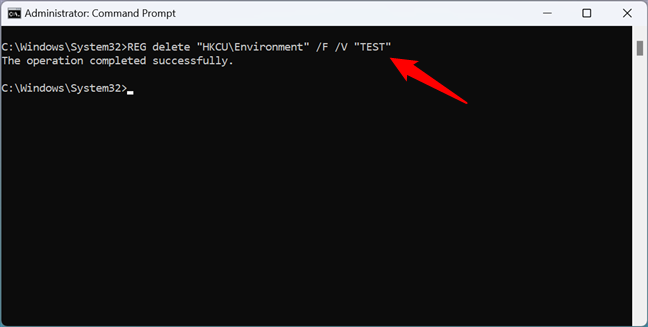 How to unset an environment variable in Windows using Command Prompt
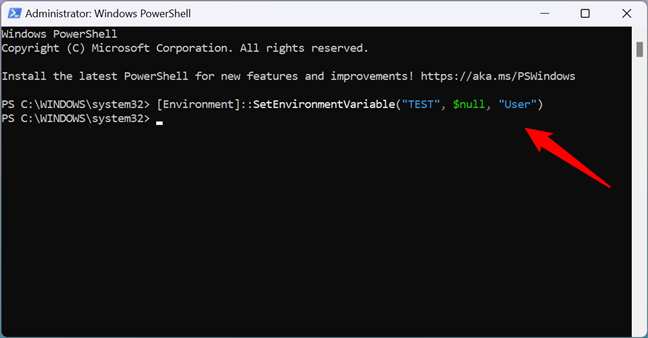
 How to delete an environment variable from PowerShell
That’s it!
How to delete an environment variable from PowerShell
That’s it!
Open the Environment Variables window
To make many of the edits shown in this article, you first need to open the Environment Variables window. This guide explains how to do that and shows you the basics about working with environment variables: What are environment variables in Windows?.rundll32.exe sysdm.cpl,EditEnvironmentVariables
How to edit an environment variable in Windows
If you want to change the value of an existing environment variable, first select it in the Environment Variables window. Then, click or tap Edit.How to edit an environment variable from Command Prompt
You can create a new environment variable or edit the value of an existing environment variable (but not its name) from the Command Prompt too. If you want to create a user environment variable, enter this command:setx variable_name “value”
If you want to create a system environment variable, add the m argument to the command like this:
setx variable_name “value” /m
For example, I wanted to create a user variable named TEST with the value C:\digitalcitizen. To that end, I had to run this command:
setx TEST “C:\digitalcitizen”
setx TEST “C:\DC”
set
Note that the command is set, not setx, and there aren’t any parameters added to it. Moreover, if you just created or edited an environment variable, you must close and reopen Command Prompt for the changes to show up.
How to edit an environment variable from PowerShell
You can also create or edit the value of an existing environment variable from PowerShell. If you want to create a user environment variable, the PowerShell command is:[Environment]::SetEnvironmentVariable("variable_name","variable_value","User")
If you want to create a system environment variable, the command is this one:
[Environment]::SetEnvironmentVariable("variable_name","variable_value","Machine")
For instance, in order to create a user environment variable called TEST with the value digitalcitizen.life, I ran the command:
[Environment]::SetEnvironmentVariable("TEST","digitalcitizen.life","User")
To change the value of the variable later, you can run the same command using a different value. Just like setx in Command Prompt, this command rewrites the value of the specified variable each time you run it.
Get-ChildItem Env:
However, if you just created or edited an environment variable, you must close and reopen PowerShell for the changes to show up.
How to clear the value of an environment variable in Windows (from Command Prompt)
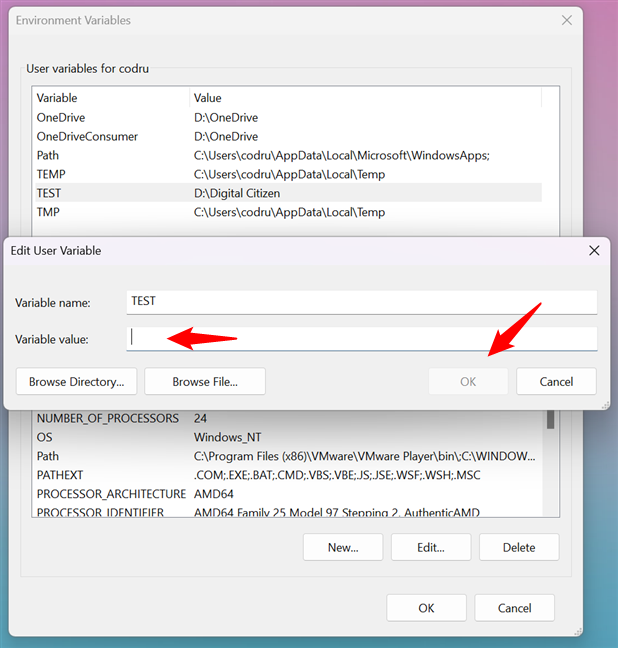
If you want to remove the value of an environment variable (while keeping its name), you can’t do it with the mouse and keyboard from the Environment Variables window. If you select a variable and press Edit, you can delete the value, but you cannot press OK, as this button gets grayed out. Therefore, you can’t save your changes.setx variable_name “”
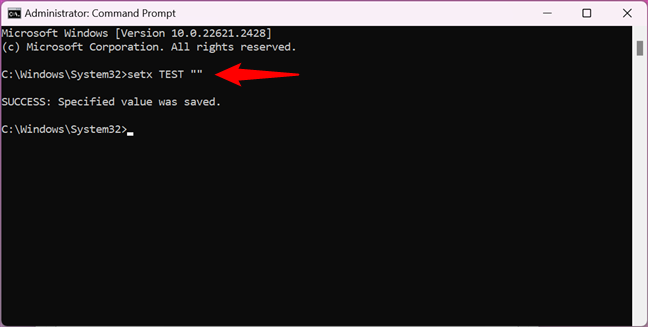
For example, because I wanted to unset my TEST variable and give it an empty value, I ran this command:
setx TEST “”
How to delete an environment variable in Windows
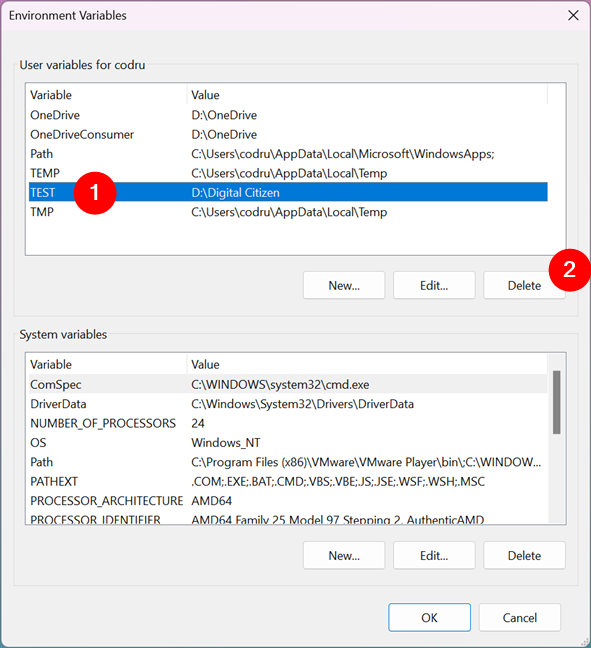
If you no longer want to use a particular environment variable, select it in the Environment Variables window. Then, press Delete. Windows does not ask for any confirmation of this action.How to use Command Prompt (CMD) to delete an environment variable
To delete an environment variable from Command Prompt, run this command:REG delete “HKCU\Environment” /F /V “variable_name”
… if it’s a user environment variable, or run this command if it’s a system environment variable:
REG delete “HKLM\SYSTEM\CurrentControlSet\Control\Session Manager\Environment” /F /V “variable_name”
For example, to remove my TEST environment variable from my user’s profile, I ran:
REG delete “HKCU\Environment” /F /V “TEST”
How to use PowerShell to delete an environment variable
To unset and remove an environment variable with PowerShell, type the command:[Environment]::SetEnvironmentVariable("variable_name", $null, "User")
…if it’s a user profile variable, or run this command if it’s a system-wide variable:
[Environment]::SetEnvironmentVariable("variable_name", $null, "Machine")
For example, to have PowerShell remove my TEST environment variable from my user profile, I had to run this command:
[Environment]::SetEnvironmentVariable("TEST", $null, "User")
Discussion (22)
Can anyone please tell how to remove a path from path variable using command ?
For system variable settings:
REG delete “HKLMSYSTEMCurrentControlSetControlSession ManagerEnvironment” /F /V “variable to delete”
If it is in the user environment:
REG delete “HKCUEnvironment” /F /V “variable to delete”
You can delete environment variables from the command line via:
REG delete HKCUEnvironment /F /V VAR_NAME
this seems to do it:
set var=
You can clear an environment variable on the command line by using:
set VARIABLE=
(Nothing after the equal sign)
Delete env variable from the command line
SET Variable=
Delete From Current Process
Obviously, everyone knows that you just do this to delete an environment variable from your current process:
set FOO=
Persistent Delete
There are two sets of environment variables, system-wide and user.
Delete User Environment Variable:
reg delete “HKCUEnvironment” /v FOO /f
Delete System-Wide Environment Variable:
REG delete “HKLMSYSTEMCurrentControlSetControlSession ManagerEnvironment” /F /V FOO
https://stackoverflow.com/questions/13222724/command-line-to-remove-an-environment-variable-from-the-os-level-configuration
Hello,
If you can use PowerShell, you can define a machine environment variable with:
[Environment]::SetEnvironmentVariable(“MYVAR”, “MYVALUE”, [EnvironmentVariableTarget]::Machine)
and delete it with:
[Environment]::SetEnvironmentVariable(“MYVAR”, $null, [EnvironmentVariableTarget]::Machine)
Rgds
Stef
To delete a user variable using command line, you can do it following way :
reg delete HKCUEnvironment /v FOOBAR /f
Enviroment Variables are stored in the Registry keys:
HKEY_CURRENT_USEREnvironment (User)
Or
HKEY_LOCAL_MACHINESYSTEMCurrentControlSetControlSession (System)
You can delete enviroment variables by deleting the keys themselves.
Good tip. Thanks!
I want remove variable only temporarily for one command. How to do that? I don’t want remove permanently. I tried set envvar= && command using command chaining but it seems bug in windows, and set envvar= doesn’t clear variable as without chaining do.
To remove an environment variable from the command line use SET envvarname=
To remove an environment variable using the command line simply set it to an empty value e.g. to remove for just this session you could execute “SET VariableName=” without the double quotes
I’ve found this at StackOverflow: https://stackoverflow.com/questions/13222724/command-line-to-remove-an-environment-variable-from-the-os-level-configuration
You can remove environment variables on the command line by typing:
SET var=
(not: SET var=””)
Command to Delete User environment variable (Windows). Here “eclipse” is variable name
reg delete “HKCUEnvironment” /v eclipse /f
to delete and environment variable from the command line just set the variable to blank.
SETX FOOBAR “” & REG delete HKCUEnvironment /F /V FOOBAR
to remove an environment variable just enter=
set
e.g. set __COMPAT_LAYER=
The variable remains but, it has an empty value.
Works for me in cmdr prompt:
λ set david=hello
λ set | grep david
david=hello
C:downloadapache-tomcat-8.5.29_2
λ echo %david%
hello
λ set david=
λ set | grep david // no output here