




Helping someone fix their computer used to be a frustrating process. Long phone calls, confusing instructions, and a lot of “click there… no, not there.” Windows has been trying to solve this for years, and in Windows 11, the solution is simple and surprisingly effective: Quick Assist.
It is not a flashy feature, and most people ignore it. But when you actually need to troubleshoot someone else’s PC, it becomes one of the most practical tools built into Windows.
What Is Quick Assist in Windows 11?
Quick Assist is a built-in remote assistance tool that lets you either:
- Help someone fix their PC by viewing or controlling it
- Get help from someone you trust
Unlike third-party tools, it does not require installation, setup, or account creation beyond a Microsoft login. It is already part of Windows 11, which makes it accessible even for non-technical users.
At its core, Quick Assist creates a temporary, secure connection between two devices using a short code.
How Quick Assist Works
The process is intentionally simple so that even a non-tech-savvy user can follow along.
Here is what actually happens behind the scenes:
- The helper signs in and generates a one-time security code
- The person receiving help enters that code on their device
- A secure remote session is established
- The helper can either view the screen or take full control
The connection is encrypted, and the session expires automatically after a short time if not used.
This design avoids the usual risks of leaving remote access permanently enabled.
How to Use Quick Assist in Windows 11
Step 1: Open Quick Assist
Search for “Quick Assist” from the Start menu and open it.
Both users need to launch the app on their respective systems.
Step 2: Choose Your Role
You will see two options:
- Help someone
- Get help
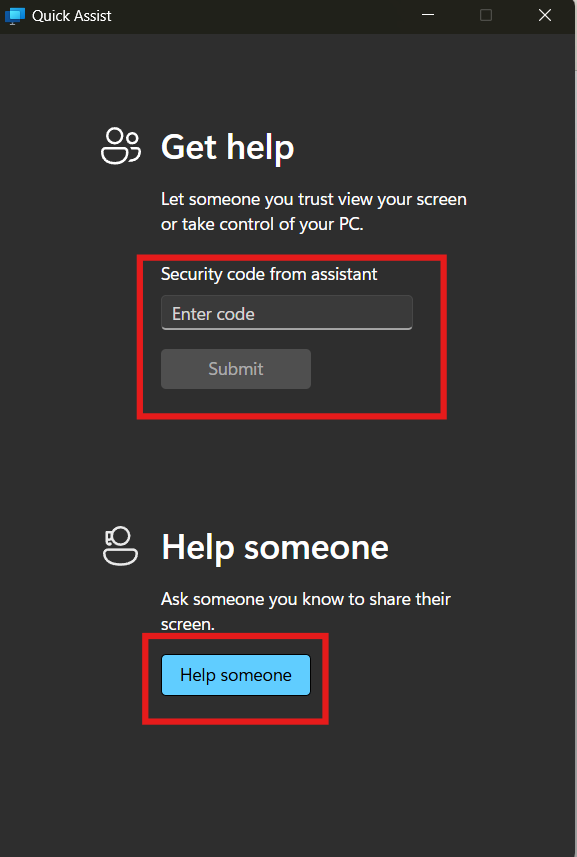
If you are providing support, select “Help someone” and sign in with your Microsoft account.
Step 3: Share the Security Code
Once signed in, you will receive a 6-digit code.
Send this code to the person you are helping. This can be done via call, chat, or email.
Step 4: Connect and Choose Access Level
The other person enters the code and chooses between:
- View: You can only see their screen
- Full control: You can interact with their system
Once they approve, the remote session begins.
Why Quick Assist Actually Matters
Quick Assist is one of those features that feels insignificant until you need it.
It removes three major barriers:
- No software installation
- No account setup complexity for the person receiving help
- No need to explain technical steps verbally
For families, small teams, or freelancers helping clients, this saves a lot of time and friction.
It is also more approachable than tools like TeamViewer or AnyDesk, especially for first-time users.
Real-World Usage: Where It Fits Best
Quick Assist works best in situations where:
- You are helping a friend or family member occasionally
- You need quick troubleshooting without setup
- You want a built-in, trusted solution
For example, if someone cannot find a setting, has malware concerns, or needs help installing software, Quick Assist is more than enough.
It is not designed for continuous remote work or IT infrastructure management.
Limitations You Should Know
While Quick Assist is convenient, it does come with clear limitations.
First, it is not meant for long-term remote access. Each session is temporary, and you need to generate a new code every time.
Second, it lacks advanced features:
- No file transfer system
- No remote printing
- No session recording
- Limited multi-monitor controls
Third, both users need an internet connection that is stable enough for screen sharing.
If you need more advanced capabilities, tools like TeamViewer may be more suitable.
Security and Privacy Considerations
Quick Assist is relatively safe because:
- Sessions are temporary
- Access requires explicit approval
- Codes expire quickly
However, like any remote access tool, trust is critical.
You should never:
- Share codes with unknown people
- Accept help from unverified sources
Microsoft has designed it to minimize risk, but user awareness still matters.
Quick Assist vs Remote Desktop
It is easy to confuse Quick Assist with Remote Desktop, but they serve very different purposes.
- Quick Assist is for temporary support sessions
- Remote Desktop is for accessing your own system remotely
Remote Desktop is more powerful but requires setup and is not beginner-friendly. Quick Assist is the opposite. It is simple, limited, and immediate.
Final Thoughts
Quick Assist in Windows 11 is one of those features that quietly solves a real problem. It does not try to replace professional remote tools, and it does not need to.
It is built for quick, no-friction support, and in that role, it works extremely well.
If you often help others with their computers, it is worth keeping in mind. You probably will not use it daily, but when you do, it saves a lot of unnecessary effort.
FAQs
Is Quick Assist free to use?
Yes, it is completely free and built into Windows 11.
Do both users need a Microsoft account?
Only the helper needs to sign in. The person receiving help does not.
Can I transfer files using Quick Assist?
No, it does not support file transfer.
Is Quick Assist safe?
Yes, as long as you only connect with people you trust.
Can I use Quick Assist for work or business support?
You can for basic help, but for professional or large-scale use, dedicated remote tools are better.
Discussion (0)
Be the first to comment.