



Have you ever needed to print a large image, but your printer can only use standard A4, US Letter, or A3 paper sizes? If you want to print a large poster or a large map, and you can’t find or afford a specialized shop that prints it for you at the required dimensions, you can use your home printer to print that image on multiple pages. Then, all you have to do is use Scotch Tape to assemble the whole picture or join the paper sheets together using some other method. Did you know that you can use a basic free tool like Microsoft Paint or Adobe Acrobat Reader to print large images on multiple pages? Here’s how it works:
NOTE: The steps in this tutorial work the same in Windows 10 and Windows 11. Furthermore, both of the methods we’ll show you are using free apps: Microsoft Paint and Adobe Acrobat Reader.
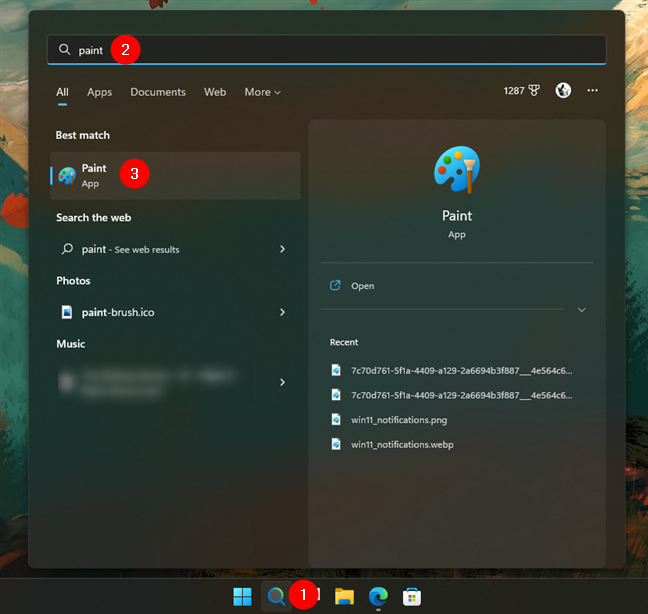
 Search and open Paint in Windows 11
If you’re using Windows 10, type “paint” in the search field on the taskbar, and then click or tap on the Paint result.
Search and open Paint in Windows 11
If you’re using Windows 10, type “paint” in the search field on the taskbar, and then click or tap on the Paint result.
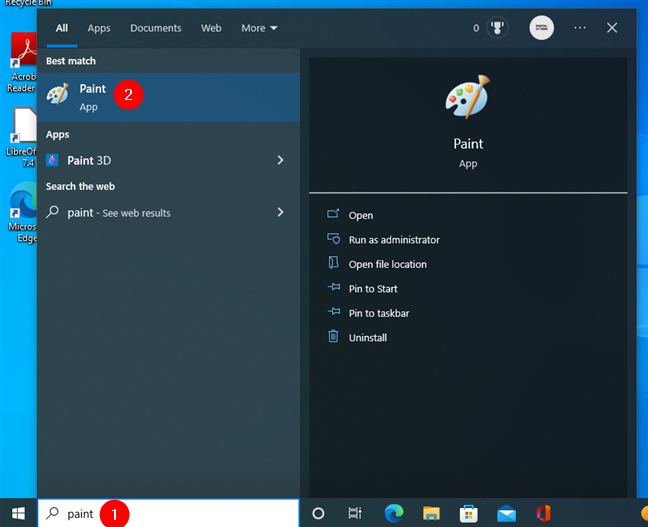
 Search and open Paint in Windows 10
Regardless of your Windows version, the Paint window should now open on your desktop.
Search and open Paint in Windows 10
Regardless of your Windows version, the Paint window should now open on your desktop.
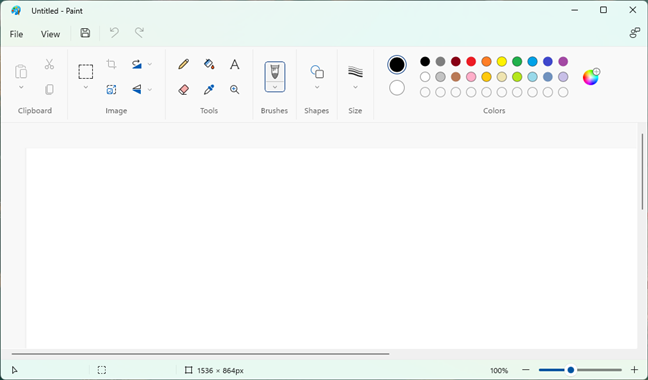
 Paint in Windows 11
IMPORTANT: In Windows 10, the Paint app has a different-looking interface but the printing options work the same as in Windows 11. Therefore, if you’re using Windows 10, don’t be intimidated by the fact that I’m using screenshots from Windows 11. Follow my instructions, and you’ll get the desired printing result.
Paint in Windows 11
IMPORTANT: In Windows 10, the Paint app has a different-looking interface but the printing options work the same as in Windows 11. Therefore, if you’re using Windows 10, don’t be intimidated by the fact that I’m using screenshots from Windows 11. Follow my instructions, and you’ll get the desired printing result.
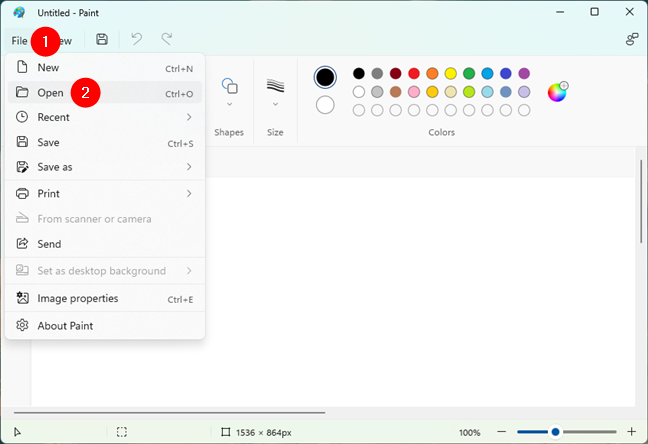
 The Open option from the File menu in Paint
Browse your Windows computer or device and select the image you want to print. Then, click or tap Open.
The Open option from the File menu in Paint
Browse your Windows computer or device and select the image you want to print. Then, click or tap Open.
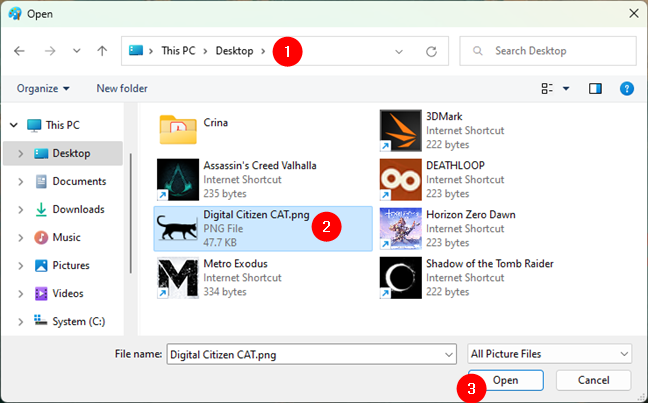
 Opening the image that you want to print on multiple pages
Now you should see your picture loaded in Paint.
Opening the image that you want to print on multiple pages
Now you should see your picture loaded in Paint.
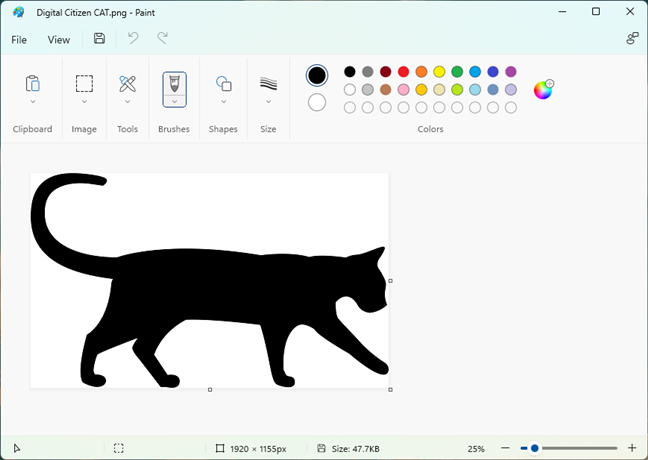
 The image is loaded in Paint
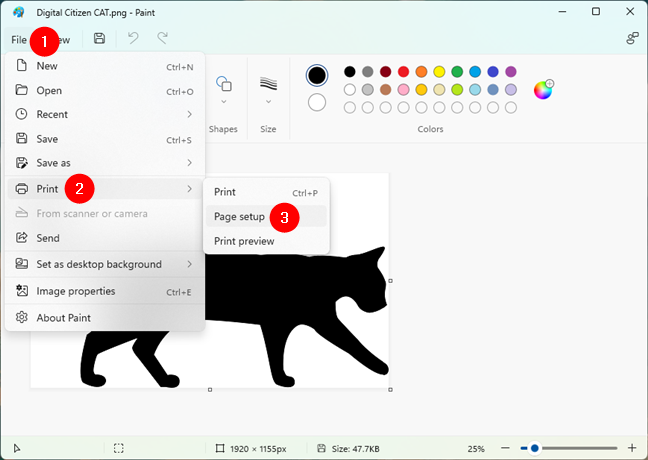 Opening the Page setup options from Paint
The Page Setup dialog window pops up: this is where the magic happens. Along with other printing options like paper Size, Orientation, or Margins, you should also find a section called Scaling.
Opening the Page setup options from Paint
The Page Setup dialog window pops up: this is where the magic happens. Along with other printing options like paper Size, Orientation, or Margins, you should also find a section called Scaling.
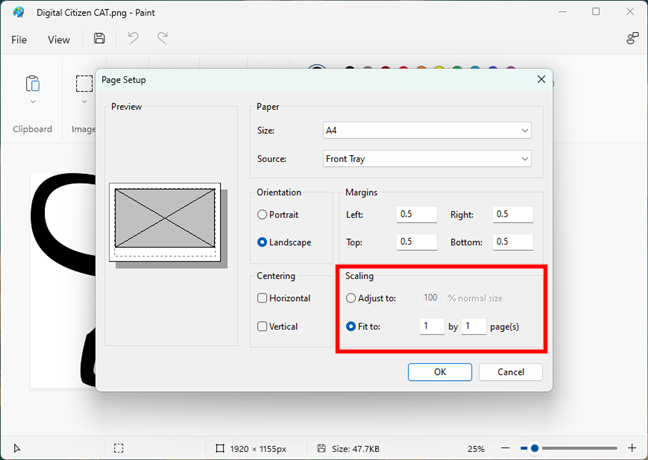 The Scaling section from Paint's Page Setup
To print your large image on multiple pages, have Paint scale your image to “Fit to” as many pages as you want. For instance, if you’d like your image printed on four pages in a rectangle, you should use the “Fit to” fields to enter the values 2 by 2 pages.
Depending on how large you want your image to be when printed and how long or wide it is, you can enter the values you need.
The Scaling section from Paint's Page Setup
To print your large image on multiple pages, have Paint scale your image to “Fit to” as many pages as you want. For instance, if you’d like your image printed on four pages in a rectangle, you should use the “Fit to” fields to enter the values 2 by 2 pages.
Depending on how large you want your image to be when printed and how long or wide it is, you can enter the values you need.
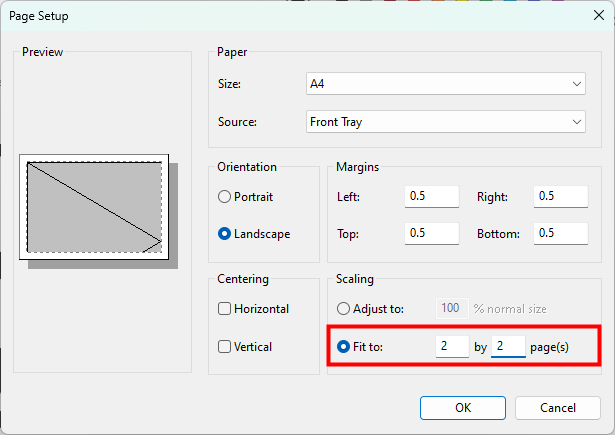
 Choosing to fit the image on more than just one page
After deciding exactly how many pages you want the image printed on, click or tap OK to save your settings.
Choosing to fit the image on more than just one page
After deciding exactly how many pages you want the image printed on, click or tap OK to save your settings.
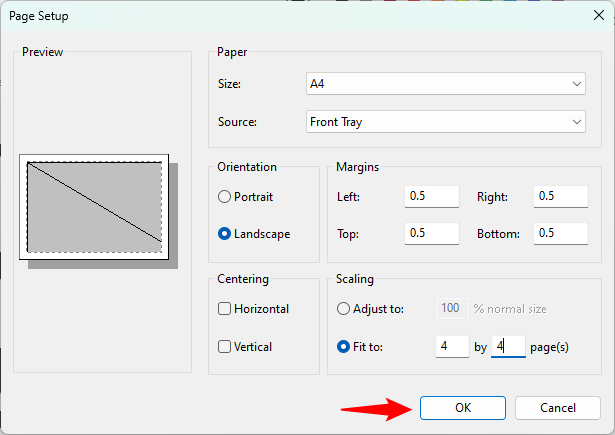 Saving the image print scaling settings
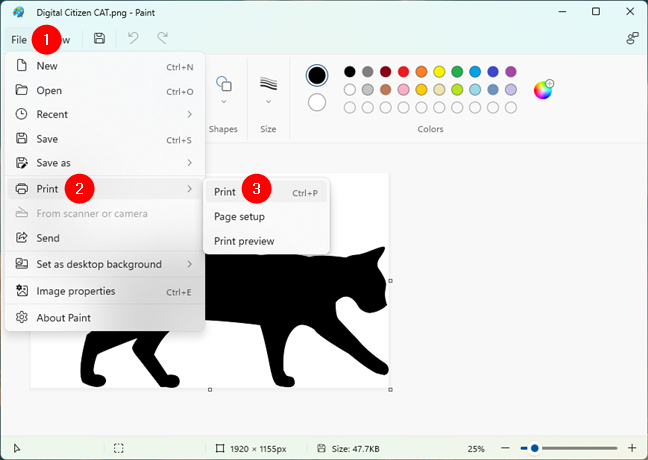 Print the image from Paint
If you have more than one printer installed, select the printer you want to use. Then, click or tap the Print button.
Print the image from Paint
If you have more than one printer installed, select the printer you want to use. Then, click or tap the Print button.
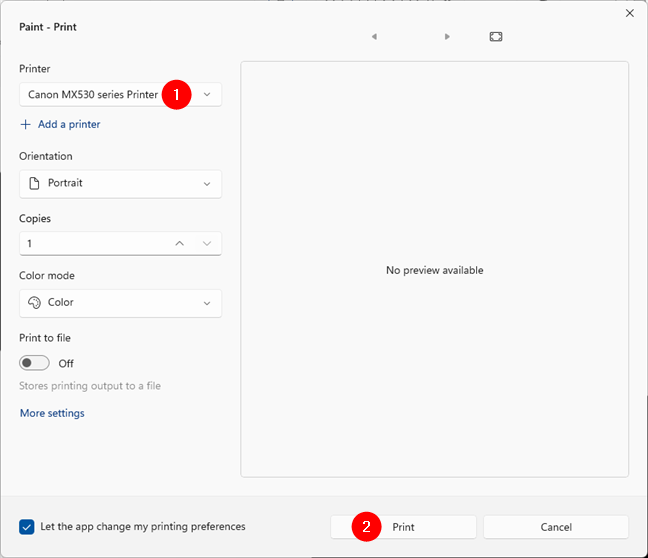
 Selecting the printer to use for printing the image on multiple pages
Your printer should immediately start printing the image on multiple pages.
Selecting the printer to use for printing the image on multiple pages
Your printer should immediately start printing the image on multiple pages.
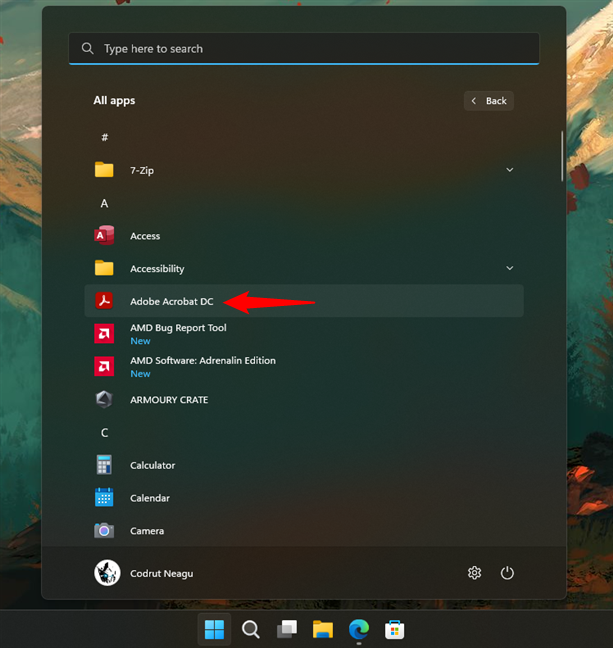
 Open Adobe Acrobat Reader on your Windows computer
You should then see the Adobe Acrobat Reader window on your desktop.
Open Adobe Acrobat Reader on your Windows computer
You should then see the Adobe Acrobat Reader window on your desktop.
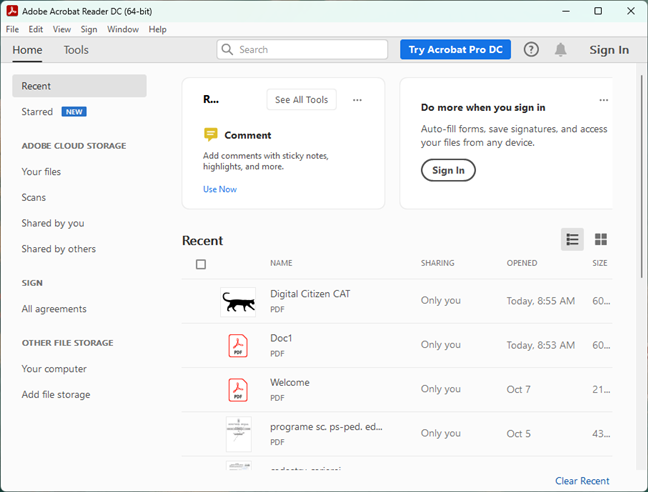
 Adobe Acrobat Reader in Windows
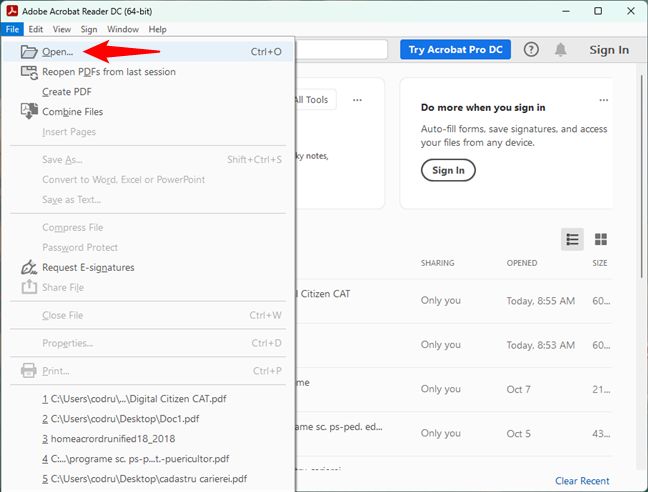 The Open option from the File menu in Adobe Acrobat Reader
Browse your Windows computer, select the PDF poster file you want to print, and click or tap on Open.
The Open option from the File menu in Adobe Acrobat Reader
Browse your Windows computer, select the PDF poster file you want to print, and click or tap on Open.
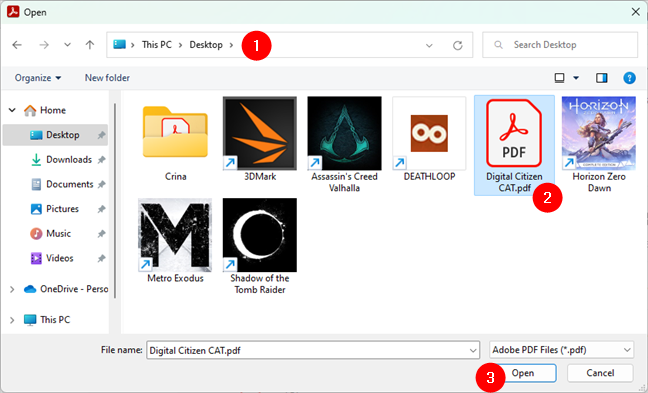
 Open the PDF poster that you'll print on multiple pages
Now you should see your poster loaded in Adobe Acrobat Reader.
Open the PDF poster that you'll print on multiple pages
Now you should see your poster loaded in Adobe Acrobat Reader.
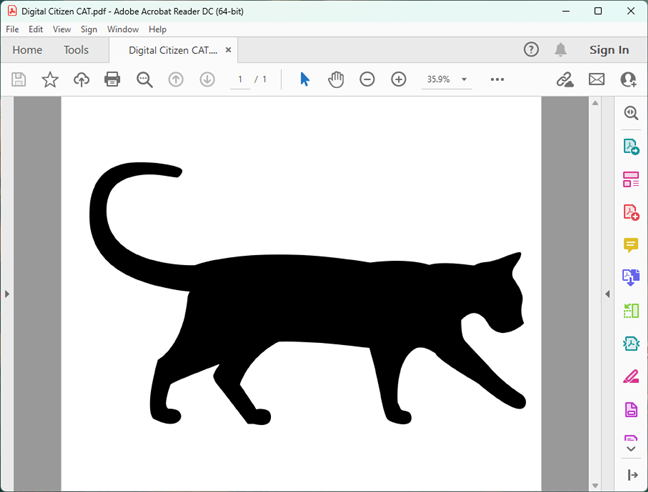 The PDF poster is loaded in Adobe Acrobat Reader
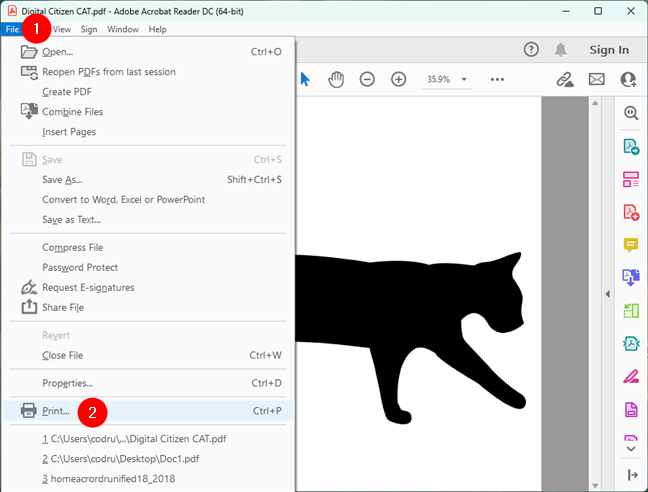 Choosing Print in the File menu of Adobe Acrobat Reader
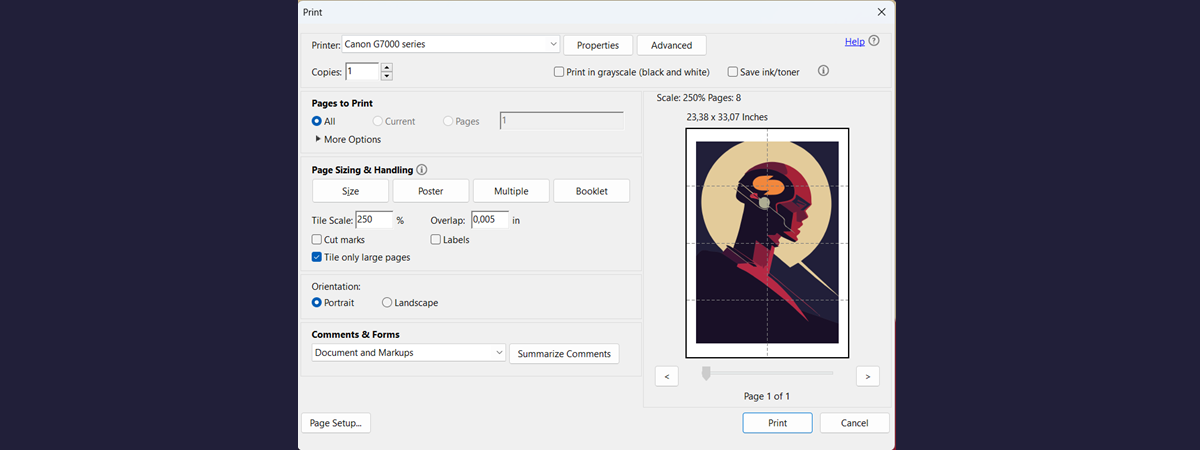
In the Print dialog window that opens, make sure you select the right Printer you intend to use. Then, among other options, you’ll also see a section called Page Sizing & Handling. In it, there’s a button called Poster. Click or tap on it because this is the one that allows you to print a poster on multiple pages.
Choosing Print in the File menu of Adobe Acrobat Reader
In the Print dialog window that opens, make sure you select the right Printer you intend to use. Then, among other options, you’ll also see a section called Page Sizing & Handling. In it, there’s a button called Poster. Click or tap on it because this is the one that allows you to print a poster on multiple pages.
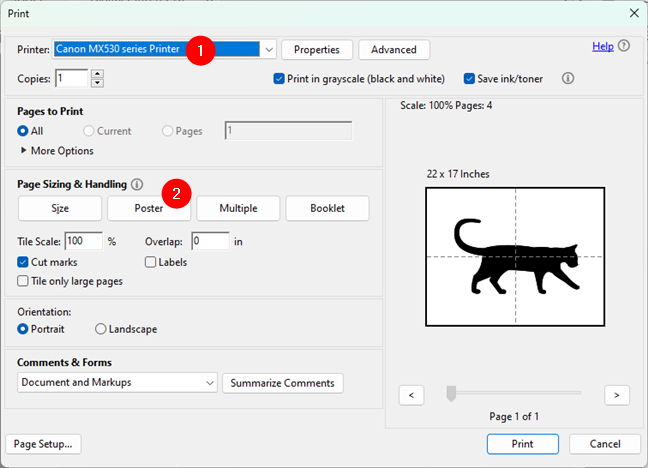
 Choose Poster to print the PDF on multiple pages
Once you click on Poster, Adobe Acrobat Reader instantly sets the number of pages needed to print the image, according to how large the PDF poster actually is.
For example, the one I used had a size of 22 by 17 inches, while my printer can print on A4 paper at most. So, Adobe Acrobat Reader calculated that I need four A4 pages to print the PDF as a poster. As you can see below, on the right side of the Print dialog, the app shows the Scale, the number of Pages required, and a preview of what you’ll get.
Choose Poster to print the PDF on multiple pages
Once you click on Poster, Adobe Acrobat Reader instantly sets the number of pages needed to print the image, according to how large the PDF poster actually is.
For example, the one I used had a size of 22 by 17 inches, while my printer can print on A4 paper at most. So, Adobe Acrobat Reader calculated that I need four A4 pages to print the PDF as a poster. As you can see below, on the right side of the Print dialog, the app shows the Scale, the number of Pages required, and a preview of what you’ll get.
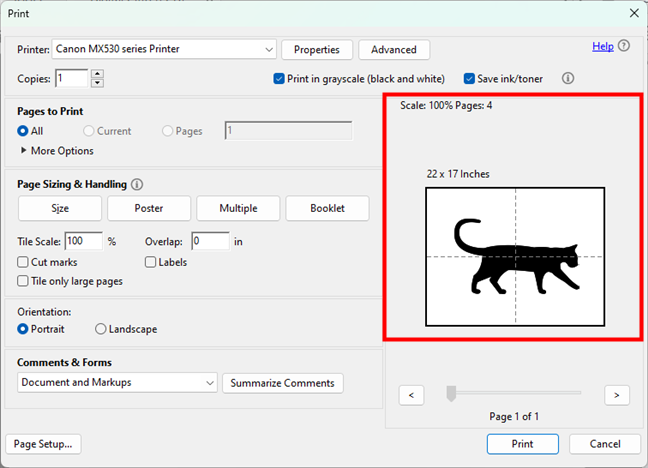 Poster print scale, number of pages, and preview
However, although the standard scale is 100%, you can enlarge any PDF document if you want to make it larger and print it on even more pages. To change the scale of a PDF poster, enter the percentage increase that you want in the Tile Scale field from the Page Sizing & Handling.
Poster print scale, number of pages, and preview
However, although the standard scale is 100%, you can enlarge any PDF document if you want to make it larger and print it on even more pages. To change the scale of a PDF poster, enter the percentage increase that you want in the Tile Scale field from the Page Sizing & Handling.
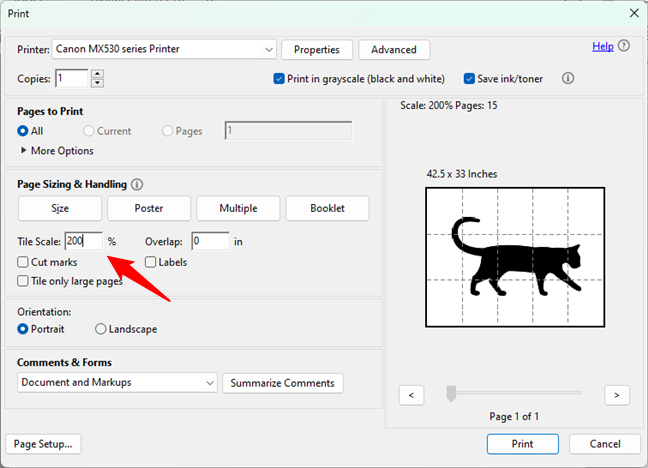 Enter a value for Tile Scale
You could now just press Print and wait for your printer to do its job. However, before that, you might also want to configure the other four poster printing options available in the Page Sizing & Handling section:
Enter a value for Tile Scale
You could now just press Print and wait for your printer to do its job. However, before that, you might also want to configure the other four poster printing options available in the Page Sizing & Handling section:
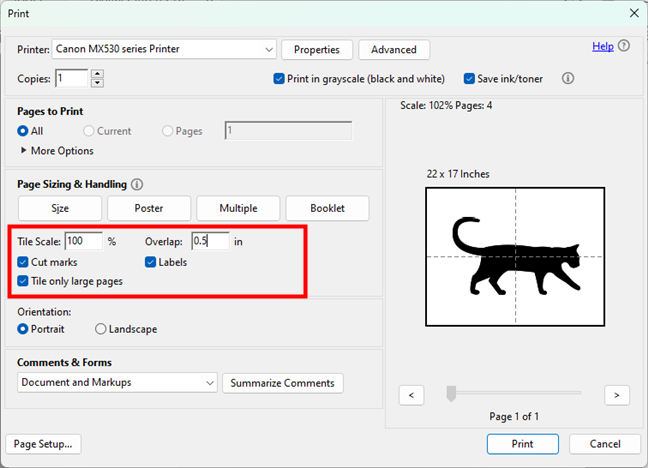 Additional settings for printing on multiple pages
Finally, after setting everything the way you want, click or tap the Print button from the bottom-right corner of the dialog window.
Additional settings for printing on multiple pages
Finally, after setting everything the way you want, click or tap the Print button from the bottom-right corner of the dialog window.
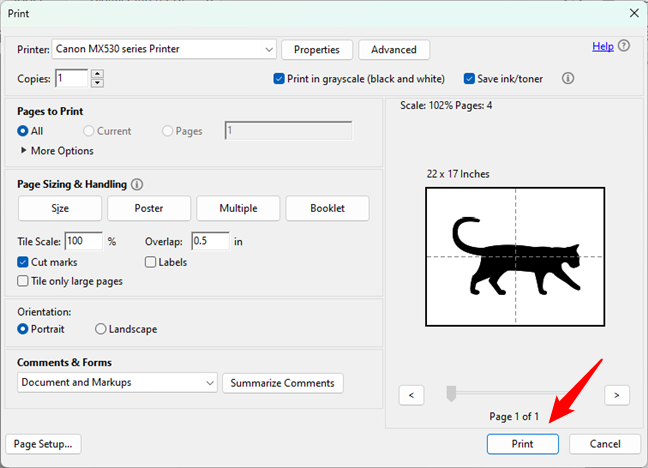 How to print a PDF poster on multiple pages with Adobe Acrobat Reader
Your printer will then start printing the PDF poster.
How to print a PDF poster on multiple pages with Adobe Acrobat Reader
Your printer will then start printing the PDF poster.
 The image we printed on multiple pages
Here’s the end result:
The image we printed on multiple pages
Here’s the end result:
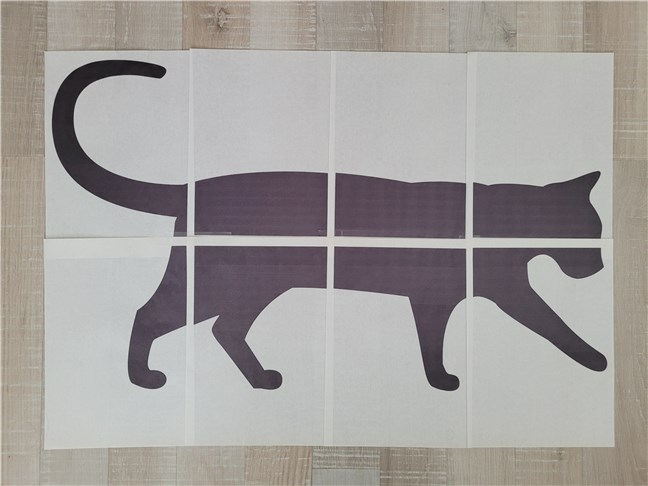
 End result: This is how to print a poster on multiple pages
With a bit of patience, you could also cut and stick the sheets together on the back to have the image look more like a poster made of only one gigantic piece of paper. 🙂
End result: This is how to print a poster on multiple pages
With a bit of patience, you could also cut and stick the sheets together on the back to have the image look more like a poster made of only one gigantic piece of paper. 🙂
1. How to print an image on multiple pages using Paint in Windows 10 or Windows 11
Since you reached this guide looking to learn how to print a large image on multiple pages, you should know that the easiest and fastest way to do it is using the good ol’ Paint. Without further ado, here’s how it goes:1.1. Open Microsoft Paint
First of all, open Paint. You'll find the many methods to do this in our guide: 9 ways to start Paint in Windows. If you’re in a hurry and don’t have time to read the guide, use the search feature. In Windows 11, press the Search button on the taskbar, type the word “paint,” and click or tap on the result bearing the same name.1.2. Open the image that you want to print
Load the file with the image that you want to print. To do that, click or tap File in the top-left corner of the window and select Open. Alternatively, you could also use the Ctrl + O keyboard shortcut.1.3. Set Paint to print your large image on multiple pages
Now you’ve got your image loaded in Paint. It’s time to tell Paint that you want the image to be printed on multiple pages. To do that, open the File menu again, click or tap Print, and select Page setup in the Print menu.1.4. How to print a large picture on multiple pages using Paint
Now Paint knows you want to print the image on multiple pages. All that remains is to start the printing process. Click/tap the File tab on the ribbon and then Print. You can also press CTRL + P on your keyboard.2. How to print a poster on multiple pages using Adobe Acrobat Reader
If you want to print a large poster and you have it as a PDF file, there’s a second method you can use for that, featuring the Adobe Acrobat Reader app. Oh, and if you prefer this one but your poster is not a PDF file, you can first follow the steps from this tutorial to convert it to PDF: How to print to PDF on Windows 10 and Windows 11.2.1. Open Adobe Acrobat Reader
Opening Adobe Acrobat Reader is the first step in printing a poster on multiple pages. If you don’t already have it installed on your Windows 10 or Windows 11 computer, download and install it from its official webpage: Adobe Acrobat Reader. Then, open it by double-clicking on either its desktop or its Start Menu shortcut. You can also use Windows’ search feature to look for it.2.2. Open the PDF poster that you want to print
Load the file with the poster you intend to print on multiple pages. For that, open the File menu from Adobe Acrobat Reader and click or tap Open (Ctrl + O).2.3. Configure and use Adobe Acrobat Reader to print the PDF poster on multiple pages
Now the PDF poster is loaded in Adobe Acrobat Reader. Next, you’ll need to instruct the app to print the poster on multiple pages. To do that, open the File menu again, but this time select Print (Ctrl + P) from its list of options.- Overlap lets you choose how much each tile overlaps the surrounding ones. I recommend you not to leave this option set to zero, as it will be much easier to assemble the printed poster later on.
- “Cut marks” will add guide marks on the pages to help you cut them easier after everything’s printed.
- Labels adds the name of the file and the number of the page on each paper sheet that’s printed.
- “Tile only large pages” can be useful if your PDF poster has pages with different dimensions and you only want the larger ones to be printed as a poster (split on multiple paper sheets).
Here’s what we printed on multiple pages
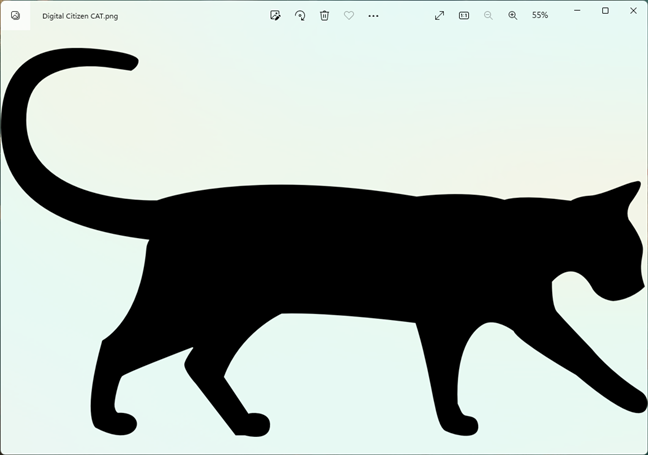
To showcase the steps involved, we used this image and printed it on multiple pages:
Discussion (99)
I need the finished poster to be exactly 3 feet by 3 feet, and cannot figure out how to do that.
I am in microsoft print. But can’t seem to get it in multiple pages. What do i click on to do this? I have tried many things and it won’t print. Show me the steps to make this bigger please.
Brilliant, I’ve been wanting to do that for soo long and yours was the best, simplest explaination I found online ! Thank you so much !
Great tutorial. Would be great to make a video to show the process . But thank you . It was very helpful ! Learned a new thing today !!!
Thanks so much. Finally able to understand what to do and it worked easily
Just like a lot of others, this doesn’t do anything for me except print the image on one page and then blank sheets for the others. Help??
Computing is any goal-oriented activity requiring, benefiting from, or creating computers. It includes development of both hardware and software. … Major computing disciplines include computer engineering, computer science.
Computing is any goal-oriented activity requiring, benefiting from, or creating computers. It includes development of both hardware and software. … Major computing disciplines include computer engineering, computer science, cybersecurity, data science, information systems, information technology and software engineering.
Thank you, very easy to understand and comprehensive guide! really appreciate
This didn’t do anything different. I wanted it BIGGER. All it did was break the image up into 4 little pieces and wasted a bunch of paper. And the image was already over 1200×1400!
I had to play with the size of the background (white part) of paint, before pasting the image I wanted to make larger.
You can do a print preview before printing to make sure it looks like what you are wanting.
Good luck!
It was what I needed. My husband needed the shape from a vintage radio. We do not live in a big city; any printshop would be at least half an hour drive away and we have a perfectly good laser printer but just for A4 And he didn’t need colour for the shape. He was so pleased I could print it for him. Now he can make the template for the radio. Thanks ever so much for your tip!
Thanks, love simple solutions like this, using inbuilt apps.
Much appreciated!
EASY! If I can do this, anyone can!
Benn looking for something simple like that forever! You rock!
Thanks!
Many thanks for the info!
Worked great…A huge thanks. I’d just about given up trying to print on multiple pages using Microsoft Paint.
Fantastic explanation!…detailed but easy to follow along.
This helped me print out long screenshots of my spending to help with my taxes.
Thanks
Not working for whne the imgae is on A3 size paper. A3 options are not available
Can you set the height so the result is an exact # of inches?
This article is very helpful and has a very clear instructions.. Thank you so much!!
Exactly what I needed and I had been looking to other programs for weeks. Thanks
Happy to help. Do not hesitate to subscribe to our newsletter, for more useful tutorials like this.
This is one one of the clearest tutorials I’ve ever read! Thank you for sharing!
awesome. thanks, you saved my day 🙂
Amazing tutorial. I will give it a try and come back to you.
Soooooo much helpful. Thank you!
Fantastic tutorial. I appreciated the step-by-step instructions along with the visuals. I was able to do exactly what I wanted to do. Thank you!
Thank you! I used this to create a printer-friendly news article for a friend. Perfect.
I found this extremely helpful..I was a bit concerned about it, but I was able to follow step by step and it worked wonderfully..I am an intarsia/scrollsaw artist..this will save me countless trips to my print shop….Thankyou
Thank you
nice
very easy. and everyone has this tool so a good thing to know
It all sounded so good but even though I specified several pages the print preview still just shows the first page. Also it would be helpful to explain that when you specify n x m which is horizontal and which is vertical.
Is there a way to specify the end size needed? For example, I want the finished printing to be 16″ x 20″.
Very Helpful!Thanks
very handy and simple free tool that does the job
I wanted to see a sample of what the image might look like when printed – but struggled to print just one page.
Solution I found was to print to a PDF file and print the relevant page(s) from the PDF. In my case, the full print was 3 pages wide by 9 high making 27 pages in all – printing just page 8 of my PDF let me see a key area as it would in the final print
Thanks for a useful article
This was exactly what I needed and the steps were both clear and easy to follow. Thank you!
great trick ! tnx a lot, now i use Paint and it works!! :d
Thankyou, really helpfull.
Wonderful…..!!!!
nice tutorial it helped a whole lot. Thanks!
thank you so much!!! Much cheaper than buying a projector for a one-time project! 🙂
ps my other PC isn’t 10 so I can’t do the work on its version of Paint.
I have two PCs, one has windows 10, the other has the printer, as I use that PC more. Is there way to save the “postered” picture as a series of single jpgs so that I can print them individually from the other pc? Otherwise it means unplugging the printer and setting it up on the 10 PC and then putting it back on the other. Thanks
A very good tutorial. It was useful to me!
This was very helpful for what my students and I were trying to do! Thanks!
Great help 🙂 Thanks 🙂
Yes, it worked just fine. Thanks for the help in your tutorial!
the image you printed is not the same. the bird is in the wrong spot.
Thank you for sharing this tutorial it very helpful
Thanks. This helps me.
The white margins?? do my head in.
Thanks, it worked beautifully. I was looking for something like this. 🙂
I want the Design like the one u just Printed. Where can i Find Them
Great article. Saved myself about $30 in blowing up a simple B&W diagram. Thanks!
Brilliant! Thanks so much! Simple and straightforward 🙂 🙂
I will try this right away! I used to use Paint all the time, but haven’t needed it again until I saw the new updates! Thanks!
Worked fine if only I had enough printer ink !
This literally saved my life!
thank you so much. You solved my problem so easy. I am an older generation, step by step was great.
Thanks
This is amazing and so simple. Thank you!
Thanks so much. Saved me some money.
Very simple & useful technique. Excellent guide. Keep it up
Brilliant – so easy
Thanks, this is so simple. Having a party , able to print out large pictures ???. Thanks for your help
Ciprian, Thank you so-o-o much for taking the time to show us how simple an otherwise extremely complex job could be! In a world where everything seems to be getting more and more unnecessarily complex, it’s really nice to find the things that can be simplified–and it was right in front of us all along, but you’re the one who figured it out and cared enough to share what you know. Thanks again!
rather than coming on multiple pages. my half image has come on one side and half image on other side of A4 sheet
Your printer’s settings need to be changed, so that it doesn’t print on both sides of the paper.
Thanks
Thanks buddy. Your solution saved me some humiliation.
Humiliation? How come?
Thank you sooo much, this realy worked,your instructions are easy to follow
Is it possible to scale the image not so that it fits the pages but instead has a specific height and length?
as a novice, accustomed to using the obsolete Adobe printshop 6 (which I dearly miss) this was a grea, step by step tutorial. Easy to follow, no ‘insider’ terms that I had to GOOGLE and the result is great. Thank you
Happy to help! 😉
Let me just say that it did enlarge my picture. But as another has said serveral pages were blank. Any suggestions?
I looked at the picture you say that was used for this. But however as I looked at the pages that were printed it is obvious to me it doesn’t match.
Have a look at the humming bird and the leaves next to him and it will be seen.
I needed a specific size and I was able to do it by adjusting the margins. Great!
Is there a way to only print the image, and not all the white in the background? When I attempted to print it 3X5, the entire space was printed. I wanted just the actual image to be 3×5 It ended up being about 2X2 and the rest of the 11 pages were plain white.
print preview first?
Very useful and clear instructions. Got the image I wanted, the size Iwanted. Thank you
HELP. I have read and re read this page and no matter what way I do it I can only get image on 2 pages HELP
Beautiful, wonderful, works great
THANK YOU SOOO MUCH! It worked like a charm. Thanks for taking the time to post this. 🙂
You are welcome.
Margins are an issue for me, and maybe that’s a limit of using Paint for large format printing. I’m not able to indicate zero margins, which means I need to overlap my pages like you have in the photo.
EVER HEAR OF SCISSORS OR A PAPER CUTTER????
No, it didn’t work. I need the pages to be a specific size not just letter size. any help would be greatly appreciated
The same dialog box that you use for scaling also lets you specify the page size — even a non-standard custom size.
Amazing !! Thank you so much 🙂
Worked perfectly
Happy to help!
Thanks it worked greatly,
I am happy to have google else i couldn’t have found you…
This is what i was looking for.
Worked great, thanks!
How many sheets will be used for a 20×24 picture?
Yea, at the beginning of this question my first step was Paint, but I failed.
As for me, the best way to print poster on multiple pages is “using the correct software”. there are many application for that postrazor, print …etc….but, in my opinion, better choise is RonyaSoft poster printer. thx to that program I’ve printed poster of my family on wall…..Now it’s looking really amazing 🙂
this is what computing means to me – an innocently simple solution to a possibly very complicated and frustrating situation. thanks