




If notifications are not working on your iPhone, the cause usually comes down to a blocked setting, Focus mode, or an app-level restriction. In most cases, you can fix the problem in a few minutes by checking the right options in iOS.
Below are the fixes that work most often, ordered from fastest to advanced.
Table of contents
- Check the most common notification blockers first
- Fix lock screen and alert delivery issues
- Resolve notification issues caused by iOS updates
- Fix app-specific notification problems
- Advanced fixes for persistent notification failures
- When notifications still do not work
- Tips to prevent notification issues on iPhone
- FAQs about iPhone notifications not working
- Summary
Check the most common notification blockers first
These settings cause the majority of notification issues on iPhone. Start here before trying anything else.
Make sure notifications are enabled for the app
iOS controls notifications on a per-app basis. If notifications are disabled for a specific app, nothing else will override that choice.
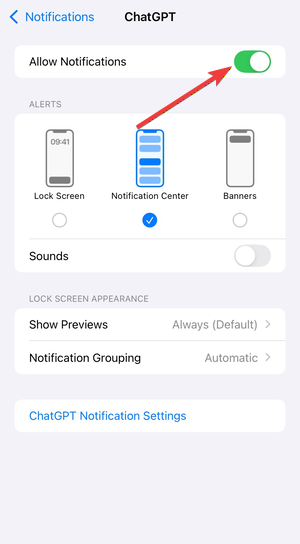
To enable notification for a specific app, open Settings → Notifications → select the app. Next, turn on Allow Notifications, then enable Lock Screen, Banners, and Sounds.
Turn off Focus or Do Not Disturb modes
Focus modes silently block notifications even when apps allow them. Many users leave Focus enabled without realizing it.
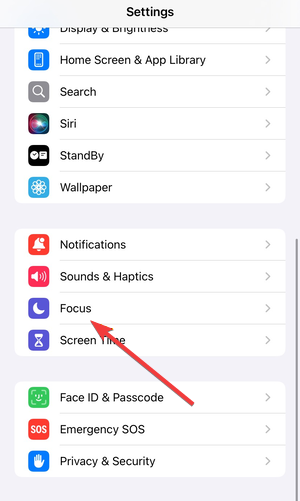
Open Settings → Focus. Next, turn off all active Focus modes or bypass Focus mode for some people and apps.
Check Notification Summary settings
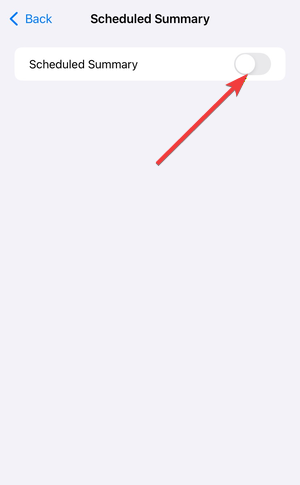
Scheduled Summary delays notifications instead of delivering them instantly. This often looks like notifications are broken.
To turn it off, open Settings → Notifications → Scheduled Summary. From here, you can deactivate it or exclude important apps.
Fix lock screen and alert delivery issues
Sometimes notifications arrive, but you never see or hear them.
Enable lock screen notifications
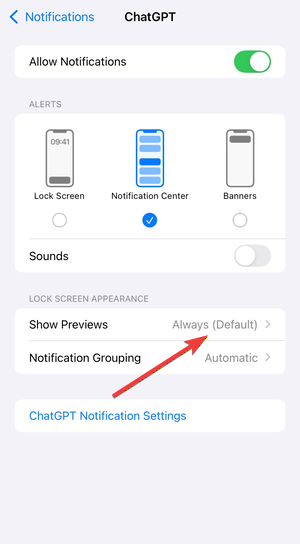
Open Settings → Notifications and enable Show Previews. You should also allow notifications on the lock screen.
Allow banners and sounds
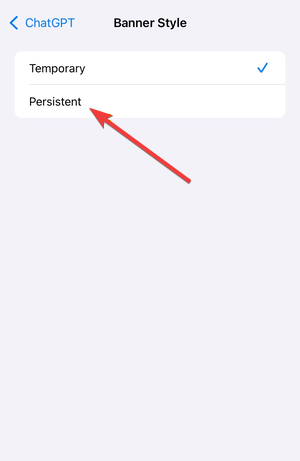
Open the app’s notification settings and set Banner Style to Persistent or Temporary and enable sounds.
Resolve notification issues caused by iOS updates
Problems often appear right after installing a new iOS version.
Restart your iPhone after an update
iOS updates sometimes leave background services in an unstable state. A restart resets them.
Hold the Side button and volume button to power off. Now, wait 30 seconds, then turn the iPhone back on.
Recheck notification permissions after updating iOS
Open Settings → Notifications, then review critical apps and re-enable alerts if needed.
Fix app-specific notification problems
If notifications fail only for certain apps, focus on those apps directly.
Messages notifications not working
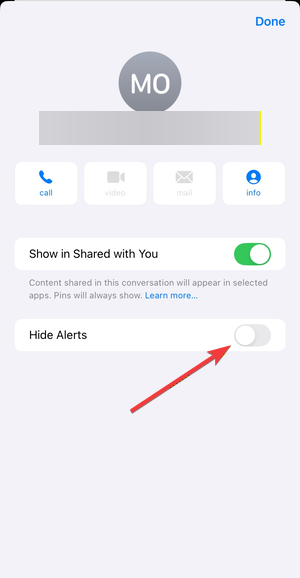
Muted conversations and Focus filters block alerts silently. Just open the conversation in Messages, then tap the contact name and turn off Hide Alerts.
Mail notifications not working
Mail depends heavily on Fetch and Push settings. You can enable Push by going to Settings → Apps → Mail → Mail Accounts → Fetch New Data. From here, enable Push and set Fetch to Automatically or Every 15 Minutes.

Third-party apps not sending alerts
Background restrictions often block notifications.
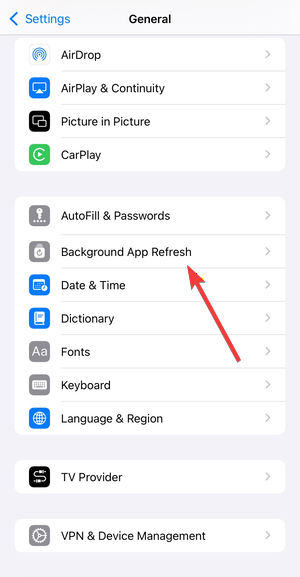
Open Settings → General → Background App Refresh. Now, enable it globally and for the affected apps.
Advanced fixes for persistent notification failures
Use these steps only if basic fixes do not work.
Enable Background App Refresh
Apps cannot deliver notifications reliably without background activity.
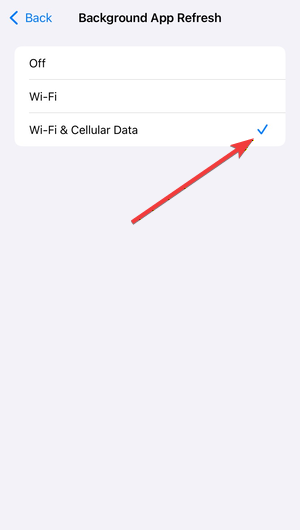
Open Settings → General → Background App Refresh. Then, select Wi-Fi & Cellular Data.
Reset all settings (without deleting data)
Corrupted system preferences often block notifications system-wide.
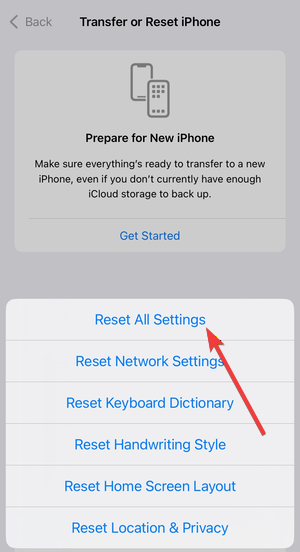
Open Settings → General → Transfer or Reset iPhone. Now, tap Reset → Reset All Settings.
When notifications still do not work
- Check Apple system status: Apple service outages affect Mail, iCloud, and push notifications. Check Apple’s system status page for outages related to iOS services.
- Contact Apple Support: At this point, the issue may involve your Apple ID or an iOS bug. Apple Support can check account-level problems and known software issues.
Tips to prevent notification issues on iPhone
- Review Focus modes weekly to avoid accidental blocks
- Avoid aggressive battery-saving profiles
- Keep critical apps excluded from Scheduled Summary
- Restart your iPhone after major iOS updates
FAQs about iPhone notifications not working
Why do notifications show late on iPhone?
Scheduled Summary, Focus modes, or Fetch settings usually delay alerts.
Why do notifications work on Wi-Fi but not mobile data?
Background App Refresh or mobile data restrictions often cause this.
Do Low Power Mode settings affect notifications?
Yes. Low Power Mode limits background activity and delays alerts.
Summary
- Check app notification permissions and Focus modes first
- Disable Scheduled Summary and verify lock screen alerts
- Restart after iOS updates and recheck settings
- Fix app-specific notification and background refresh issues
Most iPhone notification problems come from iOS settings, not hardware faults. Start with Focus modes and app permissions, then move to advanced resets only if needed. Once alerts resume, stop troubleshooting and keep those settings in check after future updates.


Discussion (0)
Be the first to comment.