




If your iPhone stays silent during calls or messages, Focus mode blocks the sound. You can bypass it by allowing contacts, enabling Emergency Bypass, or temporarily disabling Focus. Follow the steps below in order, starting with the easiest fix.
Table of contents
- Check what’s actually silencing your iPhone
- Allow specific people to bypass Focus mode
- Allow specific apps to bypass Focus mode
- Enable Emergency Bypass for calls
- Enable Emergency Bypass for messages
- Temporarily turn off Focus mode
- Let repeated calls bypass Focus automatically
- Fix common issues when bypass still doesn’t work
- What you cannot bypass on iPhone
- Tips for bypassing iPhone silent Focus mode
- FAQs
- Summary
Check what’s actually silencing your iPhone
Before changing anything, confirm the cause. This avoids applying the wrong fix.
- Look at the Silent switch on the left side of your iPhone.
- Flip it up so you don’t see orange.
- Swipe down from the top-right corner to open Control Center.
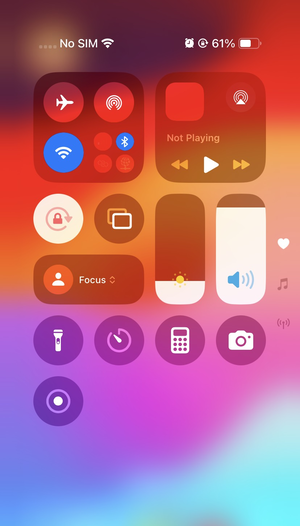

- Check if any Focus icon is active (for example, Do Not Disturb, Sleep, or Work).
If Focus is active, continue to the next step.
Allow specific people to bypass Focus mode
Use this method when certain contacts must always reach you.
- Open Settings.
- Tap Focus.
- Select the active Focus profile (for example, Do Not Disturb).
- Tap People.
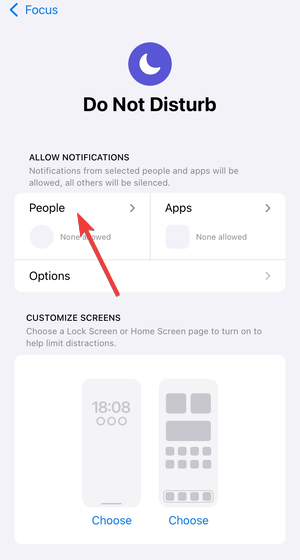

- Tap Add People.
- Select the contacts you want to allow.
- Tap Allow Calls From and choose Allowed People.
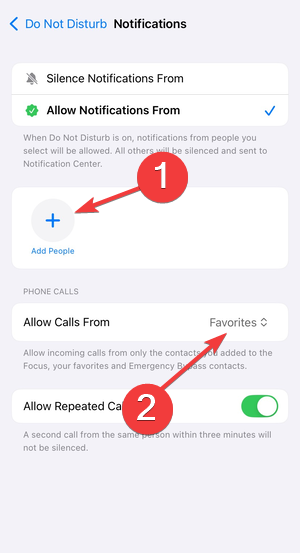

- Enable Allow Repeated Calls.
Calls and messages from these contacts will now bypass Focus.
Allow specific apps to bypass Focus mode
This works best for messaging or work apps.
- Open Settings.
- Tap Focus.
- Select your active Focus profile.
- Tap Apps.
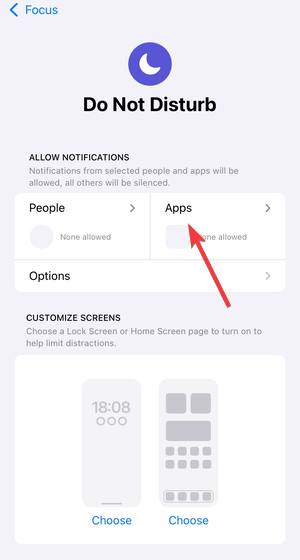
- Tap Add Apps.
- Select the apps you want to allow.
- Enable Time Sensitive Notifications if available.
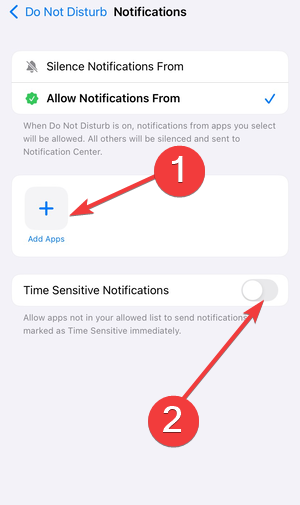

Notifications from these apps will now come through with sound.
Enable Emergency Bypass for calls
Emergency Bypass ignores Focus mode and the Silent switch.
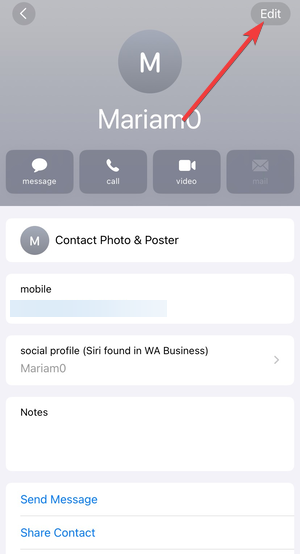
- Open the Contacts app.
- Select the contact you never want to miss.
- Tap Edit.

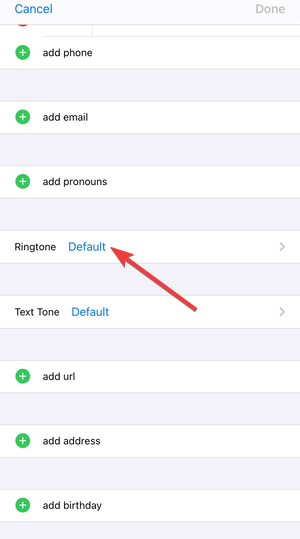
- Tap Ringtone.

- Enable Emergency Bypass.
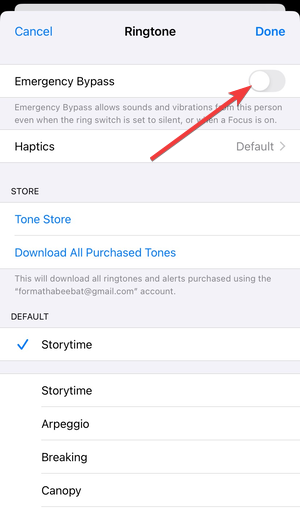

- Tap Done.
- Tap Done again.
Calls from this contact will always ring.
Enable Emergency Bypass for messages
Use this if urgent texts keep arriving silently.
- Open the Contacts app.
- Select the contact.
- Tap Edit.
- Tap Text Tone.
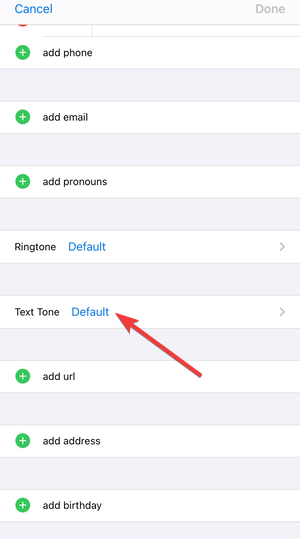
- Enable Emergency Bypass.
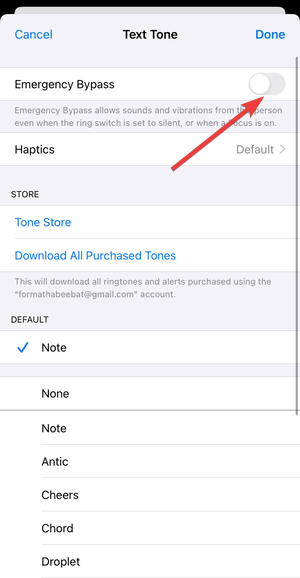

- Tap Done twice.
Messages from this contact will now play sound.
Temporarily turn off Focus mode
Use this when you only need sound for a short time.
- Swipe down to open Control Center.
- Tap the active Focus icon.
- Choose Turn Off, or select For 1 Hour or Until Leaving This Location.
Your iPhone will resume normal notifications immediately.
Let repeated calls bypass Focus automatically
This helps when someone calls multiple times in an emergency.
- Open Settings.
- Tap Focus.
- Select the active Focus profile.
- Tap People.
- Enable Allow Repeated Calls.
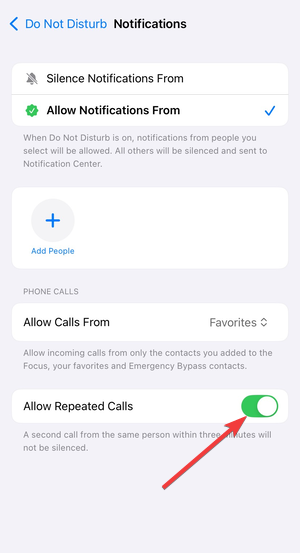
If the same number calls twice within three minutes, the second call rings.
Fix common issues when bypass still doesn’t work
If your iPhone remains silent, check these settings.
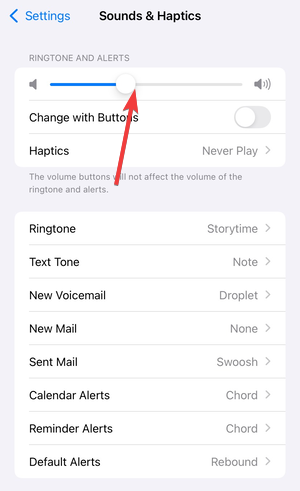
Check ringer volume and output
- Open Settings.
- Tap Sounds & Haptics.
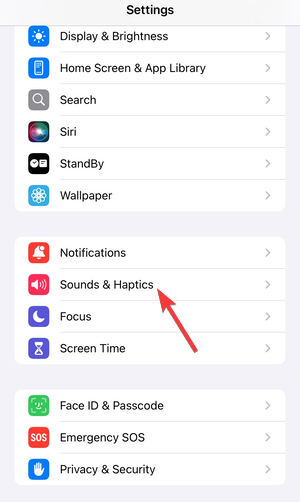

- Drag Ringer and Alerts volume to the right.

- Disconnect Bluetooth headphones or speakers.
Check Focus schedules
- Open Settings.
- Tap Focus.
- Select each Focus profile.
- Tap Schedule or Smart Activation.
- Disable any schedule you don’t need.
What you cannot bypass on iPhone
The Silent switch always mutes certain system sounds. You cannot force all sounds to play when it’s on. Alarms and emergency alerts follow separate rules and ignore Focus automatically.
Tips for bypassing iPhone silent Focus mode
- Use Emergency Bypass only for critical contacts.
- Keep Allow Repeated Calls enabled as a safety net.
- Review Focus schedules after iOS updates.
- Test bypass settings with real calls.
- Check Bluetooth devices before troubleshooting.
FAQs
Can Emergency Bypass ignore Silent mode?
Yes. It overrides both Focus mode and the Silent switch.
Why do calls still stay silent after allowing contacts?
Focus schedules, low ringer volume, or Bluetooth audio usually cause this.
Does Focus block alarms?
No. Alarms always play sound.
Can I bypass Focus for one call only?
You can temporarily disable Focus or rely on repeated calls.
Summary
- Confirm Focus mode causes the silence.
- Allow contacts or apps inside Focus.
- Enable Emergency Bypass for critical people.
- Temporarily turn off Focus when needed.
- Check volume, audio output, and schedules.
Focus and other settings can easily stop calls without blocking a number on your phone. Bypassing iPhone Silent Focus mode is the best way to make exceptions for some of your preferred contacts.
Emergency Bypass suits urgent contacts, Focus exceptions handle daily needs, and schedules prevent missed alerts long term. Once you set things up, your iPhone will stay quiet when you want and ring when it matters.



Discussion (0)
Be the first to comment.