



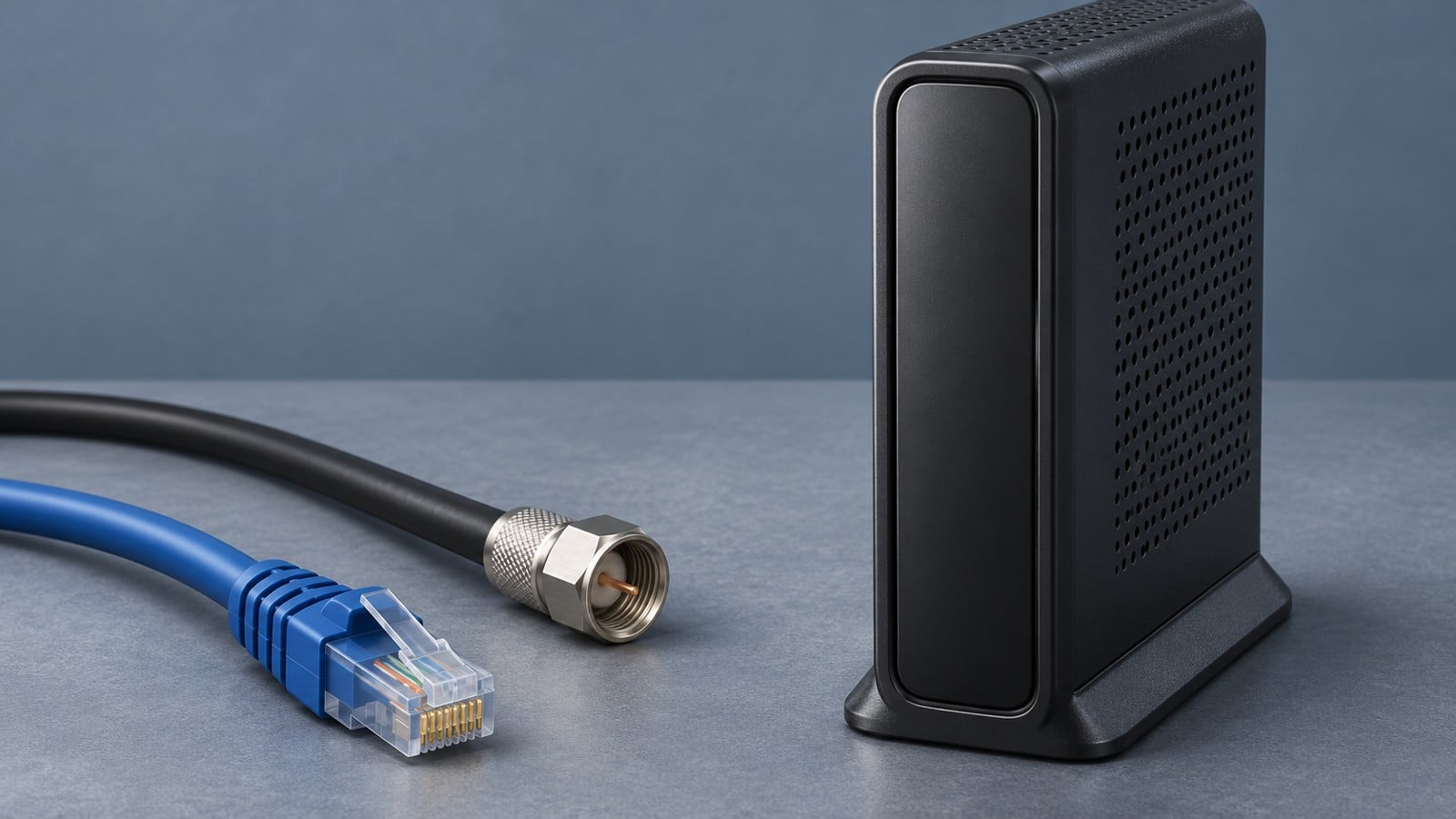
For a single multigig connection from a NETGEAR CM3000, use the modem’s 2.5Gbps Ethernet port and connect it to a compatible multigig WAN port on the router. A 1Gbps router WAN port remains a bottleneck even if the modem and internet plan support more.
Check every part of the path
- Confirm that the ISP supports and has provisioned the CM3000 for your service.
- Connect the modem’s 2.5Gbps port to the router’s appropriate WAN port.
- Check that the router’s downstream LAN connection and test computer support the target speed too.
- Use suitable working Ethernet cabling throughout.
The CM3000 manual shows the ports and connection options. The device is a cable modem, not a Wi-Fi router; it does not supply a complete household LAN merely because it has several Ethernet sockets.
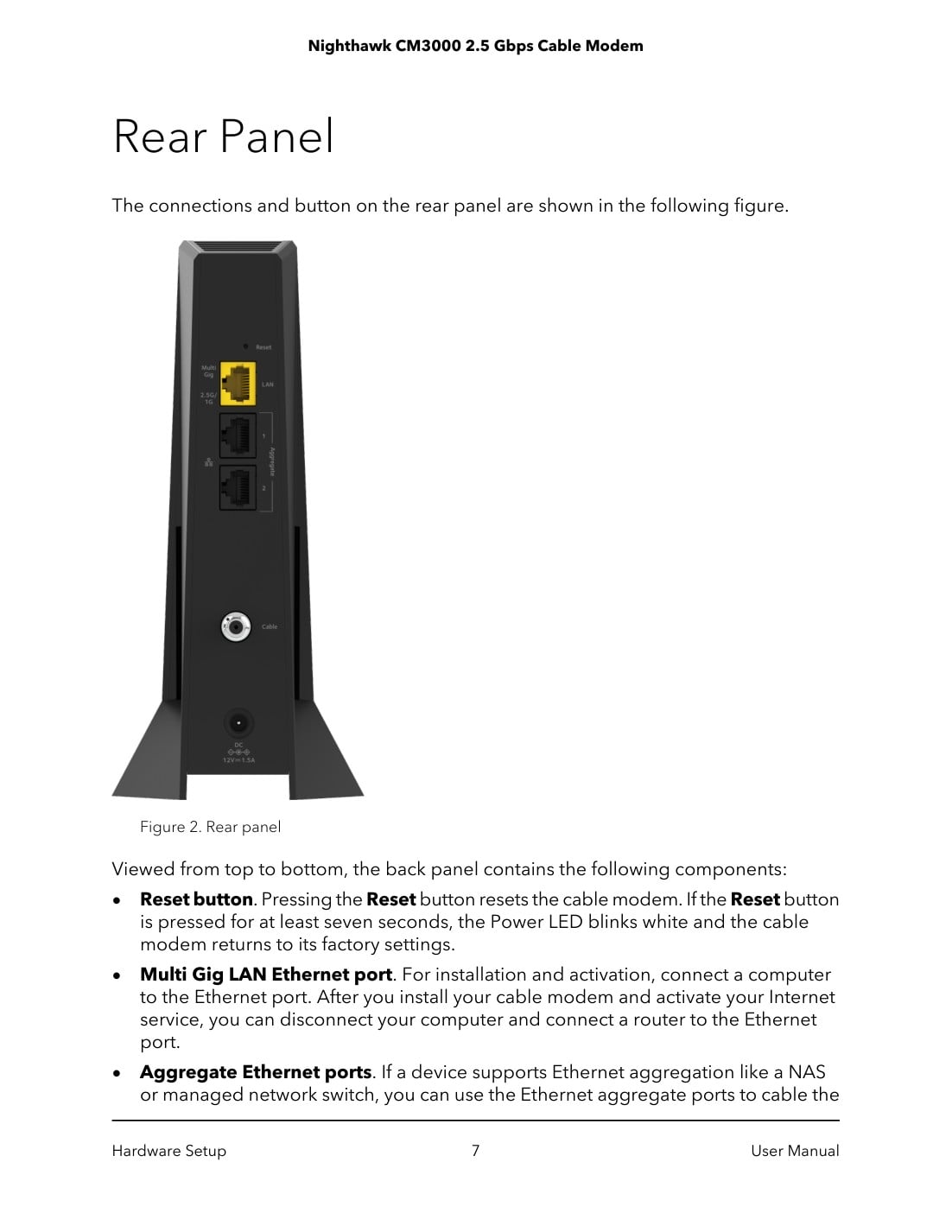
Aggregation is a different option
The CM3000 also supports an alternative using two 1Gbps Ethernet connections with a compatible router and the required aggregation configuration. Its combined ceiling is 2Gbps, which is not identical to one 2.5Gbps link.
Do not connect two cables and assume aggregation activates automatically. Follow the modem manual and router’s matching instructions, or use the simpler single 2.5Gbps connection where supported.
Measure the right connection
Test with a capable wired client before interpreting a Wi-Fi speed result. The ISP plan, provisioning, router, and client all influence actual performance. A fast modem cannot upgrade a slower subscription or network port.
The CM3000 product information also distinguishes cable service from fiber and voice requirements. Do not treat it as a universal replacement for an ISP’s fiber terminal or telephone-service equipment. If speed remains limited, record the negotiated port rates and test layout for your ISP or router vendor.
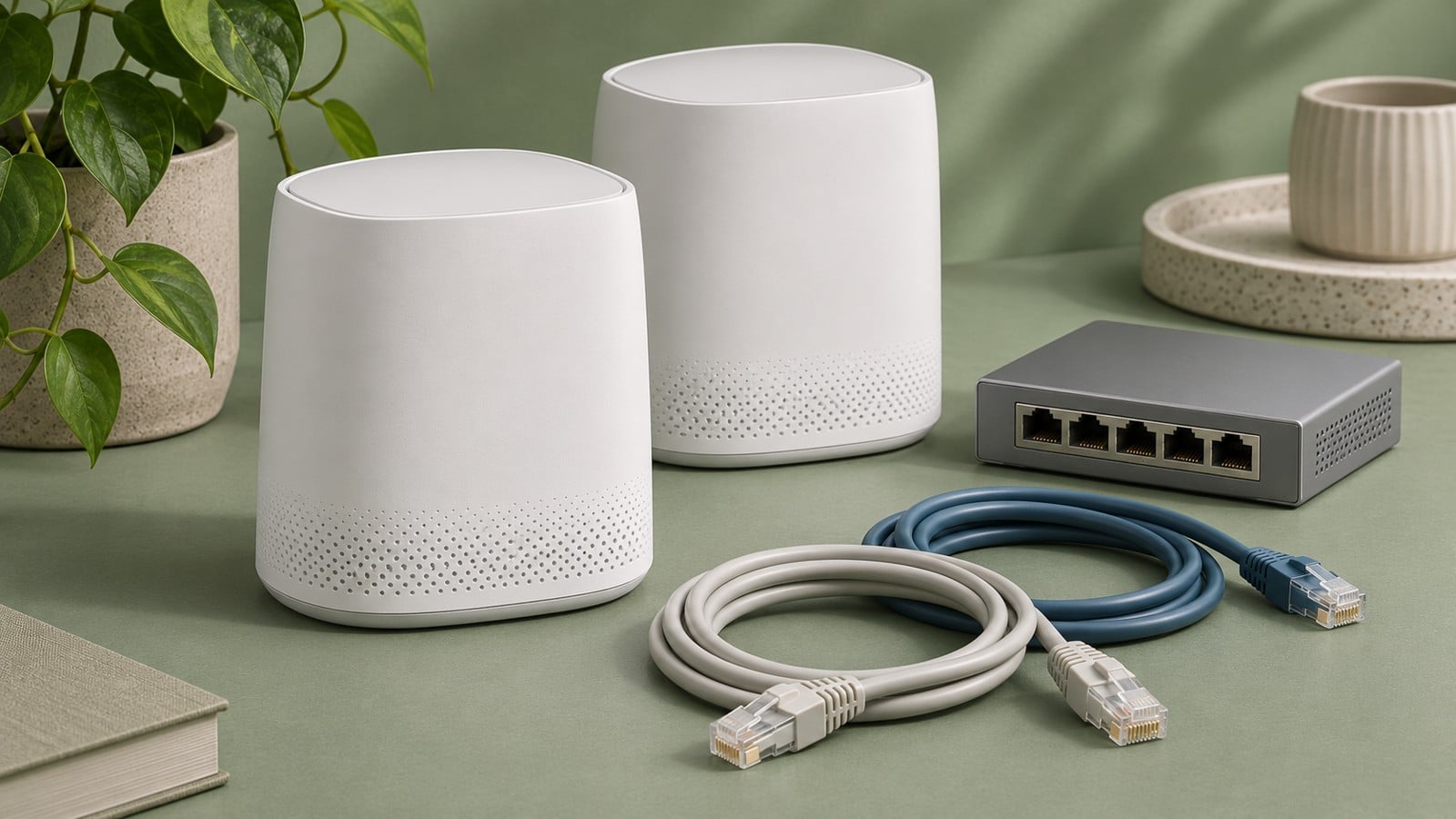
Featured image: AI-generated illustration of representative equipment, not an exact product photograph or a hands-on test.

Discussion (0)
Comments are closed.