



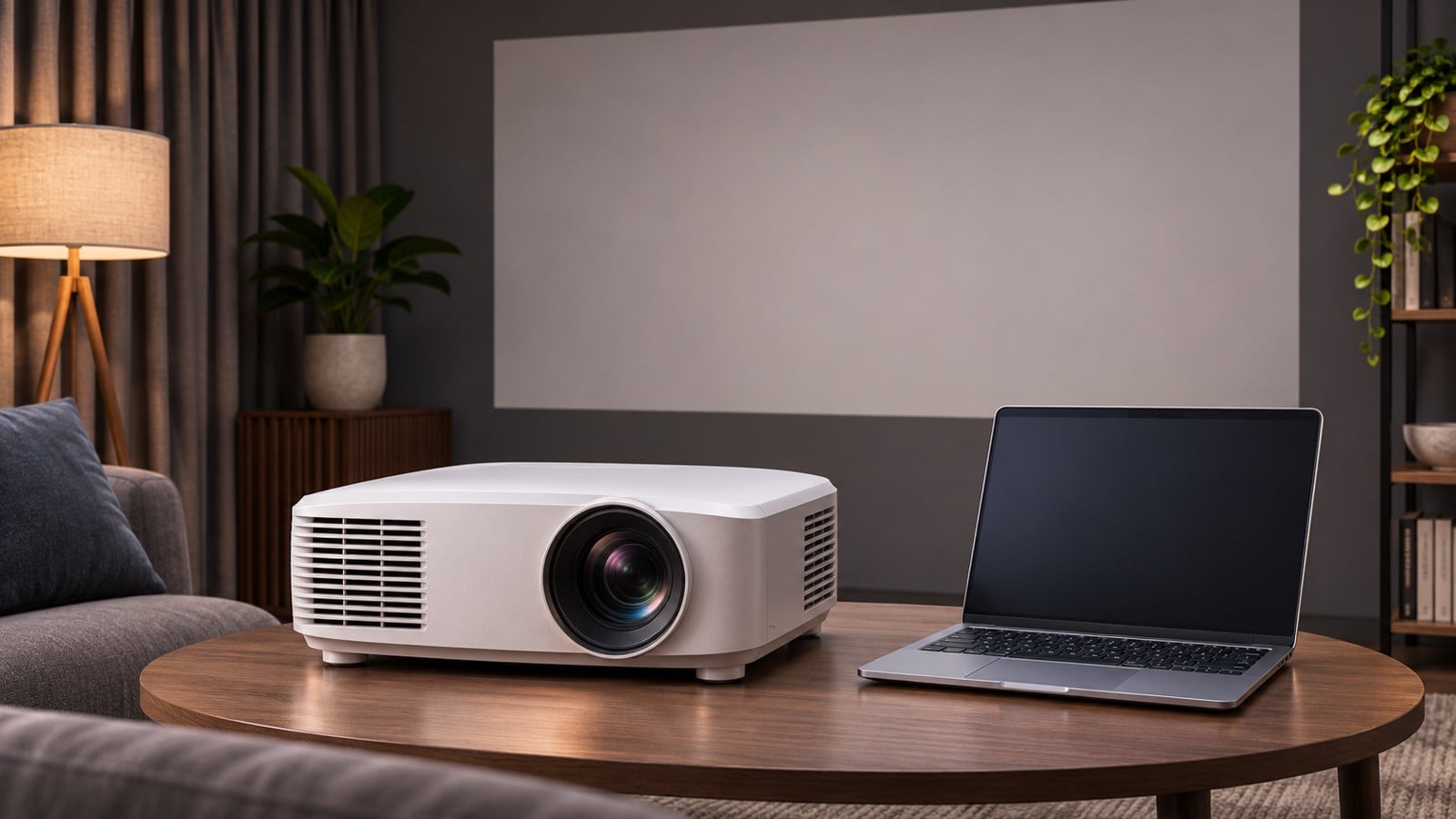
The Epson LS11000 manual lists support for a 3840×2160 signal at 100Hz or 120Hz. If your PC produces no image at 4K 120Hz, check the complete HDMI path and the projector’s input settings rather than assuming that support guarantees every cable arrangement will work.
Establish a direct picture first
- Connect the PC’s HDMI output directly to a projector HDMI input.
- Select the matching source on the projector.
- Enable the external display in Windows and test a lower supported refresh rate or resolution.
- If that works, increase the output mode toward the intended 4K 120Hz setting.
This comparison removes an AV receiver or adapter as a variable. Check the PC graphics output’s capabilities too; the projector cannot receive a mode the source cannot send.
Check the cable and input EDID
The LS11000 user guide requires a compatible HDMI cable and describes an Opt.HDMI 300mA power connection for optical HDMI cables that need it. Follow the cable’s direction and power instructions instead of treating every long cable as interchangeable.
Under Signal I/O, EDID settings are separate for each HDMI input. Epson explains that EDID Mode can be changed according to the source resolution when an image fails. Use the manual’s input-specific instructions; do not apply an arbitrary mode value copied from another projector.
Add the rest of the equipment afterward
Once the direct PC connection works, reintroduce the receiver or adapter and test again. If the image disappears only then, inspect that component’s supported passthrough modes and both cables.
Record the exact resolution, refresh rate, HDMI input, and cable path for support. Receiving a 4K signal is separate from the projector’s imaging technology and does not establish unrelated features such as variable refresh rate.
Featured image: AI-generated illustration of representative equipment, not an exact product photograph or a hands-on test.

Discussion (0)
Comments are closed.