



Microsoft is testing and rolling out several important Windows updates in June 2026, including a less annoying Windows 11 update process, a faster Microsoft Edge release cycle, new Windows 11 customization options, and eye-comfort display features. These changes affect Windows Insiders first, but many of them may later arrive for regular Windows 11 users through stable updates.
The biggest news is that Microsoft is working on a more unified Windows Update experience that can reduce how often users need to restart their PCs. Microsoft Edge is also moving to a two-week major release cycle starting with version 152, which means browser updates will arrive more often but with smaller changes each time.
Windows 11 Is Testing a Better Update Process
One of the latest Windows 11 preview builds focuses on making updates less disruptive. Microsoft is testing a unified update experience that can bundle driver, .NET, and firmware updates together.
This matters because Windows users often need to restart their PC multiple times after installing different types of updates. A more unified process could reduce reboot interruptions and make monthly updates feel smoother.
This update is currently aimed at Windows Insiders, which means it is still being tested before wider release.
Why the New Windows Update Process Matters
Windows updates are important for security, stability, drivers, and new features. However, frequent restarts can interrupt work, gaming, school tasks, and downloads.
A better update system can help by:
- Reducing repeated restarts
- Combining different update types
- Making update installation smoother
- Saving time after monthly patches
- Improving reliability
- Helping users stay updated more easily
If Microsoft expands this feature to everyone, Windows 11 updates could become less frustrating for regular users.
Microsoft Edge Is Moving to a Two-Week Release Cycle
Microsoft Edge is changing how often major browser versions are released. Starting with Stable version 152, Microsoft Edge will move to a two-week major release cycle. Microsoft says this will bring features and improvements faster while keeping each release smaller and easier to manage.
This means Edge updates will arrive more frequently than before. Instead of waiting around a month for a major browser version, users and organizations can expect smaller updates more often.
What the Edge Release Change Means for Users
The new Microsoft Edge schedule does not mean users will suddenly get huge feature changes every two weeks. Instead, updates should be smaller and more steady.
For normal users, this may mean:
- Faster security improvements
- Smaller browser updates
- New features arriving sooner
- More frequent version changes
- Less waiting between updates
- Better alignment with Chromium development
For businesses, it may also make testing and update planning more predictable because changes are spread across smaller releases.
Windows 11 Gets More Start Menu Customization
Windows 11 is also testing a more customizable Start menu. This could give users more control over what appears in the Start menu and how it looks.
The Start menu has been one of the most debated parts of Windows 11. Many users want more control over recommended items, pinned apps, layout, and sections.
A more customizable Start menu could help users:
- Reduce clutter
- Hide unwanted sections
- Focus on pinned apps
- Make the Start menu cleaner
- Personalize the layout
- Improve daily workflow
This is especially useful for people who prefer a simple and distraction-free Start menu.
Windows 11 Screen Tint Feature
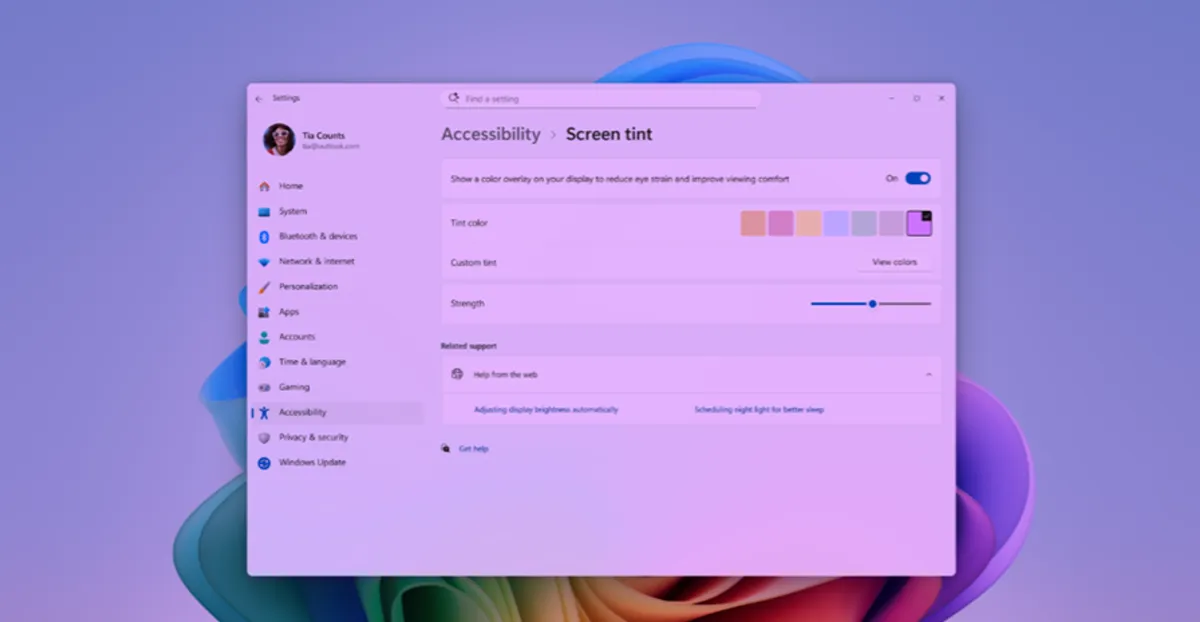
Microsoft is testing a new Windows 11 feature called Screen Tint. This feature is designed to make screen time easier on the eyes by adding color presets or custom overlays.
Screen Tint may help users who experience discomfort from bright screens or harsh colors. It can be useful during long work sessions, reading, night use, or accessibility-focused setups.
Screen Tint may help with:
- Eye comfort
- Softer screen colors
- Reduced harsh brightness
- Reading comfort
- Accessibility
- Custom color overlays
- Nighttime computer use
This is not the same as Night Light, but it follows the same idea of making the display easier to look at.
Windows 11 on 8GB RAM Is Still Being Tested by Users
Another discussion around Windows 11 is whether 8GB of RAM is still enough. Many users feel Windows 11 needs more memory than older versions of Windows, especially when multitasking.
A Windows 11 PC with 8GB RAM can still work for basic tasks, but the experience depends on how the computer is used.
8GB RAM may be enough for:
- Web browsing
- Microsoft Office
- Online classes
- Video streaming
- Light photo editing
- Basic apps
8GB RAM may feel limited for:
- Heavy multitasking
- Gaming
- Video editing
- Virtual machines
- Large browser sessions
- Development tools
- AI apps
- Creative software
For better long-term performance, 16GB RAM is usually a safer choice.
Dell and HP Reboot Loop Problems
Some Dell and HP users recently faced reboot loop problems after faulty updates, but reports suggest Windows itself was not the main cause. Instead, the issue was linked to vendor-side updates.
This is an important reminder that not every PC problem after an update is caused directly by Windows. Drivers, firmware, BIOS updates, and manufacturer tools can also cause boot problems.
If your PC gets stuck in a reboot loop, try:
- Disconnecting external devices
- Entering Windows Recovery Environment
- Running Startup Repair
- Uninstalling recent updates
- Restoring from a restore point
- Checking Dell or HP support pages
- Updating BIOS only from official sources
- Contacting the manufacturer if needed
Never interrupt BIOS or firmware updates unless absolutely necessary.
Windows 11 Version 26H1 Enters Beta Testing for Some Devices
Windows 11 version 26H1 has started appearing in Beta Channel testing for certain devices, especially newer hardware powered by Snapdragon X2 and RTX Spark chips.
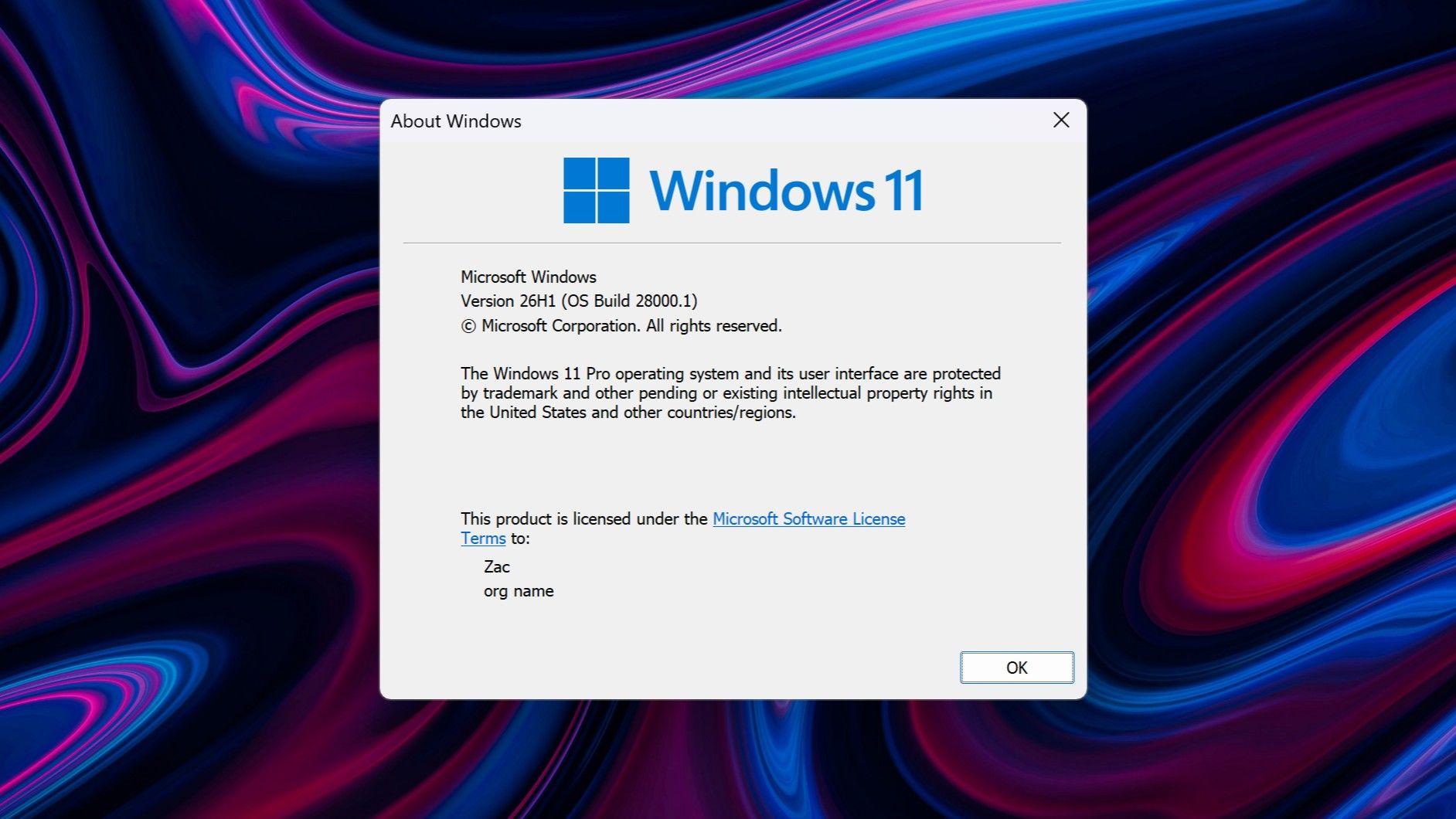
This shows Microsoft is continuing to prepare future Windows platform updates, especially for AI PCs and ARM-based devices.
Beta testing can help Microsoft:
- Test new hardware support
- Improve compatibility
- Fix bugs early
- Validate AI PC features
- Prepare future Windows releases
- Get feedback from Insiders
Most regular users do not need to install Beta builds unless they are comfortable with bugs and preview software.
Microsoft Build Focused on AI and Native Apps
Microsoft Build 2026 brought major announcements around AI, native apps, and new desktop hardware. Microsoft continues to push Windows as a platform for AI-powered apps and faster native experiences.
This matters because future Windows PCs are expected to rely more on:
- AI processors
- Native ARM apps
- Faster local AI features
- Better developer tools
- Copilot-style assistance
- AI-ready hardware
- More efficient desktop apps
The shift may especially affect new laptops and developer devices.
Windows 11 Widgets Still Need Improvement
One area that still needs work is the Windows 11 Widgets panel. While Microsoft focused heavily on AI and app development, the Widgets experience still lacks the flexibility many users want.
Common complaints about Widgets include:
- Limited customization
- Too much news content
- Not enough useful controls
- Lack of deeper app integration
- Limited productivity value
- Unwanted feed suggestions
Many users want Widgets to become more like a true dashboard for calendar, tasks, weather, system stats, and apps.
Windows 11 Folder Customization Changes
A recent Windows change affected how folder customization works with desktop.ini files. Microsoft changed behavior around untrusted desktop.ini files for security reasons.
The desktop.ini file controls some folder customization settings in Windows. If Windows blocks untrusted versions of this file, some folders may look different or lose custom behavior.
This may confuse users who suddenly see folder layout or customization changes, but the reason is tied to security protection.
June 2026 Windows 11 Update Features
The June 2026 Windows 11 update includes several improvements for versions 24H2 and 25H2. Reports highlight features such as Low Latency Profile, Shared Audio, Task Manager improvements, Camera changes, Windows Hello improvements, and setup changes. (Windows Central)
Some features may roll out gradually, so not every user will see them immediately.
Low Latency Profile
Low Latency Profile is designed to improve responsiveness during short interactive actions. It can temporarily boost processor behavior during tasks like opening apps, menus, or system flyouts.
This may help Windows feel faster, especially on older or lower-end systems.
It can improve:
- App launch response
- Start menu opening
- File Explorer actions
- Context menu response
- General system interaction
- Short bursts of performance
This is a quality-of-life improvement rather than a major visual feature.
Shared Audio
Shared Audio is another Windows 11 feature that allows audio to stream to two Bluetooth LE devices at the same time.
This can be useful when:
- Two people watch a movie together
- Two users listen through separate earbuds
- You want shared audio without speakers
- You use compatible Bluetooth LE Audio devices
Device support may depend on your PC hardware and Bluetooth accessories.
Task Manager NPU Improvements
Task Manager is getting better support for monitoring NPU usage. NPU stands for Neural Processing Unit, which is used for AI workloads on modern PCs.
This is useful for AI PCs because users can see how AI hardware is being used.
Task Manager improvements may help show:
- NPU usage
- AI workload activity
- App resource usage
- System performance
- Hardware acceleration
As AI features become more common in Windows, NPU monitoring will become more useful.
Camera Improvements
Windows 11 is also improving camera settings. One reported improvement allows the camera feed to be used across multiple applications.
This can help users who need a camera in more than one app, such as:
- Video meetings
- Streaming software
- Recording tools
- Camera preview apps
- Content creation software
This is useful for creators, teachers, remote workers, and streamers.
Windows Hello Improvements
Windows Hello is also receiving performance improvements. Windows Hello is Microsoft’s biometric sign-in system for face, fingerprint, and PIN-based login.
Improvements may help with:
- Faster sign-in
- Better reliability
- Smoother authentication
- Improved login experience
- Better support on modern devices
For users who sign in many times per day, even small speed improvements can matter.
Should You Join the Windows Insider Program?
The Windows Insider Program lets users test upcoming Windows features before public release. However, preview builds can include bugs.
Join Windows Insider if:
- You like testing new features.
- You have a spare PC.
- You understand preview software risks.
- You can troubleshoot problems.
- You want early access to Windows changes.
Avoid Insider builds if:
- You use your PC for important work.
- You cannot risk crashes.
- You need maximum stability.
- You do not want bugs.
- You are not comfortable reinstalling Windows.
For most users, stable Windows updates are the safer choice.
How to Check for Windows Updates
You can check for updates manually in Windows Settings.
Steps:
- Press Windows + I.
- Click Windows Update.
- Click Check for updates.
- Download available updates.
- Restart if required.
If you are in the Insider Program, you may see preview builds. If you are not an Insider, you will receive only stable updates.
How to Pause Windows Updates
If you want to avoid installing updates immediately, Windows lets you pause them for a short time.
Steps:
- Open Settings.
- Go to Windows Update.
- Find Pause updates.
- Choose how long to pause updates.
This can be useful if you want to wait and see whether an update causes problems for others.
How to Stay Safe Before Installing Windows Updates
Before installing major updates or preview builds, prepare your PC.
Useful steps:
- Back up important files.
- Create a restore point.
- Keep your laptop plugged in.
- Save your work.
- Close open apps.
- Check free disk space.
- Update drivers from official sources.
- Avoid preview builds on your main PC.
- Read known issues if using Insider builds.
Good preparation can prevent data loss and reduce update stress.
What These Windows Changes Mean for Regular Users
Most users do not need to take immediate action. Many of these updates are still in testing or rolling out gradually.
The main takeaways are:
- Windows updates may become less restart-heavy.
- Microsoft Edge will update more often.
- Windows 11 is getting more customization.
- Eye-comfort features are improving.
- AI PC support continues to expand.
- Task Manager is becoming more useful for AI hardware.
- Windows 11 quality-of-life updates are still active.
Windows 11 is not just getting big yearly changes. Microsoft is also improving smaller parts of the system through monthly updates and Insider testing.
FAQ
What is the latest Windows 11 news?
Microsoft is testing a more unified Windows Update experience, new Start menu customization, Screen Tint, and several June 2026 Windows 11 improvements.
What is the new Windows 11 update process?
Microsoft is testing a unified update process that can bundle driver, .NET, and firmware updates together to reduce repeated PC restarts.
Is Microsoft Edge changing its update schedule?
Yes. Microsoft Edge is moving to a two-week major release cycle starting with Stable version 152.
Will Edge updates become bigger?
No. Microsoft says the new release cycle should deliver smaller updates more often instead of larger updates once a month.
What is Screen Tint in Windows 11?
Screen Tint is a Windows 11 feature being tested to make the display easier on the eyes with color presets and custom overlays.
Is 8GB RAM enough for Windows 11?
8GB RAM can work for basic tasks, but 16GB is better for multitasking, gaming, creative apps, and future Windows features.
What is Low Latency Profile in Windows 11?
Low Latency Profile is a feature that can improve system responsiveness during short interactive actions like opening apps or menus.
What is Shared Audio in Windows 11?
Shared Audio lets compatible Windows 11 PCs stream sound to two Bluetooth LE audio devices at the same time.
Should I install Windows Insider builds?
Install Insider builds only if you are comfortable with bugs and preview software. For daily work PCs, stable Windows updates are safer.
How do I check for Windows updates?
Open Settings, go to Windows Update, and click Check for updates.
Can I pause Windows updates?
Yes. Go to Settings > Windows Update and use the Pause updates option.
Are Windows 11 features released to everyone at once?
No. Microsoft often rolls out new features gradually, so some users may receive them later than others.

Discussion (0)
Be the first to comment.