




When screenshots stop working on an iPhone, the cause usually comes down to buttons, settings conflicts, storage limits, or a temporary iOS glitch. You can fix most cases in minutes without resetting your phone or using third-party tools.
This guide covers everything you need to do to get screenshot working on your iPhone again, starting from quick fixes to alternative solutions you can explore.
Table of contents
- Why screenshots stop working on iPhone
- Quick checks to try first
- Fix screenshot button combinations not working
- Fix screenshots that flash but don’t save
- Fix screenshot issues caused by Screen Time or restrictions
- Fix screenshot issues after an iOS update
- When screenshots don’t work in specific apps
- Tips to avoid screenshot problems in the future
- FAQs
- Summary
Why screenshots stop working on iPhone
Understanding the cause helps you apply the right fix instead of guessing. Screenshot issues usually fall into one of these categories.
Hardware button issues
The Side, Home, or Volume buttons may not register presses correctly. Dirt, wear, or a loose button can stop the screenshot shortcut from triggering.
iOS software glitches
Background crashes or minor system bugs can break screenshot gestures. These glitches often appear after long uptime or an iOS update.
Storage or Photos app problems
If storage runs low, iOS cannot save new screenshots. Photos app or iCloud sync errors can also block saving even when the screen flashes.
Feature conflicts and restrictions
Screen Time limits, Accessibility shortcuts, or Guided Access can override or disable screenshots without warning.
Quick checks to try first
Start here. These fixes solve many cases in under two minutes.
Restart your iPhone
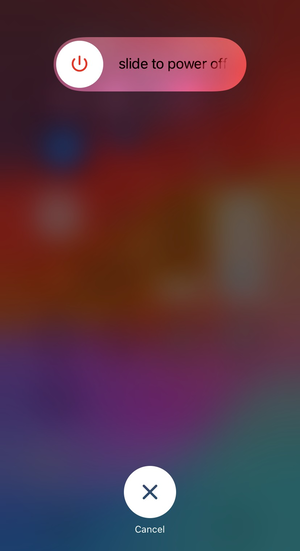
A restart clears temporary glitches that block system actions like screenshots. Power the phone off completely, wait 10 seconds, then turn it back on.
Clean and test physical buttons
Press the Side, Home, and Volume buttons individually. Make sure each one responds normally and does not feel stuck.
Check available storage
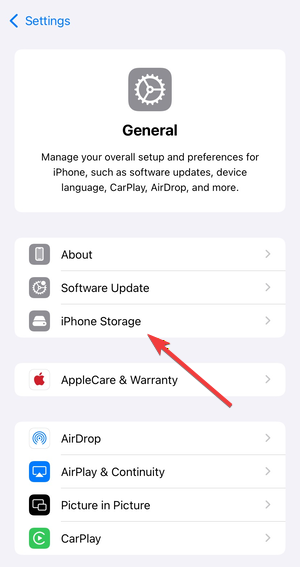
Open Settings → General → iPhone Storage. Free up space if available storage drops below 2–3 GB.
Fix screenshot button combinations not working
Use these options if pressing buttons does nothing or triggers the wrong action.
Use AssistiveTouch to take screenshots
AssistiveTouch replaces hardware buttons with on-screen controls. Open Settings → Accessibility → Touch → AssistiveTouch, turn it on, then customize the menu to include Screenshot.

Enable Back Tap screenshot
Back Tap lets you take screenshots by tapping the back of the phone. Go to Settings → Accessibility → Touch → Back Tap, then assign Screenshot to Double Tap or Triple Tap.
Fix screenshots that flash but don’t save
This issue means the shortcut works, but iOS fails to store the image.
Check Photos app and iCloud sync
Open Photos and confirm it loads normally. Then go to Settings → Photos and verify iCloud Photos settings if you use them.
Reset all settings
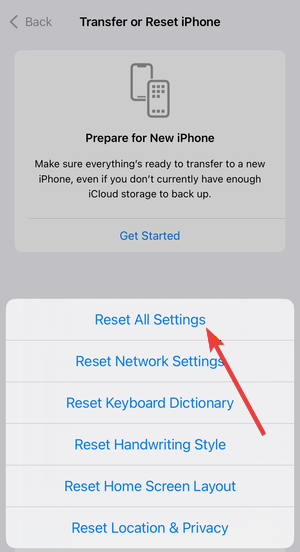
Resetting all settings on your iPhone clears corrupted preferences without deleting data. Go to Settings → General → Transfer or Reset iPhone → Reset → Reset All Settings.
Fix screenshot issues caused by Screen Time or restrictions
Restrictions can silently block screenshots, especially on shared or managed devices.
Review Screen Time restrictions
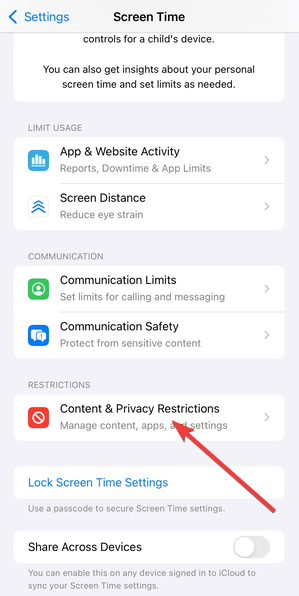
Open Settings → Screen Time → Content & Privacy Restrictions. Disable restrictions temporarily to test if screenshots start working.
Turn off Guided Access
Guided Access blocks screenshots inside restricted sessions. Press the Side or Home button three times and exit Guided Access if it is active.
Fix screenshot issues after an iOS update
Post-update bugs often resolve with simple follow-ups.
Check for follow-up updates
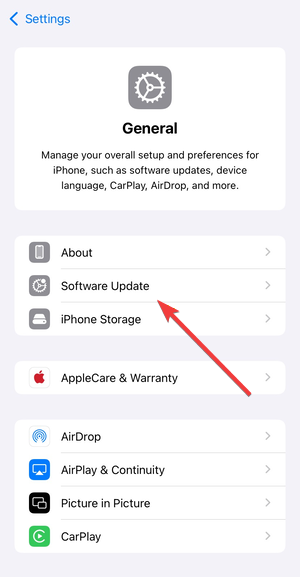
Apple often releases small patches quickly. Go to Settings → General → Software Update and install any available updates.
Force restart your iPhone
A force restart clears deeper system issues than a normal reboot. Use the button sequence specific to your iPhone model.
When screenshots don’t work in specific apps
Some apps intentionally block screenshots.
App-level screenshot blocking
Banking, streaming, and work apps may disable screenshots for privacy or DRM reasons. This behavior is normal and cannot be overridden.
Workarounds that still respect app limits
Use built-in export, share, or statement download options inside the app. Screen recording previews may work in limited cases, depending on the app.
Tips to avoid screenshot problems in the future
- Keep at least 2–3 GB of free storage
- Avoid stacking multiple Accessibility shortcuts
- Update iOS regularly
- Restart the device occasionally
FAQs
Why does my iPhone screenshot flash but not save?
This usually points to storage limits, Photos app issues, or iCloud sync errors.
Can screenshots be disabled completely on iPhone?
Yes. Screen Time restrictions, Guided Access, and certain apps can block screenshots.
Why do screenshots work everywhere except one app?
That app likely enforces privacy or DRM restrictions that prevent screenshots.
Do I need to reset my iPhone to fix screenshot issues?
No. Most cases resolve with restarts, settings changes, or alternative screenshot methods.
Summary
- Restart the iPhone and check button responsiveness.
- Confirm available storage and Photos app behavior.
- Use AssistiveTouch or Back Tap if buttons fail.
- Review Screen Time, Accessibility, and Guided Access settings.
- Apply deeper resets only if basic fixes fail.
Most screenshot problems come from settings conflicts or temporary glitches, not hardware failure. Stop troubleshooting as soon as screenshots work again and avoid unnecessary resets or data loss.


Discussion (0)
Be the first to comment.