There are times when your computers and devices may be infected by malware that is difficult to remove with traditional antivirus. On other occasions, the malware blocks the installation of any antivirus, and you cannot remove it manually. In such delicate situations, you need to boot an antivirus in a safe recovery environment, to have it running before the operating system is loaded. This is the only way to disinfect that kind of malware. For such situations, Microsoft has created its own Microsoft Defender Offline antivirus tool, and it does an excellent job. Here is how to make a Windows Defender Offline scan and remove viruses from computers and devices running Windows 10 or Windows 7:
Before moving forward:
This guide covers the following situations:
You use Windows 10, you can log in and use it, but you suspect that it may be infected with malware. Therefore you want to perform an in-depth scan to confirm your suspicions and remove the malware if found. If this is your situation, follow the instructions in the next section of this guide.
You use Windows 10, but you cannot log in because of a malware infection. In this situation, skip to the last section of this tutorial.
You use Windows 7, and you want to run a Windows Defender Offline scan for malware and clean any threats that are found. In this case, skip to the last section of this article.
In all situations, you need a working internet connection and to log in to Windows with a user account that has administrator permissions.
How to make a Windows Defender Offline scan in Windows 10
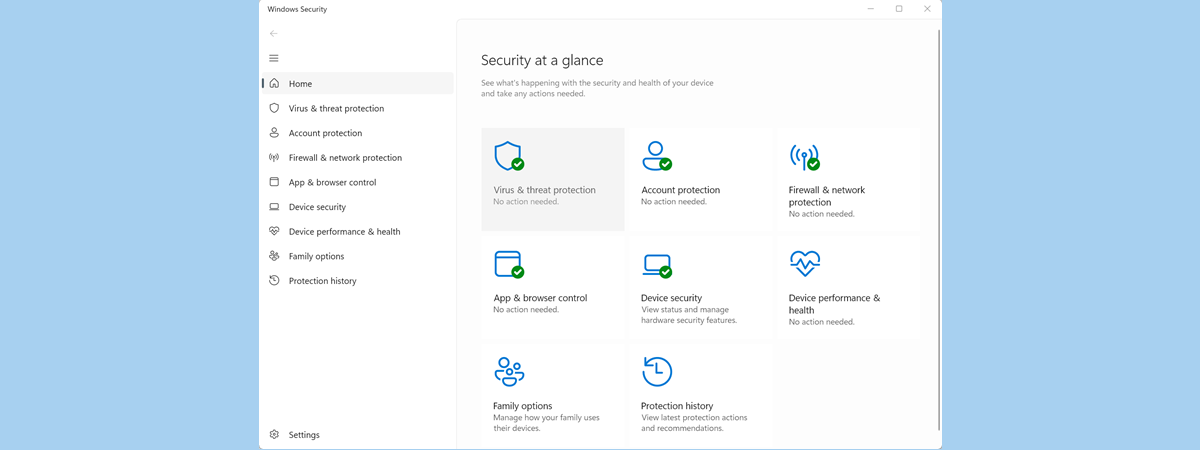
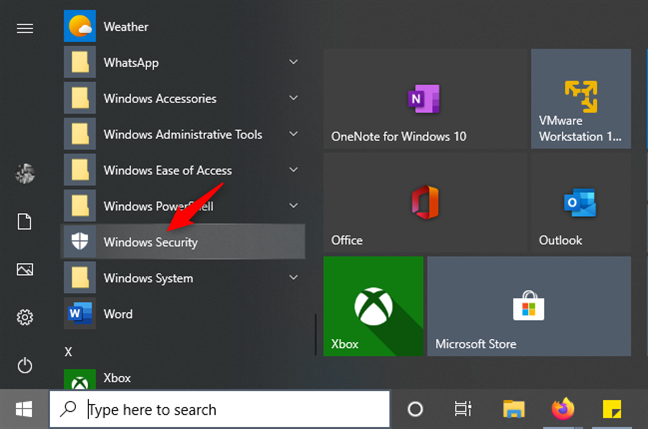
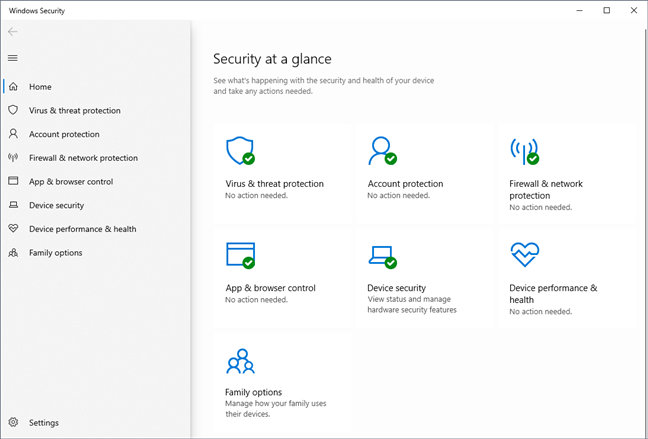
If you're using Windows 10 with May 2020 Update or newer, the Windows Defender Antivirus was rebranded. It now bears the name of Microsoft Defender Antivirus, and you can access it from the Windows Security app. If you don't know how to get to it, check this guide, or, if you're in a hurry, just go to your Start Menu and click or tap on the Windows Security shortcut.
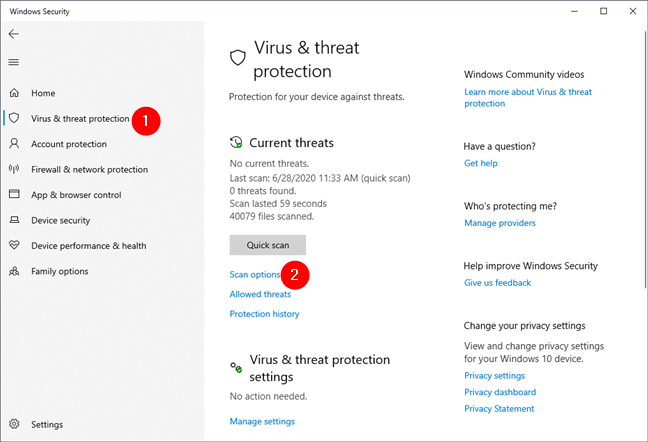
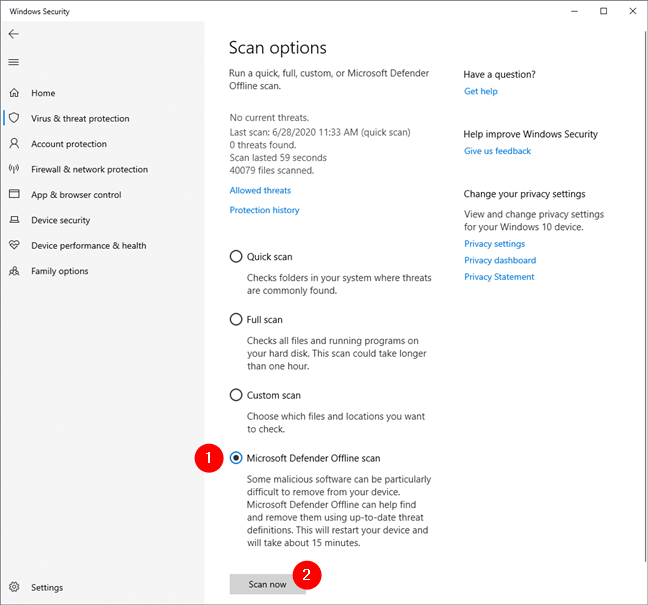
In the Windows Security app, select "Virus & threat protection" on the left, and then click or tap on the Scan options link from the Current threats section.
Windows Security - Scan options
Then you get to see a list of all the scanning options offered by Microsoft Defender Antivirus. Select "Microsoft Defender Offline scan" and press the Scan now button.
Starting a Microsoft Defender Offline scan
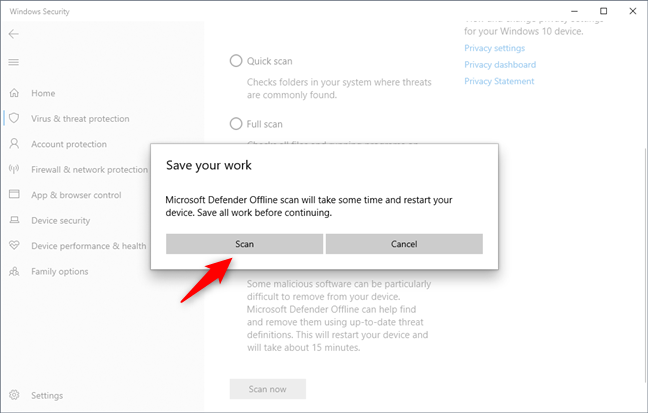
You are then asked to save your work because the Microsoft Defender Antivirus needs to restart your Windows 10 PC. If you have any open documents and apps, save and close them first. Then, click or tap Scan to continue.
Microsoft Defender Offline asks you to save your work
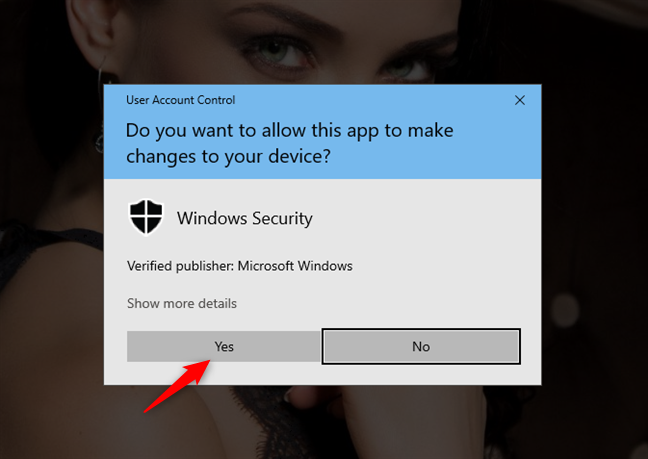
After that, you may see a UAC prompt asking for your confirmation. Press Yes to continue.
A UAC (User Account Control) prompt
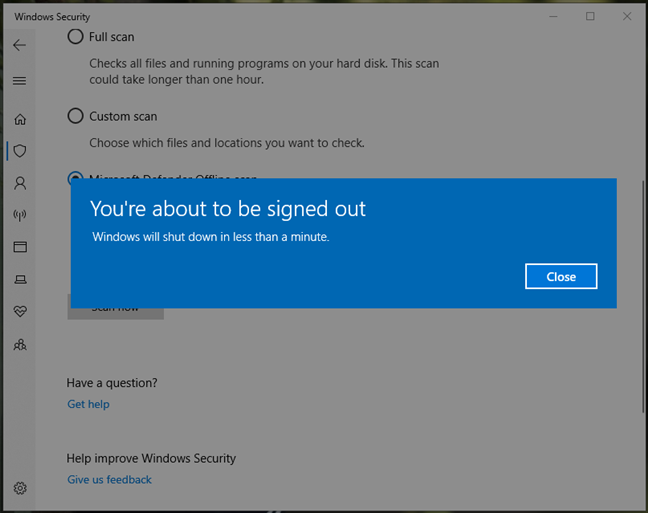
Next, you get a notification that "You're about to be signed out" and that your PC "will shut down in less than a minute."Close the notification and wait for your PC or device to restart.
Windows informs you that it will shut down
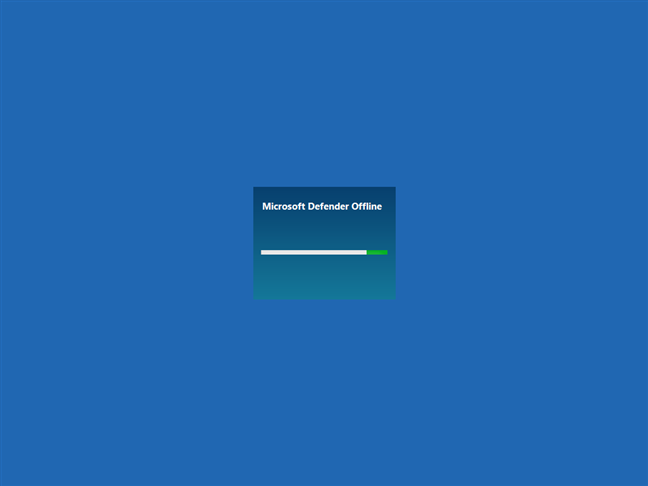
Then, Windows 10 boots in a recovery environment and starts Microsoft Defender Offline. The Windows Defender Offline scan process may take a few minutes, so be patient.
Microsoft Defender Offline is loading
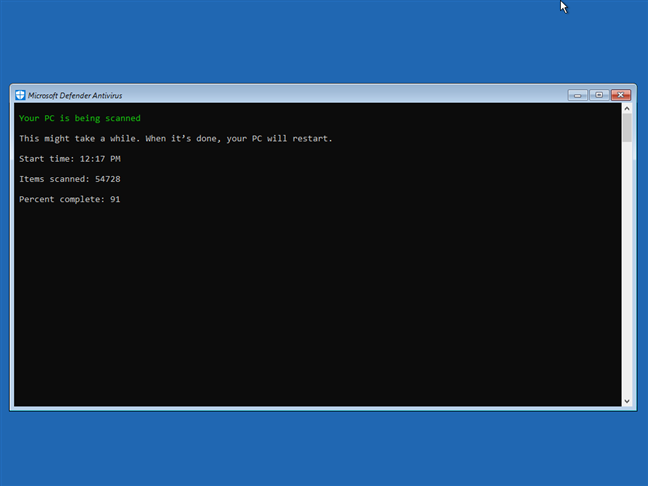
Microsoft Defender Offline automatically scans your computer and, if malware is found, you are asked about the action that you want to take.
The Microsoft Defender Antivirus runs the offline scan
If nothing bad is found, your PC or device restarts and loads Windows 10 again, like it usually does.
How to use Microsoft Defender Antivirus to run a Windows Defender Offline scan in Windows 7 or Windows 10 (when it's not booting)
The first thing you have to do is download the correct Microsoft Defender Offline version for your PC. Go to this web page: Help protect my PC with Microsoft Defender Offline. Scroll to the bottom and download the 32-bit or the 64-bit version of Microsoft Defender Offline, depending on the type of Windows that you have. If you don't know which is the one you have, read this tutorial: What version of Windows do I have installed? (5 methods).
You can also use these direct download links, but we cannot guarantee that Microsoft will never change them:
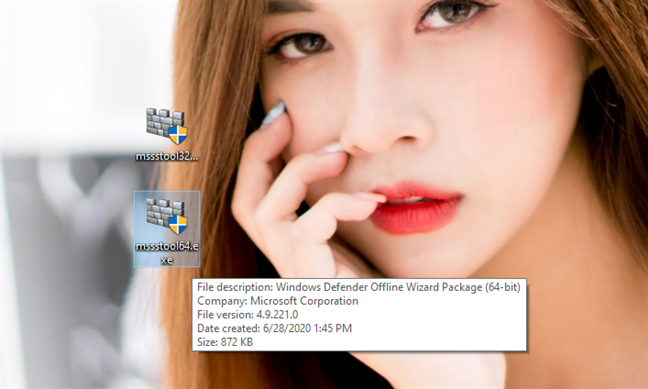
You download a file named mssstool32.exe or mssstool64.exe.
The mssstool32.exe and mssstool64.exe files
The next step is to burn Microsoft Defender Offline to a CD or DVD, copy it to a USB flash drive, or save it as an ISO disc image that can be used on the PC infected with malware. Keep in mind that you should have about 250-300 MB of storage space available. Note that, although Microsoft rebranded this tool and now calls it Microsoft Defender Offline, the tool that you get using this method still uses the old Windows Defender Offline name.
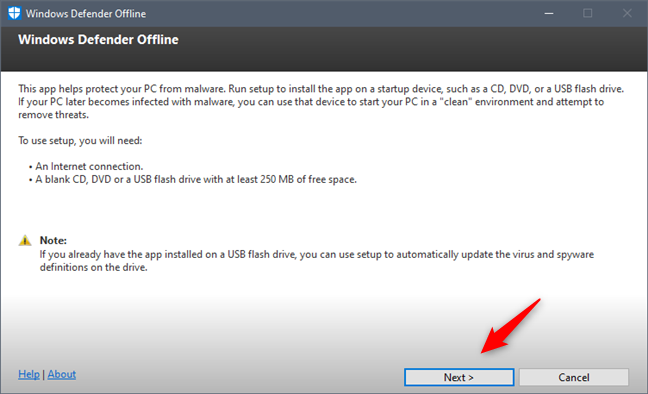
Run mssstool32.exe or mssstool64.exe, press Yes when you see a UAC prompt, and use the wizard to install Windows Defender Offline on the media you want to use. The wizard starts by informing you about the things you need: 250 MB of storage space and a blank CD, DVD, or a USB flash drive. Read the information displayed, and then click Next.
The Windows Defender Offline wizard
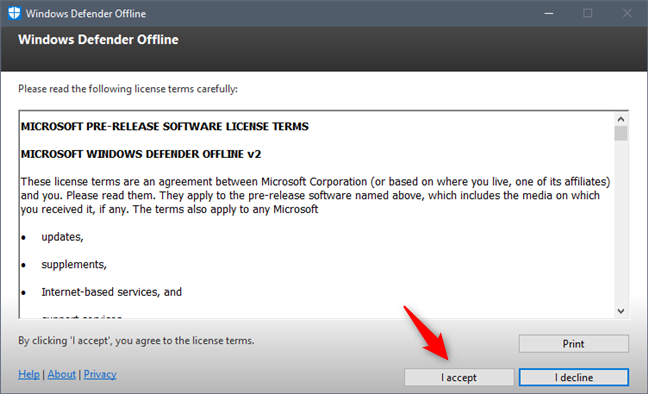
Read the license terms of the Windows Defender Offline, and press "I accept."
The license terms used by Windows Defender Offline
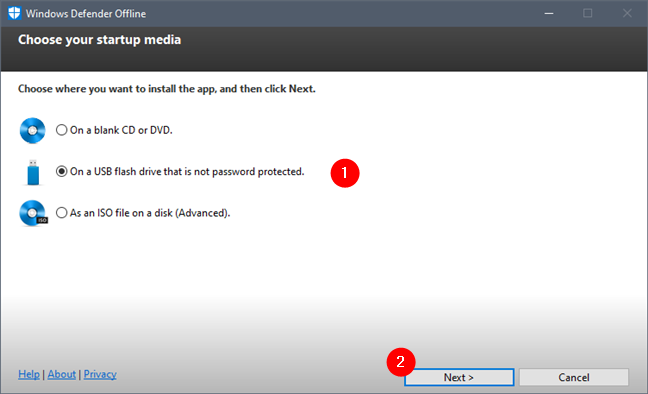
You are asked to select where you want to install Windows Defender Offline: on a blank CD or DVD, a USB flash drive, or save it as an ISO file on the disk. The steps you perform next are similar for all these options.
Since flash drives are popular nowadays, we chose "On a USB flash drive that is not password protected."
Choosing where to install Windows Defender Offline
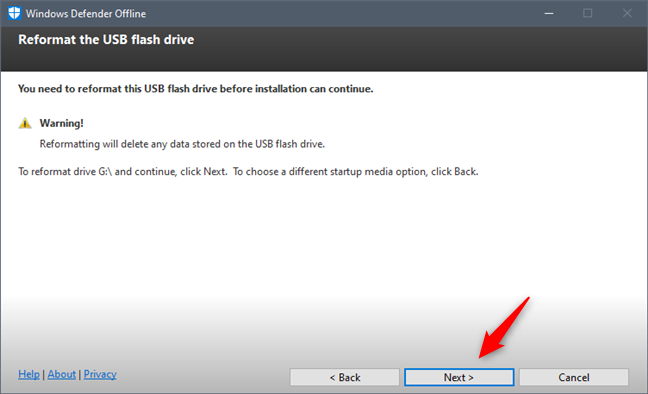
If you have more than one flash drive plugged in, select the flash drive you want to use and press Next. Then, you are informed that Windows Defender Offline needs to reformat the flash drive before the installation can continue. Make sure that you don't have any data on it that you might still need, and then press Next to continue.
Windows Defender Offline needs to reformat your USB flash drive
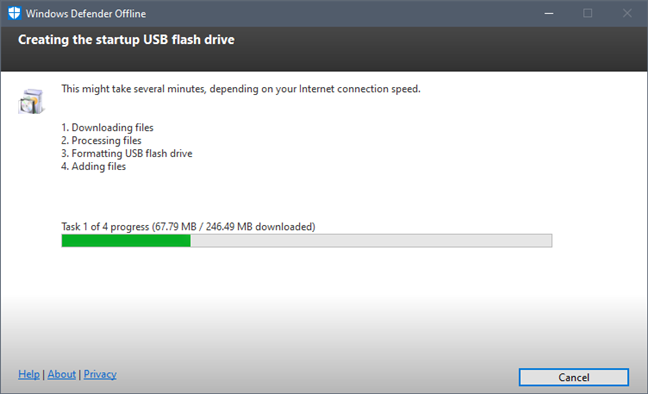
Windows Defender Offline downloads all the files it needs, formats the USB flash drive, and copies its files to it. This process takes a while, and it downloads around 250 MB of files.
Windows Defender Offline is creating the bootable USB memory stick
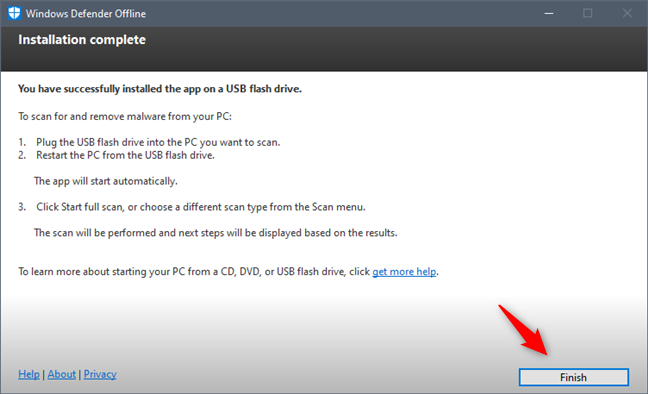
When the process has finished, press Finish, and you can start using Windows Defender Offline to disinfect other computers and devices.
Windows Defender Offline was installed successfully
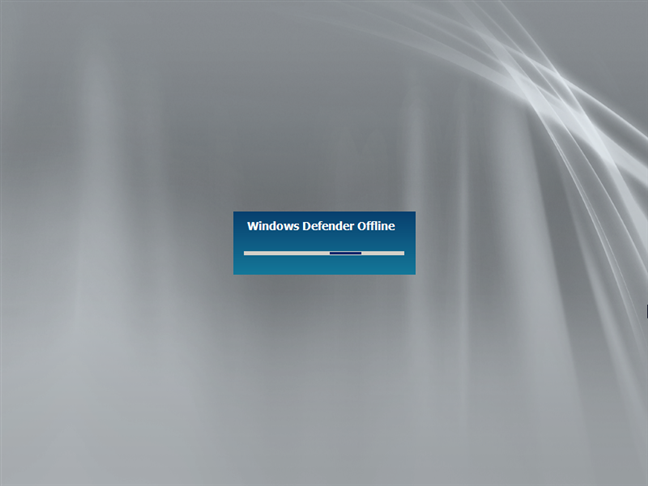
Now it's time to use Windows Defender Offline. Plug your USB memory stick or CD/DVD into the infected computer and configure it to boot from the drive/disc. During the boot procedure, a mini-Windows kernel is loaded, which, in turn, loads Windows Defender Offline.
Booting into Windows Defender Offline
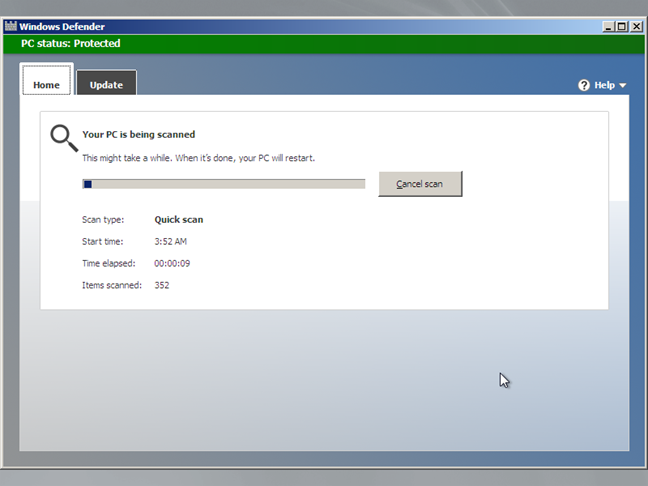
The process takes a while, so be patient. When loaded, Windows Defender Offline automatically starts to scan your device. If malware is found, you can remove it at the end of the scan.
Windows Defender Offline is scanning your computer
One thing that you should keep in mind is that Windows Defender Offline uses the malware definitions that were available at the time you installed it on your disc (CD/DVD), flash drive, or ISO image. If you use it a couple of days later, its definitions are dated, and it might not be of much help. That's why you should cancel its automatic scan and update it before scanning the system again. Another solution is to install it again, on another disc or drive so that you have the latest malware definitions available.
Did you clean your Windows PC from viruses with Microsoft Defender Offline?
We used Microsoft Defender Offline on a couple of occasions to disinfect systems that had nasty problems with malware, and it worked great. The tool is easy to use and familiar to most users, so you should not have any issues with it. If you have used it as well, tell us more about your experience. Did it manage to identify and remove viruses from your Windows computers and devices? Were you satisfied? Comment below and let's share our stories.
Did not work for my laptop (windows 10). Windows defender detected Trojan:Win32/Dynamer!ac and could not remove. Running Windows Defender Offline a few times has not removed the Trojan.
It kept running in an endless loop. I tried rebooting, disconnecting the computer, running Acronis. Nothing worked. The only thing that did work was taking my Windows 10 DVD and running that.. So I have no idea whether there were any viruses that it caught.














Discussion (3)
Did not work for my laptop (windows 10). Windows defender detected Trojan:Win32/Dynamer!ac and could not remove. Running Windows Defender Offline a few times has not removed the Trojan.
Try the tools from this article: 11 Top free bootable antivirus rescue discs for Windows PCs.
It kept running in an endless loop. I tried rebooting, disconnecting the computer, running Acronis. Nothing worked. The only thing that did work was taking my Windows 10 DVD and running that.. So I have no idea whether there were any viruses that it caught.