



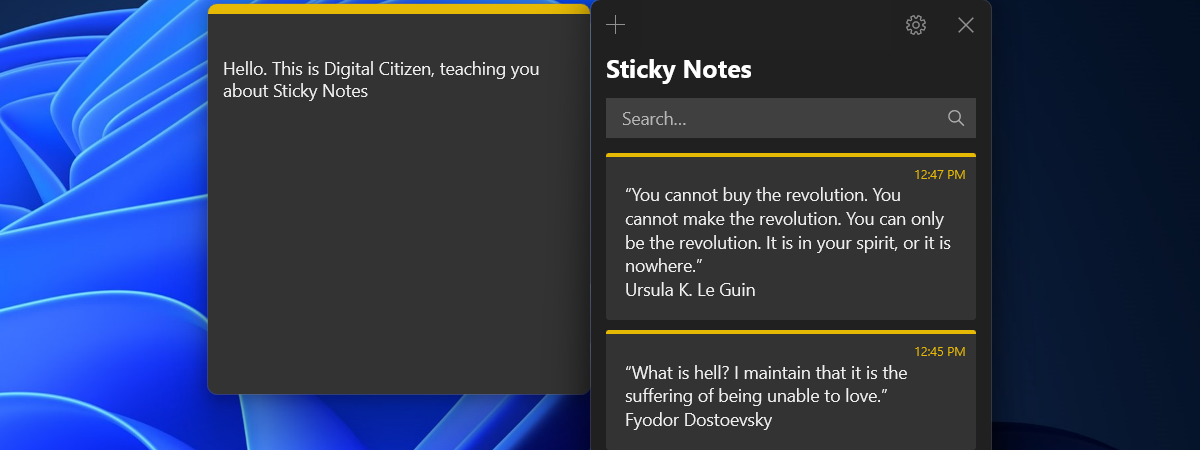
Sticky Notes is the go-to post-it notes app for Windows, allowing you to create notes quickly and easily. You can type bits of information directly on your desktop, and you can even add images to your notes. If you’re like me and feel the need to jot down the things you have to remember, then you’ll definitely want to know how to use Sticky Notes in Windows. Here’s a guide just for that:
NOTE: The Sticky Notes app looks and works the same way in both Windows 10 and Windows 11. Thus, to keep things simple, most of the screenshots in this article are taken in Windows 11.
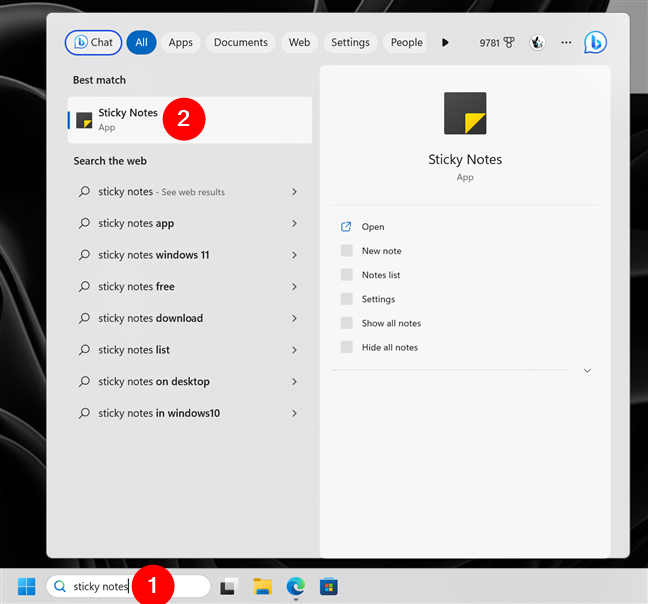
 Search to open Sticky Notes in Windows
Note that there are many other ways to launch Sticky Notes, and you can find them all in this article: How to open Sticky Notes in Windows 10 and Windows 11.
Search to open Sticky Notes in Windows
Note that there are many other ways to launch Sticky Notes, and you can find them all in this article: How to open Sticky Notes in Windows 10 and Windows 11.
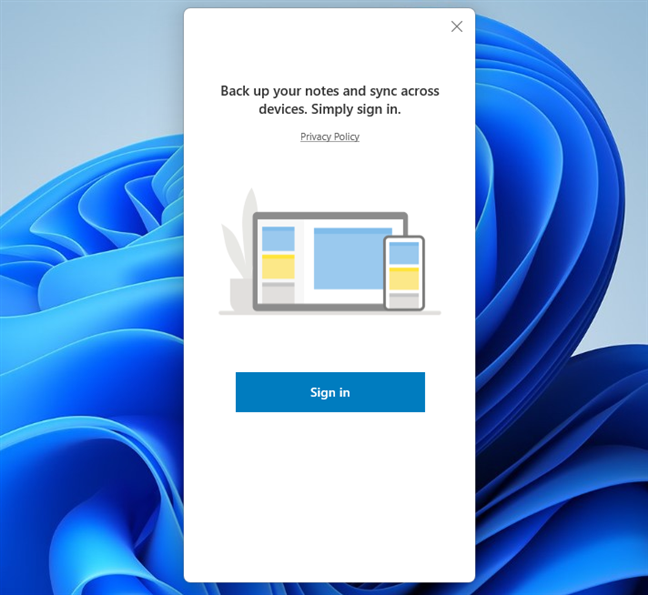
 Sign in to Sticky Notes
When you’re signed in, you should see the main Sticky Notes management window just like in the image below (on the left). If you’ve previously used Sticky Notes to create notes on any of your devices, they will also be automatically loaded. If this is your first time using Sticky Notes or you don’t have any saved notes, the main window is empty, but a new blank note is automatically created and shown next to it.
Sign in to Sticky Notes
When you’re signed in, you should see the main Sticky Notes management window just like in the image below (on the left). If you’ve previously used Sticky Notes to create notes on any of your devices, they will also be automatically loaded. If this is your first time using Sticky Notes or you don’t have any saved notes, the main window is empty, but a new blank note is automatically created and shown next to it.
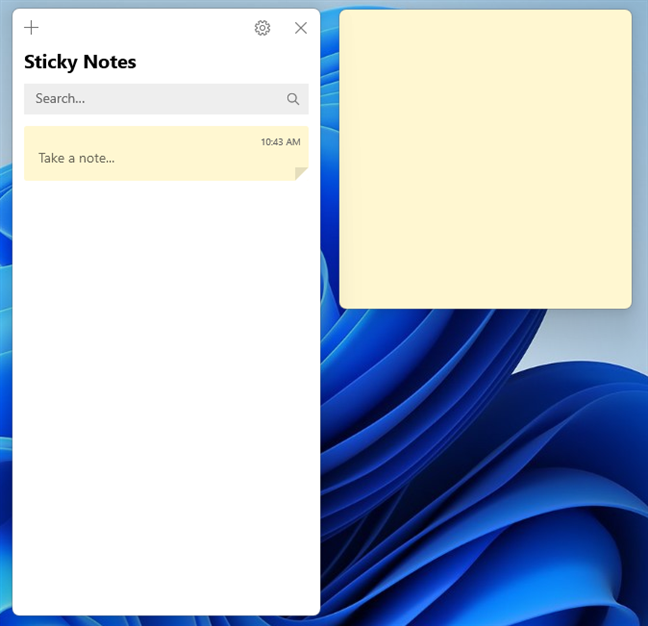
 Running Sticky Notes for the first time
If you want to create new notes, click or tap the + (plus) button on the top-left corner of any note already found on your desktop. The note must be active to see the + button, which means that you need to select it with a click or tap inside the note. The same applies to the main Sticky Notes window, with the exception that the + (plus) button is active all the time.
Running Sticky Notes for the first time
If you want to create new notes, click or tap the + (plus) button on the top-left corner of any note already found on your desktop. The note must be active to see the + button, which means that you need to select it with a click or tap inside the note. The same applies to the main Sticky Notes window, with the exception that the + (plus) button is active all the time.
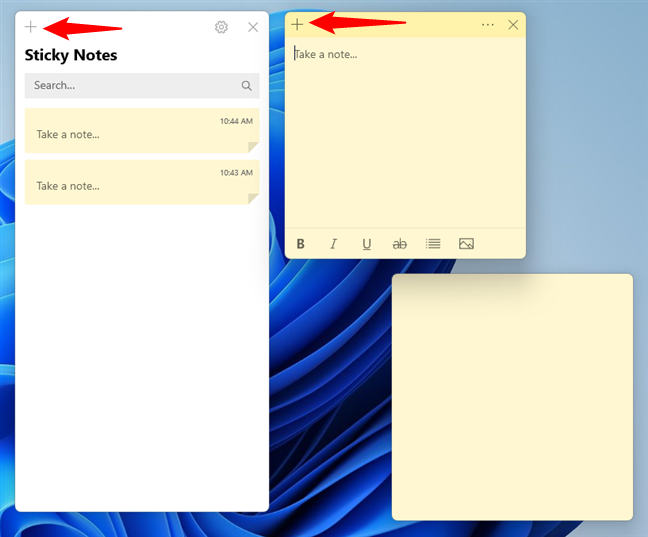
 Creating a new note with Sticky Notes
Keep in mind that the newly created note uses the same color as the note where you pressed the + button. However, you can change its color later.
Creating a new note with Sticky Notes
Keep in mind that the newly created note uses the same color as the note where you pressed the + button. However, you can change its color later.
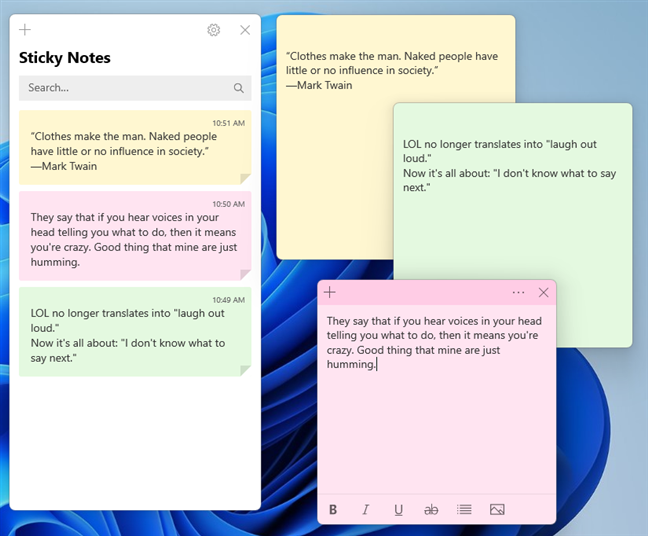
 All the notes are listed in the main window of Sticky Notes
To search through your notes, click or tap inside the Search field in the main window. Then, type your keyword(s), and Sticky Notes will instantly filter your notes according to the search terms. In other words, the main window will display only the notes that contain the keyword you entered. Also, it will highlight where in the note the text was found:
All the notes are listed in the main window of Sticky Notes
To search through your notes, click or tap inside the Search field in the main window. Then, type your keyword(s), and Sticky Notes will instantly filter your notes according to the search terms. In other words, the main window will display only the notes that contain the keyword you entered. Also, it will highlight where in the note the text was found:
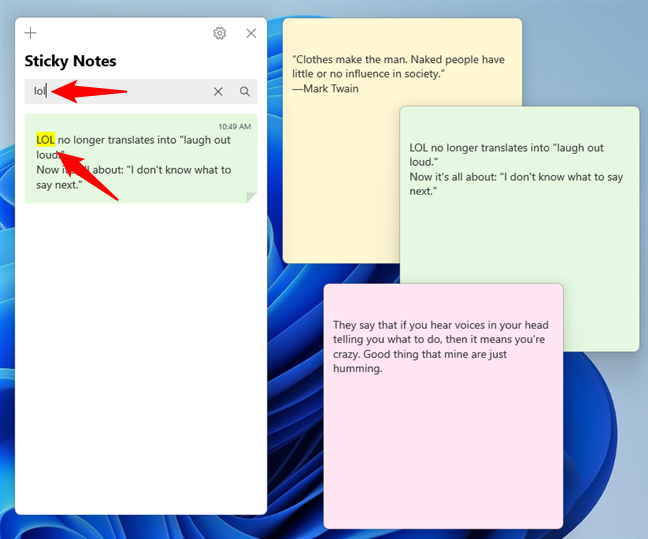
 Search in Sticky Notes
TIP: If you want to see your notes each time you log into Windows, read this tutorial: How do I make Sticky Notes stay open on startup?
Search in Sticky Notes
TIP: If you want to see your notes each time you log into Windows, read this tutorial: How do I make Sticky Notes stay open on startup?
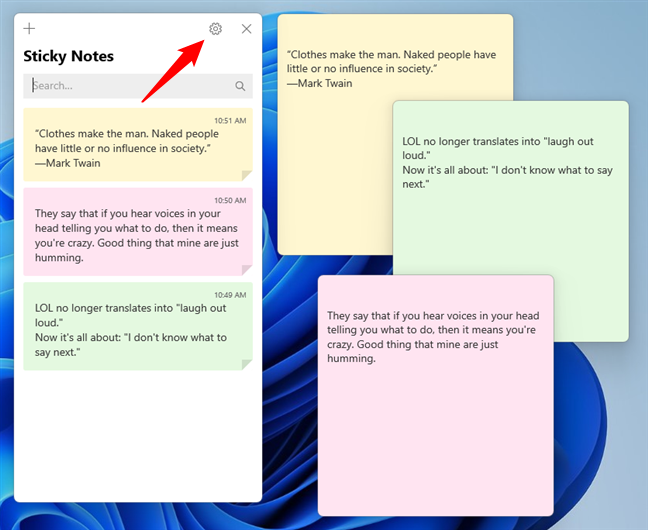
 Open Settings in Sticky Notes
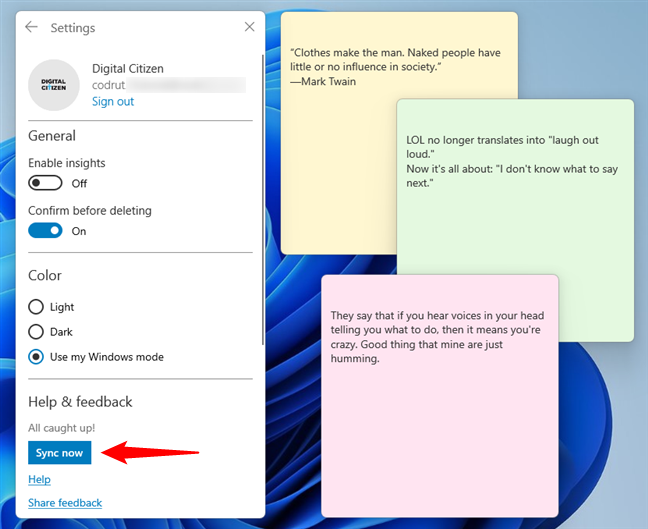
On the Settings page, press the Sync now button:
Open Settings in Sticky Notes
On the Settings page, press the Sync now button:
 Sync Sticky Notes
The button changes to Syncing… for a few moments, and then it changes back to Sync now when it’s done.
TIP: You might also want to learn how to sync Sticky Notes with your Android device or iPhone.
Sync Sticky Notes
The button changes to Syncing… for a few moments, and then it changes back to Sync now when it’s done.
TIP: You might also want to learn how to sync Sticky Notes with your Android device or iPhone.
 Open Notes list in Sticky Notes
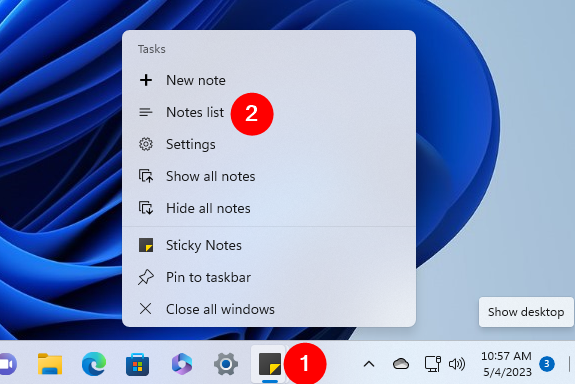
The second way is to right-click or press-and-hold the Sticky Notes icon on the taskbar and choose Notes list in the context menu.
Open Notes list in Sticky Notes
The second way is to right-click or press-and-hold the Sticky Notes icon on the taskbar and choose Notes list in the context menu.
 Open the main Sticky Notes window from the taskbar
TIP: Right-clicking on the Sticky Notes taskbar button allows you to quickly perform other actions too, like creating a New note, accessing Sticky Notes’ Settings, and showing or hiding all the notes on your desktop.
Open the main Sticky Notes window from the taskbar
TIP: Right-clicking on the Sticky Notes taskbar button allows you to quickly perform other actions too, like creating a New note, accessing Sticky Notes’ Settings, and showing or hiding all the notes on your desktop.
 The Sticky Notes menu button
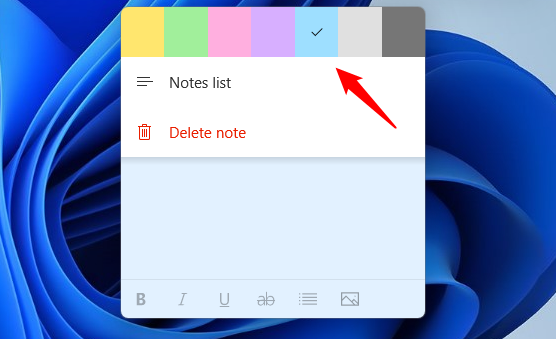
Choose the color you prefer for that note by clicking or tapping on it.
The Sticky Notes menu button
Choose the color you prefer for that note by clicking or tapping on it.
 Changing the color of a note
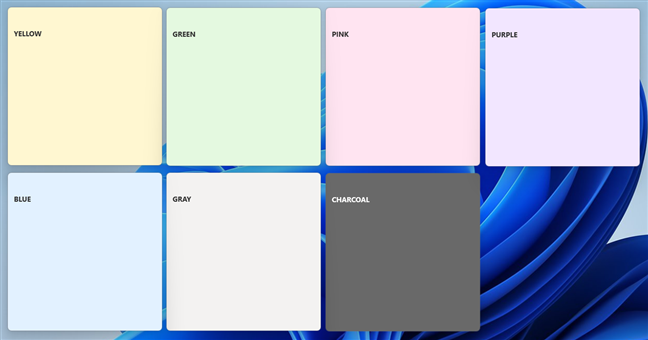
The notes created with Sticky Notes can be yellow, green, pink, purple, blue, grey, or charcoal.
Changing the color of a note
The notes created with Sticky Notes can be yellow, green, pink, purple, blue, grey, or charcoal.
 Colors available in Sticky Notes
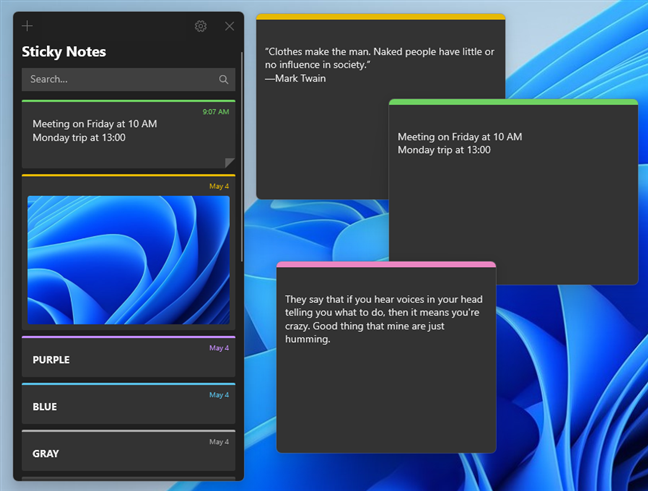
Furthermore, if you prefer, you can also use Sticky Notes in dark mode. When you apply this theme, all the notes, including the main window of the Sticky Notes app, turn dark gray. However, individual note colors are still shown, though only as a thin horizontal line in their upper area.
Colors available in Sticky Notes
Furthermore, if you prefer, you can also use Sticky Notes in dark mode. When you apply this theme, all the notes, including the main window of the Sticky Notes app, turn dark gray. However, individual note colors are still shown, though only as a thin horizontal line in their upper area.
 Sticky Notes in dark mode
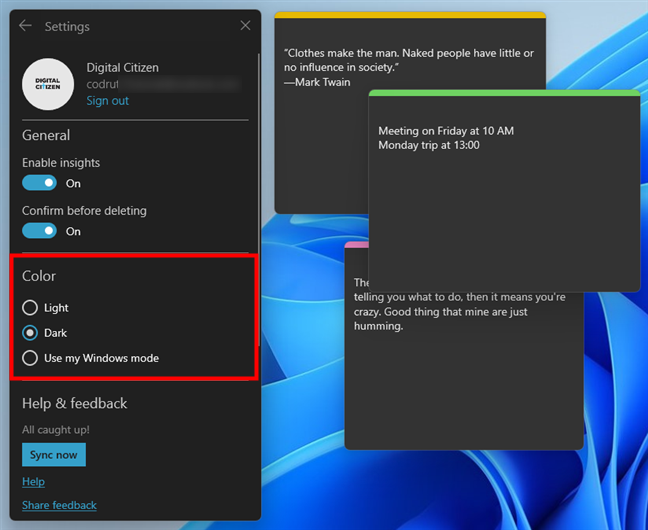
To switch to Dark or Light color mode or to let Sticky Notes match your Windows mode, head to Sticky Notes’ Settings by clicking or tapping on the small cogwheel button in the top-right corner of the main window. Then, select the mode you prefer in the Color section.
Sticky Notes in dark mode
To switch to Dark or Light color mode or to let Sticky Notes match your Windows mode, head to Sticky Notes’ Settings by clicking or tapping on the small cogwheel button in the top-right corner of the main window. Then, select the mode you prefer in the Color section.
 Enable the dark mode in Sticky Notes
TIP: If you want to enable Dark Mode in Windows, read these guides:
Enable the dark mode in Sticky Notes
TIP: If you want to enable Dark Mode in Windows, read these guides:
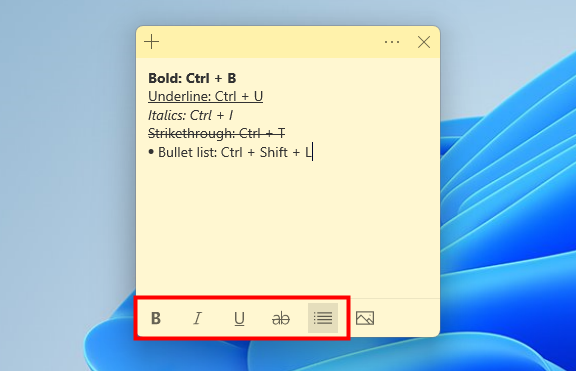
 Text formats and the keyboard shortcuts available in Sticky Notes
On top of that, Sticky Notes also lets you add images to your notes. Next to the text formatting buttons, you’ll see a small image icon. Click or tap on it, and Sticky Notes will launch an Explorer window where you can select the picture you want to insert.
Text formats and the keyboard shortcuts available in Sticky Notes
On top of that, Sticky Notes also lets you add images to your notes. Next to the text formatting buttons, you’ll see a small image icon. Click or tap on it, and Sticky Notes will launch an Explorer window where you can select the picture you want to insert.
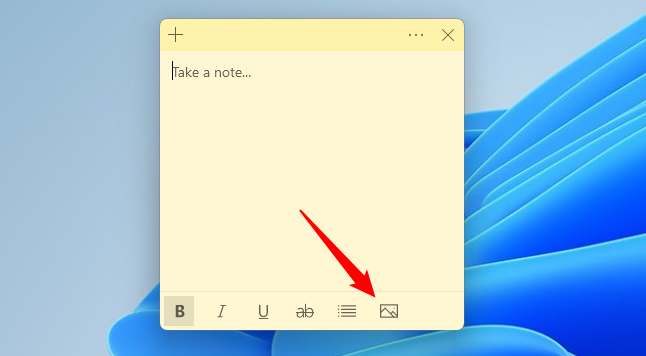
 How to add images to Sticky Notes
Browse through your Windows PC, choose the image you want to include in your note and click or tap on Open.
How to add images to Sticky Notes
Browse through your Windows PC, choose the image you want to include in your note and click or tap on Open.
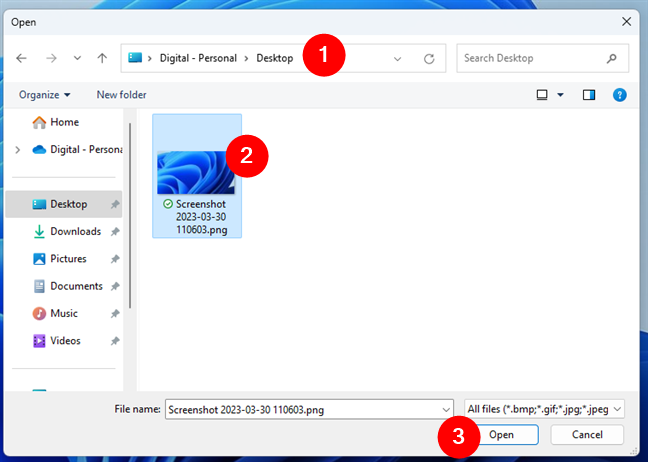
 Select the picture to insert in a note
The selected image is immediately added to your note, just like in the screenshot below.
Select the picture to insert in a note
The selected image is immediately added to your note, just like in the screenshot below.
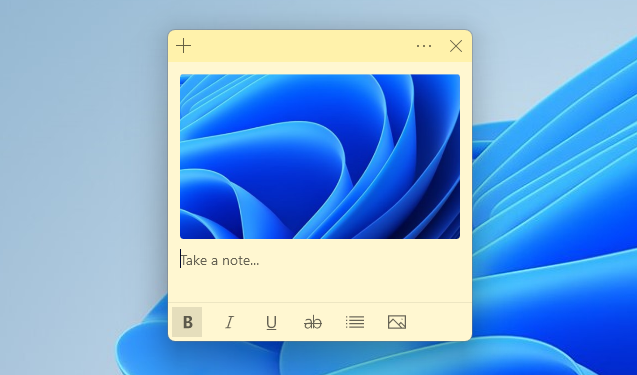
 An image added to Sticky Notes
You can then continue to add text to your note or even additional pictures.
An image added to Sticky Notes
You can then continue to add text to your note or even additional pictures.
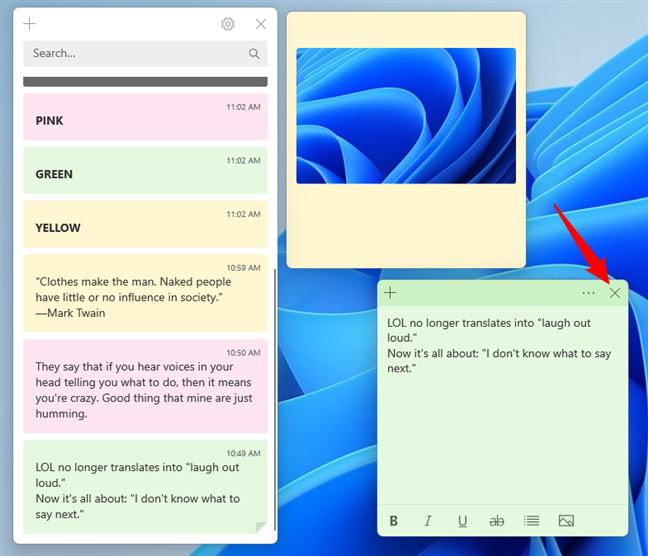
 The Exit button to close a note in Sticky Notes
After you click or tap on X, the note remains visible in the main window but disappears from the desktop.
The Exit button to close a note in Sticky Notes
After you click or tap on X, the note remains visible in the main window but disappears from the desktop.
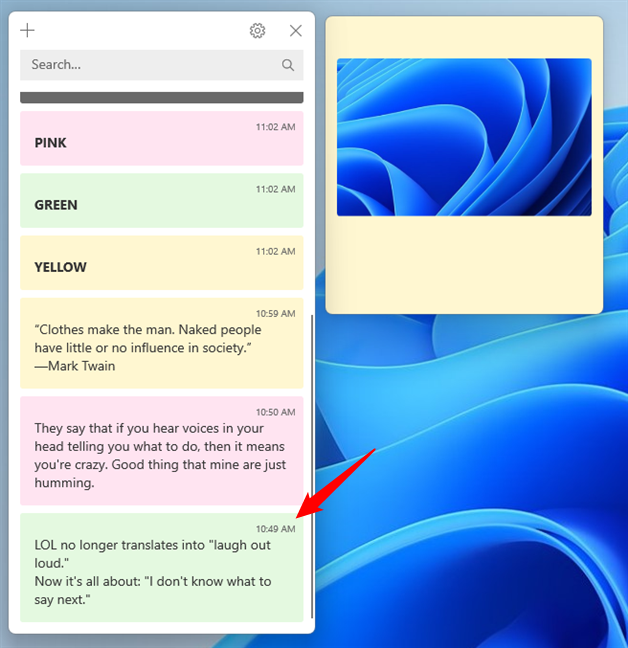
 Closed notes continue to show in the main Sticky Notes window
The closed notes are still displayed in the main Notes list window, and you can open them again by double-clicking or double tapping on them.
Closed notes continue to show in the main Sticky Notes window
The closed notes are still displayed in the main Notes list window, and you can open them again by double-clicking or double tapping on them.
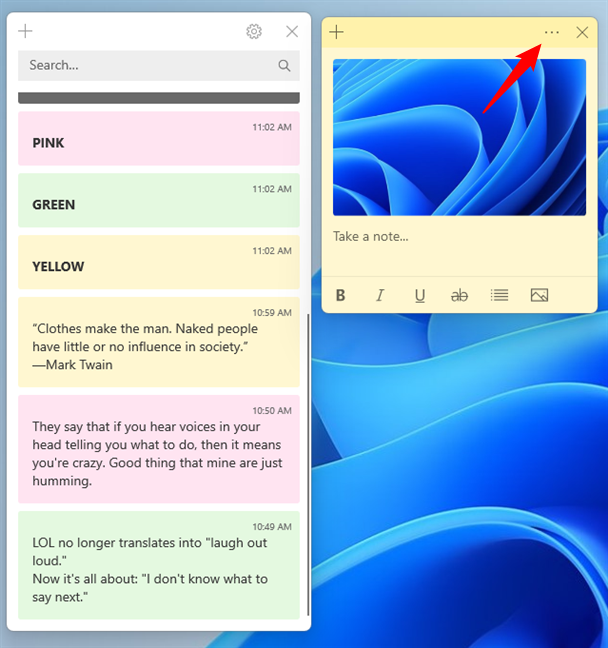
 The menu button on a Sticky Note
In the menu, press the Delete note option.
The menu button on a Sticky Note
In the menu, press the Delete note option.
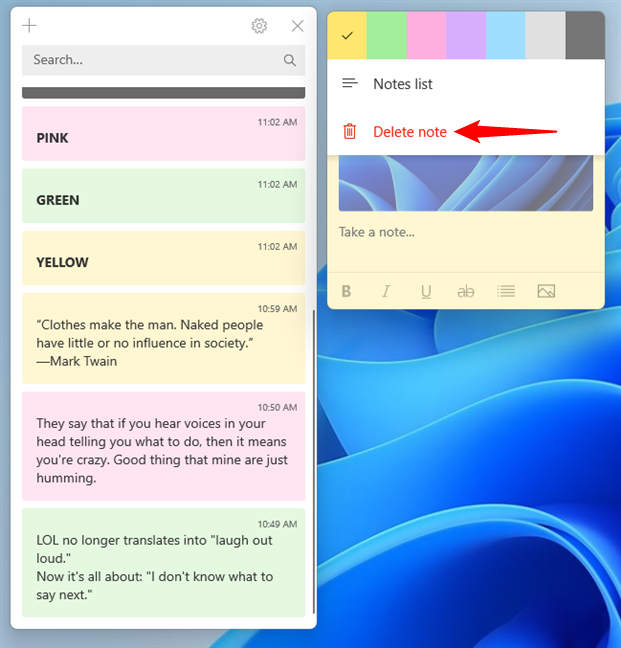
 Deleting a note
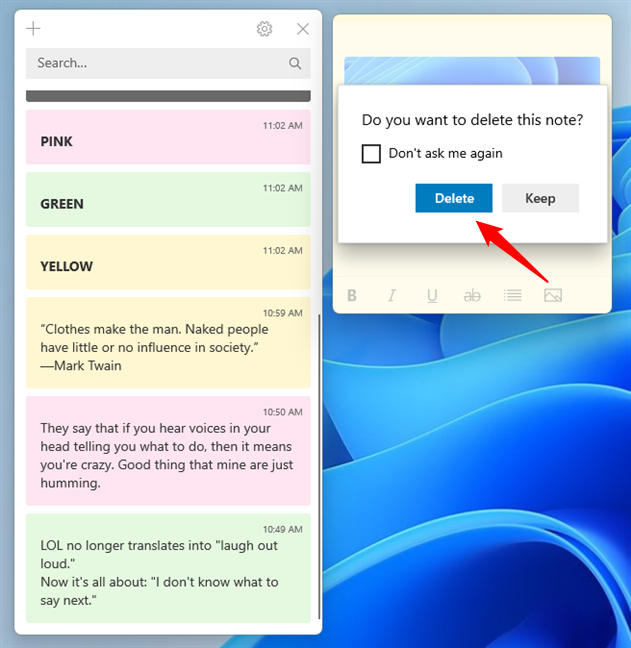
When Sticky Notes asks you to confirm your choice, press Delete, and the note is gone and unrecoverable.
Deleting a note
When Sticky Notes asks you to confirm your choice, press Delete, and the note is gone and unrecoverable.
 Confirm the deletion of a note in Sticky Notes
Before pressing Delete, you can turn off the confirmation prompt by checking “Don’t ask me again.”
Confirm the deletion of a note in Sticky Notes
Before pressing Delete, you can turn off the confirmation prompt by checking “Don’t ask me again.”
 Moving a note
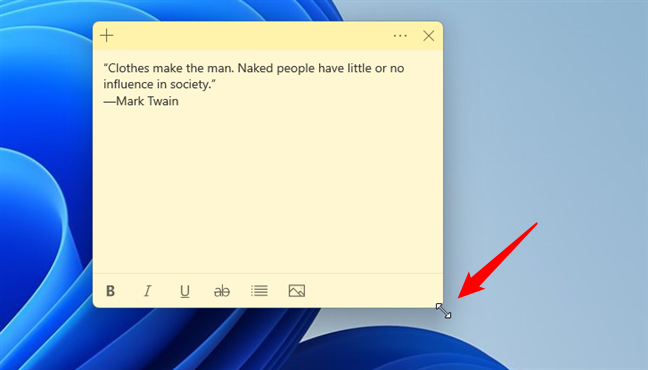
If you want to resize a note created with Sticky Notes, move the mouse cursor to its bottom-right corner. When the cursor changes its appearance to a two-headed arrow, drag the mouse cursor to adjust the note’s size.
Moving a note
If you want to resize a note created with Sticky Notes, move the mouse cursor to its bottom-right corner. When the cursor changes its appearance to a two-headed arrow, drag the mouse cursor to adjust the note’s size.
 Resizing a note
 The Sticky Notes Settings button
This action opens a small window where you see two switches, including one for Enable insights. Make sure that this switch is turned on.
The Sticky Notes Settings button
This action opens a small window where you see two switches, including one for Enable insights. Make sure that this switch is turned on.
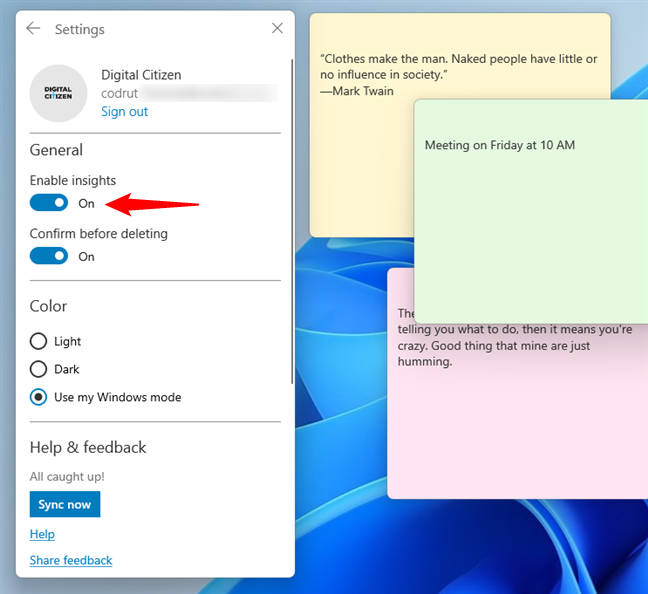
 The switch to Enable insights in Sticky Notes
When it is on, the Insights feature should, for example, automatically detect:
The switch to Enable insights in Sticky Notes
When it is on, the Insights feature should, for example, automatically detect:
How to open Sticky Notes in Windows
One of the easiest ways to open Sticky Notes in either Windows 11 or Windows 10 is to search for it. Type “sticky notes” into the taskbar search box and click or tap on the Sticky Notes app in the results list.How to create a new note in Sticky Notes for Windows
When you open Sticky Notes for the first time, the app asks you to Sign in using your Microsoft account. This allows Sticky Notes to back up and sync your notes across all your devices.How to search for notes in Sticky Notes
The main Sticky Notes window allows you to search through your notes. The window displays all your notes, regardless of whether they’re open on your desktop or not.How to synchronize your notes in Sticky Notes
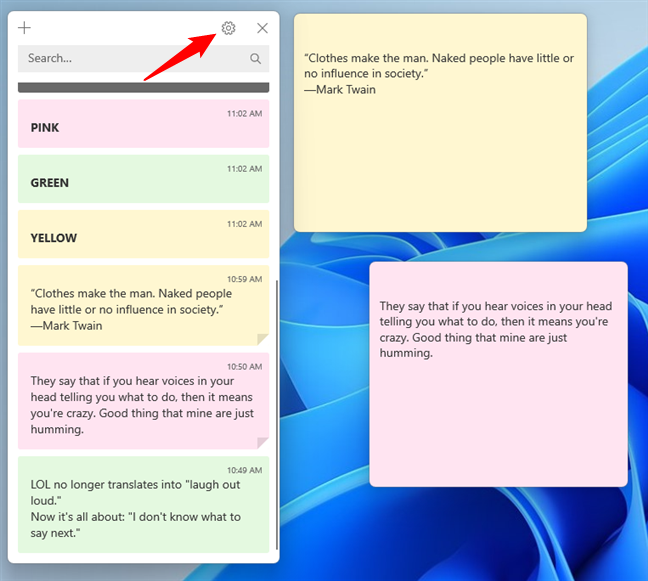
One of the best features of Sticky Notes is the ability to synchronize your notes in the cloud using your Microsoft account. The synchronization is activated by default, and it’s done by Sticky Notes at regular intervals. The synchronization means that your notes load automatically on any other Windows 11 or Windows 10 system where you log in with the same Microsoft account. If you use a desktop at home or at work and you continue working on the go on your laptop, you get all your notes updated automatically on all your Windows devices. If you want to ensure the synchronization is done, you can trigger a manual sync from the Sticky Notes Settings. Open the Settings page in the main window by pressing the gear icon.How to reopen the main Sticky Notes window
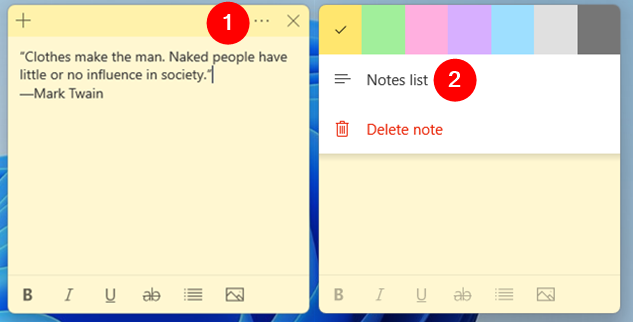
You can access a few features in Sticky Notes only through the app’s main window. Since you can close this window in the same way as the notes, by pressing the X button from the top-right corner, you may want to open it again. There are a couple of ways to do this. The first way is to click or tap the menu button (...) of any open note and select Notes list from the menu.How to change the color of a note in Sticky Notes
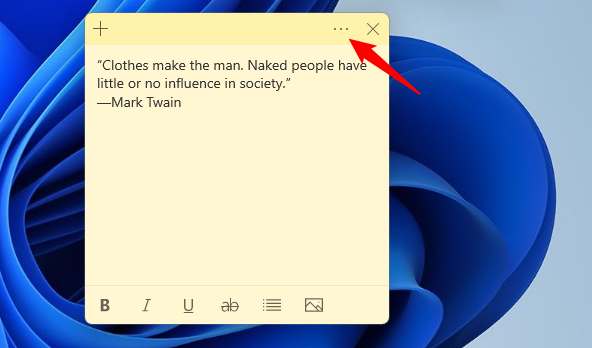
Sticky Notes can use different colors for the notes you create. This makes it easier to organize things on your desktop, as well as make notes more pleasing if you prefer colors other than yellow, which is the default color. To change the color of a note, click or tap inside the note and then the menu button, which looks like an ellipsis.How to format text and add images in Sticky Notes
The Sticky Notes app lets you format the text inside your notes. Things like making text bold, creating lists, or even strikethrough in Sticky Notes are possible. These are the text formatting keyboard shortcuts you can use:- Bold: Ctrl + B
- Underline: Ctrl + U
- Italic (cursive): Ctrl + I
- Strikethrough (cross out text): Ctrl + T
- Toggle Bullets: Ctrl + Shift + L
How to close a note in Sticky Notes
The notes in Sticky Notes can be closed. In older versions, closing a note meant deleting it. Now you may decide that you want to keep a note but not necessarily stick it to your desktop all the time. If you start collecting a lot of notes, this can become distracting. The new version puts in the top-right corner of each note an X button that shows up when you click or tap inside the note.How to delete a note from Sticky Notes
To erase a note from Sticky Notes, first, click or tap inside the note, and then push the three dots menu button in the top-right corner of the note.How to move or resize notes created with Sticky Notes
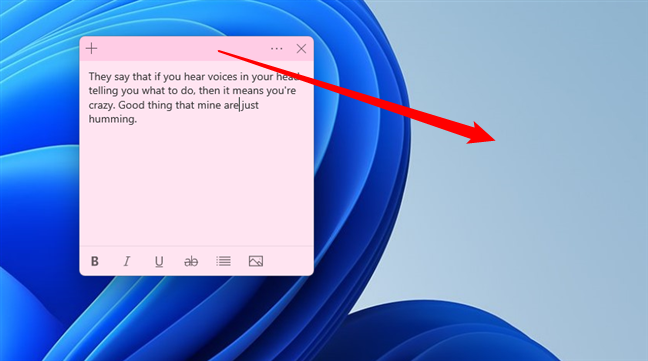
To move a note created with Sticky Notes, click or tap inside the note and then drag its title bar (the darker area at the top of the note) anywhere you want to place it on your desktop.How to enable and use Insights in Sticky Notes
Another interesting feature of Sticky Notes is Insights. If enabled, Insights can automatically identify specific types of information you write in a note created with Sticky Notes and take appropriate actions. To enable it, open the Sticky Notes Settings. Click or tap the gear button inside the main window.- Time: when you enter a time or date inside a note, an Add reminder button should pop out, letting you create an event in your Calendar app.
- Addresses: if you click on an address, Sticky Notes opens the Maps app.
- Emails: if you click or tap on an email address, Sticky Notes opens the Mail app.
- Phone numbers: if you click or tap on a phone number, Sticky Notes opens Skype.
- Flight number: if you enter the number of a flight inside a note, clicking or tapping on it shows you details about it based on the Bing search engine.
- Stocks: if you enter a stock symbol with a $ sign in the beginning, clicking or tapping it shows you details about that stock based on data from the Bing search engine.


Discussion (13)
I would like to see an option for notes to be displayed in order of DATE CREATED either ascending or descending. OR maybe we could click on it and move the note up or down.
Thanks
2 column template
Sorting if I’m making a list
I would like to be able to format with tabs for items that I need to read easily on the fly.
NO! I want to type in Word and paste in skicky note, including all the formatting. Especially highlighting.
No. I hate it. I NEED TO ENLARGE THE FONT. HOW CAN YOU IGNORE SOMETHING SO BASIC?!?!
Wish you could open hyperlinks in Sticky Notes with just one click or a double click instead of the bottom button popup.
I cannot believe that I can’t increase font size! Why would they remove that feature??? It’s such a basic thing, I’ll use OneNote now instead so that I can easily read my notes. Very annoying.
I see no option to increase or decrease the font size in Sticky Notes
The new Sticky Notes are needlessly complicated. I cannot even figure out how to open them all at once and close them all at once. Also, a selection All Notes is constantly referred to but not in any window. I guess it means Notes List. Also, when you put something, for instance, the browser, on top of the notes, the notes close and you have to start opening them individually again. The update is terrible; go back to the Windows 7 sticky notes even if as many options are not offered.
How do you get all of the notes to appear when you click the taskbar?
Rather than individually clicking them all separately to pop up on screen
It seems pretty obvious…..I think most people create folders for jobs or tasks, so it seems hard to believe that Sticky Notes can’t simply be placed or saved within a given folder so that when the folder is clicked open, the sticky note would then automatically open– like if I want a certain reminder to pop up as soon as I open a certain folder. One can use notepad to create a text file, but visually it just sits there…you’d have to remember it’s there, and doubleclick it, in order to be reminded. I don’t want to look at a sticky note 24/7 on my desktop; I only want to see it if I open the folder that is associated WITH the job the sticky note reminder is concerned with!
Seems obvious to me….but this functionality is not there (without a 3rd party add-on app, that is…..)
I agree 100%!!! I just want to put notes in individual folders, not on my desktop, and I think it is ridiculous this function is not available!
The only font size that is available will make you go blind….
Is that the way you really want to read a NOTE!!!!!!