



If you enjoy reading on your Windows PC but don’t have a Kindle device, you’re in luck! Amazon offers a free Kindle app for PC that allows you to access over a million books from the Kindle Store, including bestsellers and new releases. With the Kindle reader for PC, you can read your favorite ebooks, as well as bookmark pages, highlight text, and add notes for an enhanced reading experience. In this guide, I’ll show you how to use the Kindle for PC app so you can enjoy your Kindle books directly on your computer. Without wasting any more time, let’s begin:
NOTE: The Kindle app is free, and you can use it to access all your Kindle books on any PC running Windows 10 or Windows 11. The app looks and works identically in both operating systems.
 How to download the Kindle app for PC
Wait for the installer to get downloaded and open it. Then, wait again while the Kindle app is automatically installed, and you’re done. Once installed, you can find a Kindle shortcut on your desktop, as well as in the Start Menu. Use any of them to open the Kindle app on your Windows PC.
How to download the Kindle app for PC
Wait for the installer to get downloaded and open it. Then, wait again while the Kindle app is automatically installed, and you’re done. Once installed, you can find a Kindle shortcut on your desktop, as well as in the Start Menu. Use any of them to open the Kindle app on your Windows PC.
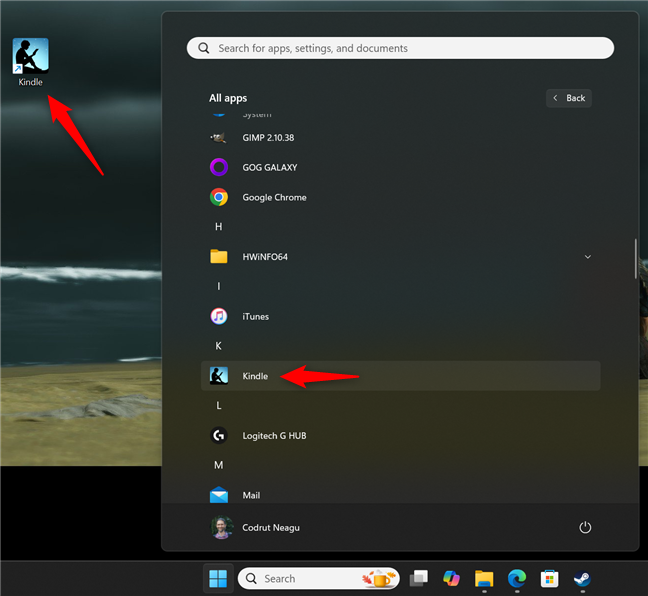
 The Kindle app has shortcuts on the desktop and in the Start Menu
You can type kindle in the search box on the taskbar and click or tap the Kindle search result.
The Kindle app has shortcuts on the desktop and in the Start Menu
You can type kindle in the search box on the taskbar and click or tap the Kindle search result.
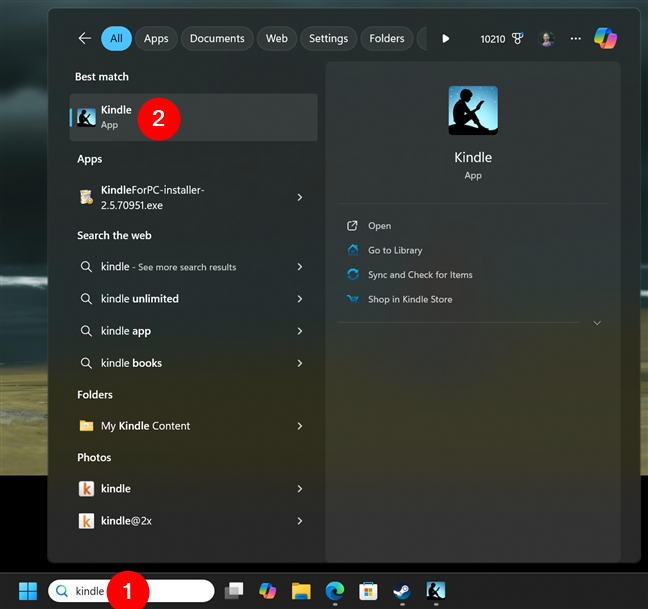
 You can also search for kindle
If this is your first time using the Kindle app on your Windows computer, you are asked to log in with your Amazon account.
You can also search for kindle
If this is your first time using the Kindle app on your Windows computer, you are asked to log in with your Amazon account.
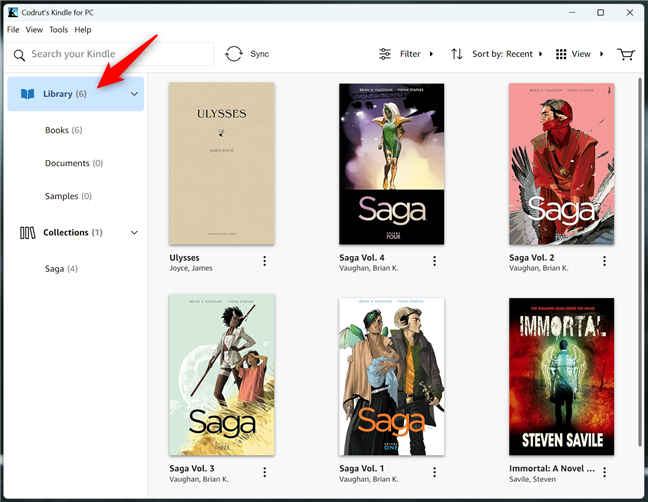
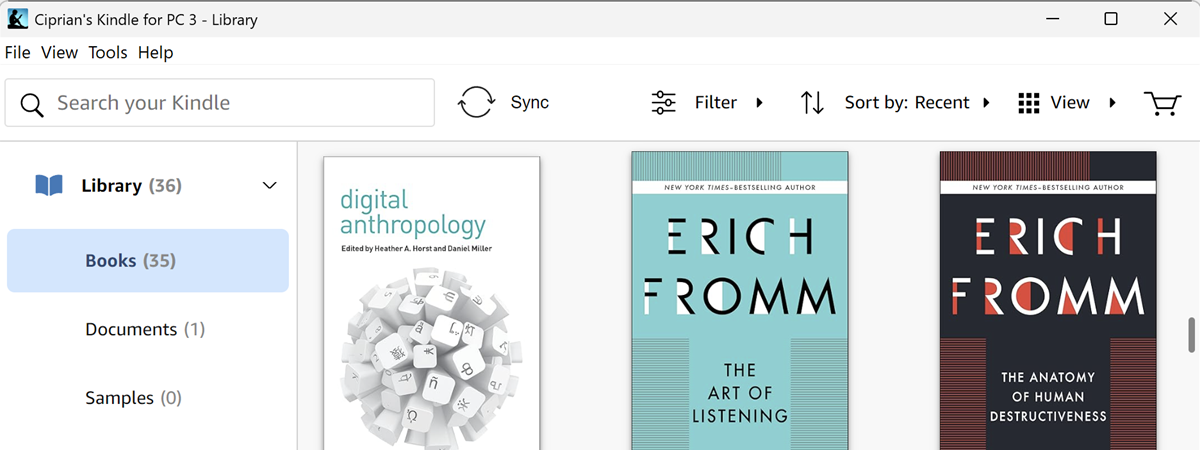
 The Library in Kindle for PC
The Library expands and, if you want to, you can filter your Kindle content so that only your Books, personal Documents, or Samples are shown.
The Library in Kindle for PC
The Library expands and, if you want to, you can filter your Kindle content so that only your Books, personal Documents, or Samples are shown.
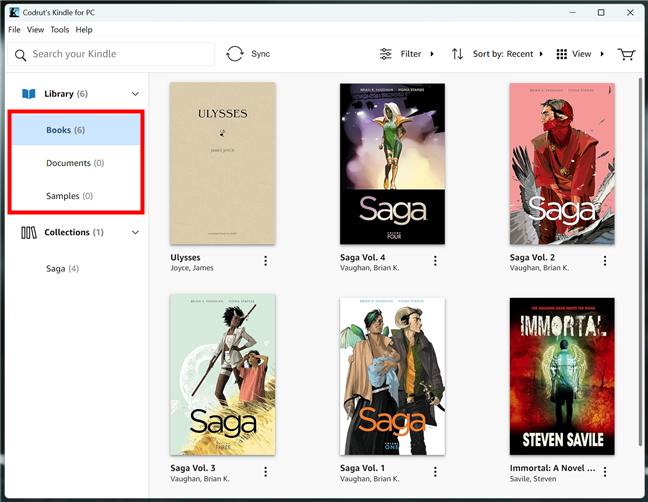 How to see your books in Kindle for PC
If you have many titles in your account, you can further Filter the books you see in the Kindle app. Click or tap the Filter button at the top, and then choose the filters you want to apply. You can make the app show only the content you’ve Downloaded on your Windows device, or you can choose to show only the books available through your Subscriptions: KindleUnlimited, Prime, or Comixology Unlimited.
How to see your books in Kindle for PC
If you have many titles in your account, you can further Filter the books you see in the Kindle app. Click or tap the Filter button at the top, and then choose the filters you want to apply. You can make the app show only the content you’ve Downloaded on your Windows device, or you can choose to show only the books available through your Subscriptions: KindleUnlimited, Prime, or Comixology Unlimited.
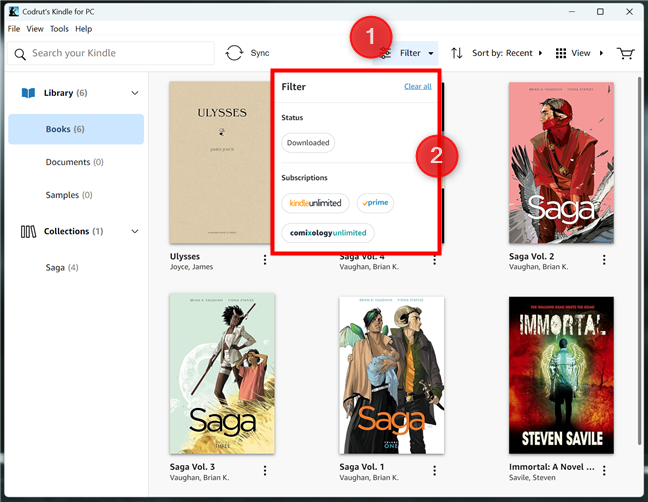 Filtering the books in Kindle for PC
Additionally, you can sort the ebooks in the Kindle app by opening the Sort by menu at the top of the window, and selecting the Recent, Title, or Author option. This can be useful if you have a lot of books and don’t want to scroll through the entire list just to find one.
Filtering the books in Kindle for PC
Additionally, you can sort the ebooks in the Kindle app by opening the Sort by menu at the top of the window, and selecting the Recent, Title, or Author option. This can be useful if you have a lot of books and don’t want to scroll through the entire list just to find one.
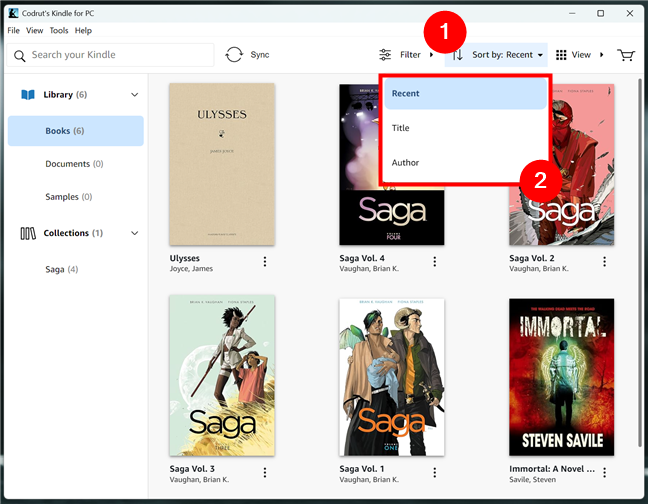
 How to sort books in Kindle for PC
Of course, you can also find your ebooks easily by typing their name in the search bar placed at the top of the window.
How to sort books in Kindle for PC
Of course, you can also find your ebooks easily by typing their name in the search bar placed at the top of the window.
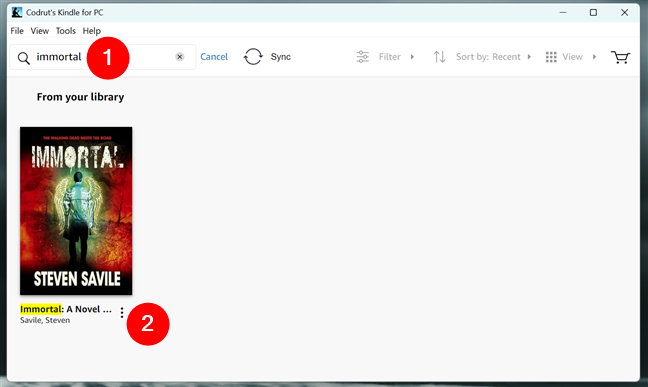
 Search for a book in Kindle for PC
The Kindle app displays your ebooks as tiles using their cover by default. If you don’t like this view, you can also display them as list items. You can switch between these two modes at any time using the options placed in the top right area of the window.
Search for a book in Kindle for PC
The Kindle app displays your ebooks as tiles using their cover by default. If you don’t like this view, you can also display them as list items. You can switch between these two modes at any time using the options placed in the top right area of the window.
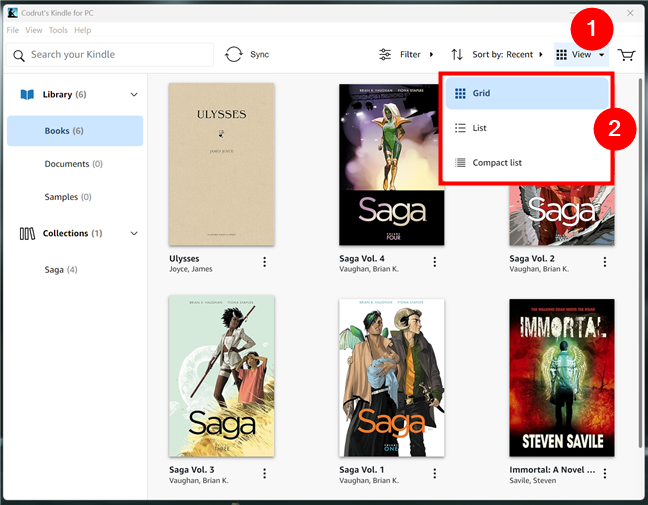
 Change how you view books in the Kindle reader for PC
If you want to continue reading your ebooks even when you’re offline, you can download your ebooks to your Windows PC. To do this, right-click or press and hold any book in the Library section and select Download in the context menu. Note that you can also double-click or double-tap an ebook to download it to your PC.
Change how you view books in the Kindle reader for PC
If you want to continue reading your ebooks even when you’re offline, you can download your ebooks to your Windows PC. To do this, right-click or press and hold any book in the Library section and select Download in the context menu. Note that you can also double-click or double-tap an ebook to download it to your PC.
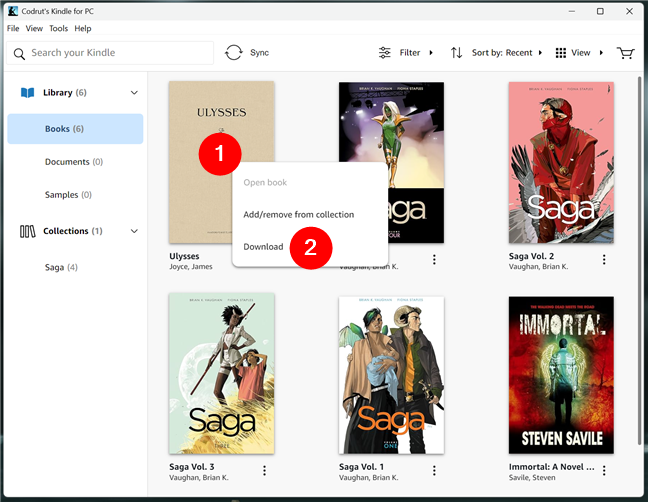 How to download books in Kindle for PC
The ebook you selected is immediately downloaded to your Windows PC’s storage. And not only the ebook, but also your bookmarks, notes, and progress on other devices.
How to download books in Kindle for PC
The ebook you selected is immediately downloaded to your Windows PC’s storage. And not only the ebook, but also your bookmarks, notes, and progress on other devices.
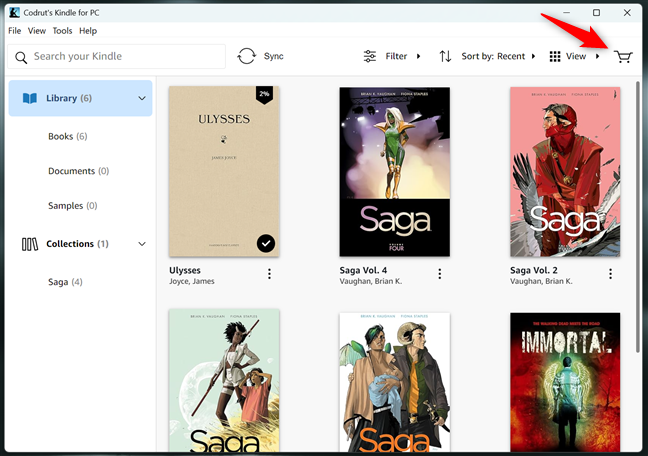
 Press the Kindle Store button
The Amazon Kindle Store webpage loads in your default browser, and you can now look for the title you want to buy.
Press the Kindle Store button
The Amazon Kindle Store webpage loads in your default browser, and you can now look for the title you want to buy.
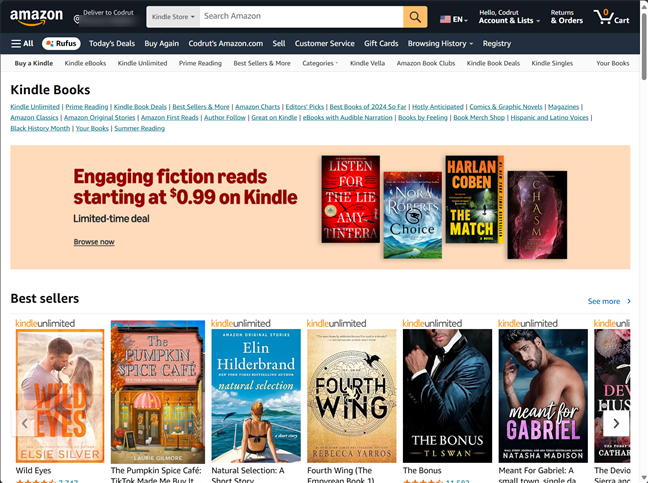
 Browse Amazon's Kindle Books
Once you find it, click or tap the Buy Now with 1-Click button.
Browse Amazon's Kindle Books
Once you find it, click or tap the Buy Now with 1-Click button.
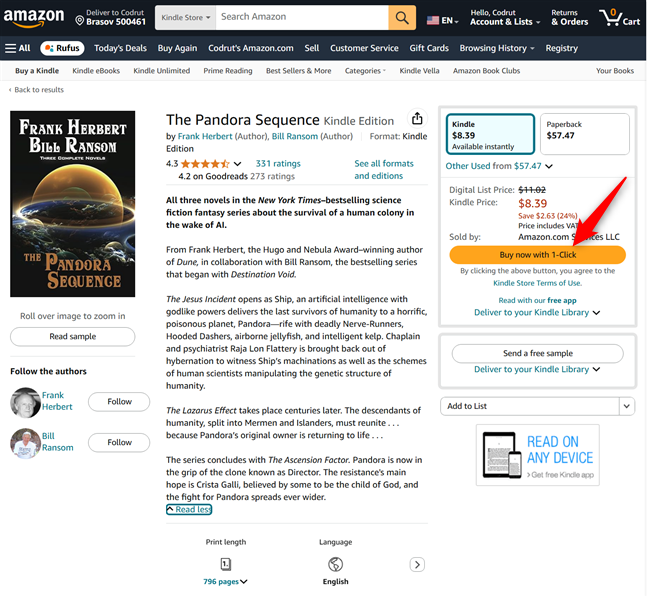
 How to buy a book on Amazon's Kindle Store
If you have all the payment details set up in your Amazon account, the book will automatically be delivered to all your devices, including the Kindle app on your Windows computer. Otherwise, you must enter your payment information first, before the book becomes available on your devices.
How to buy a book on Amazon's Kindle Store
If you have all the payment details set up in your Amazon account, the book will automatically be delivered to all your devices, including the Kindle app on your Windows computer. Otherwise, you must enter your payment information first, before the book becomes available on your devices.
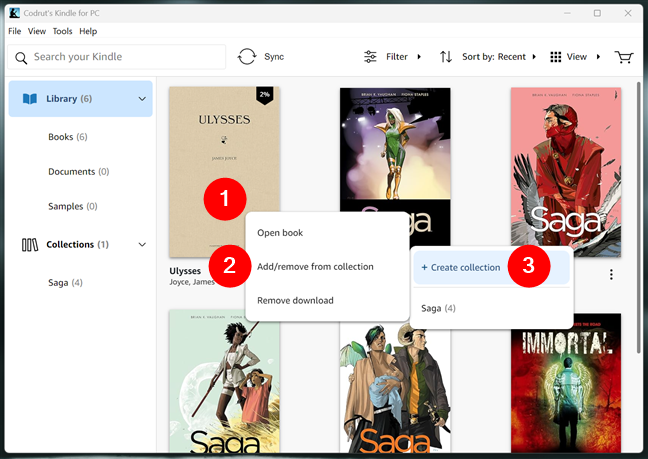
 Create a collection in Kindle for PC
Name your new collection and click or tap the Create button.
Create a collection in Kindle for PC
Name your new collection and click or tap the Create button.
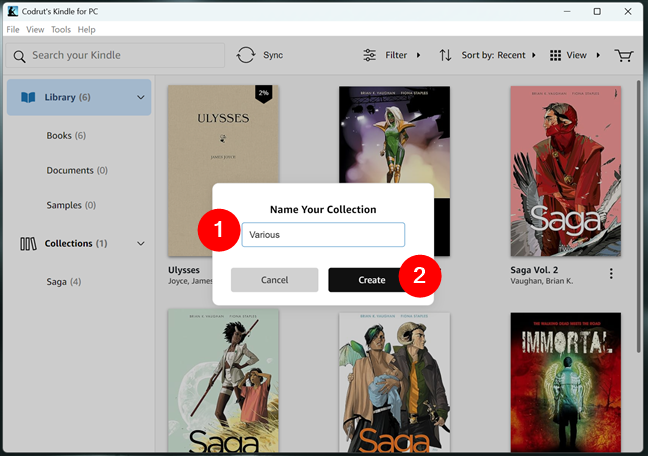 Give a name to the Kindle collection
Your collection is now created: press Ok to save it.
Give a name to the Kindle collection
Your collection is now created: press Ok to save it.
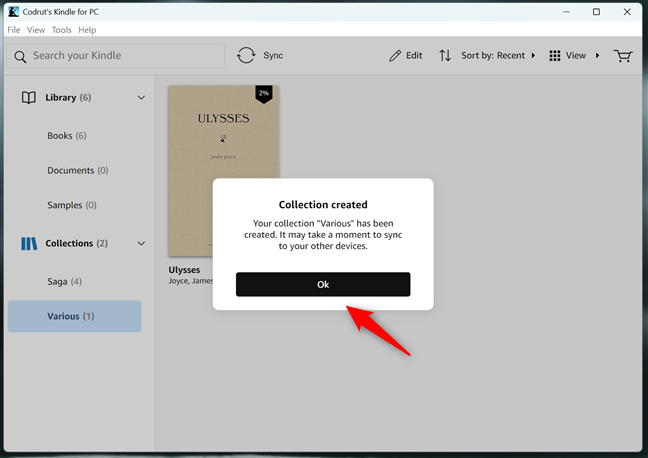
 Save the new Kindle collection
The collection you’ve just created contains only one book right now, so it’s not a collection per se, right? The next step is to add more ebooks to it. Go anywhere in your Library, right-click or press and hold any ebook, choose the Add/remove from collection option, and select the collection where you want to add the ebook. If the ebook is already in that collection, the same steps remove it.
Save the new Kindle collection
The collection you’ve just created contains only one book right now, so it’s not a collection per se, right? The next step is to add more ebooks to it. Go anywhere in your Library, right-click or press and hold any ebook, choose the Add/remove from collection option, and select the collection where you want to add the ebook. If the ebook is already in that collection, the same steps remove it.
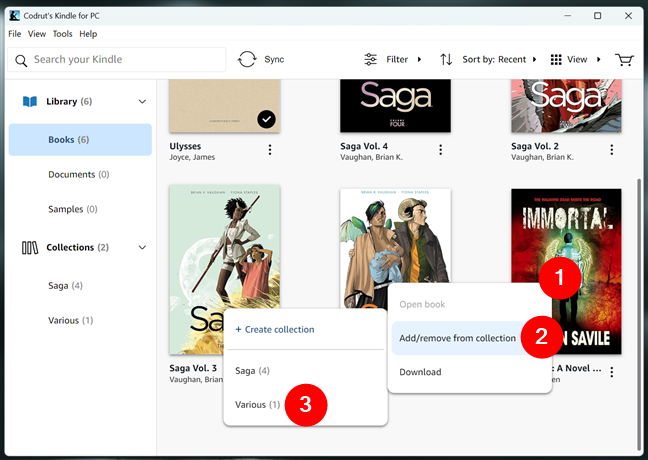
 Add new books to your new Kindle collection
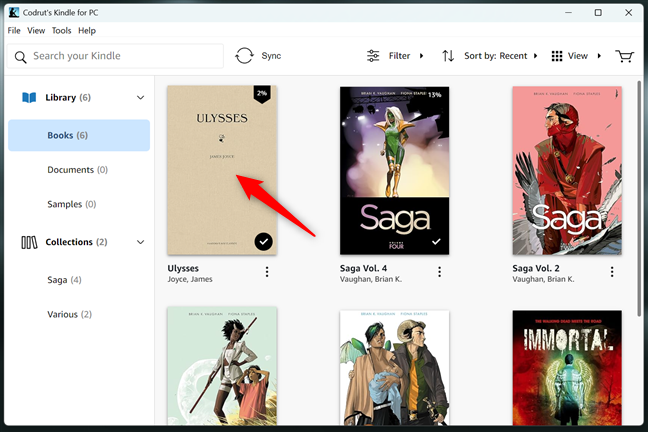
 Double click/tap to open a book in Kindle for PC
You can now start reading. When you need to turn the page, swipe or click the right side of the window to go to the next page and the left side to go to the previous page. You can also use the arrow keys on your keyboard.
Double click/tap to open a book in Kindle for PC
You can now start reading. When you need to turn the page, swipe or click the right side of the window to go to the next page and the left side to go to the previous page. You can also use the arrow keys on your keyboard.
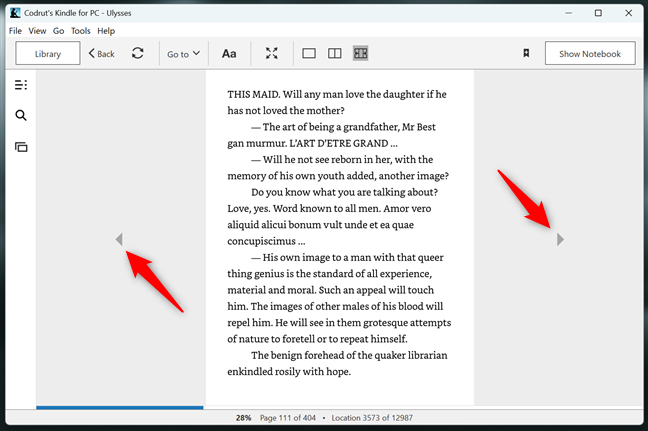
 Turn the pages in a book in the Kindle reader for PC
Read the next page of this tutorial to see how to change the way your ebooks look, add bookmarks, jump to a particular page, search for word definitions, highlight words, and add notes to the ebook you’re reading in the Kindle app for PC.
Turn the pages in a book in the Kindle reader for PC
Read the next page of this tutorial to see how to change the way your ebooks look, add bookmarks, jump to a particular page, search for word definitions, highlight words, and add notes to the ebook you’re reading in the Kindle app for PC.
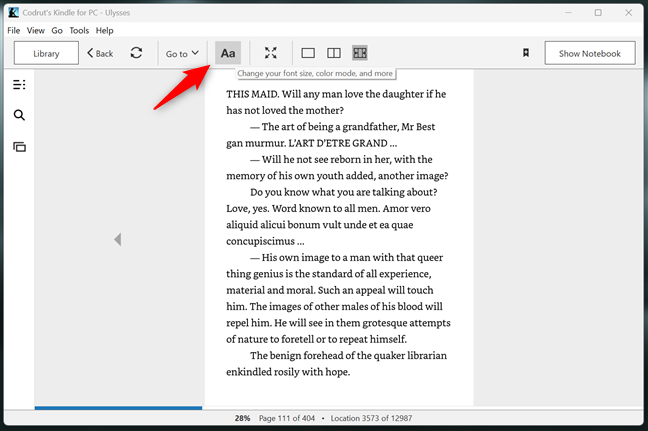 Click or tap the Aa button
A customization menu opens. Here, you can set the font, the font size, page columns, page width, the brightness, and the color mode. All the settings are applied automatically, as you select them.
Click or tap the Aa button
A customization menu opens. Here, you can set the font, the font size, page columns, page width, the brightness, and the color mode. All the settings are applied automatically, as you select them.
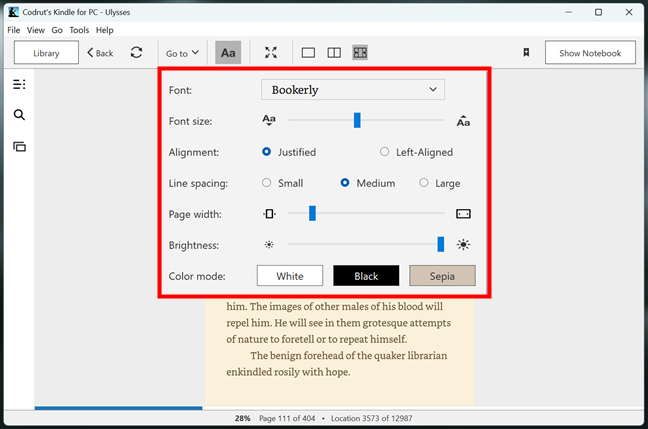
 Change how the ebook looks in the Kindle app for PC
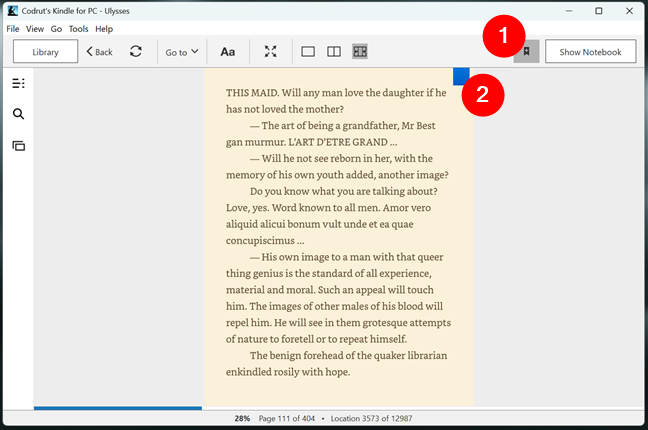
 Add a bookmark in a book
If you want to view all the bookmarks you created, click or tap the Show Notebook button in the top-right corner of the app.
Add a bookmark in a book
If you want to view all the bookmarks you created, click or tap the Show Notebook button in the top-right corner of the app.
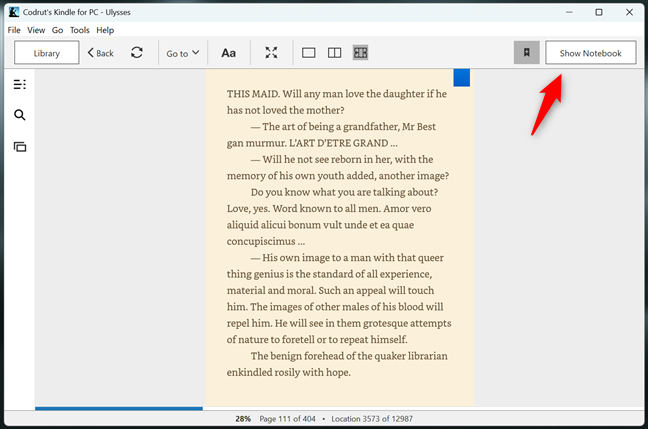 Press Show Notebook
You can then see not only the bookmarks but also the highlights and notes you’ve created.
Press Show Notebook
You can then see not only the bookmarks but also the highlights and notes you’ve created.
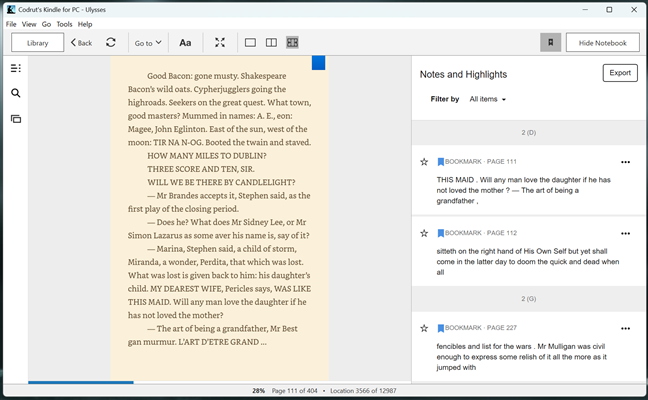
 Notes and Highlights
If you want to filter all your markings, you can choose Bookmarks from the Filter by drop-down menu, and only your bookmarks are displayed in the Notebook, not all the items you have here. Pressing any of the bookmarks takes you to the page associated with the bookmark.
Notes and Highlights
If you want to filter all your markings, you can choose Bookmarks from the Filter by drop-down menu, and only your bookmarks are displayed in the Notebook, not all the items you have here. Pressing any of the bookmarks takes you to the page associated with the bookmark.
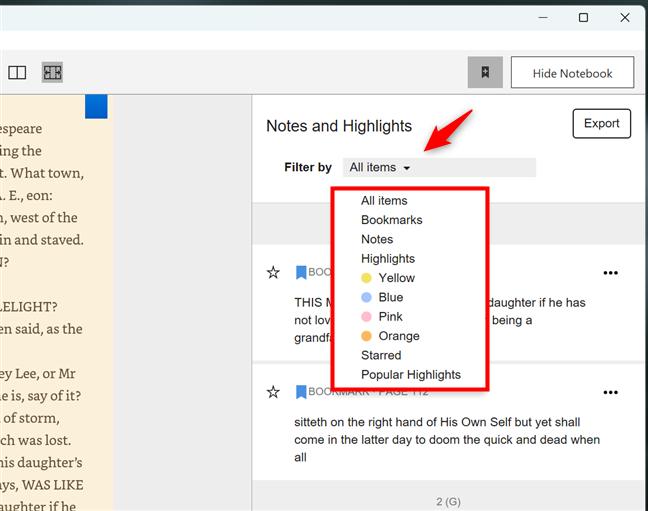
 Filter Notes and Highlights
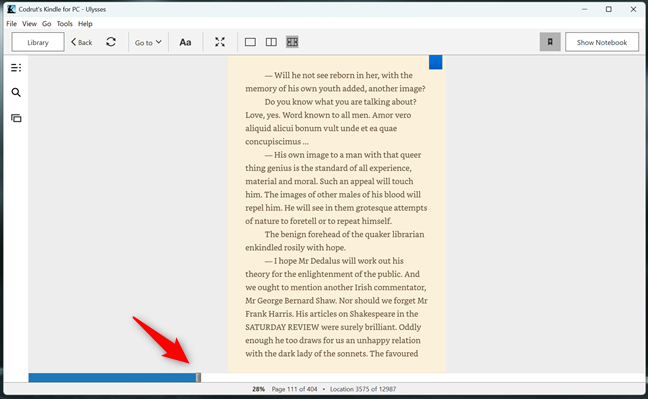
 Go to a certain page in the book using the bottom slider
The second way is to tap the Go to button in the top menu. It lets you jump straight to the Cover, Table of contents (if the ebook has one), the Beginning, or a certain Page or Location.
Go to a certain page in the book using the bottom slider
The second way is to tap the Go to button in the top menu. It lets you jump straight to the Cover, Table of contents (if the ebook has one), the Beginning, or a certain Page or Location.
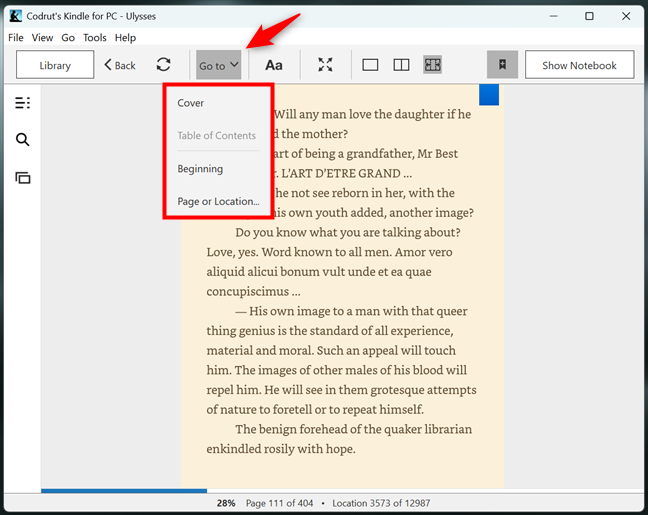
 Open the Go to menu
If you choose the Page or Location option, a text field appears. In it, type the number of the page and click or tap Go to jump to that page.
Open the Go to menu
If you choose the Page or Location option, a text field appears. In it, type the number of the page and click or tap Go to jump to that page.
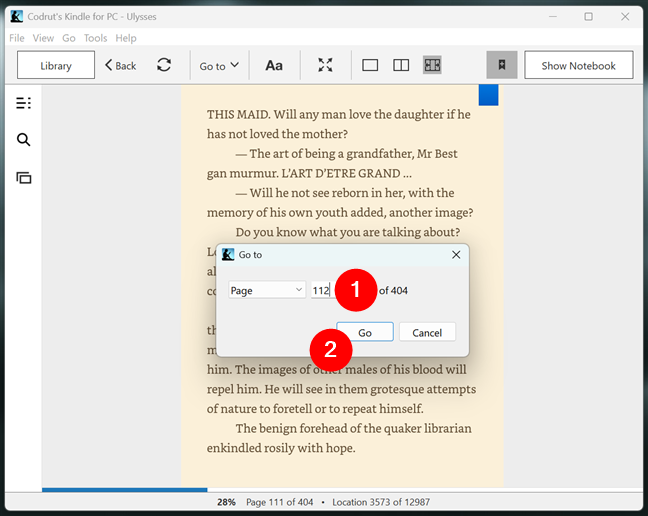
 Go to a specific page in Kindle for PC
You can also jump to one of your markings in the Notebook, like a bookmark, just by pressing it, as shown previously.
Go to a specific page in Kindle for PC
You can also jump to one of your markings in the Notebook, like a bookmark, just by pressing it, as shown previously.
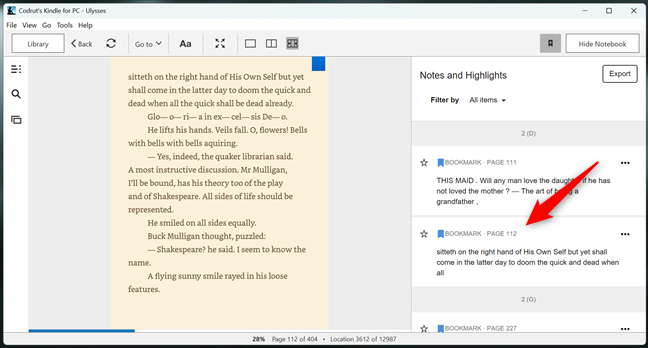
 Jump to a specific bookmark in Kindle for PC
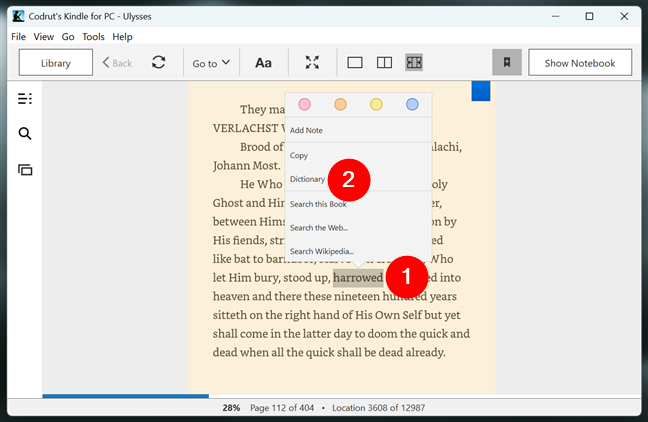
 Access the Dictionary for a certain word
The New Oxford American Dictionary will then display the definition for that word.
Access the Dictionary for a certain word
The New Oxford American Dictionary will then display the definition for that word.
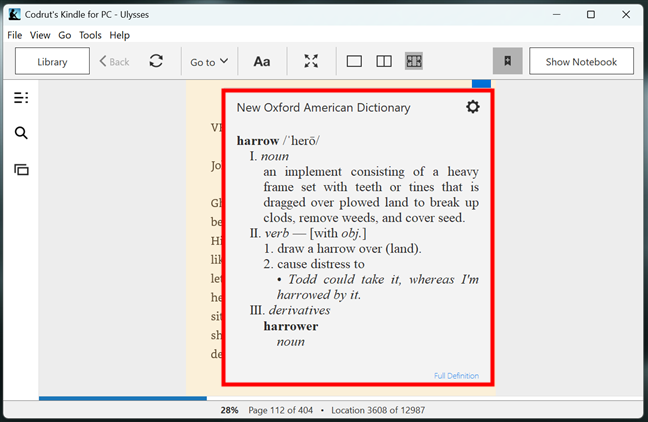 Get definitions for the selected word
This doesn't only apply to English but also for other languages such as German, Portuguese, French, Spanish, Italian, Chinese, or Japanese. If you need to use a different dictionary, click or tap the cogwheel button in the top-right corner of a word definition and choose the one you prefer.
Get definitions for the selected word
This doesn't only apply to English but also for other languages such as German, Portuguese, French, Spanish, Italian, Chinese, or Japanese. If you need to use a different dictionary, click or tap the cogwheel button in the top-right corner of a word definition and choose the one you prefer.
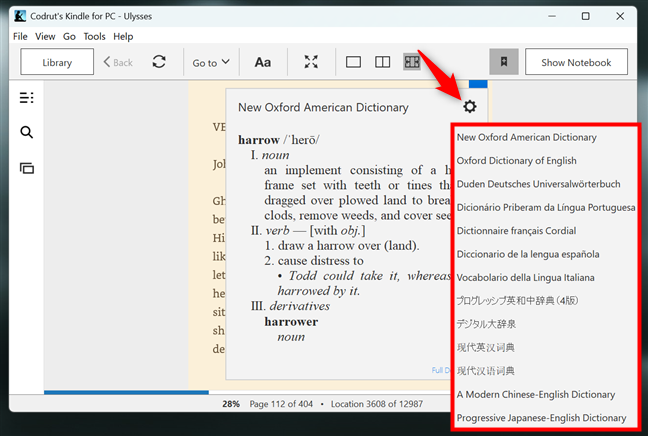
 Switch to a different dictionary in the Kindle app for PC
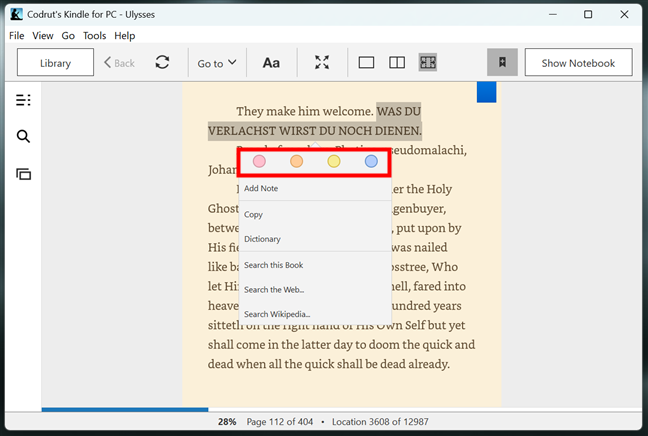 Highlight some text in a book with the Kindle app for PC
When you want to remove the marking, select the highlighted passage, and press the X button inside the colored dot you previously chose.
Highlight some text in a book with the Kindle app for PC
When you want to remove the marking, select the highlighted passage, and press the X button inside the colored dot you previously chose.
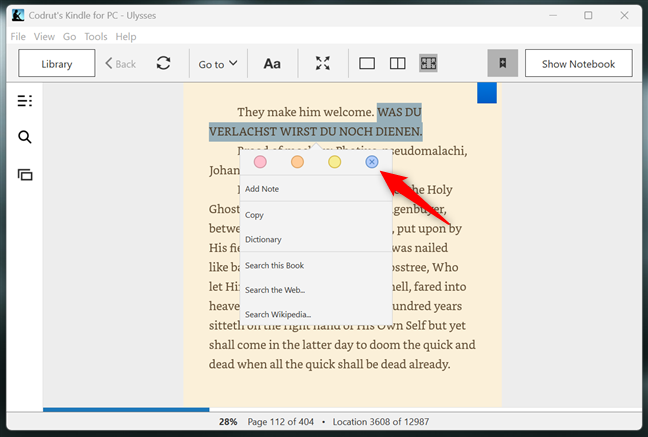
 Remove the highlight
If you want to view all your highlights, go to your Notebook and select Highlights from the drop-down Filter by menu to filter them from your other markings. Press any of the highlights to get to it instantly.
Remove the highlight
If you want to view all your highlights, go to your Notebook and select Highlights from the drop-down Filter by menu to filter them from your other markings. Press any of the highlights to get to it instantly.
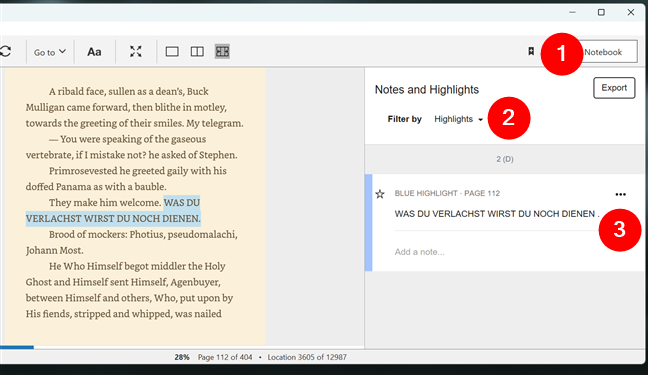
 See the list of highlighted pieces of text
Moreover, did you know that you can also write notes in your favorite ebooks? Here’s…
See the list of highlighted pieces of text
Moreover, did you know that you can also write notes in your favorite ebooks? Here’s…
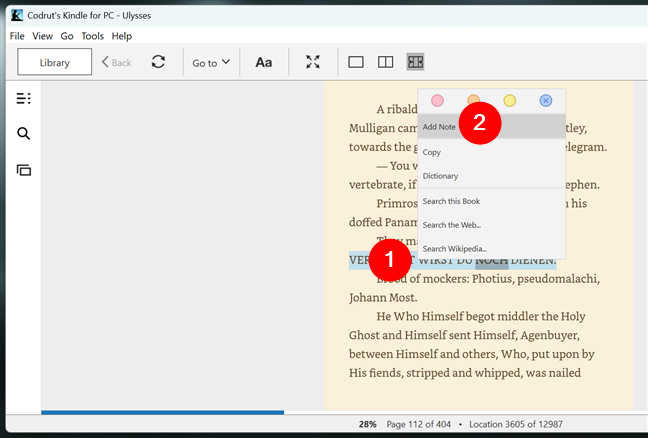
 Add a note to a selected text
Start typing your note in the text box, and press Save when you’re done.
Add a note to a selected text
Start typing your note in the text box, and press Save when you’re done.
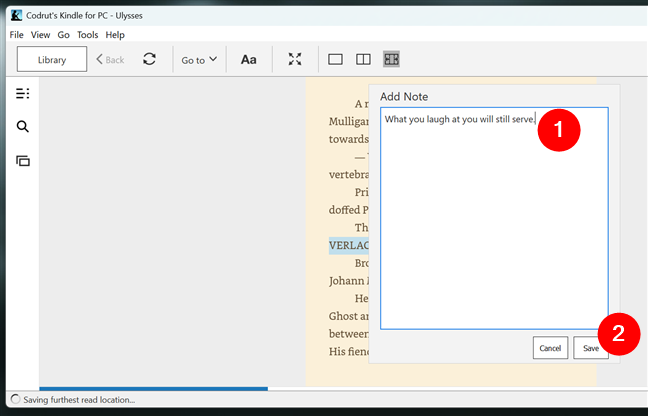
 Type the note and Save it
If you want to remove your note, push the small note icon, displayed on the passage.
Type the note and Save it
If you want to remove your note, push the small note icon, displayed on the passage.
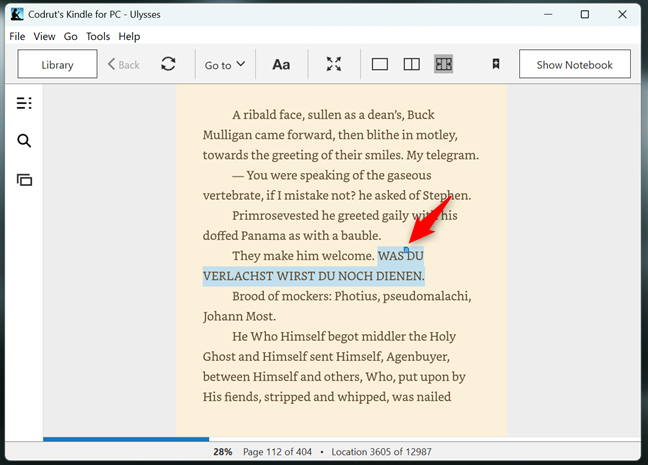
 Access a note in Kindle for PC
The note now opens: press the Delete button to remove it.
Access a note in Kindle for PC
The note now opens: press the Delete button to remove it.
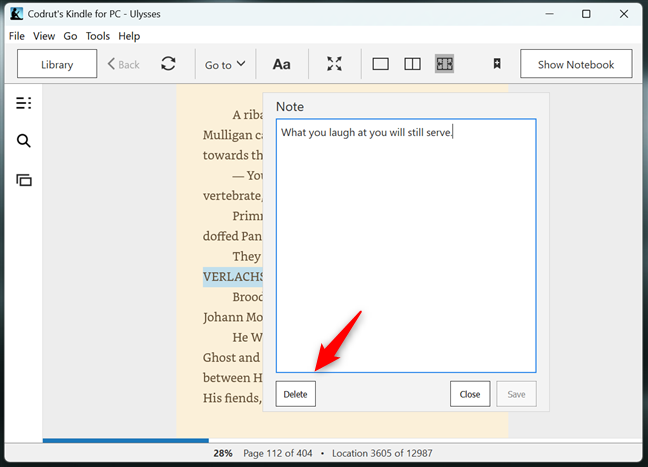
 Delete a note from an ebook
Similarly to bookmarks and highlights, you can view all your notes in the Notebook where you can also jump instantly to their page.
Delete a note from an ebook
Similarly to bookmarks and highlights, you can view all your notes in the Notebook where you can also jump instantly to their page.
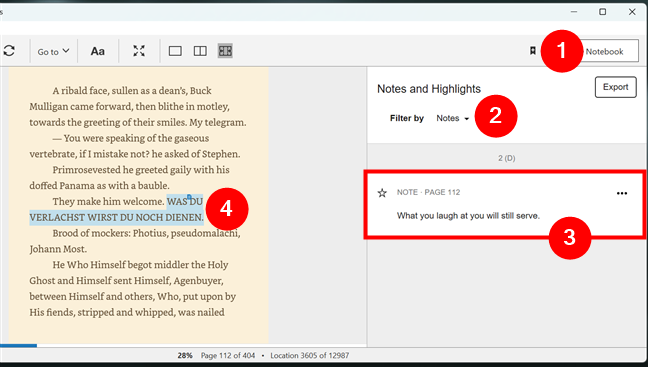
 See the Notes in the Notebook
Last but not least, a feature that used to be great:
See the Notes in the Notebook
Last but not least, a feature that used to be great:
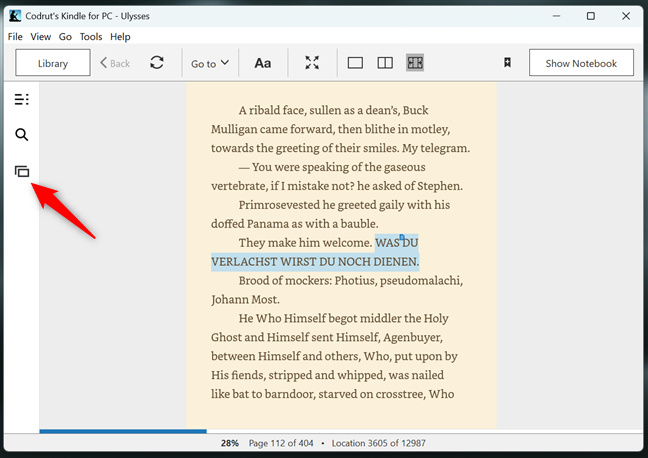 The Flashcards button in the Kindle reader for PC
Unfortunately, Amazon decided to remove flashcards from the Kindle app after November 2024. The feature is already disabled at the time of writing, but you can still save your previously created flashcards. If you want that, click or tap the Request flashcards, and you’re able to download all of them from your Amazon account.
The Flashcards button in the Kindle reader for PC
Unfortunately, Amazon decided to remove flashcards from the Kindle app after November 2024. The feature is already disabled at the time of writing, but you can still save your previously created flashcards. If you want that, click or tap the Request flashcards, and you’re able to download all of them from your Amazon account.
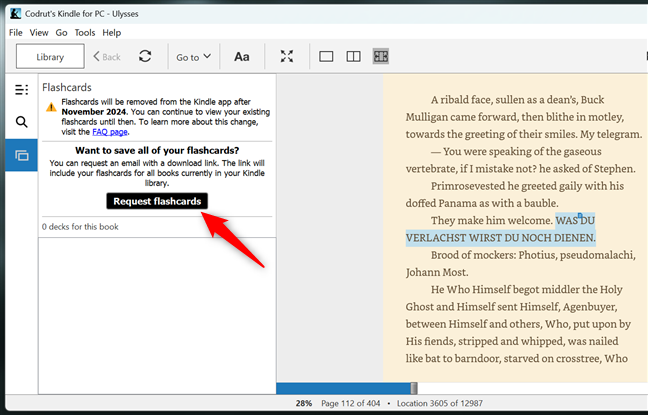
 How to request flashcards in Kindle for PC
Download, install, and launch the Kindle app for Windows PCs
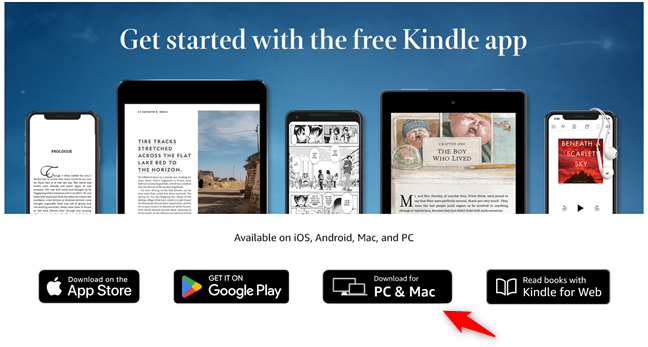
First, you need to download the app’s installer from Amazon’s website. To download the PC version for the app, make sure you press the Download for PC & Mac button.How to view your ebooks using the Kindle app
If you have the Kindle app installed on another device and you registered with the same Amazon account, your ebooks can easily be downloaded to your PC. If you want to view all the ebooks that are associated with your device, click or tap the Library section in the left sidebar.How to buy ebooks using the Kindle app for Windows
You can download millions of ebooks from the Kindle Store using the Kindle app. The procedure is simple, and straightforward, but your Windows device needs to be connected to the internet, and you need to use a valid payment method. Here’s how it goes: First, tap the Kindle Store button in the top-right corner of the Kindle app.How to create a collection using the Kindle app in Windows
If you like to keep your library clean and organized or you want to group your ebooks by genre, you can do this by creating a collection. First, right-click or press and hold on the first book you intend to add to the collection. In the context menu, choose Add/remove from collection and then click or tap the + Create collection option.How to use the Kindle app to open and read an ebook in Windows
Now that you’ve set everything up and learned how to purchase ebooks, you can start reading in seconds. Just double click or double tap any ebook in the Kindle app and it opens right away.Customizing how an ebook looks in the Kindle app on a Windows computer
The Kindle app allows you to customize your reading experience to make it as comfortable as possible for you. If you want to do that, click or tap the Aa button at the top of the window.How to view and place bookmarks using the Kindle app
Another thing that you can do with the Kindle app is to set bookmarks that help you find a page faster. If you want to place a bookmark, click or tap the Bookmark this page button in the top-right corner of the window. The corner of the page becomes blue letting you know that you’ve bookmarked it. To remove a bookmark, you can press the top-right corner of the page again or the Bookmark this page button.How to go to a certain page in an ebook using the Kindle app for PC
The Kindle reader for PC allows you to jump instantly to a specific page in your ebook. There are more ways to do that: one way is to slide the progress bar placed at the bottom of the window forward or backward until you reach the page you want.How to search for word definitions when reading an ebook with Kindle for PC
If English is not your native language, there may be words or expressions you don’t know or understand, and that can ruin your reading experience. Well, the Kindle app allows you to search for word definitions easily. Select the word by clicking or tapping it, and choose Dictionary in the context menu that shows up.How to highlight words and view them using the Kindle app for PC
If you enjoyed a particular passage while reading an ebook, you can mark it and come back to it anytime you want. Select a passage in your ebook, and a menu opens just there. At the top, you notice some colored dots, where you can choose the color of your highlighted text.How to add notes in an ebook using the Kindle app for PC
If the ebook you’re reading is not only for pleasure but also for educational purposes, this feature might come in handy. You can add notes to passages and view them later to help you work on book reports for example. First, select the passage you want to add the note to and press Add Note in the context menu displayed.Flashcards in the Kindle app for Windows PCs
Flashcards were one of the most interesting features of this app, as they could come in handy when you studied a book. In the past, you could add flashcards as you read a book and test yourself at the end to evaluate how much you remembered. Flashcards were available via the Flashcards button in the left sidebar of the Kindle app for PC.

Discussion (26)
When I open my downloaded book the page appears in both portrait and landscape at the same time. Tried downloading from Amazon and installing again but getting same results. Also got error message when installing ordinal not found 4540 and 4516. Any suggestions?
How to use flip side of flashcard
i have used Kindle reader for years on tablets and win 10 with no trouble.
Today I downloaded a magazine (New Scientist) and it is rotated 90 degrees. In Win 10 I cannot find a way to correct this. I prefer to use my PC for magazines.
Any ideas?
D
Thank you. Im trying to use the Flashcard options in my Kindle app for PC2. On the right side when reading my PDFs in the Kindle it shows a box for Flashcards+ and when I mouse over it shows “export to flashcards” it doesnt do anything whenever I click it. There is no flashcard option as pictured in your instructions on the left side of my menu. Is there something preventing this option? Perhaps because its an imported PDF? Thanks for any help.
Once I’ve set up kindle app and reading a book and want to pause I can hit bar at bottom but how do I start back reading? I’ve been having to open tool bar and click text to speech. Gotta be easier way..thanks
Wonderful instructions! I went through the entire page and learned several useful things. What I was looking for, however, is not answered here. I am hoping to learn how to change the reading progress bar on the bottom of the page. Mine currently shows how much of the book has been read, by percentage. I want to change that to chapters.
You skipped over the part on “searching” for words or phrases inside of books.
Will they ever incorporate the use of the PEN to create comments or notes. I have a surface pro and its hard to type when you are in a classroom setting.
I really don’t know. That would be an useful feature.
These options for “Viewing Bookmarks” don’t exist on my version. I have Windows 7, maybe that’s why?
Yup. We cover the Kindle app for Windows 10. It is a different app with different features.
Thank you for posting this. VERY helpful to have the flash cards. I could not figure it out. I kept on creating booklets. LOL
Happy to help. Do not hesitate to subscribe to our newsletter, for more useful content.
Alastair again. I have just found how to cancel Full Screen on my Lenovo X1. In Full Screen mode, when you change page a little box pops up at bottom of the screen for a few seconds. I has an X in a circle and when tapped, it closes Full Screen mode.
Thanks for sharing the solution that you found. Other readers will find it useful. 😉
I have a Lenovo Yoga X1 laptop which allows me to totally flip the screen over to effectively give me a keyboard-less tablet. The keyboard, now underneath the screen, is dis-enabled. If I now open a Kindle page, I am able to go to the menu “View” and select ‘ Full Screen’.Can you help me as I am unable to find any way using the touch screen to undo the Full Screen – ie: the touch equivalent of F11. Looking forward to your reply and by the way, your user manual online for the Kindle is really excellent.
On my PC, kindle app does not have Aa on top, in other words i cannot rotate a book, so what can i do?
It looks like it is impossible to do a word search in the Kindle for PC app. That would be a great addition to the program.
In full screen, when the pointer strays onto the page, a black box appears at the bottom, blocking the center of three lines of text. Very annoying. Any way to get rid of it?
How can I, or why can’t I scroll down on the pages rather than flip forward/backward on each page. Scrolling rather than flipping is more intuitive when using computers.
I was wondering if you might be able to help me, I can’t find anything online so far. I created flashcards for a book while using the Kindle for PC app on my computer. I assumed the flashcards would show up on my FireHD8 when I opened the book there, but they weren’t. The option to make flashcards was on my Fire device, but not the flashcards that I already had made on the PC.
Are the flashcards mearly local/device specific? Or is there something I can do to access them from my Fire?
The one thing this app needs is a way to sort your collections i.e. alphabetically; not just your books as a whole.
Is there any way to enlarge images, ie. not just text?
I want to be able to read the Music Staves in a Music Book, but they display too small.
i am using a microsoft surface pro in 2017. I’m using it in tablet mode (no mouse). I scoured this article looking for a way to toggle back out of full screen mode, so I could access the settings menu. So far, no luck. Thanks for a great article though! When I solve my isue I’ll come back to it.
Thank you very much for a fantastic tutorial. Easy to understand and well structured. Well done!
Thank you for appreciating our work. Don’t hesitate to subscribe to our newsletter, for the latest guides that we publish.