If you are a Microsoft account holder, one of the first things you should do after creating the user account is to add your PC as trusted. From an account security standpoint, having a trusted computer gives you a secure place from which you can reset your password or confirm alterations to your account, without having to prove your identity. If you are also a Windows 8 user, trusting your private computers will allow you to synchronize passwords stored with your Microsoft account. The benefits of this procedure are well worth the few minutes it will take to follow this tutorial.
Add a Trusted PC Using Windows 8 PC Settings
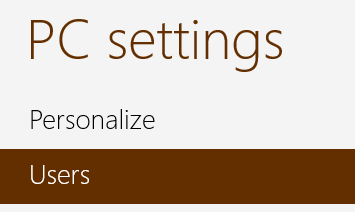
As a Windows 8 user you can quickly trust your PC through PC Settings. Go to the Users section.
Windows 8 - Trust this PC
From here, you'll be able to see user settings for your computer. Click or tap "Trust this PC" to get started.
Windows 8 - Trust this PC
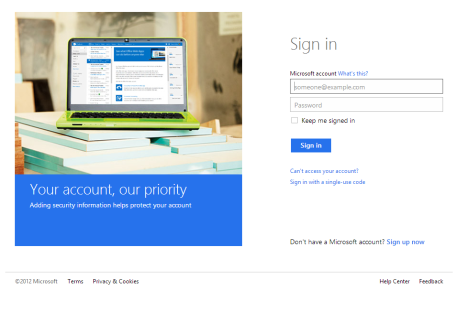
Your computer's default web browser will launch and load the Microsoft account page. Enter your account information and click or tap "Sign In."
Windows 8 - Trust this PC
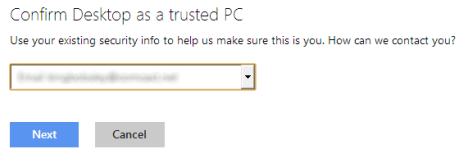
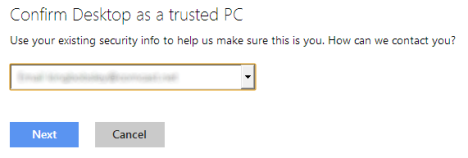
When your username and password are accepted, you'll be prompted to confirm you computer as a trusted PC. Select your email address from the dropdown list and click or tap "Next."
Windows 8 - Trust this PC
That's a good start. You can now skip ahead to the Confirmation section of this tutorial.
Windows 8 - Trust this PC
Add a Trusted PC Using Internet Explorer
If you aren't a Windows 8 user, or you're already online, you can trust your PC just by logging in to Microsoft account. You have to use Internet Explorer for this procedure to work, regardless of your browser preference.
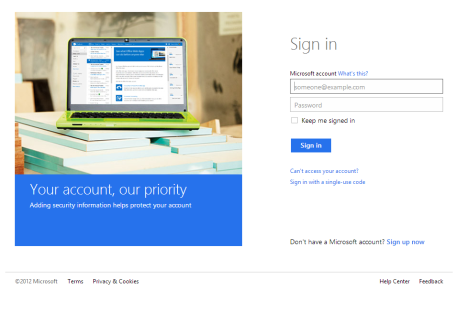
Enter your account information when the page loads and click or tap "Sign In."
Windows 8 - Trust this PC
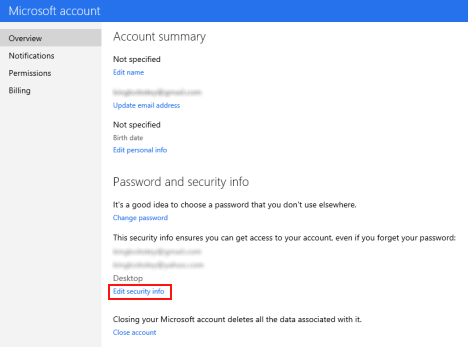
After successfully entering your email address and password, you'll be taken to an account summary page. Click "Edit Security Info."
Windows 8 - Trust this PC
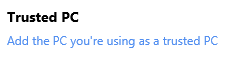
From the Account Security page, click or tap "Add the PC you're using as a trusted PC."
Windows 8 - Trust this PC
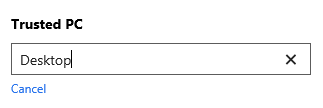
Enter the name of your computer when prompted and click or tap "Enter" when finished.
Windows 8 - Trust this PC
After this step the page will reload. You'll notice a gray section at the top that lists security information awaiting confirmation. Under your computer name, click or tap "Confirm."
Windows 8 - Trust this PC
Select your email address from the drop-down list and click or tap "Next."
Windows 8 - Trust this PC
You're now ready to confirm your trusted PC.
Confirm Your New Trusted PC
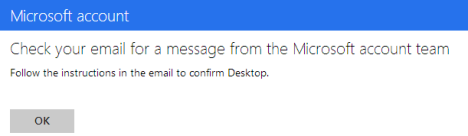
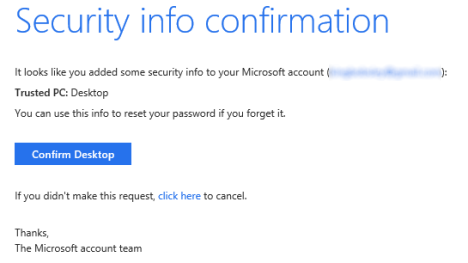
At this point, you've given Microsoft all the info they need, you just have to prove that you're who you say your are. Wait for a minute or two and then check the email inbox that you selected during the confirmation stage of the previous sections. Open the email from the Microsoft Account Team and click or tap the "Confirm ComputerName" button.
Windows 8 - Trust this PC
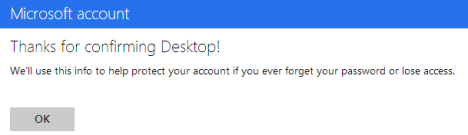
You may need to enter your email address and password again if you've closed your browser window. If not, you'll simply get a thank you message to let you know the job is done.
Windows 8 - Trust this PC
Your computer is now considered trustworthy by your Microsoft account. Go ahead and repeat this procedure for other Windows 8 computers that you want to synchronize your account information with. Keep in mind that for security, you should never trust a public computer that has multiple users. To do so would put your Microsoft account at risk.
Conclusion
Now you know what it takes to trust a PC and the advantages of doing so. Do you feel it's worth your time? Do you feel the advantages of password syncing and easier account alterations are worth the increased risk should someone gain access to a trusted computer? Give us your opinions or questions below. We're always hoping to hear from you.
This does not answer my question about Windows 8.1, and how to “Trust this P.C.” Trying to set up this computer for my mother-in-law has been a nightmare! And then you make me watch a stupid commercial to ask a question!
Ciprian Adrian Rusen ·
We don’t yet have a Windows 8.1 version of this tutorial. As you can easily see, this guide was made in Windows 8, for Windows 8.
We will try to publish such a tutorial in the next couple of days.
Joe Robertson ·
I look forward to it. It would be good if there were a way to check whether or not your pc has been trusted.
Joe Robertson ·
I receive messages that I should trust this PC but when I follow the instructions to do so I get the message “log into https://account.live.com/trustdevice on Internet Explorer from the Windows 8 device you would like to trust.” but this is that device and if I follow that instruction I get exactly the same instruction each and every time. I don’t know if my PC is trusted or net but I keep the solve issue message.
atif ·
same here !
Paul ·
When I sign into my account it has the worng user ID email address. My user name has a “1” after my user name and I cannot edit or correct it. How can I correct my user name email address with the correct ID?
Ciprian Adrian Rusen ·
I’m afraid I do not understand your question and the exact problem you are having. Can you please share more details?


















Discussion (7)
This does not answer my question about Windows 8.1, and how to “Trust this P.C.” Trying to set up this computer for my mother-in-law has been a nightmare! And then you make me watch a stupid commercial to ask a question!
We don’t yet have a Windows 8.1 version of this tutorial. As you can easily see, this guide was made in Windows 8, for Windows 8.
We will try to publish such a tutorial in the next couple of days.
I look forward to it. It would be good if there were a way to check whether or not your pc has been trusted.
I receive messages that I should trust this PC but when I follow the instructions to do so I get the message “log into https://account.live.com/trustdevice on Internet Explorer from the Windows 8 device you would like to trust.” but this is that device and if I follow that instruction I get exactly the same instruction each and every time. I don’t know if my PC is trusted or net but I keep the solve issue message.
same here !
When I sign into my account it has the worng user ID email address. My user name has a “1” after my user name and I cannot edit or correct it. How can I correct my user name email address with the correct ID?
I’m afraid I do not understand your question and the exact problem you are having. Can you please share more details?