




Wondering how to watch Fios TV on smart TV screens without juggling extra cables? If you already pay for a Verizon Fios TV package, you can stream live channels and On Demand shows on your big screen with the right app or device. This guide walks you through the easiest ways to get the Fios TV experience on a smart TV, even if your current model does not have a built-in Fios TV app.
We focus on practical options that work at the time of writing, including the Fios TV app on supported streaming devices, casting from the Fios TV mobile app, and using your existing Fios TV box with a smart TV. You will also see how these steps help if you want to watch Fios TV without relying on your traditional cable box in every room.
Start with the most reliable method your home supports, then move to alternatives if your smart TV does not offer a direct Fios TV app. These steps keep things simple whether you use a Samsung, LG, Vizio, or any other smart TV with HDMI ports.
Check What Your Smart TV Already Supports
Before you change your setup, confirm what your smart TV and living room devices can already do. This helps you pick the fastest path to watch Fios TV on smart TV screens without buying unnecessary hardware.
- Open the app store on your smart TV and look for streaming platforms such as Fire TV, Google TV, or other built-in hubs that might host the Fios TV app.
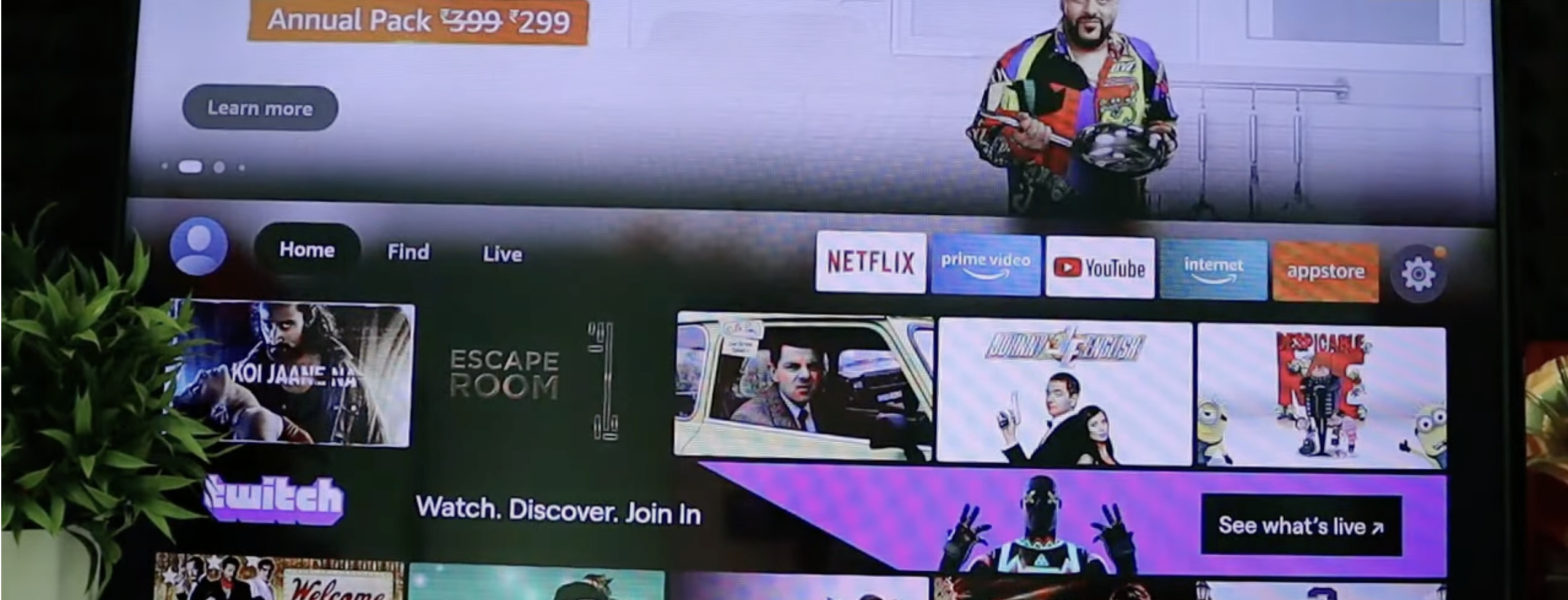
- Check whether you already have a connected device such as an Amazon Fire TV Stick, Apple TV, or Verizon Stream TV plugged into an HDMI port.

- Confirm that your Fios TV subscription is active and includes the channels you expect to stream on your smart TV.
- Make sure your smart TV and any streaming device share the same home Wi-Fi network used by your Fios router.

Use A Supported Streaming Device With The Fios TV App
For most homes, the easiest way to watch Fios TV on a smart TV is to install the Fios TV app on a supported streaming device and let that device handle the video playback. This gives you a full channel guide, On Demand content, and cloud DVR access on your main screen.
- Connect a compatible streaming device, such as an Amazon Fire TV Stick, Fire TV Cube, Apple TV, or Verizon Stream TV, to an open HDMI port on your smart TV.
- Switch your smart TV input to the HDMI port where the streaming device is connected so you can see its home screen.
- Open the device’s app store and search for the official Fios TV app from Verizon.
- Install the Fios TV app, then open it and sign in with the Verizon user ID and password tied to your Fios TV account.
- Follow the on-screen prompts to complete activation, then test live channels and On Demand to confirm audio and video look correct.
- Pin the Fios TV app to the top row of your streaming device’s home screen so you can launch it quickly whenever you power on your smart TV.
This method works well if you want to watch Fios TV without a set-top box in secondary rooms, while still keeping your main Fios TV One box in the living room or home theater.
Cast From The Fios TV Mobile App To Your Smart TV
If your smart TV supports built-in Chromecast, AirPlay, or a similar casting feature, you can use the Fios TV mobile app as a remote control and stream content wirelessly. This option is useful when you want a quick way to watch Fios TV on smart TV screens without installing a separate app on every device.
- Install the Fios TV mobile app on your iPhone, iPad, or Android phone that is connected to the same Wi-Fi network as your smart TV.
- Make sure your smart TV or streaming stick has Chromecast, AirPlay, or a similar casting feature turned on in its settings.
- Open the Fios TV app on your phone and sign in with your Verizon Fios TV account if you have not already.
- Start playing a live channel or On Demand show in the app, then tap the Cast or AirPlay icon that appears on the video player.
- Select your smart TV or streaming device from the list of available targets and wait a few seconds for the stream to move to the big screen.
- Use your phone to pause, rewind, change channels, or switch to another Fios TV show while the TV handles the actual playback.
Casting is handy if you want to watch Fios TV in rooms where you do not keep a Fios TV One box or full streaming setup, as long as your Wi-Fi connection stays strong.
Connect Your Fios TV Box To The Smart TV
If your smart TV does not support the Fios TV app or casting, the traditional HDMI connection still works well. This method turns the smart TV into a simple screen while the Fios TV box handles all the channel tuning and DVR features.
- Place your Fios TV One box or other compatible Fios set-top box near the smart TV so the HDMI cable can reach comfortably.
- Connect one end of an HDMI cable to the HDMI Out port on the Fios TV box and the other end to an HDMI input on your smart TV.
- Turn on the smart TV and change the input to the HDMI port you just used so you can see the Fios TV box interface.
- Use the Fios remote to complete any on-screen setup steps and confirm you can see live channels and access your DVR recordings.
- Adjust your smart TV picture and audio settings to match the output from the Fios TV box for the best possible image quality.
This approach does not require extra apps or mobile devices and works reliably even in rooms with weaker Wi-Fi coverage, since the Fios set-top box connects directly to your home network.
Use A Streaming Device On Older Smart TVs
Older smart TVs often struggle with newer streaming apps or do not get updates. If you still want the flexibility of the Fios TV app on a big screen, a small HDMI streaming device can act as the main hub instead of relying on the TV’s built-in software.
- Plug a modern streaming stick or box into the HDMI port of your older smart TV and connect it to power.
- Go through the streaming device’s setup wizard to join your Wi-Fi network and sign in to your streaming accounts.
- Install the Fios TV app on the streaming device and sign in with your Verizon Fios TV credentials.
- Launch Fios TV from the streaming device whenever you want to watch Fios TV on that smart TV, instead of using the TV’s outdated app store.
This method effectively upgrades an older TV and makes it feel closer to a modern smart TV, while giving you access to the same Fios TV app and cloud DVR options you use in other rooms.
Troubleshooting Common Problems
If you run into issues while you learn how to watch Fios TV on smart TV screens, start with basic checks first. Most problems come from simple connection, login, or app glitches that you can fix at home.
- If the Fios TV app does not appear in a device’s app store, confirm the device is officially supported and runs a current software version.
- If video buffers or looks blurry, test your internet speed on the smart TV and move the router or TV closer together when possible.
- If you see frequent errors when signing in, double-check your Verizon user ID and password or reset the password from a browser.
- If casting from the Fios TV mobile app fails, make sure your phone and smart TV share the same Wi-Fi network and restart both devices.
- If there is no sound, check the smart TV’s audio output settings and confirm that HDMI audio is enabled for the input that carries Fios TV.
- If the Fios TV app freezes, force close the app, clear its cache if the device allows it, and relaunch it before trying a full reinstall.
Tips
- Use a wired Ethernet connection on your smart TV or streaming device when possible to keep Fios TV streaming stable during live sports.
- Give Fios TV its own HDMI input label on your smart TV, such as “Fios TV Streaming,” so family members can find it quickly.
- Lower the streaming quality inside supported devices if your home internet speeds slow down during peak evening hours.
- Set parental controls in both the Fios TV app and your smart TV so content filters stay consistent across rooms.
- Keep your streaming devices and smart TV firmware updated so the latest Fios TV app releases run smoothly.
- Use the Fios TV app’s cloud DVR features to record shows in one room and finish them later on another smart TV.
FAQ
Can I Watch Fios TV On Smart TV Without A Set Top Box?
Yes, if you install the Fios TV app on a supported streaming device connected to your smart TV, you can stream channels without adding another Fios TV box in that room. You still need at least one primary Fios TV box on your account for service.
Does Every Smart TV Support The Fios TV App?
No, not every smart TV line has a native Fios TV app in its store. When your TV does not support the app directly, a streaming stick or box with the Fios TV app gives you the same experience on the big screen.
Do I Need Fios Home Internet To Watch Fios TV On A Smart TV?
You need an active Verizon Fios TV subscription to sign in to the Fios TV app, and performance is best when you use Fios home internet on the same network. Other internet providers may work for some features, but support and quality can vary.
Can I Watch Fios TV On Multiple Smart TVs At The Same Time?
In most homes you can sign in to the Fios TV app on more than one streaming device or smart TV, but some accounts limit how many streams can play simultaneously. If playback stops on one TV when another starts, you may have hit that stream limit.
Why Does Fios TV Look Better On One Smart TV Than Another?
Picture quality can differ because of Wi-Fi strength, HDMI settings, and how each TV handles motion and color. Use the same streaming device model and similar picture modes on each TV to keep the Fios TV experience more consistent.
Summary
- Install the Fios TV app on a supported streaming device to watch Fios TV on most smart TVs.
- Use the Fios TV mobile app with casting features to move live channels and On Demand shows to your smart TV.
- Connect your Fios TV box directly to the HDMI port on any smart TV when apps or casting are not available.
- Fix common Fios TV streaming issues by checking Wi-Fi, login details, app updates, and HDMI settings.
- Keep devices updated and use parental controls and DVR features to get the best overall Fios TV experience on smart TVs.
Conclusion
Once you understand how to watch Fios TV on smart TV screens, you can match each room with the setup that makes the most sense. Some homes lean on the Fios TV app and streaming devices, while others prefer the reliability of a Fios TV box on the main TV and casting in secondary rooms.
By checking device compatibility, picking the right streaming method, and keeping your apps and firmware current, you get a stable way to stream live channels and On Demand content on any smart TV you own. That way, your Fios TV subscription follows you from the living room to the bedroom and beyond, without a complicated stack of extra hardware in every corner of the house.


Discussion (0)
Be the first to comment.