



Safari extensions let you customize Apple’s browser with extra features like content blocking, password managers, and productivity tools. Apple supports Safari extensions on iPhone, iPad, and Mac, but the setup and controls differ slightly on each device.
Once you understand where to enable them and how permissions work, Safari extensions become easy to manage and safe to use.
Table of contents
- What Safari extensions are and how they work
- How to install Safari extensions
- How to enable and disable Safari extensions
- How to use Safari extensions while browsing
- How to manage Safari extension permissions
- How to remove or uninstall Safari extensions
- Common Safari extension problems and fixes
- Tips for using Safari extensions safely and efficiently
- FAQs
- Summary
What Safari extensions are and how they work
Safari extensions are small add-ons that change how websites behave or how Safari works. They can block ads, save articles, autofill passwords, or modify page content in real time.
Apple distributes Safari extensions through the App Store to protect users from malicious code. Each extension runs with limited access, and Safari asks for permission before allowing it to interact with websites.
How to install Safari extensions
Safari extensions install through the App Store, not directly from websites. The extension usually comes bundled with an app that manages its settings.
Install Safari extensions on iPhone and iPad
- Open the App Store and search for the extension you want.
- Tap Get or Download to install the app.
- Open Settings > Apps > Safari > Extensions.
- Tap the extension name and turn on Allow Extension.
Safari does not activate extensions automatically. You must enable them manually after installation.
Install Safari extensions on Mac
- Open the App Store and search for Safari extensions.
- Download and install the extension app.
- Open Safari > Settings > Extensions.
- Check the box next to the extension to enable it.
Some extensions also place an icon in the Safari toolbar for quick access.
How to enable and disable Safari extensions
You can turn extensions on or off without uninstalling them. This approach helps when testing performance issues or troubleshooting website problems.
Enable or disable extensions on iPhone and iPad
- Open Settings > Apps > Safari > Extensions.
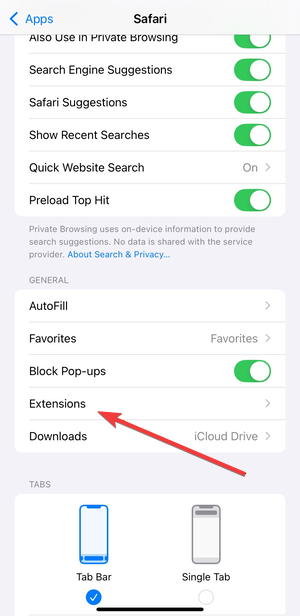

- Select the extension.
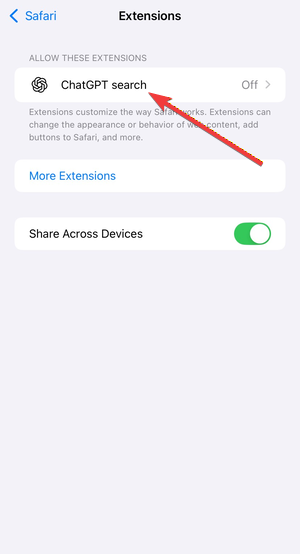

- Toggle Allow Extension on or off.
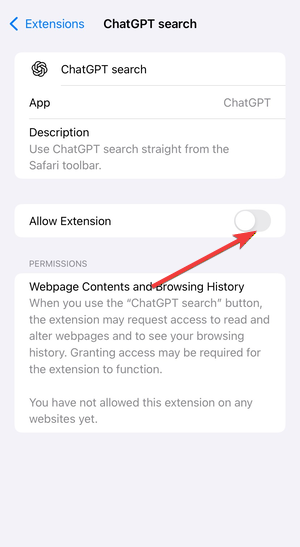

Safari applies the change immediately, so you do not need to restart the browser.
Enable or disable extensions on Mac
- Open Safari > Settings > Extensions.
- Check or uncheck the extension name.
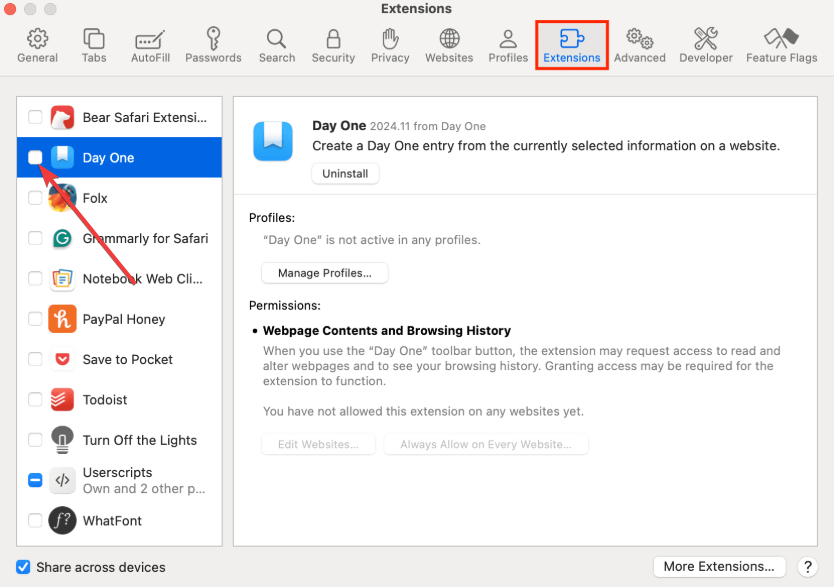

Disabling an extension stops it from running but keeps its settings intact.
How to use Safari extensions while browsing
Most Safari extensions work automatically once enabled. Some extensions only activate on specific websites or require user interaction.
Using extensions from the address bar
Many extensions add an icon near the address bar. Clicking the icon opens controls like toggles, pop-ups, or quick actions.
Some extensions also show context menus when you right-click a webpage.
Allowing extensions on specific websites
Safari lets you control where extensions run. When you visit a site, Safari may ask whether the extension can access that page.
You can allow access on a single site, deny it, or grant permission across all websites.
How to manage Safari extension permissions
Permissions control what data an extension can see or modify. Reviewing these settings improves privacy and prevents unexpected behavior.
Review and change permissions on iPhone and iPad
- Open Settings > Apps > Safari > Extensions.
- Tap the extension name.
- Adjust Website Access settings.
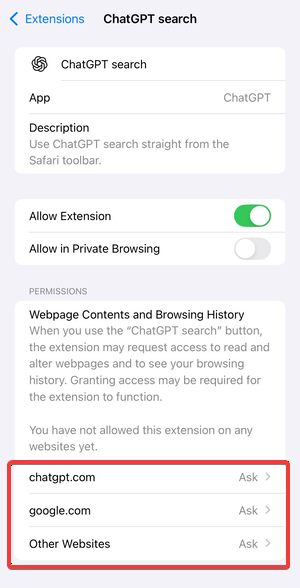

- Choose Ask, Deny, or Allow.
You can also control access per website from the Safari address bar menu.
Review and change permissions on Mac
- Open Safari > Settings > Extensions.
- Select the extension.
- Review website access and permission options on the right panel.
macOS Safari offers finer control, including per-site permission lists.
How to remove or uninstall Safari extensions
Removing an extension makes sense if you no longer use it or suspect it causes issues.
Remove extensions on iPhone and iPad
Safari extensions rely on their companion apps. To remove them:
- Press and hold the app icon.
- Tap Remove App.
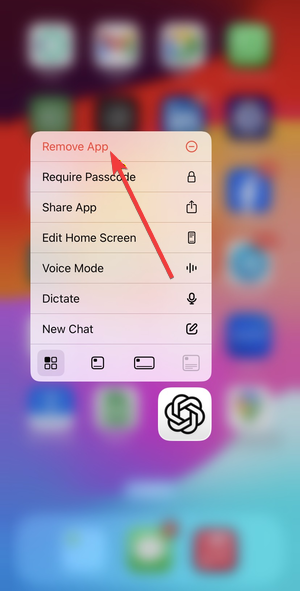

- Confirm deletion.
Safari automatically removes the extension once the app disappears.
Remove extensions on Mac
- Open Safari > Settings > Extensions.
- Select the extension.
- Click Uninstall.
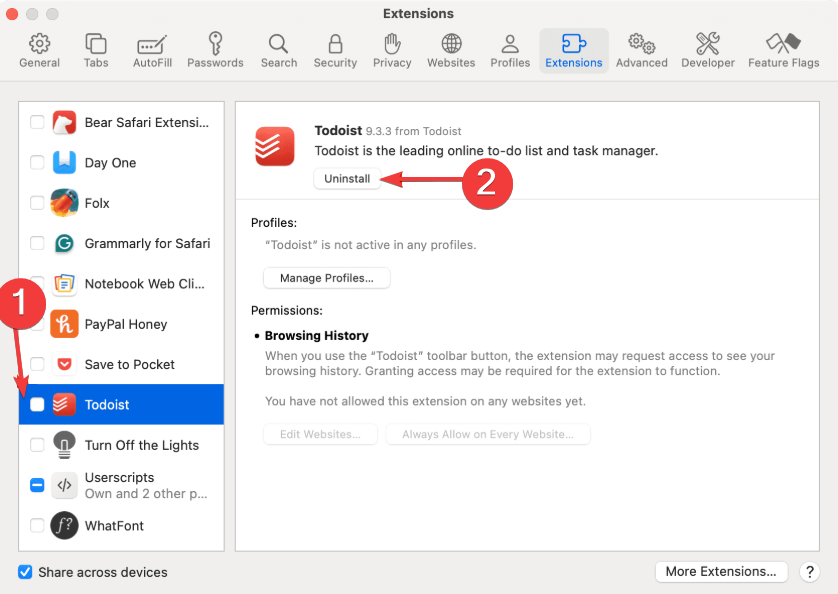

Some extensions also appear in the Applications folder, which Safari removes automatically.
Common Safari extension problems and fixes
- Safari extensions not showing up: This issue usually means Safari disabled the extension. Check Safari > Settings > Extensions and confirm it is enabled. On iPhone and iPad, confirm Allow Extension is turned on in Settings.
- Safari extensions not working on certain websites: Some websites block extensions by design. Safari may also restrict extensions in Private Browsing mode. Check site-specific permissions and confirm Safari allows the extension to run on that domain.
- Safari extensions disappeared after an update: Major iOS and macOS updates sometimes disable extensions automatically. Re-enable them from Safari settings and review permissions again. Apple does this to protect users after system-level changes.
Tips for using Safari extensions safely and efficiently
- Install extensions only from the App Store.
- Review permissions regularly and remove unused extensions.
- Avoid running multiple extensions that perform the same task.
- Disable extensions temporarily when troubleshooting website issues.
- Keep iOS, iPadOS, and macOS updated for best compatibility.
FAQs
Do Safari extensions slow down browsing?
Well-built extensions rarely affect performance, but running many at once can slow page loads.
Do Safari extensions sync across devices?
Safari syncs some settings through iCloud, but each device still requires manual installation.
Can Safari extensions access private browsing data?
Safari restricts extensions in Private Browsing unless you explicitly allow access.
Are Safari extensions safer than browser extensions on other platforms?
Apple’s App Store review process adds an extra security layer, which reduces risk.
Summary
- Install Safari extensions from the App Store on each device.
- Enable them manually in Safari settings.
- Control permissions to balance functionality and privacy.
- Use toolbar icons or automatic actions while browsing.
- Disable or remove extensions when problems appear.
Safari extensions work best when you manage them actively and keep permissions tight. Once set up correctly, they can improve speed, privacy, and productivity across all your Apple devices.

Discussion (0)
Be the first to comment.