



Safari’s Reading List makes it easy to save articles for later, but over time, it can quickly become cluttered. A crowded Reading List makes it harder to find what you need and can quietly use up storage, especially if Safari syncs across devices using iCloud.
This guide explains how to delete your Safari Reading List on iPhone, iPad, and Mac. It also covers what happens when iCloud sync is enabled and how to prevent Reading List items from syncing across devices.
How To Delete Safari Reading List On iPhone Or iPad
Most users save articles on the go, which means the Reading List often fills up on iPhone and iPad first. Clearing it takes only a few taps.
- Open Safari on your iPhone or iPad
- Tap the Bookmarks icon at the bottom of the screen
- Select the Reading List icon (glasses)
- Swipe left on any article and tap Delete
- Tap Edit to select and remove multiple items at once
Once deleted, the article is immediately removed from your Reading List.
How To Clear Safari Reading List On Mac
If you use Safari on macOS, the Reading List is accessible from the sidebar. Removing saved articles is just as simple.
- Open Safari on your Mac
- Click the Sidebar button in the toolbar
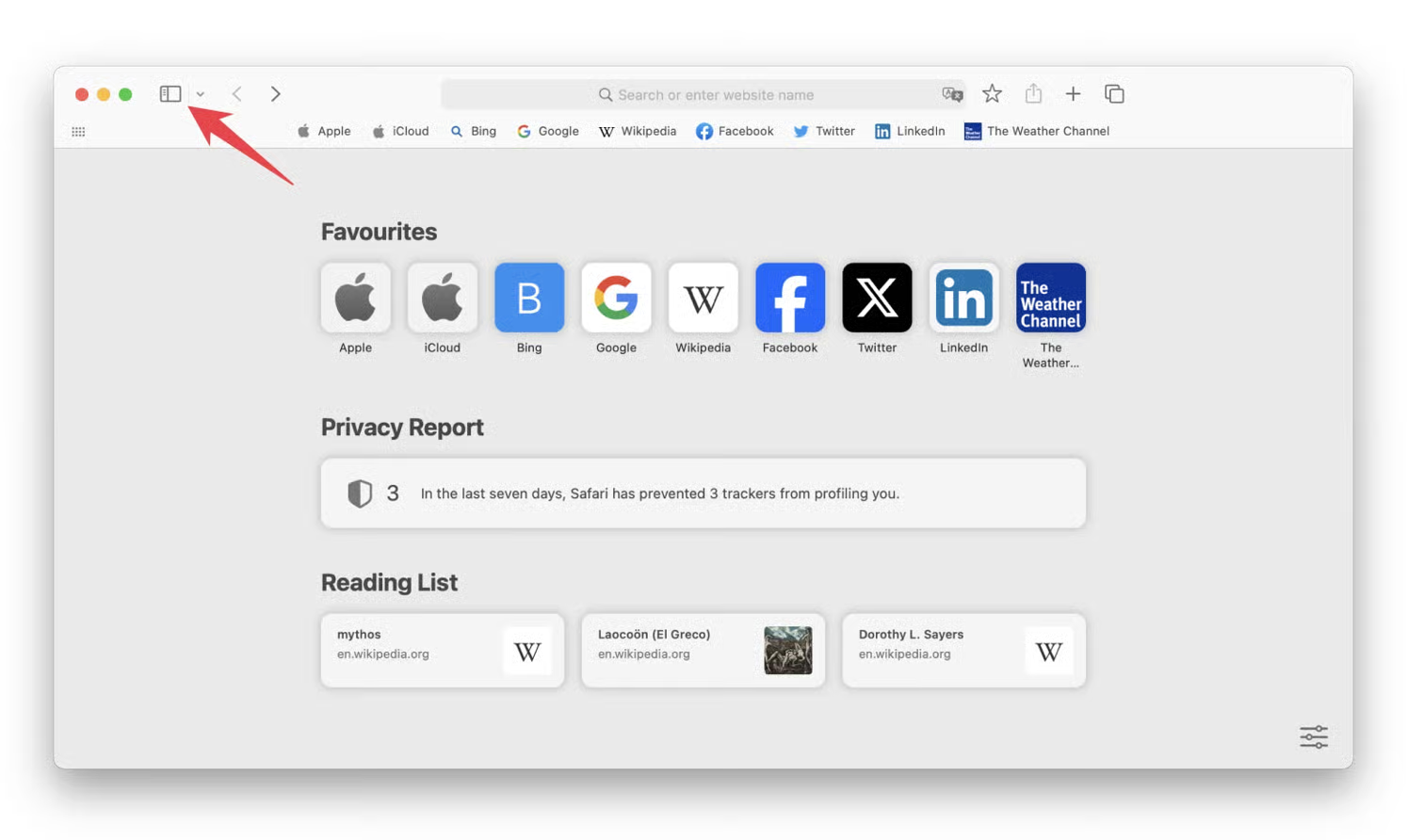
- Select Reading List
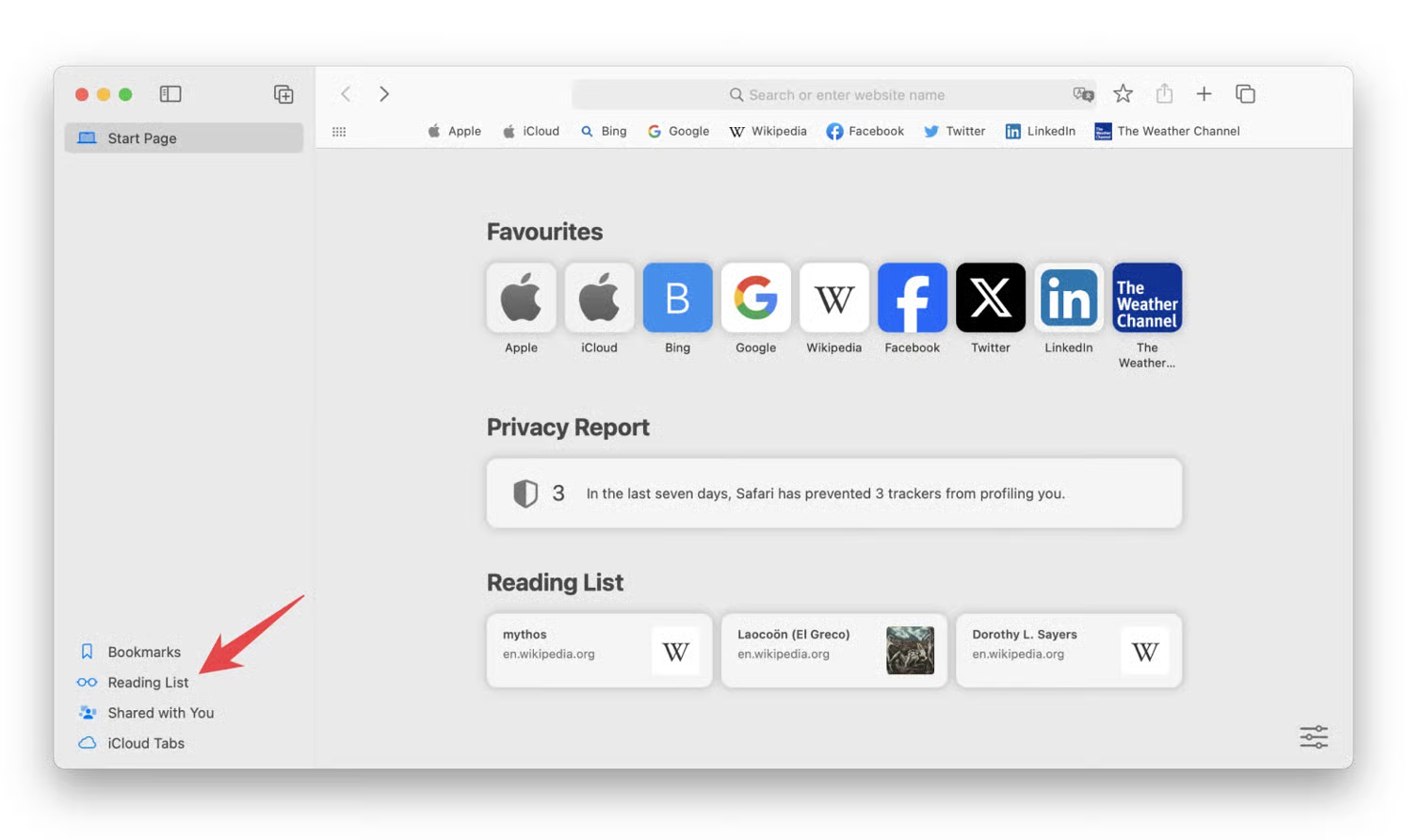
- Control-click any article and choose Delete
- Select Clear All Items to remove everything
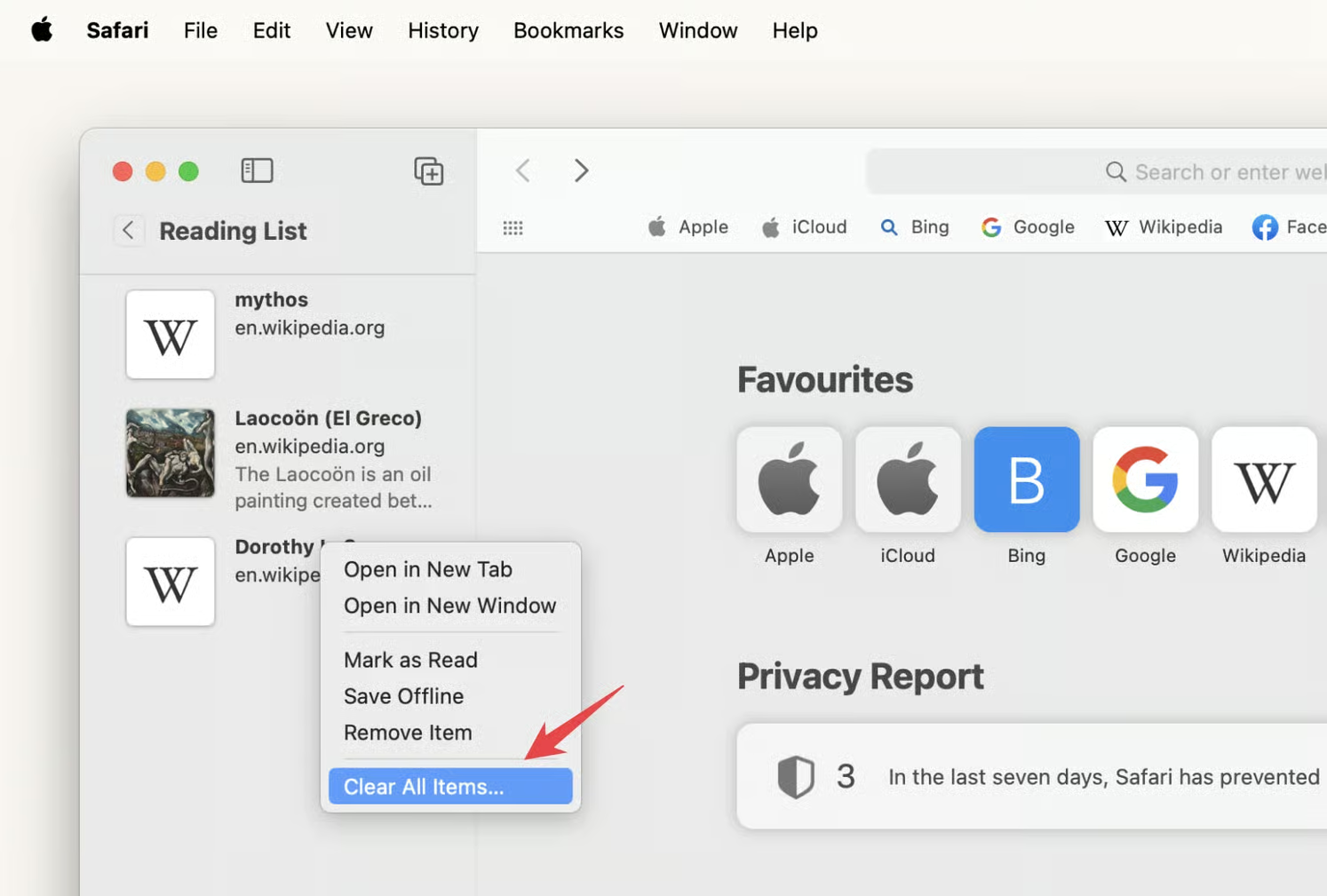
Changes apply instantly and affect all synced devices if iCloud is enabled.
How iCloud Sync Affects Safari Reading List
When Safari sync is turned on in iCloud, deleting Reading List items on one device removes them everywhere. This keeps things consistent but can surprise users who expect device-specific lists.
At the time of writing, Safari does not offer a way to disable Reading List syncing independently. Turning off Safari in iCloud stops bookmarks, history, and Reading List from syncing together.
How To Stop Safari Reading List From Syncing Across Devices
If you prefer keeping Reading List items local to one device, you can disable Safari’s iCloud sync entirely.
- Open Settings or System Settings
- Tap your Apple ID
- Select iCloud
- Find Safari and toggle it off
This prevents Reading List items from appearing on other Apple devices.
Troubleshooting Common Problems
If Reading List items keep reappearing, iCloud sync is likely enabled on another device. Make sure Safari syncing is disabled everywhere or clear the list on all connected devices.
If Safari crashes while deleting items, close the app, reopen it, and try removing articles one at a time.
Tips
- Clear your Reading List regularly to reduce clutter
- Delete long-saved articles you no longer plan to read
- Disable Safari iCloud sync if you want device-specific Reading Lists
- Clear Safari cache and history for additional storage savings
FAQ
Does deleting Reading List free up storage?
Yes. Saved articles can take up local storage, especially when offline reading is enabled.
Can deleted Reading List items be recovered?
No, unless you restore from a Time Machine backup on Mac.
Does Reading List work offline?
Yes, if Safari downloads the article content for offline viewing.
Can I disable Reading List completely?
No. The feature cannot be turned off, but you can choose not to use it.
Summary
Deleting items from Safari’s Reading List helps keep your browser organized and can free up storage. The process is quick on iPhone, iPad, and Mac, but iCloud syncing means changes apply across devices.
Conclusion
A clean Reading List makes Safari easier to use and prevents unnecessary clutter. Clearing saved articles you no longer need keeps your browsing experience smooth and ensures Safari stays responsive across all your Apple devices.


Discussion (0)
Be the first to comment.