




When Safari stops working on an iPhone or iPad, the issue usually links to network settings, restrictions, or recent iOS changes. In most cases, you can fix Safari in minutes by checking a few key settings and clearing temporary data.
Table of contents
- Try this first (fixes that work in under two minutes)
- Safari won’t open or crashes immediately
- Safari opens but pages won’t load
- Search not working in Safari
- Safari is missing from iPhone or iPad
- Safari works on iPhone but not on iPad (or vice versa)
- Advanced fixes if Safari still doesn’t work
- When Safari problems point to a bigger iOS issue
- Tips to prevent Safari issues in the future
- FAQs
- Summary
Try this first (fixes that work in under two minutes)
These quick checks resolve most cases where Safari is not working on iPhone or iPad.
Restart Safari and your device
- Swipe up from the bottom of the screen (or double-press the Home button) to open the App Switcher.
- Find Safari, then swipe it away to close it.
- Restart your iPhone or iPad, then open Safari again.
Check internet connection and Airplane mode
- Open Settings and confirm Airplane Mode is off.
- Turn Wi-Fi off, then test Safari using Cellular Data.
- Turn Wi-Fi back on and test Safari again to compare results.
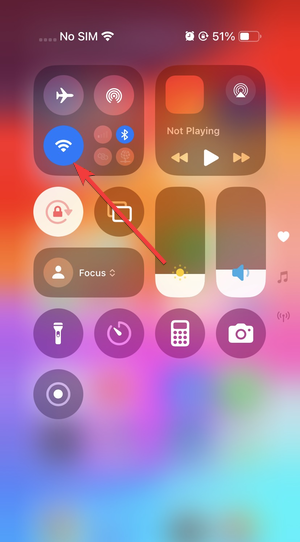

Turn off VPNs, proxies, and content blockers
- Open Settings and tap VPN (or go to Settings > General > VPN & Device Management).
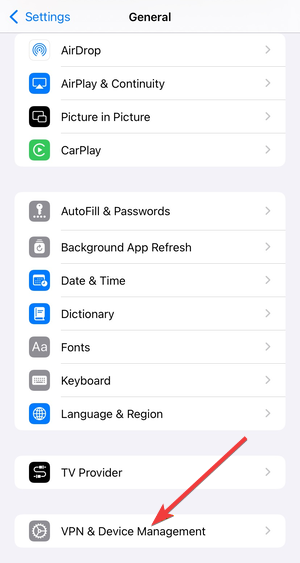

- Turn VPN off, then test Safari.
- Go to Settings > Apps > Safari > Extensions and turn off any ad blockers or content blockers.
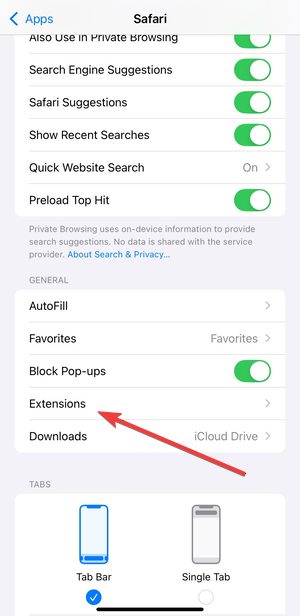

- If you use a proxy, go to Settings > Wi-Fi > tap the i icon > Configure Proxy, then select Off.
Safari won’t open or crashes immediately
If Safari refuses to launch or closes as soon as you open it, focus on system-level fixes.
Force close Safari and reopen it
- Open the App Switcher, then swipe away Safari.
- Open Safari again and test a few sites.
Update iOS to the latest version
- Go to Settings > General > Software Update.
- Tap Download and Install if an update is available.
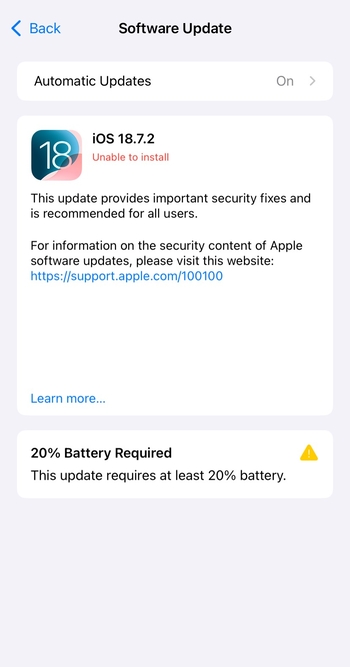

- Restart the device after the update finishes, then test Safari again.
Updating your iOS software fixes a lot of issues, and this one is not exempt.
Safari opens but pages won’t load
This is the most common “Safari not working on iPhone or iPad” scenario.
Clear Safari history and website data
- Open Settings > Apps > Safari.
- Tap Clear History and Website Data.
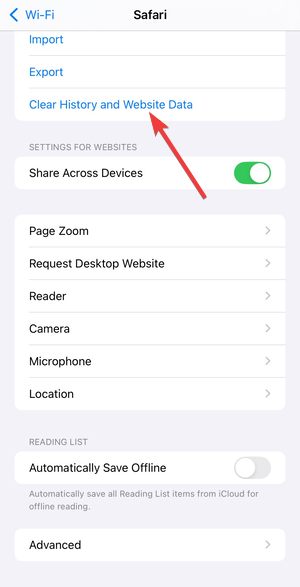

- Try loading the same website again.
Check cellular data and Wi-Fi permissions for Safari
- Go to Settings > Cellular (or Mobile Data).
- Scroll down and make sure Safari is enabled.
- Go to Settings > Wi-Fi and tap the i icon next to your network.
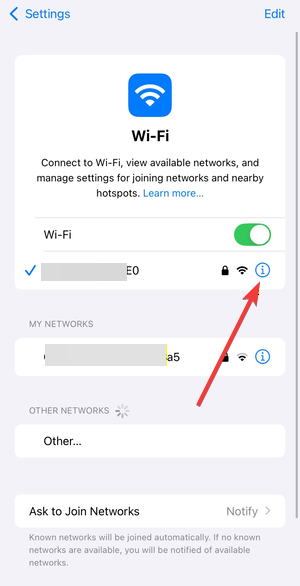

- Confirm the network has internet access by testing another site or app.
Change DNS settings to automatic
- Open Settings > Wi-Fi.
- Tap the i icon next to your Wi-Fi network.
- Tap Configure DNS, then select Automatic.
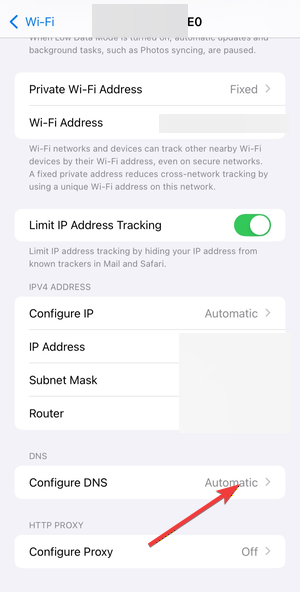

- Reopen Safari and test page loading again.
Search not working in Safari
If Safari opens but search results never load, review these settings.
Verify default search engine settings
- Open Settings > Apps > Safari > Search Engine.
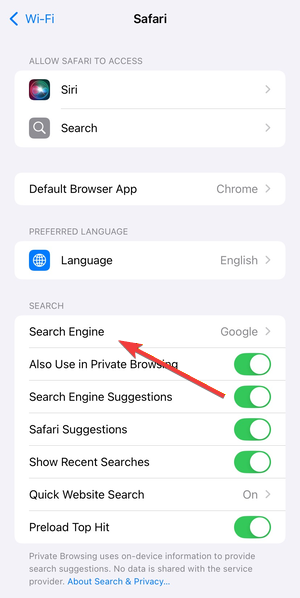

- Select a standard option like Google or DuckDuckGo.
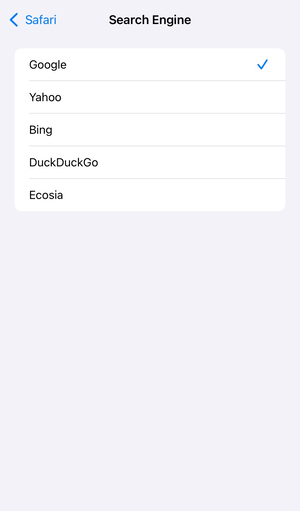

- Open Safari and test a search from the address bar.
Disable experimental Safari features
- Go to Settings > Apps > Safari > Advanced.
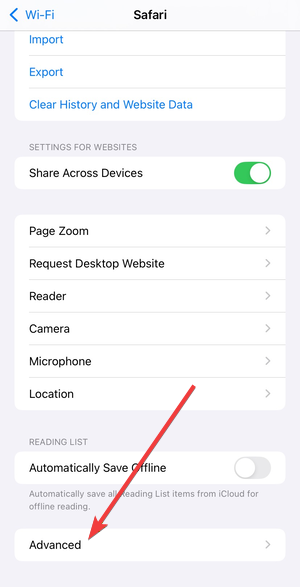
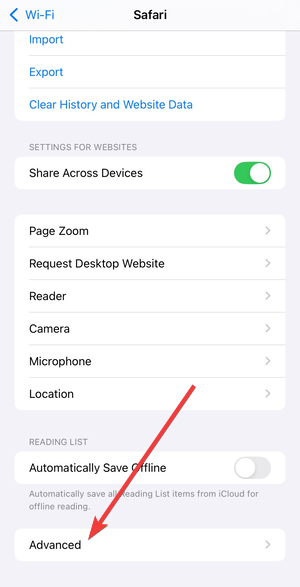
- Tap Experimental Features.
- Turn off any enabled options, then restart Safari and test again.
Safari is missing from iPhone or iPad
Safari cannot uninstall, so a missing icon usually points to restrictions.
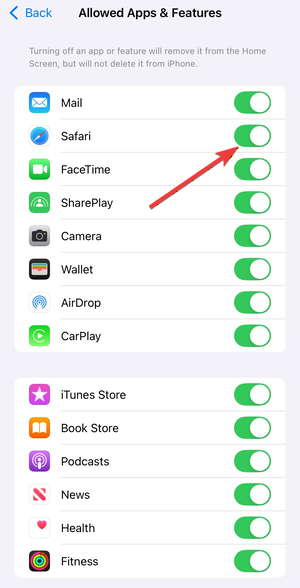
Turn off Screen Time restrictions for Safari
- Open Settings > Screen Time.
- Tap Content & Privacy Restrictions.
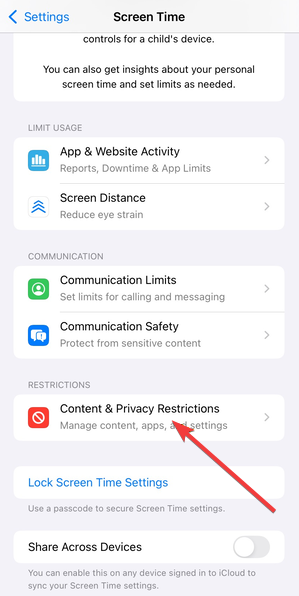
- Tap Allowed Apps & Features and enable Safari.

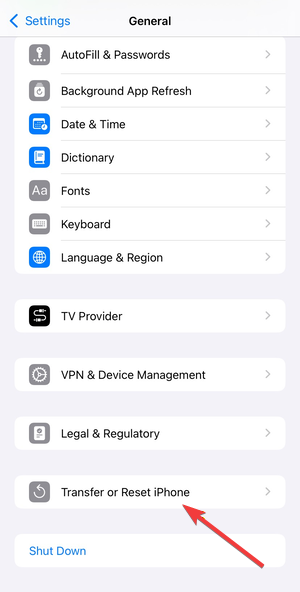
Reset Home Screen layout
- Go to Settings > General > Transfer or Reset iPhone (or Transfer or Reset iPad).
- Tap Reset > Reset Home Screen Layout.
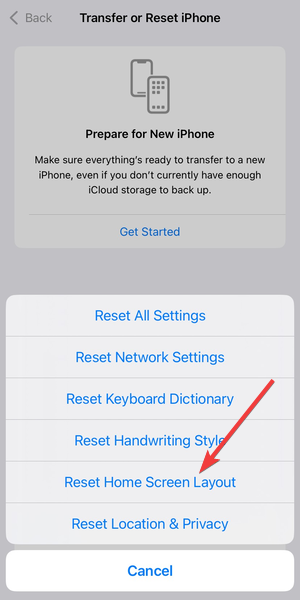

- Swipe through your Home Screen pages and check the App Library for Safari.
Safari works on iPhone but not on iPad (or vice versa)
Different settings on each device can cause inconsistent behavior.
Compare Screen Time and network settings
- Check Screen Time restrictions on both devices and enable Safari where needed.
- Compare VPN and DNS settings on both devices.
- Test Safari on the same Wi-Fi network to rule out router issues.
Check MDM or profile restrictions
- Open Settings > General > VPN & Device Management.
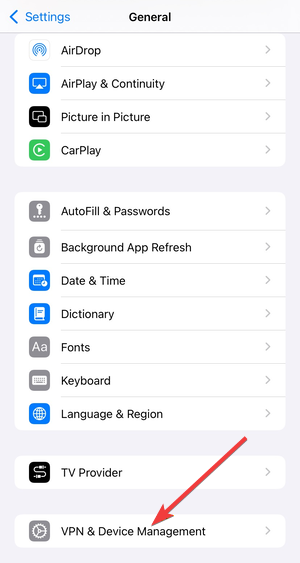
- Review installed profiles and check if the device is managed by work or school.
- Contact your admin if a profile blocks Safari.
Advanced fixes if Safari still doesn’t work
Use these steps only after basic troubleshooting fails.
Reset network settings
- Go to Settings > General > Transfer or Reset iPhone (or iPad).
- Tap Reset > Reset Network Settings.
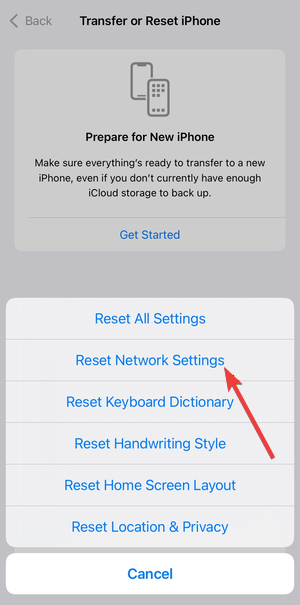

- Reconnect to Wi-Fi, then test Safari again.
Reset all settings without deleting data
- Go to Settings > General > Transfer or Reset iPhone (or iPad).
- Tap Reset > Reset All Settings.
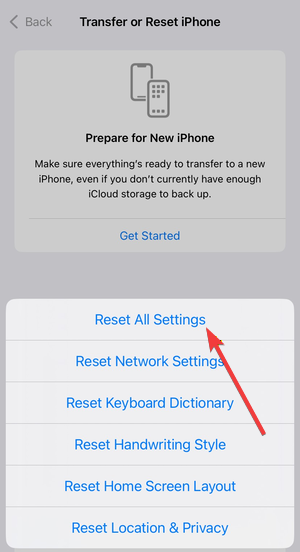


- Reconfigure Wi-Fi, notifications, and preferences, then test Safari.
When Safari problems point to a bigger iOS issue
If multiple browsers and apps fail to load websites, the problem likely affects iOS networking itself. At this stage, contact Apple Support or back up your device before a full reset.
Tips to prevent Safari issues in the future
- Keep iOS updated to avoid known Safari bugs.
- Avoid stacking multiple VPNs or content blockers.
- Clear Safari website data occasionally.
- Review Screen Time settings after updates.
- Use automatic DNS unless troubleshooting requires custom entries.
FAQs
Why is Safari not working after an iOS update?
Updates can reset network, privacy, or Screen Time settings that block Safari. Checking VPNs, DNS, and permissions usually fixes the issue.
Will clearing Safari history delete saved passwords?
No. Clearing history and website data removes cookies and cache but keeps saved passwords in iCloud Keychain.
Why does Safari work on Wi-Fi but not on cellular data?
Safari may lack permission to use cellular data, or your carrier settings may block it. Check Settings > Cellular.
Can I reinstall Safari on iPhone or iPad?
No. Safari is a system app. You can only re-enable it through Screen Time or reset the Home Screen layout.
Summary
- Restart Safari and your device first.
- Disable VPNs, proxies, and content blockers.
- Clear Safari history and website data.
- Check Screen Time, DNS, and network permissions.
- Reset network or system settings if needed.
Safari issues on iPhone and iPad usually come from settings conflicts rather than permanent bugs. Follow the fixes above in order to restore Safari quickly and reduce repeat problems after future iOS updates.

Discussion (0)
Be the first to comment.