



Safari Favorites let you save frequently visited websites so they appear instantly on the Start Page and in the address bar. When iCloud sync is enabled, your Safari Favorites stay updated across iPhone, iPad, and Mac, making browsing faster and more consistent.
This guide explains how to add websites to Favorites in Safari, access them quickly, manage or remove entries, and sync everything across Apple devices.
What Are Favorites In Safari
Favorites are a special type of Safari bookmark that appear prominently on the Start Page and in address bar suggestions. They provide one-tap access to your most-used websites and sync automatically through iCloud.
How To Add A Website To Favorites In Safari
Adding a site to Safari Favorites saves it to a dedicated folder so it appears on your Start Page and when you tap the address bar.
On iPhone And iPad:
- Open Safari and visit the website you want to save.

- Tap the Share button at the bottom of the screen.

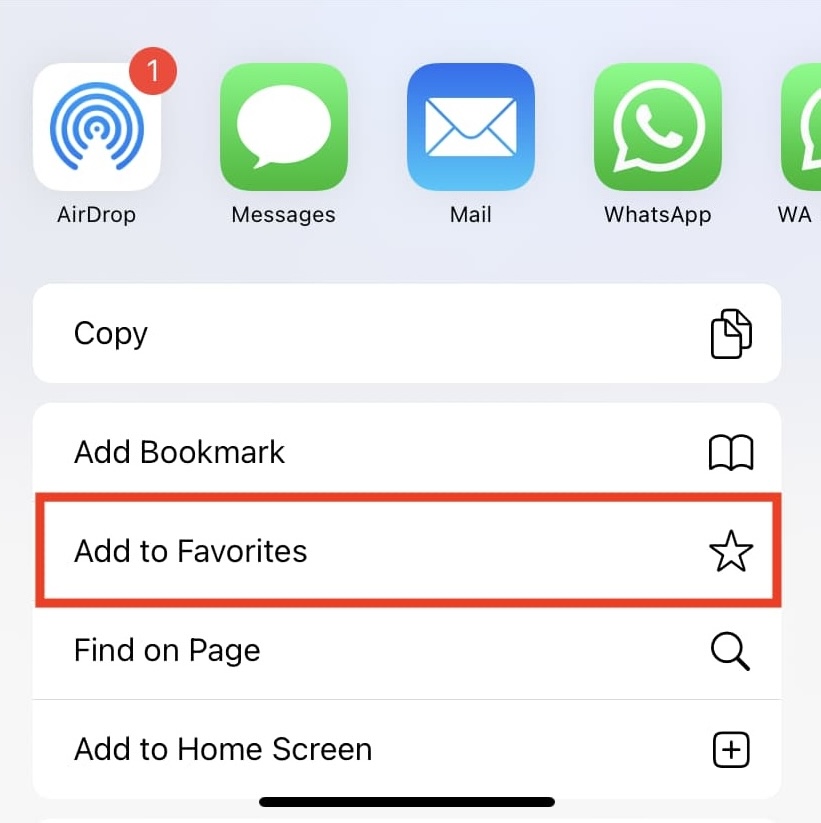
- Select Add To Favorites from the Share Sheet.
- Edit the name if needed, then tap Save.
On Mac:
- Open Safari and load the website.
- Press Command + D on your keyboard.
- Select Favorites as the save location.
- Rename the bookmark if needed, then click Add.
How To Access Favorites In Safari
Safari offers several ways to open your favorite websites quickly, depending on the device you are using.
On iPhone And iPad:
- Open a new tab to view Favorites on the Start Page.
- Tap the address bar to see Favorites appear at the top.
- Tap the Bookmarks icon, then select Favorites.
On Mac:
- Open a new tab to see Favorites on the Start Page.
- Click the address bar to show Favorites below it.
- Open the Bookmarks Sidebar using Command + Control + 1.
How To Edit Or Remove Favorites
You can rename or delete Safari Favorites at any time to keep your list relevant.
On iPhone And iPad:
- Open a new tab in Safari.
- Press and hold the website icon under Favorites.
- Select Edit to rename or Delete to remove it.
On Mac:
- Open a new Safari Start Page.
- Control-click the favorite website.
- Select Rename or Delete.
How To Change The Favorites Folder In Safari
Safari allows you to choose which bookmark folder is used for Favorites, making it easy to separate work and personal sites.
On iPhone And iPad:
- Open Settings and tap Apps, then Safari.
- Tap Favorites under the General section.
- Select the bookmark folder you want to use.
On Mac:
- Open Safari and click Safari in the menu bar.
- Select Settings, then open the General tab.
- Choose a folder from the Favorites dropdown menu.
How To Sync Favorites Across Devices Using iCloud
iCloud keeps Safari Favorites synchronized across all devices signed in with the same Apple ID.
On iPhone And iPad:
- Open Settings and tap your Apple ID.
- Select iCloud, then tap Show All.
- Turn on Safari.
On Mac:
- Open System Settings and click Apple ID.
- Select iCloud and click See All.
- Make sure Safari is enabled.
Troubleshooting Common Problems
If Safari Favorites are missing or not syncing, confirm that all devices use the same Apple ID and have Safari enabled in iCloud. A stable internet connection is also required for syncing.
Tips
- Limit Favorites to your most-used sites for a cleaner Start Page.
- Create separate folders for work and personal browsing.
- Allow iCloud time to sync before troubleshooting missing entries.
FAQ
How do I transfer Favorites from iPhone to iPad?
Sign in with the same Apple ID on both devices and enable Safari in iCloud settings.
Why are my Safari Favorites missing?
Favorites may be hidden if iCloud sync is off, the wrong Favorites folder is selected, or you are signed into a different Apple ID.
Summary
- Safari Favorites provide fast access to frequently visited websites.
- You can add and manage Favorites on iPhone, iPad, and Mac.
- iCloud sync keeps Favorites updated across devices.
Conclusion
Adding websites to Safari Favorites is a simple way to speed up everyday browsing. With proper organization and iCloud syncing enabled, your favorite sites stay accessible across all Apple devices, saving time and reducing repeated searches.


Discussion (0)
Be the first to comment.