




HDMI cables power most home entertainment setups, but many buyers notice labels like “High-Speed HDMI With Ethernet” and wonder what the Ethernet part actually does. If you want to know how to use HDMI cable with Ethernet and whether it improves your setup, this guide clears up the confusion with accurate, modern information.
The HDMI Ethernet Channel (HEC) originally aimed to let two HDMI devices share one wired internet connection. At the time of writing, modern TVs, game consoles, and media devices no longer use this feature. Still, HDMI cables with Ethernet offer strong performance, excellent bandwidth support, and full compatibility with today’s home media equipment.
What Is HDMI Cable With Ethernet?
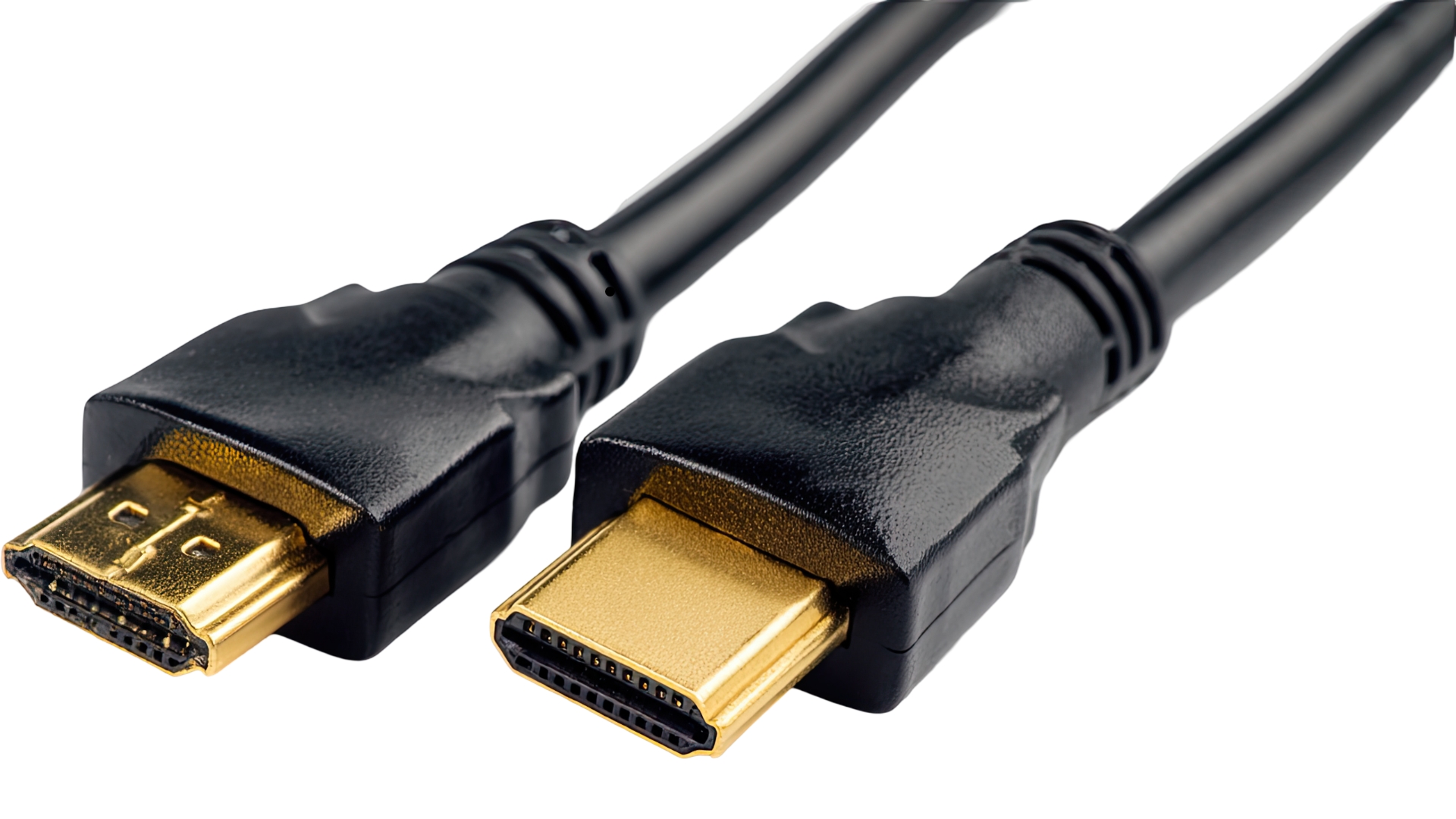
An HDMI cable with Ethernet includes a built-in data channel called the HDMI Ethernet Channel. Its purpose was to reduce the number of wires by allowing one device connected to the internet to share that connection with another device through the HDMI cable.
Although the idea sounded promising, manufacturers rarely enabled HEC support. Modern streaming devices, smart TVs, consoles, and Blu-ray players use Wi-Fi or their own Ethernet ports, making the HDMI Ethernet Channel unused in almost every home.
Today, an HDMI cable with Ethernet works exactly like a standard High-Speed HDMI cable. You get high-definition video, surround sound, HDR formats, ARC or eARC support, and stable performance—but not network sharing.
Benefits Of HDMI Cable With Ethernet

Even though the Ethernet channel is unused, buying an HDMI cable with Ethernet still offers advantages because of the cable’s certification level and build quality.
- Improved bandwidth for high refresh rates and 4K content
- Reliable HDR and Dolby Vision support
- Stronger shielding and more stable signal delivery
- ARC and eARC compatibility on supported devices
- Future-proofing for newer HDMI features
Manufacturers often bundle Ethernet support into higher-grade HDMI cables, so it becomes a quality marker even if the Ethernet channel itself remains unused.
How To Use HDMI Cable With Ethernet
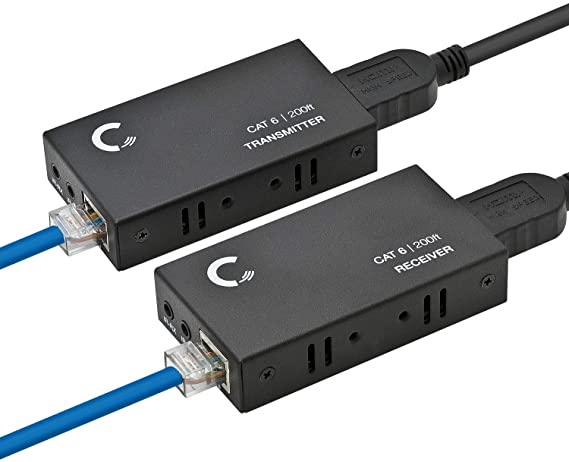
You use an HDMI cable with Ethernet exactly like any other High-Speed HDMI cable. Since today’s devices do not activate the HDMI Ethernet Channel, the setup focuses on video, audio, and ARC or eARC features.
- Connect the HDMI cable from your source device to your TV or monitor.
- Connect each device to the internet using Wi-Fi or their dedicated Ethernet ports.
- Open your TV’s input menu and select the correct HDMI port.
- Adjust resolution, HDR, and audio output settings on your connected device.
- Enable ARC or eARC in TV settings if you use a soundbar or receiver.
This setup gives you full HDMI functionality, including 4K video, multi-channel audio, and low-latency gaming, even though the Ethernet channel remains inactive.
Setting Up HDMI Cable With Ethernet For Best Results
You can optimize your HDMI connection by checking device compatibility and adjusting a few settings. These steps help you get the best output quality from your equipment.
- Confirm that your TV and connected device support ARC or eARC if you use external speakers.
- Use a certified High-Speed HDMI cable with Ethernet for stable 4K playback.
- Check for firmware updates on your TV, console, or streaming box.
- Enable the highest supported color format and refresh rate.
- Use the HDMI port labeled ARC or eARC when connecting audio equipment.
These optimizations ensure smooth audio and video performance across all your devices.
Why The HDMI Ethernet Channel Isn’t Used Today
Although HDMI with Ethernet includes the physical wiring for HEC, devices rarely activate the feature because of modern networking standards.
- Smart TVs connect directly using Wi-Fi or Ethernet.
- Streaming boxes like Roku and Fire TV use wireless connections.
- Game consoles use Wi-Fi 6 or wired connections for competitive gameplay.
- AV receivers and Blu-ray players include their own Ethernet ports.
Because every device has its own network interface, there is no need for internet sharing through the HDMI cable, and manufacturers moved away from implementing HEC.
Troubleshooting HDMI Cable With Ethernet
- Switch to another HDMI port if your TV does not detect the device.
- Try a shorter HDMI cable to reduce signal loss on 4K outputs.
- Use certified Premium High-Speed HDMI cables for 4K gaming.
- Turn on HDMI-CEC, ARC, or eARC if your audio device doesn’t receive sound.
- Update device firmware to unlock newer HDMI features.
Conclusion
HDMI cables with Ethernet deliver excellent video and audio performance, even though the Ethernet channel is not used in modern devices. You connect and configure them the same way you set up any standard HDMI cable, and each device relies on its own Wi-Fi or Ethernet connection for internet access.
If you want the most reliable setup for 4K content, HDR formats, and ARC or eARC audio, a certified HDMI cable with Ethernet remains a strong, future-proof choice.

Discussion (0)
Be the first to comment.