




Google Lens lets you use your iPhone or iPad camera to search the web, translate text, identify objects, and extract information from images. Instead of typing keywords, you can point your camera at text, products, plants, or landmarks and get results instantly.
Even though Google Lens isn’t built into iOS, it works reliably on iPhone and iPad through Google’s apps. Once you know where to find it, visual search becomes a fast and practical tool for everyday use.
How To Use Google Lens On iPhone Or iPad
Google Lens works through Google’s apps rather than as a standalone iOS feature. You can access it using the Google app, Google Chrome, or Google Photos, depending on whether you want real-time camera search or image-based search.
Use Google Lens In The Google App
The Google app offers the most complete Google Lens experience on iPhone, including real-time camera search.
- Install and open the Google app on your iPhone.

- Tap the camera icon in the search bar

- Allow camera access when prompted
- Point your camera at text, objects, or images
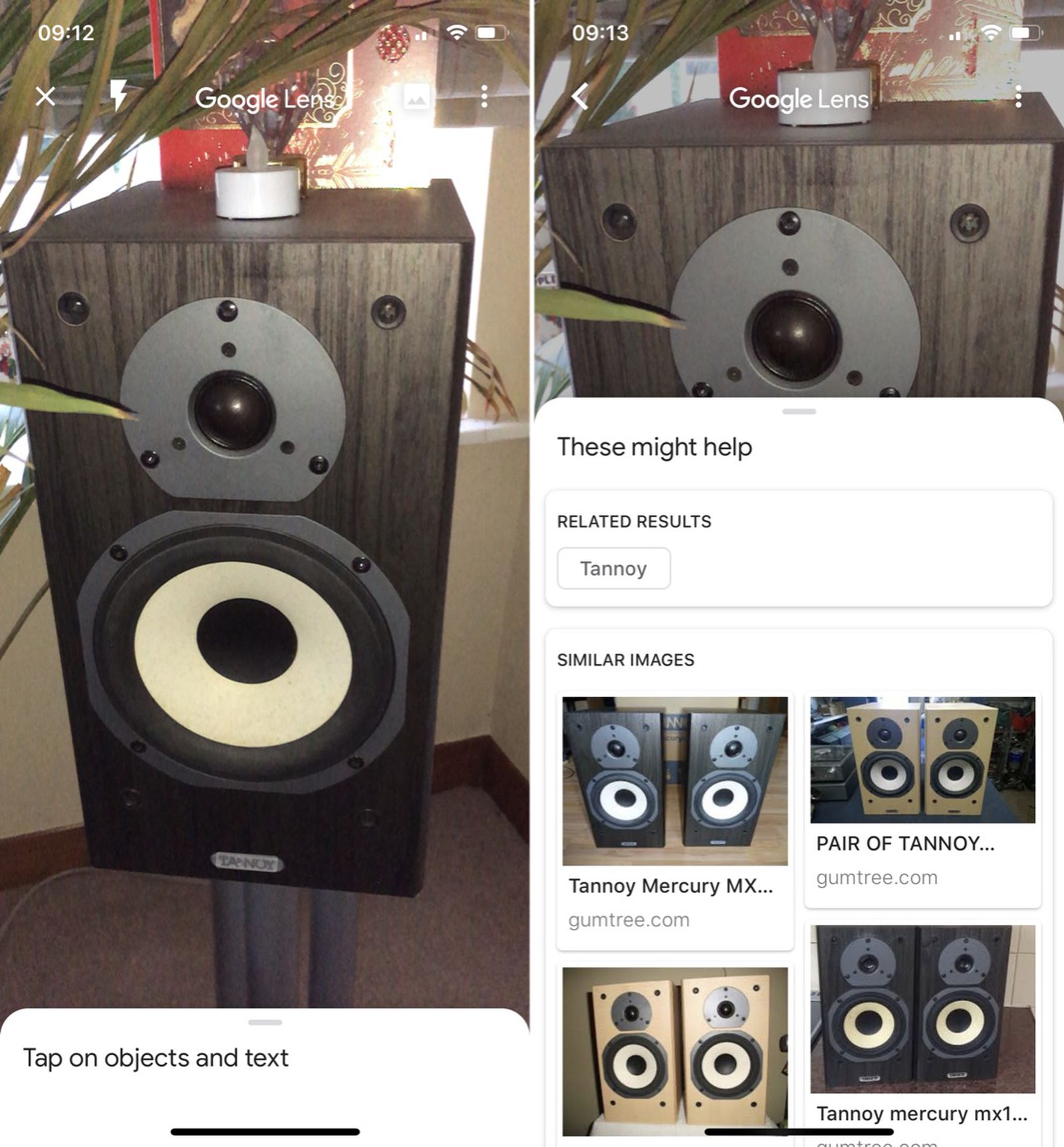
- Swipe between options like Translate, Text, Search, or Shopping
Use Google Lens In Google Photos
Google Photos allows you to use Google Lens on images already saved to your device, but it does not support real-time scanning.
- Install and open Google Photos
- Allow access to your photo library
- Select an image from your gallery
- Tap the Lens icon at the bottom of the screen
Use Google Lens In Chrome On iPhone
Chrome provides similar functionality to the Google app, making it useful if Chrome is your default browser.
- Open the Chrome app
- Tap the camera icon in the address bar
- Take a photo or choose an existing image
- View visual search results powered by Google Lens
What You Can Do With Google Lens
Google Lens supports a wide range of visual search tools that work in real time or with saved images.
- Translate printed or handwritten text instantly
- Copy text from photos into editable form
- Identify plants, animals, and landmarks
- Search for products and compare prices
- Solve math problems by scanning equations
- Add events to your calendar from posters or flyers
- Scan business cards to save contact information
- Look up books, artwork, or movie posters
Troubleshooting Common Problems
If Google Lens is not working on your iPhone or iPad, the issue is usually related to permissions or app updates.
- Make sure the Google app, Chrome, or Google Photos is updated
- Check that camera and photo permissions are enabled in Settings
- Restart your iPhone or iPad
- Confirm your device is running a supported iOS version
- Reinstall the Google app if Lens fails to load
Tips
- Use good lighting for more accurate visual recognition
- Hold your device steady when scanning text or objects
- Use the Text option to copy and paste scanned content
- Try the Shopping tab when searching for products
- Use Google Photos for scanning screenshots or saved images
FAQ
Is Google Lens free on iPhone?
Yes, Google Lens is free to use through Google’s apps.
Can Google Lens work without internet?
Most Google Lens features require an active internet connection.
Does Google Lens work on iPad?
Yes, Google Lens works on iPad using the same Google apps.
Why doesn’t Google Lens open on my device?
This usually happens due to missing permissions, outdated apps, or iOS restrictions.
Summary
Google Lens gives iPhone and iPad users a powerful way to search visually, translate text, and extract information using the camera. By accessing it through Google’s apps, you can turn images into searchable data in seconds.
Conclusion
Learning how to use Google Lens on iPhone or iPad adds a practical visual search tool to your daily workflow. Whether you are translating text, identifying objects, or searching images, Google Lens offers a fast and intuitive way to interact with the world around you.


Discussion (0)
Be the first to comment.