




The Calculator app on Apple Watch lets you handle quick math, calculate tips, and split bills directly from your wrist. It works independently from your iPhone and integrates tightly with watchOS features like the Digital Crown and Siri. At the time of writing, the built-in Calculator app remains available on all modern Apple Watch models.
How To Add The Calculator App To Your Apple Watch Face
Adding the Calculator app as a complication gives you faster access without opening the app list. Only certain watch faces support Calculator complications.
- Press and hold the current watch face.
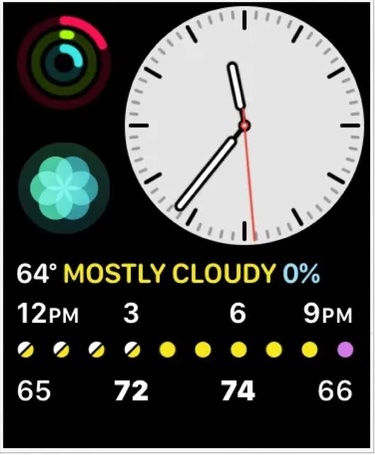
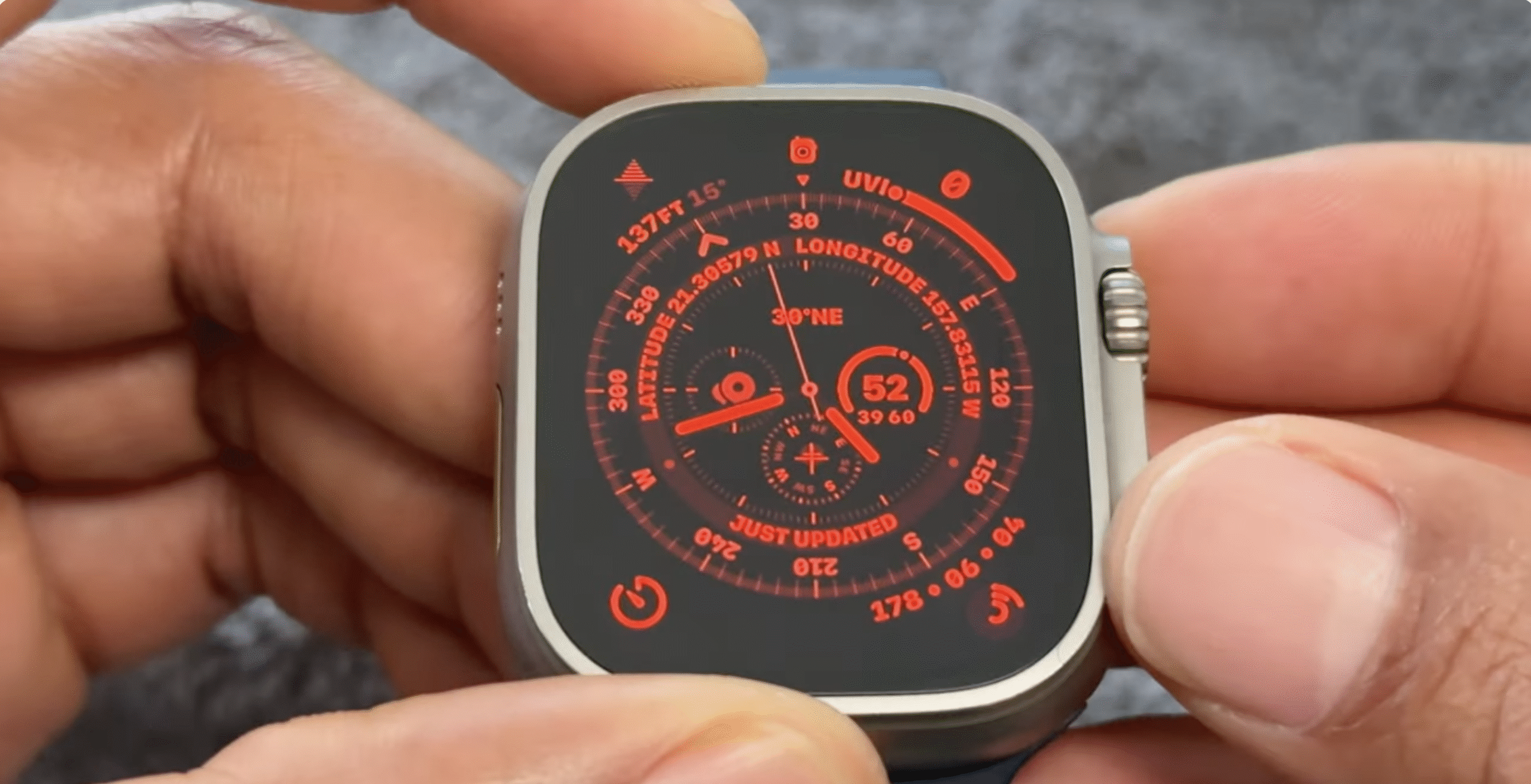
- Tap Edit, then swipe to Complications.
- Select an available corner complication.
- Scroll using the Digital Crown and choose Calculator.
- Press the Digital Crown twice to save.
If the Calculator app is removed from your iPhone, it is also removed from Apple Watch automatically.
How To Access The Calculator App On Apple Watch
You can open the Calculator app either from a watch face complication or directly from the Home Screen.
- Press the Digital Crown.
- Tap the Calculator app icon.
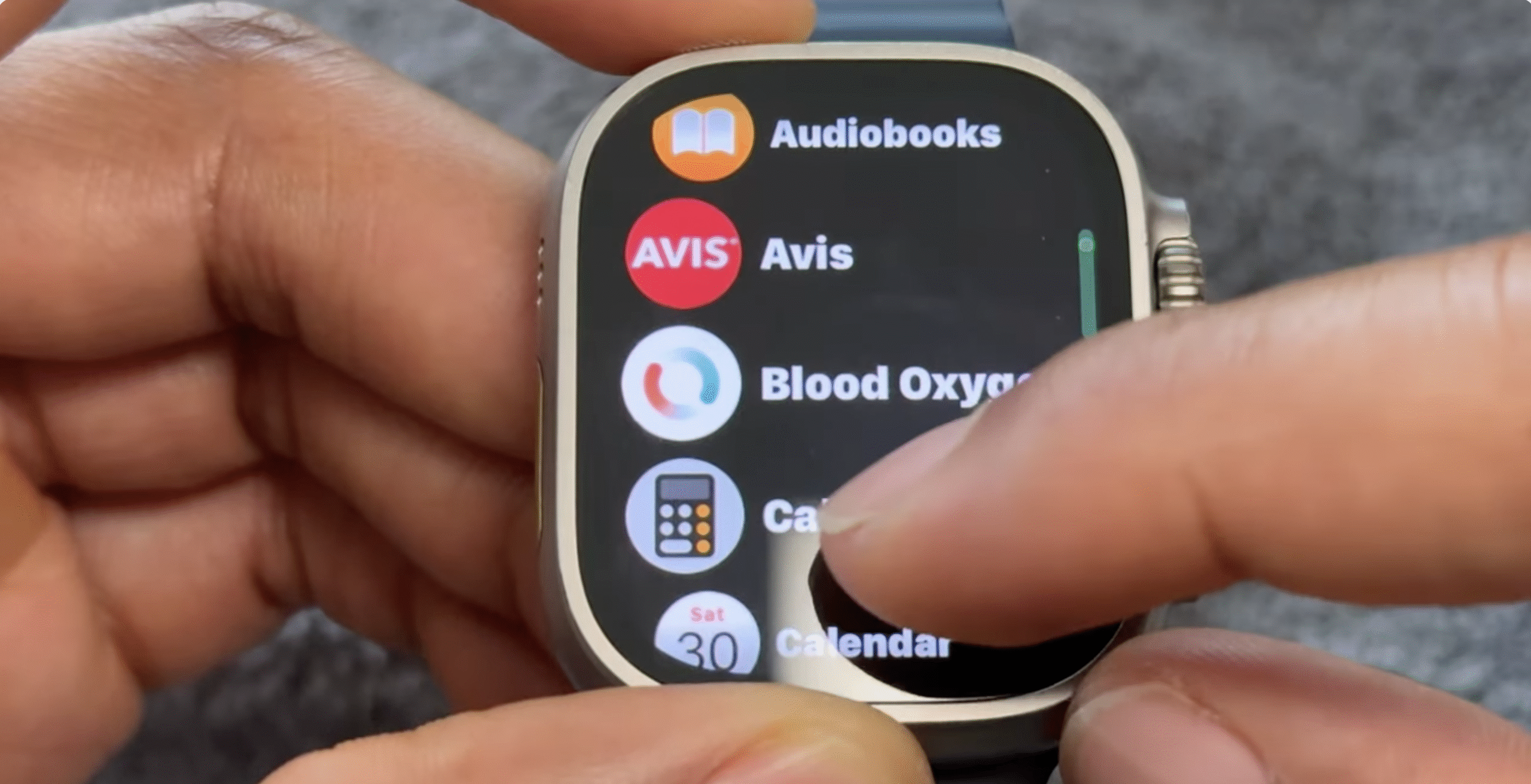
If you added it as a complication, tapping the corner shortcut opens it instantly.
How To Use The Calculator App To Split Bills And Calculate Tips
The built-in tip calculator makes splitting restaurant bills quick and accurate. The feature calculates both tip amounts and individual shares.
- Open the Calculator app.
- Enter the total bill amount.
- Tap TIP.
- Turn the Digital Crown to adjust the tip percentage.
- Tap People and select the number of people.
The app shows the total bill, tip amount, and what each person owes. The maximum supported split is 50 people.
You can also ask Siri to perform quick calculations by pressing and holding the Digital Crown.
Troubleshooting Common Problems
If the Calculator app does not work as expected, these checks usually resolve the issue.
- Restart the Apple Watch.
- Confirm the Calculator app is installed on the paired iPhone.
- Check that watchOS is up to date.
- Verify the selected watch face supports complications.
The TIP feature may not appear in all regions due to availability restrictions.
Tips
- Add Calculator as a complication for faster access.
- Use the Digital Crown instead of tapping for precise values.
- Siri handles basic math without opening the app.
- The Calculator app works even without an iPhone nearby.
- Third-party apps are required for scientific calculations.
FAQ
Can I use a scientific calculator on Apple Watch?
The default Calculator app does not support scientific functions. Third-party apps are required.
Why is the tip option missing on my Apple Watch?
The TIP feature is not available in all countries and regions.
Can I add Calculator to Control Center on Apple Watch?
No. Control Center does not support Calculator shortcuts.
Does the Calculator app need an internet connection?
No. All calculations are performed locally on the watch.
Summary
- The Calculator app handles math, tips, and bill splitting.
- Complications offer the fastest access.
- Tip calculations depend on regional availability.
- Siri supports quick math commands.
Conclusion
The Calculator app on Apple Watch provides practical everyday value beyond basic math. With quick access from complications and built-in tip calculations, it turns routine tasks into effortless actions directly from your wrist.


Discussion (0)
Be the first to comment.