




Apple Watch connects to the internet through your iPhone, Wi-Fi, or built-in cellular, depending on the model and setup. Once connected, you can send messages, use Maps, stream music, and update apps without touching your phone.
This guide walks you through how to connect to the internet on your Apple Watch, irrespect of your watch model.
Table of contents
- How Apple Watch connects to the internet
- What you need before using the internet on Apple Watch
- How to use the internet on Apple Watch with iPhone nearby
- How to use the internet on Apple Watch over Wi-Fi
- How to use the internet on Apple Watch without iPhone (cellular)
- What you can actually do online on Apple Watch
- Internet limitations on Apple Watch
- Battery and data usage tips
- Fix internet not working on Apple Watch
- Tips for using internet on Apple Watch effectively
- FAQs
- Summary
How Apple Watch connects to the internet
Apple Watch always chooses the best available connection automatically. Knowing how each option works helps you predict behavior and fix problems faster.
Internet via paired iPhone
When your iPhone stays nearby, Apple Watch uses Bluetooth and background tethering for internet access. This method saves battery and works seamlessly for most daily tasks.
Internet via Wi-Fi
Apple Watch connects to saved Wi-Fi networks when the iPhone is not nearby. Wi-Fi provides faster speeds than cellular and works well indoors.
Internet via cellular
GPS + Cellular models connect directly to mobile data networks. This option works even when the iPhone stays at home.
What you need before using the internet on Apple Watch
Checking requirements early prevents most connection failures.
Compatible Apple Watch models
Only GPS + Cellular models support standalone internet access. GPS-only models require either Wi-Fi or a nearby iPhone.
watchOS and iPhone requirements
Apple Watch requires a compatible iPhone and a recent watchOS version. Outdated software often breaks syncing and data access.
Cellular plan requirements
Cellular models need an active carrier plan linked to the watch. Without a plan, the cellular radio remains inactive.
How to use the internet on Apple Watch with iPhone nearby
This setup covers most users and works automatically.
Verify iPhone connection
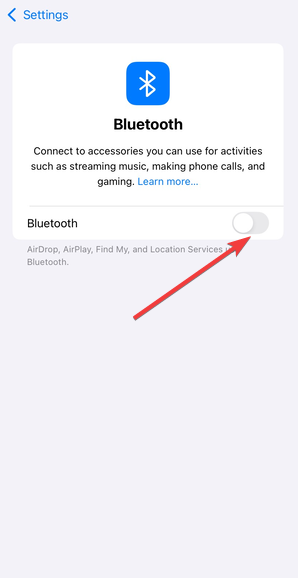
Keep Bluetooth enabled on your iPhone and Apple Watch. Confirm both devices stay within normal Bluetooth range.
Use internet-based apps
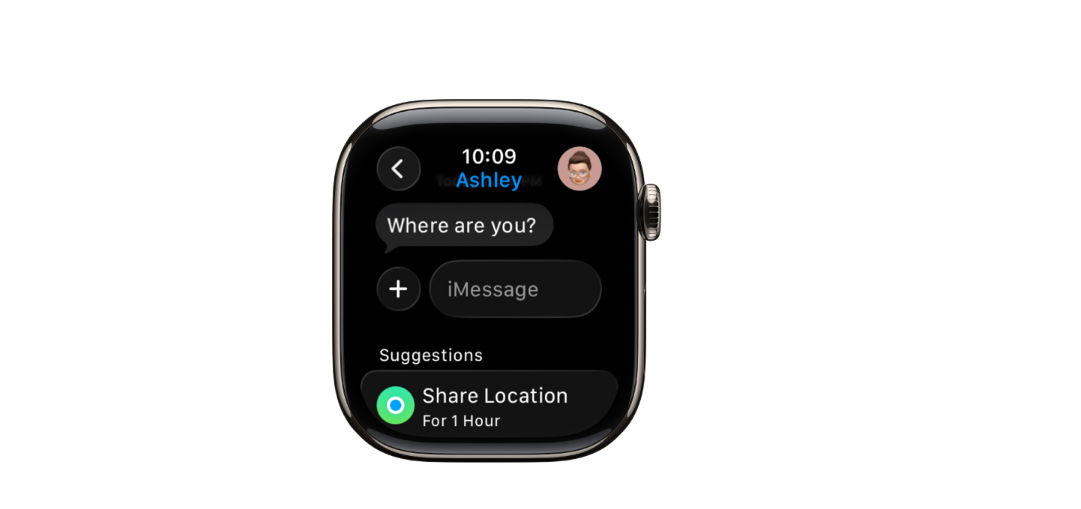
Open apps like Messages, Maps, or Weather directly on the watch. The watch pulls data through the iPhone without extra setup.
How to use the internet on Apple Watch over Wi-Fi
Wi-Fi becomes important when the iPhone leaves Bluetooth range.
Connect Apple Watch to Wi-Fi
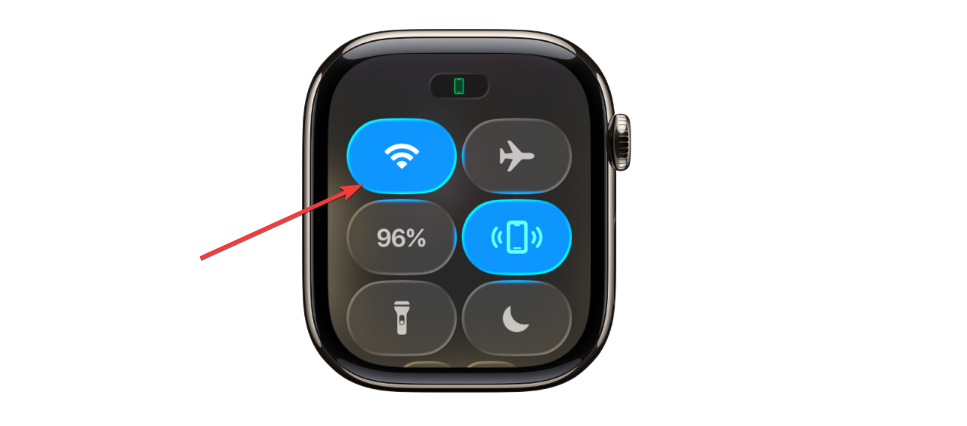
Open Settings on Apple Watch, tap Wi-Fi, then select a known network. The watch automatically remembers saved networks from the iPhone.
Best uses on Wi-Fi
Wi-Fi works well for app updates, Siri requests, and streaming music. Performance often exceeds cellular speeds indoors.
How to use the internet on Apple Watch without iPhone (cellular)
This section answers the most searched question directly.
Enable cellular on Apple Watch
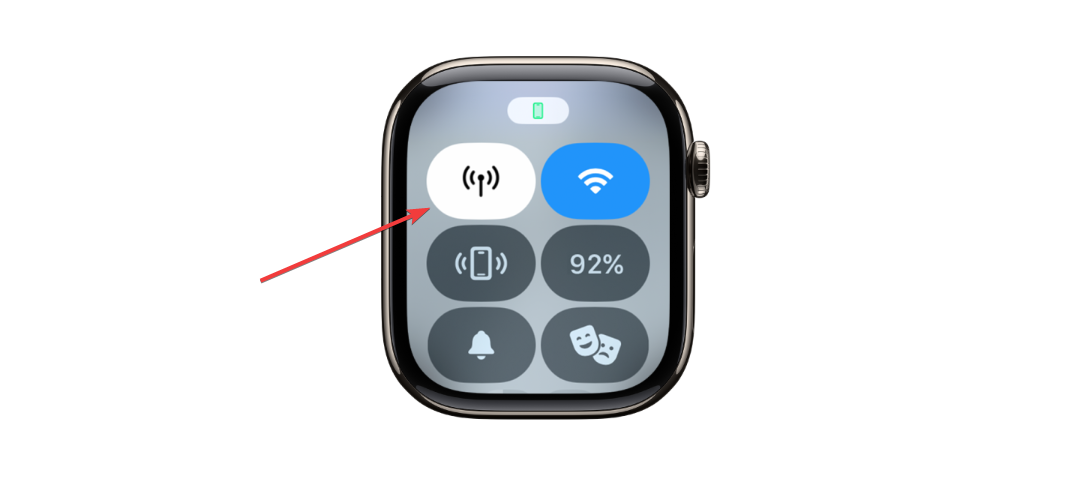
Open the Watch app on iPhone, tap Cellular, then follow carrier activation steps. Activation usually completes within minutes. You can also open the Control Center on Apple Watch and tap the Cellular icon.
What works without iPhone
You can make calls, send messages, use Maps navigation, stream Apple Music, and receive notifications. The experience feels similar to having the iPhone nearby.
What does not work without iPhone
Some third-party apps still require the iPhone for background syncing. Large downloads and complex tasks may fail or run slowly.
What you can actually do online on Apple Watch
Internet access supports specific, task-focused features rather than full browsing.
Messaging and calls
Apple Watch sends messages, handles calls, and syncs notifications in real time. Cellular models work independently for all three.
Maps and navigation
Maps provide turn-by-turn directions, traffic data, and location sharing. Navigation remains reliable on Wi-Fi and cellular.
Music, podcasts, and streaming
Apple Music streams directly over Wi-Fi or cellular. Podcasts work best when downloaded in advance.
App Store and updates
You can browse the App Store, install apps, and apply updates directly from the watch. Wi-Fi delivers faster downloads than cellular.
Internet limitations on Apple Watch
Understanding limits prevents frustration.
No full web browser
Apple Watch does not support full Safari browsing. Links open simplified web views or redirect to supported apps.
Slower speeds and background limits
Cellular speeds remain slower than iPhone data. The system also restricts background activity to save battery.
Battery and data usage tips
Smart settings extend usability.
Reduce cellular battery drain
Disable cellular when you do not need it and rely on iPhone tethering or Wi-Fi. Lower screen brightness and background refresh usage.
Control data usage
Stream music only on Wi-Fi when possible. Download playlists and podcasts ahead of time.
Fix internet not working on Apple Watch
- Cellular not working: Confirm your carrier plan remains active and toggle Cellular off and back on. Restart both the watch and iPhone.
- Wi-Fi not connecting: Move closer to the router and verify the network uses supported security. Reconnect the network from Settings.
- Internet works on iPhone but not Watch: Unpair and re-pair the watch if syncing breaks completely. This step fixes stubborn connectivity bugs.
Tips for using internet on Apple Watch effectively
- Prefer Wi-Fi over cellular whenever available
- Download content before workouts or travel
- Keep watchOS updated for network fixes
FAQs
Can Apple Watch use the internet without an iPhone nearby?
Yes, but only GPS + Cellular models can do this. You also need an active cellular plan linked to the watch.
Do I need to turn on the internet manually on Apple Watch?
No, Apple Watch manages internet connections automatically. It switches between iPhone, Wi-Fi, and cellular based on availability.
Can I browse websites on Apple Watch like on iPhone?
No, Apple Watch does not support full web browsing. Links open simplified web views or supported apps only.
Does Apple Watch use Wi-Fi when my iPhone is nearby?
No, the watch prefers the iPhone connection first. It switches to Wi-Fi only when the iPhone moves out of range.
Summary
- Apple Watch connects through iPhone, Wi-Fi, or cellular
- Cellular models need an active carrier plan
- Wi-Fi offers faster speeds and better battery life
- Some features remain limited by design
Apple Watch delivers reliable internet access when you understand its connection logic. Once set up, you can play games on your Apple Watch, send messages and do a lot of things, and you rarely need to manage settings again.



Discussion (0)
Be the first to comment.