




Your Roku remote gives you quick control over channels, playback, and TV functions. You only need a few minutes to understand the buttons, pair the remote, and start navigating Roku OS smoothly.
This guide shows you how to use every type of Roku remote and explains common features, voice controls, and fixes.
Table of contents
Understanding your Roku remote
Identifying your remote type helps you use the correct steps and features. Roku ships multiple versions, and each one works a little differently.
Simple remote (IR)
This model uses infrared and needs direct line of sight. You navigate with arrow keys, Home, Back, and basic playback controls.
Voice remote
This version includes a pairing button, a microphone button, and TV controls like power and volume. You search faster and control more parts of your TV.
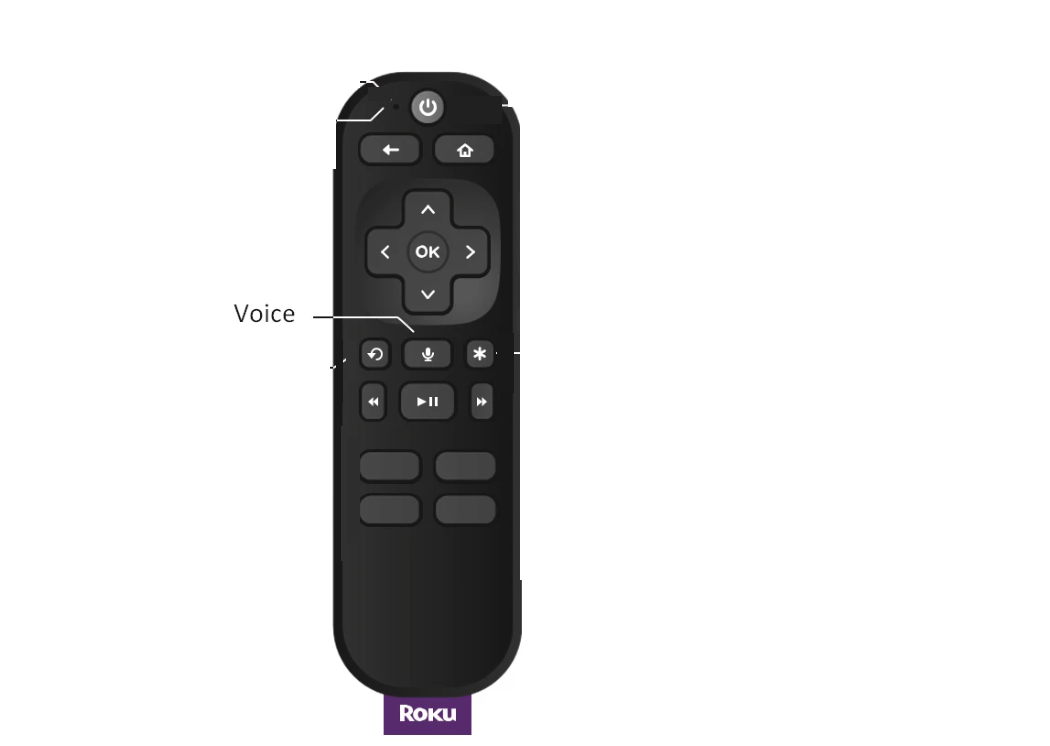
Voice remote pro
This rechargeable model adds hands-free voice commands and a headphone jack for private listening. You also use the remote finder option on supported players.
Pairing or connecting your Roku remote
Open the battery door and press the small pairing button. Hold it for a few seconds until the pairing light flashes, then wait for your Roku screen to confirm the connection.

Now, go to Settings > Remotes & devices > Remotes to check the pairing status. You see your remote listed when it connects correctly.
Tips: If pairing fails, restart your Roku player, replace the batteries, and try pairing again. You can also restart your Wi-Fi router if your remote depends on wireless pairing.
Learning the buttons and controls
These buttons help you move quickly through channels and menus.
Directional pad and OK
Use the arrow buttons to scroll through menus and apps. Press OK to select items or confirm actions.

Home and back
Press Home to jump to the main screen. Press Back to return one level in any app or menu.
Power, volume, and mute
Use these buttons to control your TV when your remote supports TV integration. Most Roku TVs and players allow volume and power control after setup.
Playback controls
Use Play/Pause, Rewind, and Fast forward to control movies and shows. These buttons work in most streaming apps.
Shortcut buttons
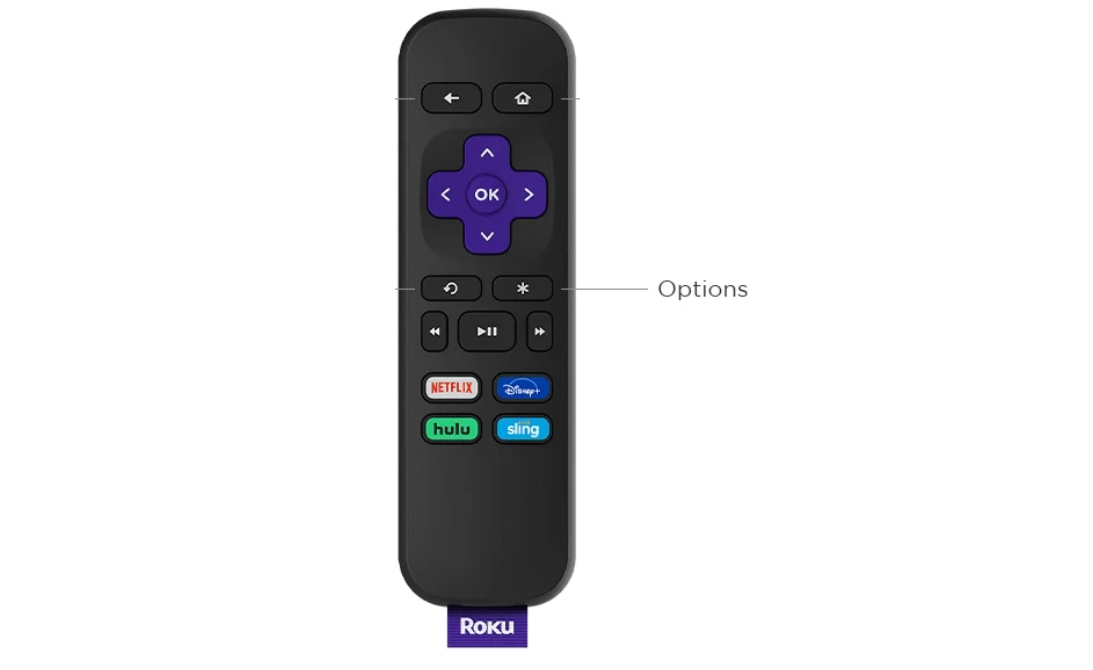
Roku remotes include preset channel shortcuts. You launch apps instantly with one tap, but you cannot customize these buttons.
Using voice commands
Voice commands help you search, open apps, and play content faster.
Basic voice actions
Press and hold the mic button, then speak into the remote. Say what you want, like “Search action movies” or “Play Yellowstone.”
Deep-link commands
You can say commands like “Open Netflix” or “Play Stranger Things on Netflix” to jump directly into supported apps.
Hands-free mode on Voice Remote Pro
Say “Hey Roku” to trigger hands-free listening on supported models. Use the physical switch to turn the microphone on or off for privacy.
Using private listening
Private listening helps you watch TV without disturbing anyone around you.

Using the headphone jack (Voice Remote Pro)
Plug wired headphones into the remote’s audio jack. Adjust the volume with the normal volume buttons.
Using private listening with the Roku app
Open the Roku mobile app and tap the headphone icon to enable private listening. This works with any Roku model on the same network.
Using the Roku mobile app as a remote
The Roku app works as a full replacement remote and adds extra features.
Connecting the app to your Roku
Connect your phone and Roku to the same Wi-Fi network. Open the app and select your Roku device from the list.
Using voice, keyboard, and private listening in the app
The app gives you a full keyboard for text entry, voice search through your phone’s microphone, and private listening for headphones.
Remote finder feature
If you have a supported Roku device, the app triggers the remote finder sound. This helps you locate your physical remote quickly.
Advanced features and pro tips
You unlock more control when you explore Roku OS features beyond basic navigation.
Using channel shortcuts
Select a channel tile and press the star (*) button to open options. Move or remove channels so your favorites sit at the top.
Enabling TV input switching
Set up your remote so it can change TV inputs. You switch to game consoles or cable boxes without the TV’s original remote.
Using accessibility features
Use shortcuts like the Options or star (*) button to enable captions or turn on Audio Guide. These settings improve navigation for specific needs.
Troubleshooting Roku remote issues
- Remote will not pair: Replace the batteries, restart your Roku player, and hold the pairing button again. Keep the remote close to the Roku device during pairing.
- Buttons not responding: Make sure nothing blocks the front of an IR remote. If you use a voice remote, remove and reinsert the batteries to reset it.
- Battery and charging problems: Recharge a Voice Remote Pro with any USB charger. Replace batteries on other remotes when the LED flickers or commands start to lag.
- Using the Roku app when the remote stops working: Open the Roku mobile app to control your TV while you troubleshoot the physical remote. This keeps you watching even when the remote fails.
Tips
- Keep your Roku player in an open area for better remote responsiveness.
- Use rechargeable batteries for better lifespan on non-Pro remotes.
- Turn off hands-free mode when you want to save power.
- Keep your Roku and router close for stronger wireless remote performance.
- Use the Roku app when traveling so you always have a backup remote.
FAQs
Why can’t my Roku remote control my TV volume? Your remote might need a TV control setup. Go to settings and configure your TV brand so the buttons work correctly.
Why does my Roku remote lag or respond slowly? Weak batteries or wireless interference often cause delays. Replace batteries or move your Roku device closer to your router.
Can I use any Roku remote with my Roku player? Most Roku remotes work across devices, but not all models match. Check compatibility before you buy a replacement.
How do I find a lost Roku remote? Use the remote finder option in the Roku app on supported players. Your remote plays a sound so you can locate it.
Summary
- Identify your Roku remote model, so you follow the right instructions.
- Pair your remote and confirm the connection in the settings menu.
- Learn basic buttons, voice commands, and playback controls for faster navigation.
- Use private listening and the mobile app for quieter viewing and extra features.
- Troubleshoot pairing, battery, or response problems and replace the remote when needed.
A Roku remote gives you simple navigation and fast access to your favorite channels. Once you understand the buttons, voice commands, and pairing options, your Roku device becomes easier to control.
Use the mobile app as a backup and follow the troubleshooting steps to keep everything working reliably, so you spend more time watching and less time fixing problems. Lastly, if you can find the exact remote, you can also pair a universal remote with Roku TV.


Discussion (0)
Be the first to comment.