




A reset can fix freezing, app crashes, Wi-Fi failures, or a black screen on your Hisense Roku TV. The process takes only a few minutes, and you can use the remote, the menus, or the physical reset button depending on what still works.
This guide explains every working method, including how to reset the TV without a remote, how to reset from a black screen, and what to do if the reset fails for any reason.
1) Soft reset your Hisense Roku TV (fastest option)
A soft reset refreshes the operating system without deleting apps or settings. This fix handles minor glitches and slow performance.
Soft reset using the remote
Press Home on the Roku remote and go to Settings > System > Power > System restart. Now, confirm the restart. Your TV will now restart and reload the OS with fresh system memory.
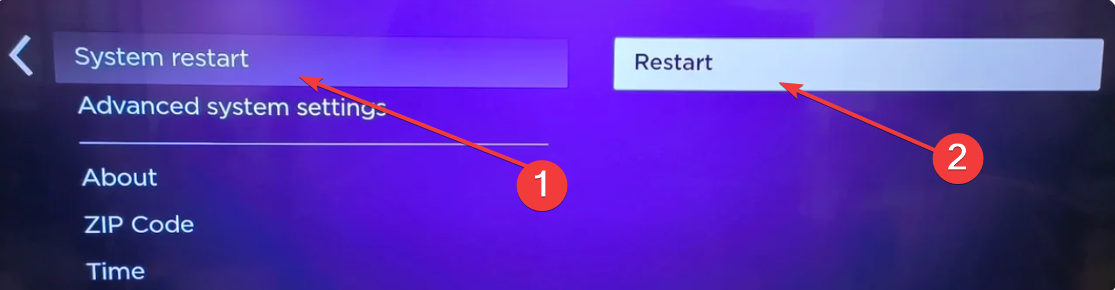
Soft reset without menus (TV unresponsive)
Use a power-cycle when the TV stops responding completely. Unplug the TV from the power and wait at least 60 seconds. Now, plug it back in and turn it on.
This method forces a restart even when the screen freezes.
2) Factory reset your Hisense Roku TV (full wipe)
A factory reset removes all apps, accounts, Wi-Fi networks, and custom settings. This option helps with severe software issues or when you prepare the TV for resale.
Reset from the Roku Settings menu
Press Home and navigate to Settings. From here, go to System > Advanced system settings and select Factory reset. Now, enter the on-screen code and confirm the reset.
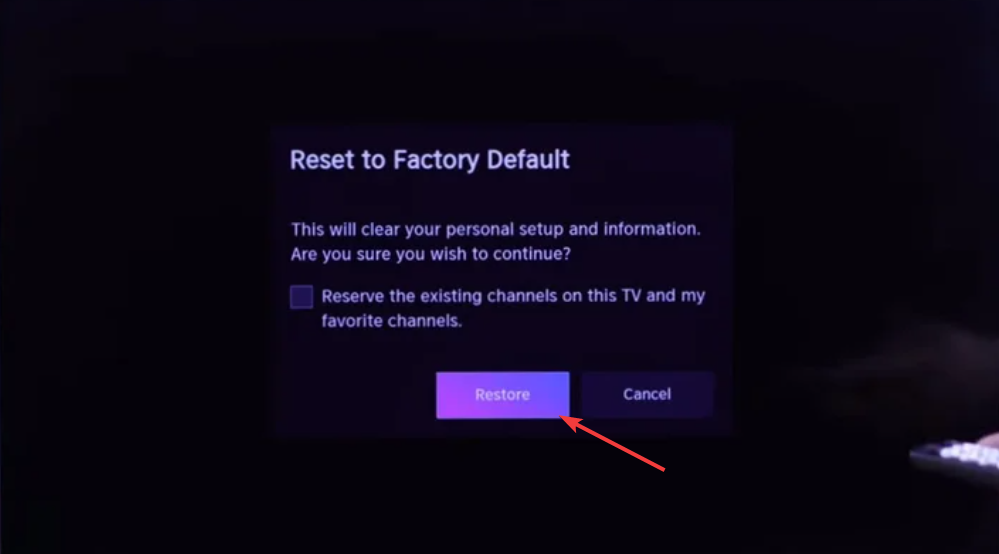
The TV wipes data and reboots into the setup screen.
Reset using the physical reset button
Find the pinhole reset button on the back or side panel. Next, press and hold the button with a paperclip for 10–20 seconds. Wait till the TV restarts and release the button.
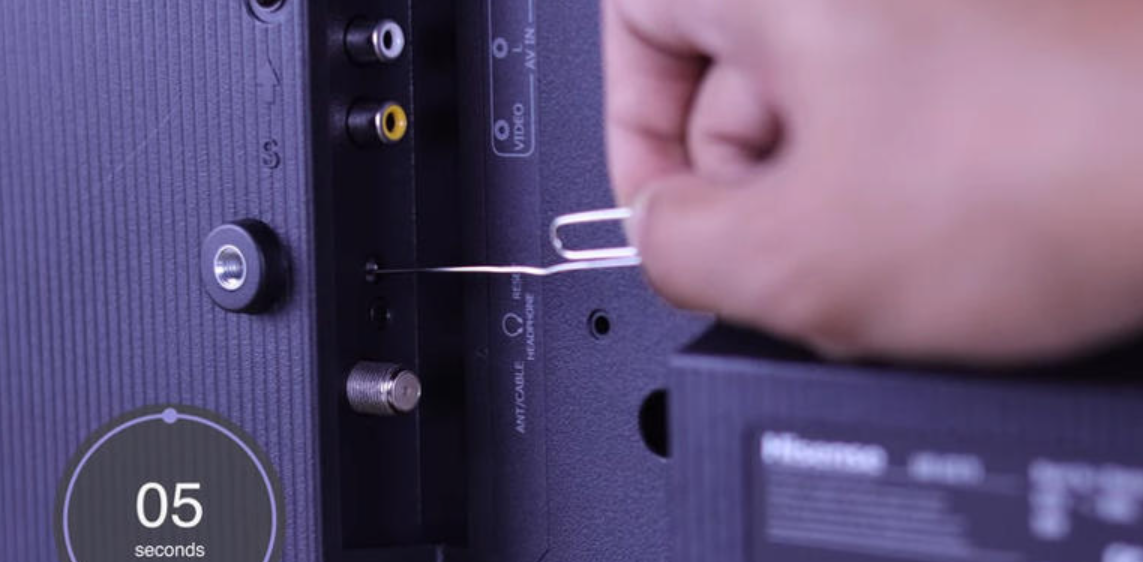
This forces a full factory restore even during black-screen failures.
3) Reset a Hisense Roku TV without the remote
If the remote is damaged or lost, you can use the Roku mobile app. The Roku mobile app acts like a full remote, letting you reach reset options.
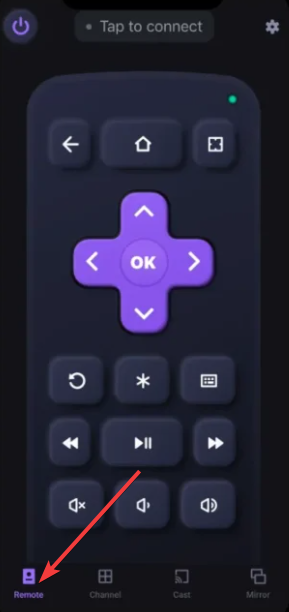
Connect your phone to the same Wi-Fi network as the TV. Next, open the Roku app and select your Hisense TV. Now, use the remote tab to navigate to Settings > System > Advanced system settings > Factory reset.
Alternatively, you can use the physical reset button on the TV body, as shown earlier.
4) Reset when Hisense Roku TV is stuck on a black screen
A black screen can happen when the OS fails to boot or when the backlight malfunctions. You can still reset the TV using blind navigation or the reset button.
To blind reset using the Settings flow, press Home 5 times, then press Up once. Next, press Right twice followed by Down twice. Now, press Right once and finally press OK to select factory reset.
This sequence reaches the factory reset menu on most Hisense Roku models. If this method does not work, use the reset button.
5) Reset your Hisense Roku TV’s network settings
A network reset clears saved Wi-Fi networks and fixes connection failures without wiping apps or data. You can reset your network by pressing Home on the remote and going to Settings > Network > Reset connection.

You can now reconnect to Wi-Fi after the reset process is complete.
6) What to do after resetting your Hisense Roku TV
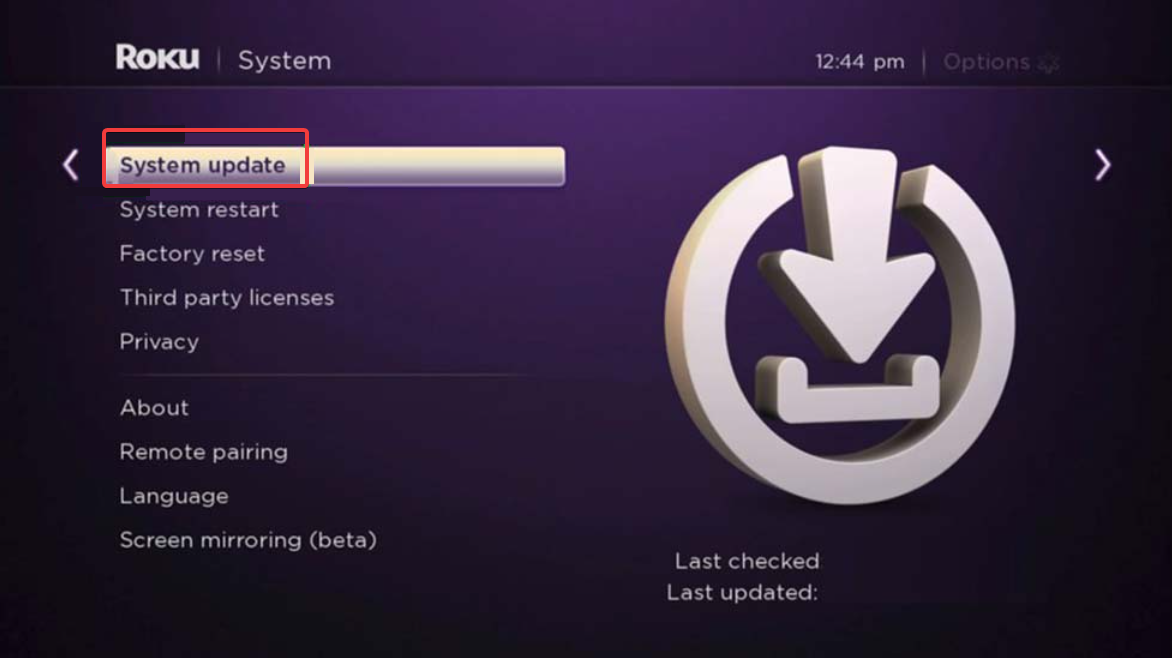
Reconnect Wi-Fi and update the OS
Connect to Wi-Fi and install the latest Roku OS version. This improves stability and fixes bugs that may have caused the original issue.
Reinstall apps and re-enable features
Sign in to your Roku account, reinstall your channels, and re-enable features like CEC, picture presets, and audio settings. This restores your normal viewing experience. You can also install an internet browser on Roku and get any program you had before.
7) Troubleshoot when a Hisense Roku TV won’t reset
- Remote not responding: Try new batteries or re-pair the remote. If needed, use the Roku mobile app as a backup.
- Reset loop or stuck on logo: Unplug the TV for 60 seconds, then try the reset button again. If the loop continues, firmware corruption may require service.
- Reset button not working: The pinhole may be stuck or misaligned. Try several presses and ensure you hold it long enough. If nothing triggers a reset, the TV may need repair.
Tips for avoiding future Roku TV issues
- Keep your Roku OS updated.
- Restart the TV weekly for smooth performance.
- Avoid installing unsupported third-party channels.
- Use a stable Wi-Fi network and avoid frequent router power-cycles.
- Keep the TV ventilated to prevent overheating.
FAQs
Can I reset my Hisense Roku TV without losing apps? Yes. Use a soft reset or a network reset. Only a factory reset removes apps.
Does a factory reset delete my Roku account? No. Your account stays active, but you must sign in again after the reset.
Why does my Hisense Roku TV stay on a black screen? This usually happens due to OS crashes or backlight issues. A reset often resolves software-related black-screen errors.
How long does a factory reset take? Most TVs complete the reset in 3–5 minutes.
Summary
- Use a soft reset for freezing, lag, or temporary glitches.
- Use the Settings menu for a full factory reset when the TV still displays menus.
- Use the physical reset button for black screens or unresponsive TVs.
- Reset network settings to fix Wi-Fi issues.
- Reinstall apps and reconnect Wi-Fi after the reset.
After completing a reset, your Hisense Roku TV should run smoothly again. A soft reset solves most day-to-day issues, while a factory reset fixes deeper software problems.
If none of these methods work, the TV may need service, but most users restore normal operation without repairs.


Discussion (0)
Be the first to comment.