




Keeping your system fast and stable depends heavily on timely driver updates. If your PC uses an AMD processor, learning how to update AMD CPU drivers ensures smoother performance, better compatibility with modern software, and improved system security. At the time of writing, AMD still provides regular optimizations and fixes through its chipset driver packages, so staying updated helps your system run at its best.
Why Updating AMD CPU Drivers Matters
AMD chipset drivers improve communication between the CPU and Windows. Updated drivers introduce performance tweaks, bug fixes, security patches, and improved power management features. Without these updates, your system may struggle with background tasks, memory handling, or game performance.
Secondary benefits include stability improvements, smoother multitasking, fewer crashes, and better support for new Windows updates and applications.
How To Check For The Latest AMD CPU Drivers
Before installing anything, confirm whether a newer chipset driver is available. These methods work on all modern AMD processors, including Ryzen and Athlon series.
- Visit AMD’s Drivers & Support Page: Select your processor family and model to view the latest compatible chipset drivers.
- Use AMD’s Auto-Detect Tool: AMD offers a utility that scans your hardware and recommends the correct CPU and chipset driver.
- Check Windows Update: Sometimes Windows includes verified chipset driver updates through optional updates.
Checking manually ensures you don’t miss critical fixes or optimizations recently released by AMD.
How To Update AMD CPU Drivers Manually
If you prefer full control, a manual install gives you the exact chipset driver version intended for your CPU.
- Open the official AMD Drivers & Support page and choose your CPU model.

- Download the latest AMD chipset package listed for your Windows version.

- Run the installer and allow it to detect components such as the Ryzen Power Plan, PCI drivers, and system controllers.

- Follow the prompts until the installation completes.
- Restart your PC so all CPU-related components reload with updated drivers.
This method ensures the most accurate match for your processor and motherboard chipset.
How To Update AMD CPU Drivers Using Device Manager
Windows Device Manager can install basic CPU driver updates, although they may not always be the newest AMD-optimized versions.
- Right-click the Start button and open Device Manager.
- Expand the “Processors” section.
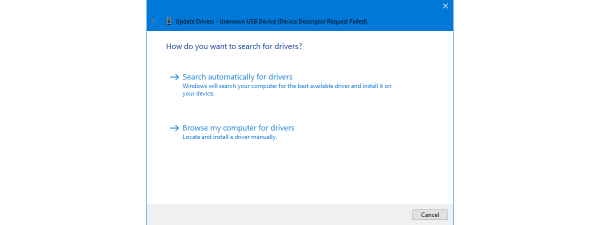
- Right-click your AMD CPU entry and choose “Update Driver.”
- Select “Search Automatically” to let Windows look for available updates.
- Restart your PC if Windows installs a newer driver.
This option works quickly, but AMD’s chipset installer usually provides more complete updates than Device Manager alone.
How To Update AMD CPU Drivers With AMD Adrenalin And Auto-Detect Tools
AMD’s auto-detect utilities scan your system for CPU, GPU, motherboard, and chipset components, then install the appropriate packages automatically.
- Download AMD’s Auto-Detect or Adrenalin installer from their support page.
- Run the tool and allow it to scan your system.
- Review the recommended chipset driver update.
- Click “Install” to begin the automated process.
- Reboot once installation is complete.
This is one of the safest and fastest ways to keep your AMD CPU drivers current without digging through model lists manually.
How To Update AMD CPU Drivers Using Third-Party Driver Tools
Reliable third-party driver utilities can automate system scans and driver installation, including chipset drivers. These tools help users who prefer a hands-off approach, but they should be used with caution.
- Install a reputable driver update utility.
- Run a full system scan to identify outdated CPU or chipset components.
- Select the AMD-related updates and approve installation.
- Restart your system to apply changes.
Always choose well-known software to avoid unsafe or mismatched driver downloads.
Tips For Updating AMD CPU Drivers Safely
Driver updates are generally safe, but following good practices ensures a trouble-free process.
- Create a restore point before major driver installations.
- Back up important files in case a rollback becomes necessary.
- Download chipset drivers only from verified or official sources.
- Check release notes for feature changes or known issues.
- Restart your PC after every installation for proper driver activation.
- Repeat driver checks regularly to keep performance and stability high.
These steps help ensure that updates go smoothly without causing compatibility problems.
Final Thoughts
Learning how to update AMD CPU drivers keeps your system performing at peak efficiency. Updated chipset drivers improve stability, compatibility, power management, and overall responsiveness. Whether you choose manual downloads, AMD’s auto-detect tools, Windows Device Manager, or trusted third-party utilities, staying current ensures your AMD processor runs the way it was designed to.
With regular updates and safe installation habits, your PC will feel faster, more stable, and better equipped for new apps, games, and Windows features.

Discussion (0)
Be the first to comment.