




Unblocking someone on Gmail restores email delivery from addresses you previously blocked, whether it happened by mistake or circumstances changed. Gmail offers multiple ways to unblock a sender on desktop and mobile, and all methods work instantly once applied.
This guide explains how to unblock an email address on Gmail using search, settings, and account-level controls, so you can start receiving messages again without delays.
Unblock A Sender On Gmail Using Search
The fastest way to unblock someone on Gmail is by opening an old message from the blocked sender. This method works on both desktop and the Gmail mobile app.
- Open Gmail on your computer or phone
- Use the search bar to find an old email from the blocked sender
- Open the email from the search results
- Select Unblock sender below the sender’s email address
Once confirmed, Gmail immediately removes the block and future emails from that address will appear in your inbox.
Unblock Someone From Gmail Settings On Desktop
If you want to manage blocked addresses in one place, Gmail’s settings panel shows a full list of blocked senders. This option works best when unblocking multiple contacts at once.
- Open Gmail in a web browser
- Click the Settings gear icon in the top-right corner
- Select See all settings
- Open the Filters And Blocked Addresses tab
- Find the blocked email address
- Click Unblock next to the sender

You can also select multiple addresses and unblock them together using the bulk option at the bottom of the list.
Unblock Someone On Gmail App (Android and iPhone)
The Gmail app does not include a dedicated blocked list, but the search-based unblock method works reliably on mobile devices.
- Open the Gmail app
- Search for a previous email from the blocked contact
- Open the message
- Tap Unblock sender in the notification banner
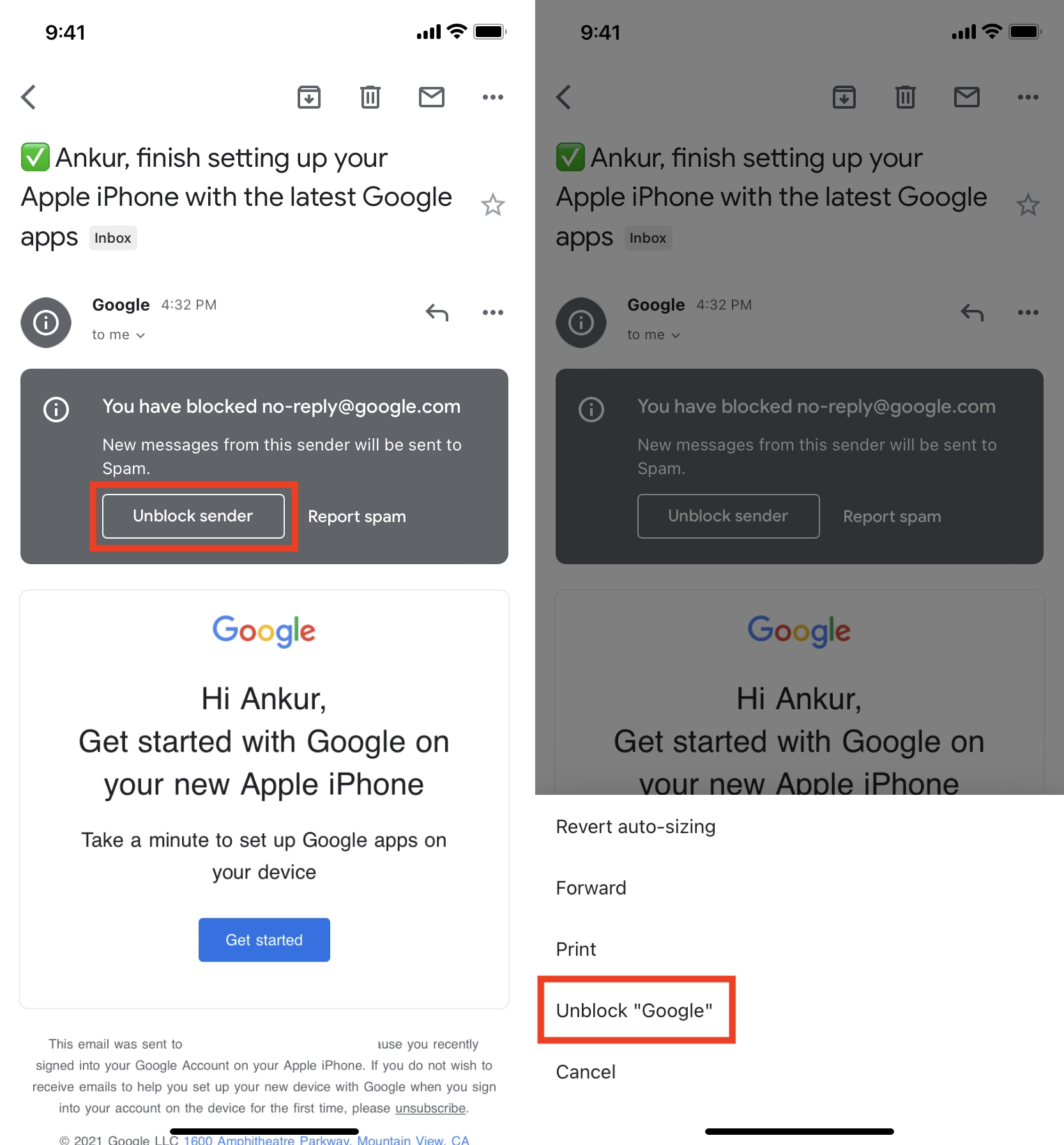
This method unblocks the sender across all devices linked to your Google account.
Unblock All Blocked Senders At Once Using Google Account
If you want to remove every Gmail block at once, Google account settings provide a global unblock option.
- Sign in to your Google account
- Open the Security section
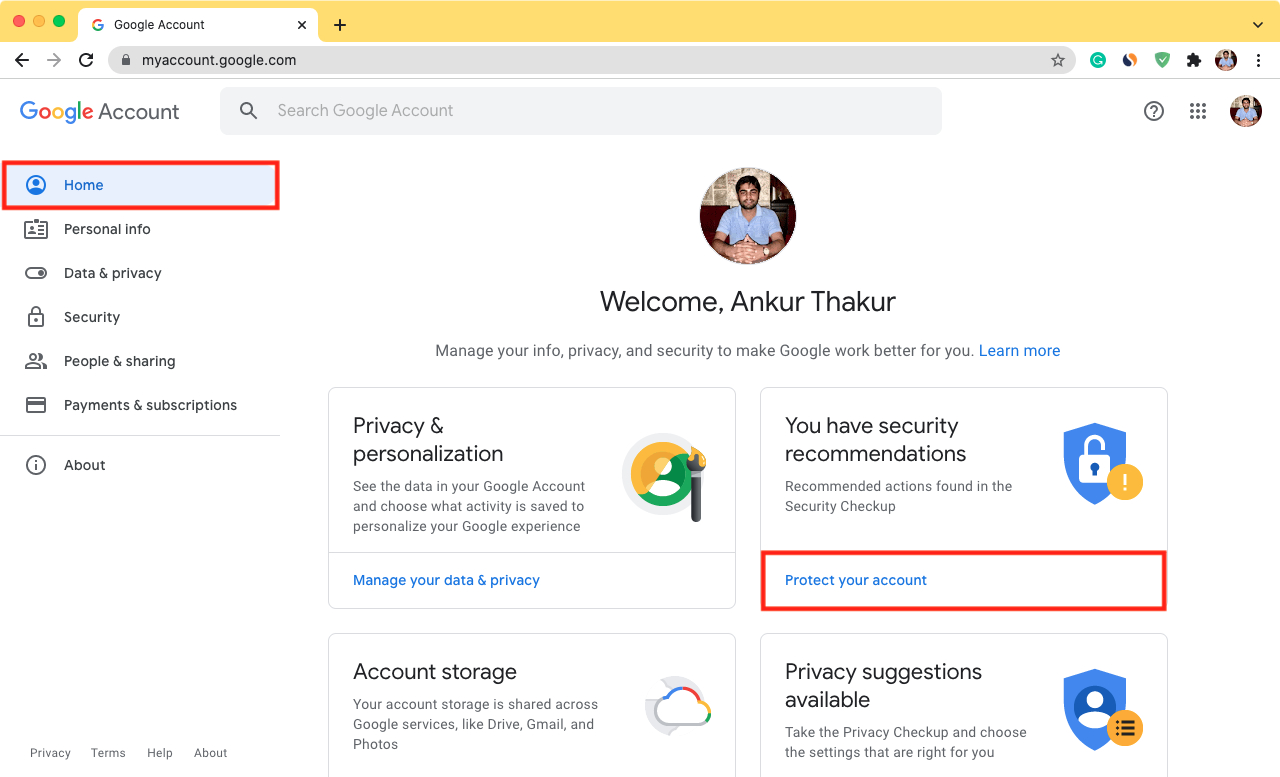
- Locate Gmail security settings
- Select the option to Unblock all blocked addresses

This action clears your entire blocked list and allows emails from all previously blocked senders.
Troubleshooting Common Problems
If emails still do not arrive after unblocking a sender, check Spam and All Mail folders, review active filters, and confirm the sender is using the same email address. Filters can override unblock actions and silently archive messages.
Tips
- Review Gmail filters after unblocking to avoid hidden rules
- Use desktop settings to manage multiple blocked addresses faster
- Unblocking applies instantly across all synced devices
FAQ
Does unblocking someone on Gmail restore old emails? No, unblocking only affects future messages.
Can I unblock someone without opening an old email? Yes, use Gmail settings on desktop to unblock directly.
Does unblocking work across devices? Yes, Gmail syncs unblock changes to all devices.
Can blocked senders see that they were unblocked? No, Gmail does not notify senders.
Summary
- Gmail allows unblocking via search, settings, or Google account controls
- Desktop Gmail offers the most control over blocked senders
- Changes sync instantly across all devices
Conclusion
Unblocking someone on Gmail takes only a few seconds and works consistently on desktop and mobile. Whether you use search, settings, or account-level options, Gmail gives you full control over blocked email addresses so important messages never get lost again.



Discussion (0)
Be the first to comment.