




Managing multiple inboxes can get overwhelming fast, which is why learning how to add an email address to Gmail can simplify everything. Gmail lets you connect outside accounts, send messages from another address, and even add recovery or alternate emails for security and account management. This guide explains each option in a clear, step-by-step format, helping you centralize your email without switching between apps.
If you want to add another email to Gmail for sending, receiving, or account recovery, the steps are quick and beginner-friendly. Below, you’ll learn how to link a POP or IMAP account, set up Send Mail As, add a recovery email to your Google Account, and add an alternate address for login purposes—all within Gmail’s settings.
How To Add Another Email Account To Gmail
This option lets Gmail fetch messages from a different address using POP. It’s useful if you want all mail in one inbox without switching apps.
- Open Gmail and click Settings > See all settings.
- Select Accounts and Import.
- Look for Check mail from other accounts and choose Add a mail account.
- Enter the email address you want to add and click Next.
- Select the POP import option.
- Enter your POP server, port, and login credentials if prompted.
- Choose whether to leave copies on the server, apply labels, or archive messages.
- Click Add Account to finish.
How To Set Up Send Mail As In Gmail
If you want to send messages from another address through Gmail, use the Send Mail As feature. This is essential for managing work and personal addresses from one inbox.
- Go to Settings > See all settings in Gmail.
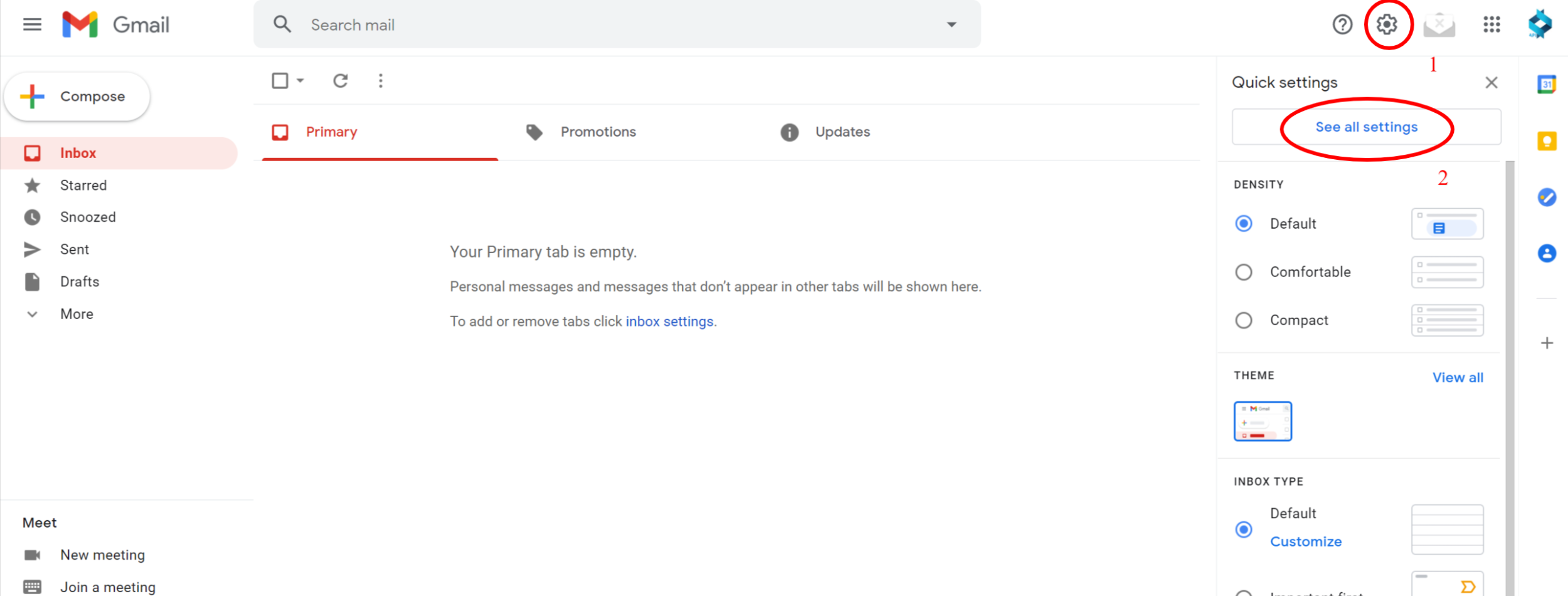
- Select Accounts and Import.
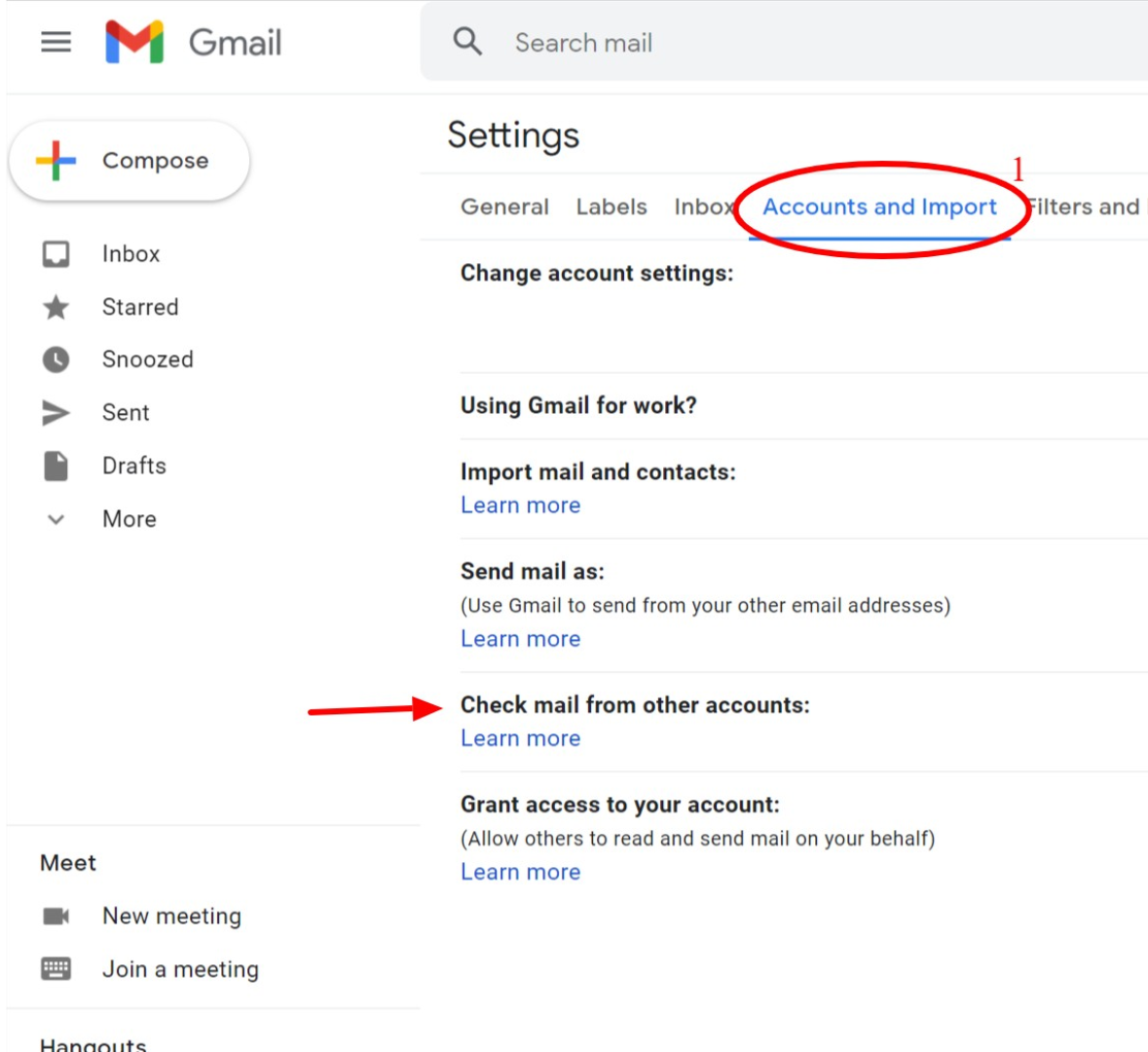
- Under Send mail as, click Add another email address.
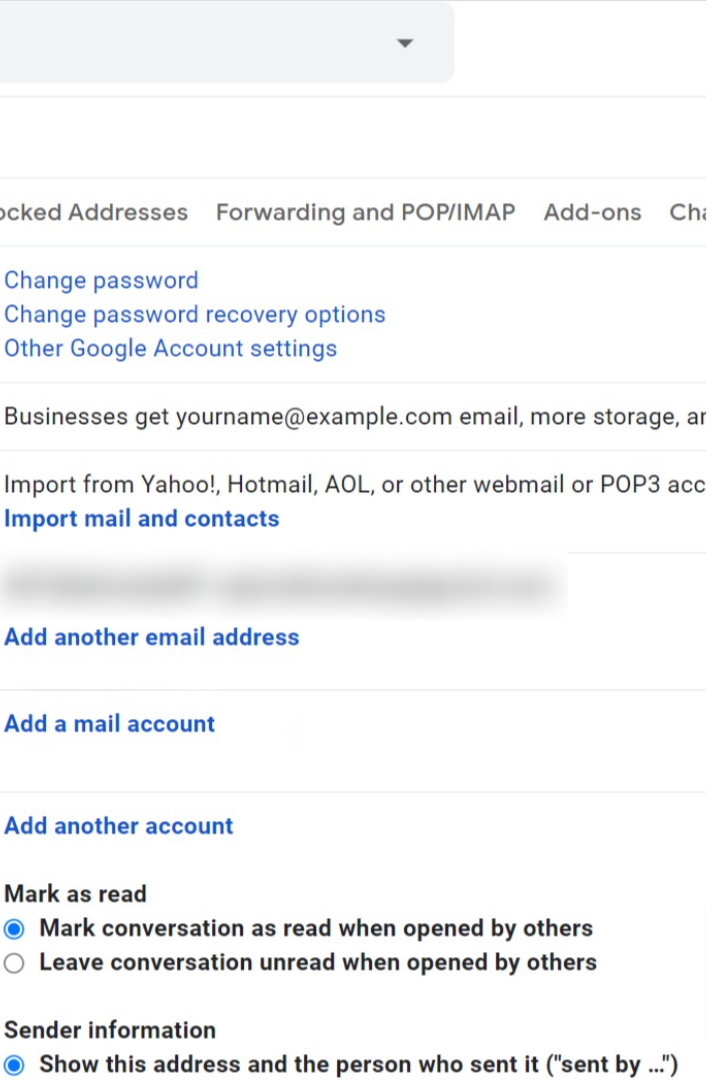
- Enter the name and email you want displayed.
- Choose whether to send mail through Gmail servers or your provider’s SMTP.
- Enter SMTP details if required.
- Verify the address using the confirmation code sent to your inbox.
How To Add A Recovery Email To Your Google Account
A recovery email helps you regain access if you forget your password or get locked out. It also improves overall account security.
- Open your Google Account at myaccount.google.com.
- Select Personal info.
- Under Contact info, choose Email.
- Select Add recovery email.
- Enter the address you want to use and verify it.
How To Add An Alternate Email For Login
An alternate email gives you another way to sign in. Unlike a recovery email, this one works as a full login option.
- Go to your Google Account settings.
- Select Personal info.
- Choose Email under Contact info.
- Select Alternate email.
- Add the email and verify ownership.
Troubleshooting Common Problems
If Gmail will not add your address or fails to verify it, these fixes often help:
- Check your POP or IMAP settings for typos.
- Enable POP or IMAP in your external provider’s settings.
- Ensure two-factor authentication allows third-party access.
- Try app-specific passwords if your provider blocks Gmail.
- Verify that SMTP ports are correct and not blocked by your network.
Tips
- Apply labels to imported email to keep your inbox organized.
- Set Send Mail As for each connected account to simplify sending.
- Use filters to route messages from different accounts automatically.
- Review your recovery email yearly to keep it current.
- Use strong passwords and avoid reusing credentials across accounts.
FAQ
Why can’t Gmail add my email account?
Your provider may require POP or IMAP to be enabled, or your login details may be incorrect.
Can Gmail manage Outlook or Yahoo accounts?
Yes, Gmail supports both POP and IMAP accounts from most major services.
Can I remove a linked account later?
You can remove or disable any linked account from the Accounts and Import tab.
What is the difference between a recovery email and an alternate email?
A recovery email resets your password, while an alternate email can be used to sign in.
Summary
- Add email accounts through Accounts and Import.
- Use POP or IMAP settings to receive messages.
- Enable Send Mail As to send from another address.
- Add recovery and alternate emails for security.
- Verify each address to activate it.
Conclusion
Adding another email address to Gmail streamlines your communication and keeps all of your accounts in one reliable inbox. Whether you want to import messages, send mail from a different address, or add recovery and alternate login emails, Gmail provides simple tools that make account management easier and more secure. These features help you stay organized while strengthening your overall Google Account protection.


Discussion (0)
Be the first to comment.