




Outlook is Microsoft’s email service that connects personal and business users under one platform. You can access it from any device - through a web browser, desktop app, or mobile application. This guide shows every method, including how to fix common login issues and keep your account secure.
1) Access Outlook email on the web
Open your browser and go to Outlook.com. Click Sign in, then enter your email address and password. If you’re unsure about your login details, you can reset them later from Microsoft’s recovery page.
Depending on your settings, Outlook may ask for a verification code or authenticator approval. Complete the check to confirm it’s really you trying to sign in.

Once signed in, you’ll see your Inbox, Folders, and the Calendar panel on the left. Click the gear icon to adjust layout or notifications. The web version syncs automatically with the desktop and mobile apps, so any change you make here carries over.
2) Access Outlook email on Windows or Mac
Download the Outlook application from the Microsoft Store or as part of your Microsoft 365 suite. On Mac, you can find it in the App Store. After installation, open the program and sign in to your account.
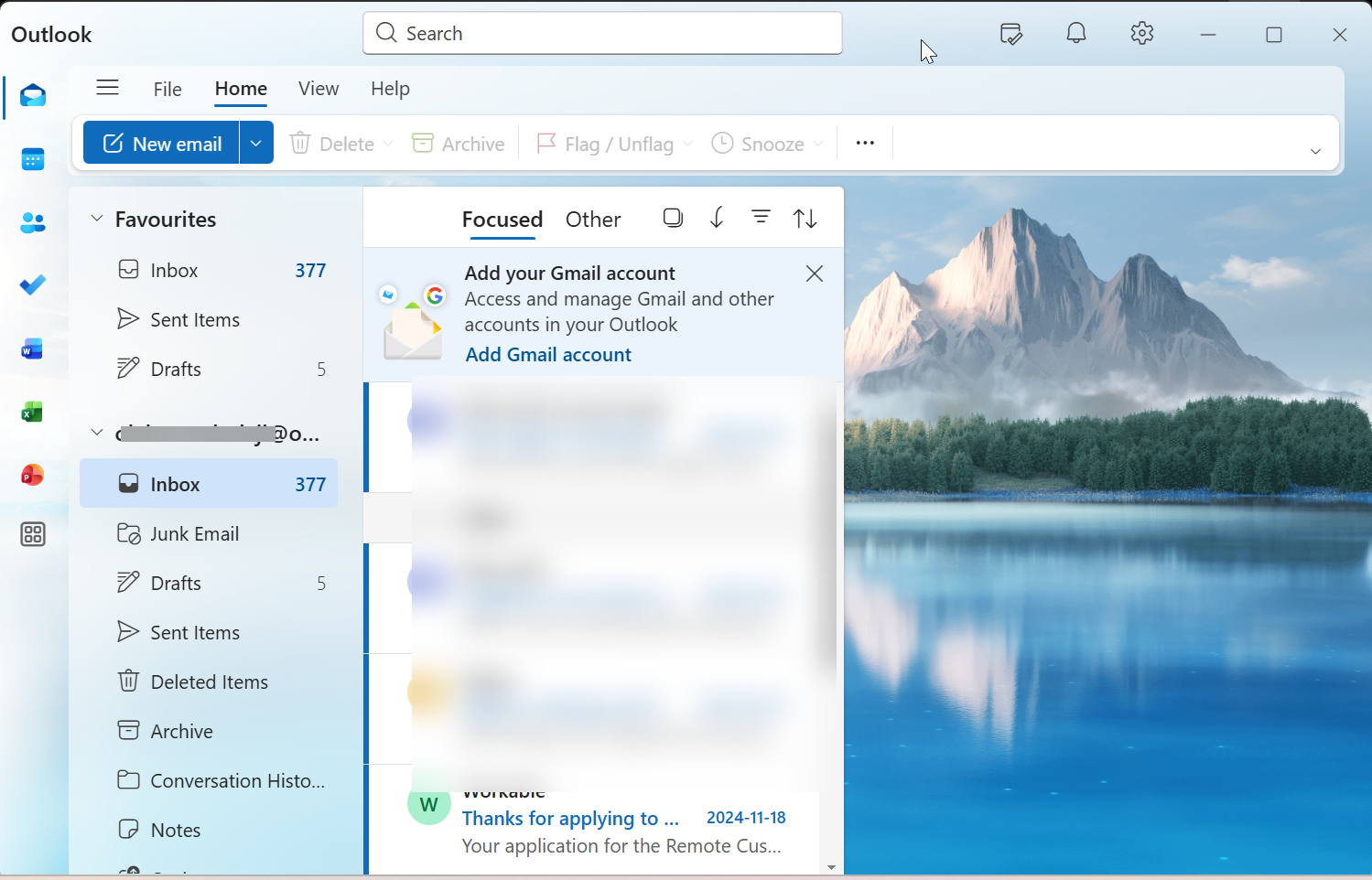
Once connected, your inbox begins syncing. You can change how often Outlook checks for new emails or adjust the reading pane for better visibility. It’s a good moment to link your calendar and contacts too.
3) Access Outlook email on mobile (Android & iPhone)
Get the app from Google Play or the App Store. Make sure the developer is Microsoft Corporation to avoid fake versions. Next, open the app, tap Add Account, and enter your Outlook or Microsoft 365 email.
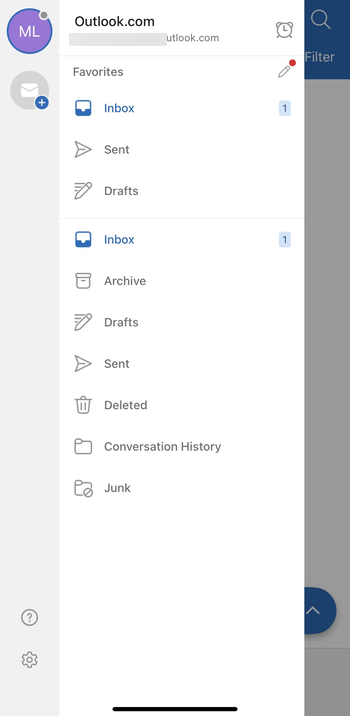
Allow notifications and syncing to start receiving new messages. You can also turn notifications on or off and adjust the Focused Inbox feature to separate important messages from newsletters and promotions. This keeps your phone alerts manageable.
4) Switch between personal and work or school Outlook
Outlook uses the same app for both personal and business accounts, so confusion is common. Check your profile icon or the domain - @outlook.com usually means personal, while @company.com or @school.edu points to work or school. Sign out from one before adding another to avoid syncing conflicts.
5) Troubleshooting: Can’t access your Outlook email
- Forgot password or locked account: If you can’t sign in, use the Microsoft account recovery tool to reset your password. Follow the prompts to confirm your identity using your recovery email or phone number.
- MFA or verification loops: Sometimes the two-factor process fails or loops. Try clearing browser cookies, re-linking your Authenticator app, or removing old trusted devices from your account security settings.
- Browser or app errors: If Outlook won’t load, update your browser or the Outlook app. You can also try an incognito window or another browser to rule out extension issues.
Tips for faster access
- Pin the Outlook icon to your taskbar or Start menu on Windows for one-click access.
- On mobile, enable quick actions like swipe-to-delete or swipe-to-archive.
- Bookmark Outlook.com in your browser to open it instantly when you need it.
FAQs
How do I open an Outlook email without the app? Go to Outlook.com on any web browser and sign in using your credentials.
Why can’t I access my Outlook emails? Most issues come from wrong credentials, outdated browsers, or inactive accounts. Reset your password and clear the cache before retrying.
Can I access Outlook offline? Yes, you can view emails offline using the desktop app’s cached mode. It syncs changes once you reconnect to the internet.
Is Outlook free to use? Personal Outlook.com accounts are free. Business users need a Microsoft 365 subscription for full desktop access.
Summary: Quick steps to access Outlook email
- Identify your account type (personal or work/school).
- Choose how you want to access it—browser, desktop, or mobile.
- Sign in with your Microsoft credentials and verify with MFA.
- Customize layout and sync options to fit your workflow.
- Keep your account secure with two-factor authentication and regular password updates.
Conclusion
Accessing your Outlook email is simple, whether you’re using the web, a desktop application, or the mobile app. By understanding your account type and choosing the right method for your device, you can stay connected and organized on the go.
Be sure to keep your account secure by enabling two-factor authentication and reviewing your recovery options. If you encounter any issues, troubleshooting steps like password resets, MFA checks, and updating apps can help get you back on track quickly.



Discussion (0)
Be the first to comment.