




Missing Gmail emails usually point to deletion, archiving, filters, or sync issues rather than data loss. In most cases, Gmail still stores the messages, just not where users expect them. Acting quickly and checking the right places increases recovery chances significantly.
This guide walks through every reliable way to recover missing emails in Gmail, from quick checks to last-resort recovery options.
Table of contents
- Check the most common places first
- Recover emails deleted within the last 30 days
- Find emails hidden by filters or rules
- Emails missing on mobile but visible on desktop
- Recover emails after accidental bulk actions
- Request recovery from Google for permanently deleted emails
- Prevent missing emails in the future
- Tips for recovering missing Gmail emails
- FAQ
- Summary
Check the most common places first
Start with the locations where Gmail automatically moves emails. These steps solve the majority of cases within minutes.
Look in Trash and Spam
Gmail keeps deleted emails in Trash for 30 days before permanent removal. Spam messages stay in Spam for 30 days as well, even if Gmail moves them automatically.
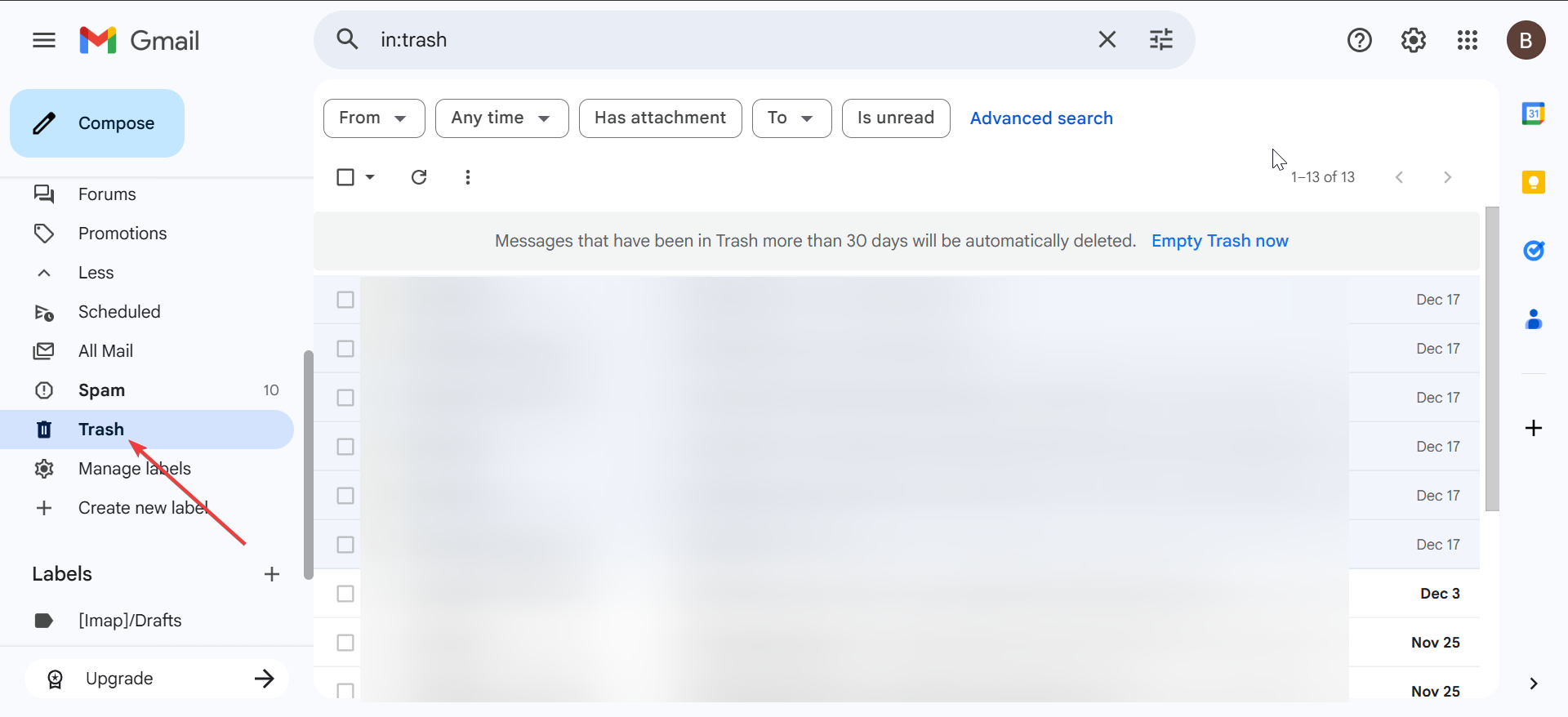
Open Trash and Spam, locate the email, then move it back to the Inbox or another label.
Check All Mail instead of the Inbox
Archived emails disappear from the Inbox but remain in the account. Open All Mail to view every message that still exists, including archived ones.
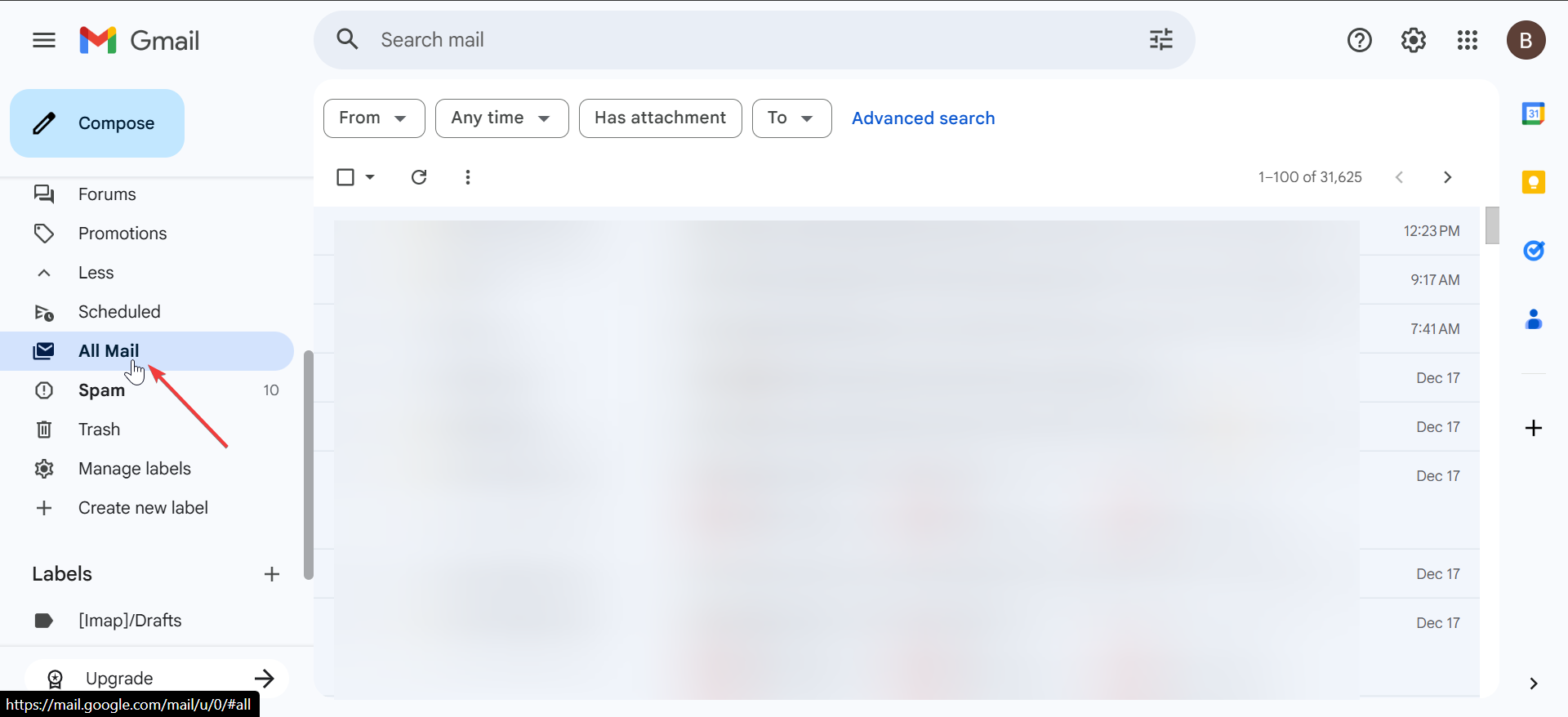
If the email appears there, select it and choose Move to Inbox.
Recover emails deleted within the last 30 days
Deleted emails remain recoverable for a limited time. Speed matters here.
Restore emails from Trash
Open Trash, select the missing email, then click Move to and choose Inbox. Gmail restores the message instantly.

Recover messages moved to Spam by mistake
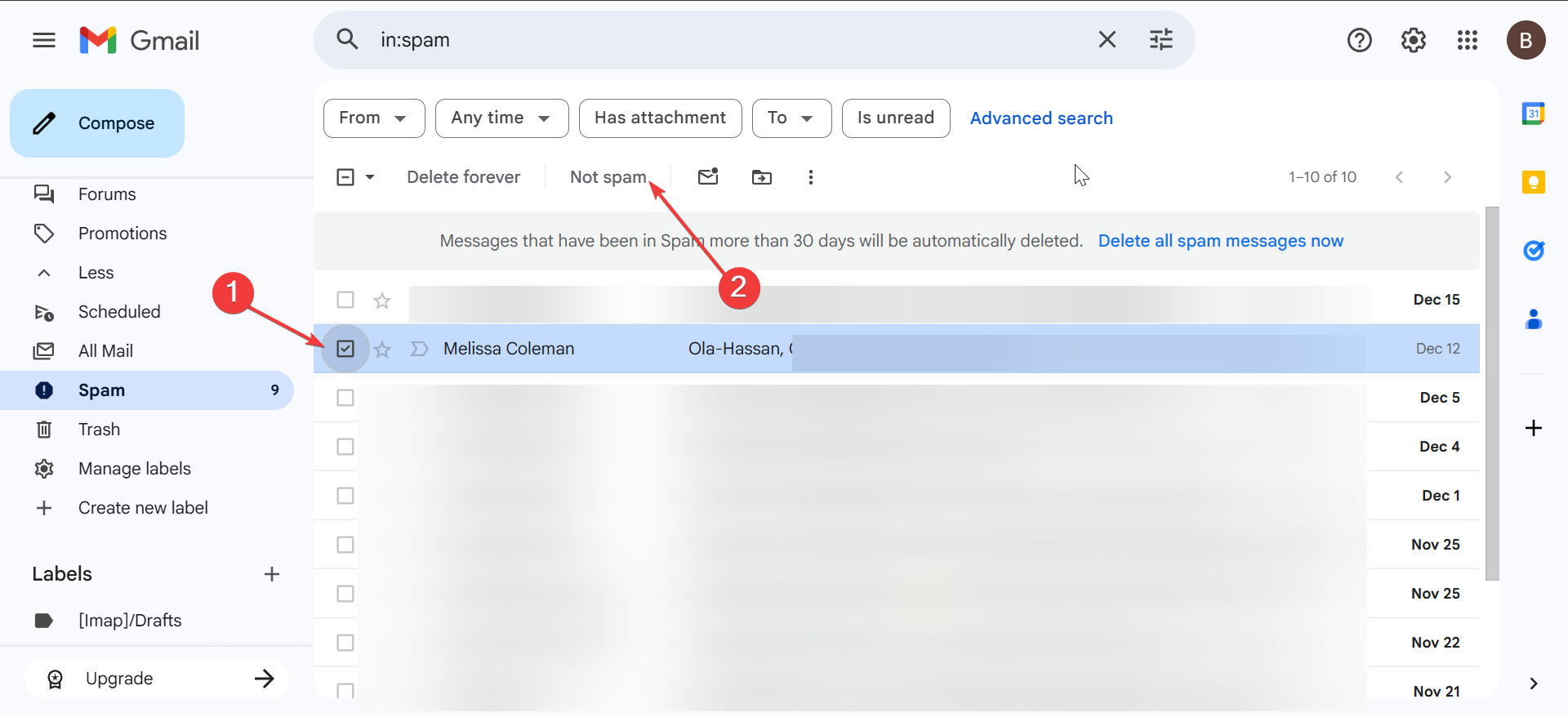
Open Spam, select the email, and click Not spam. Gmail moves it back to the Inbox and adjusts future filtering behavior.
Find emails hidden by filters or rules
Filters often cause emails to vanish without user awareness.
Review Gmail filters
Open Settings and select See all settings, then open Filters and blocked addresses. Review each filter carefully.

Look for rules that delete, archive, skip Inbox, or forward messages automatically.
Check blocked addresses and forwarding
Blocked senders prevent emails from reaching the Inbox entirely. Forwarding rules may send emails to another address.
Disable unwanted blocks and confirm forwarding settings only point to where intended.
Emails missing on mobile but visible on desktop
Mobile sync issues frequently cause partial inbox views.
Refresh Gmail sync settings
On Android, open Settings, tap Accounts, select Google, tap Account sync, then enable Gmail.
On iPhone, confirm Gmail uses fetch or push correctly and allow background app refresh for Gmail.
Update or reinstall the Gmail app
Outdated apps can fail to sync messages properly. Update Gmail, then restart the device.
If emails still do not appear, uninstall and reinstall the app on your iPhone. For Android users, you cannot uninstall the Gmail app, as it is part of the system apps. You can only remove and add your email address to Gmail to refresh it.
Recover emails after accidental bulk actions
Bulk actions often cause panic, but remain fixable.
Undo recent actions
After deleting or archiving emails, click Undo from the notification bar. Gmail only allows this for a few seconds.

Use search operators to locate moved emails
Search operators help locate emails without browsing folders manually. Examples include in:anywhere [email protected], has:attachment, and before:2025/01/01.

These searches often surface emails users assume are gone.
Request recovery from Google for permanently deleted emails
This option applies only in specific scenarios.
Use Google’s Gmail recovery form
Google offers a recovery form for emails deleted due to account compromise or technical issues. Submit the request as soon as possible.
Understand recovery limitations
Google cannot restore emails deleted from Trash after 30 days in normal circumstances. Recovery success remains rare and never guaranteed.
Prevent missing emails in the future
Prevention reduces repeated recovery efforts.
Adjust spam sensitivity and filters
Review filters quarterly and whitelist important senders. Check Spam occasionally to correct false positives.
Enable alerts and review rules regularly
Turn on notifications for important senders and avoid aggressive cleanup rules or third-party inbox cleaners.
Tips for recovering missing Gmail emails
- Check All Mail before assuming deletion
- Act within 30 days for the best recovery chance
- Audit filters after sudden email loss
- Compare desktop and mobile inbox views
- Avoid unverified third-party recovery tools
FAQ
Why do Gmail emails disappear without being deleted?
Filters, archiving, spam classification, or sync issues usually cause this behavior.
Can I recover emails deleted more than 30 days ago?
In most cases, no. Gmail permanently deletes emails after 30 days in Trash.
Why are emails missing only on my phone?
Sync limits, app issues, or outdated software often cause mobile-only gaps.
Does Google always restore deleted Gmail messages?
No. Google only restores emails in rare cases involving security incidents.
Summary
- Check Trash, Spam, and All Mail first
- Restore deleted emails within 30 days
- Review filters, blocked senders, and forwarding
- Fix mobile sync or app-related issues
- Use Google recovery tools only as a last resort
Most missing Gmail emails remain recoverable if users act quickly and check the correct locations. Filters, archiving, and sync problems cause more issues than permanent deletion. Once recovery is complete, reviewing rules and settings helps prevent the problem from returning.



Discussion (0)
Be the first to comment.