




If you use Microsoft OneDrive regularly, you’ve probably seen the “storage almost full” warning pop up more often than you’d like.
It’s not just a one-time alert. It keeps coming back, even when you’re already aware of the issue. The problem is that OneDrive is designed to push these notifications aggressively because storage limits directly affect syncing.
The good news is you can reduce or stop these alerts. The catch is that you need to do it without disrupting how OneDrive works.
Why OneDrive Keeps Showing This Warning
This notification isn’t random.
OneDrive shows it when your storage is close to full because syncing can fail once you hit the limit. New files won’t upload, and changes may not be saved properly.
From Microsoft’s perspective, this is a critical warning. That’s why it’s persistent.
But for users who already know their storage situation, it becomes more annoying than helpful.
Option 1: Disable OneDrive Notifications (Quick Fix)
The simplest way to stop the alerts is to turn off notifications directly in OneDrive.
Right-click the OneDrive icon in the system tray
Go to Settings > Notifications
Disable notifications related to storage or general alerts
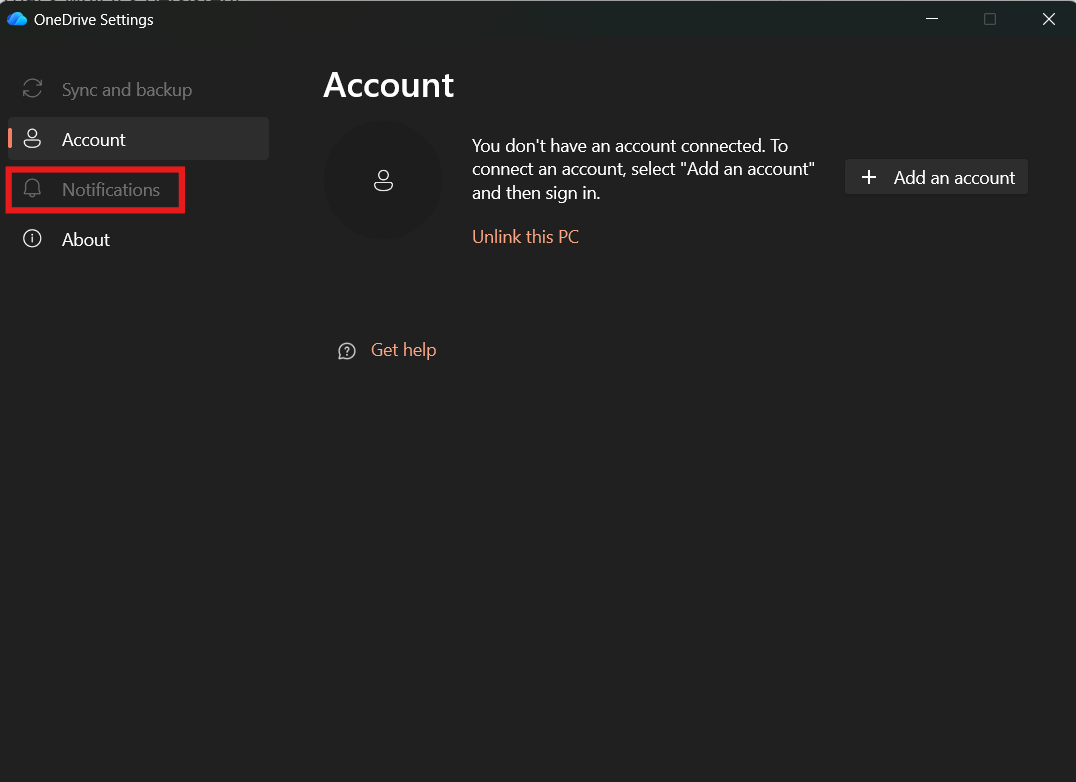
This reduces pop-ups significantly.
However, this is a blanket approach. You may also miss other useful notifications.
Option 2: Turn Off Windows Notifications for OneDrive
If OneDrive settings don’t fully stop the alerts, you can control them at the system level.
Go to:
Settings > System > Notifications
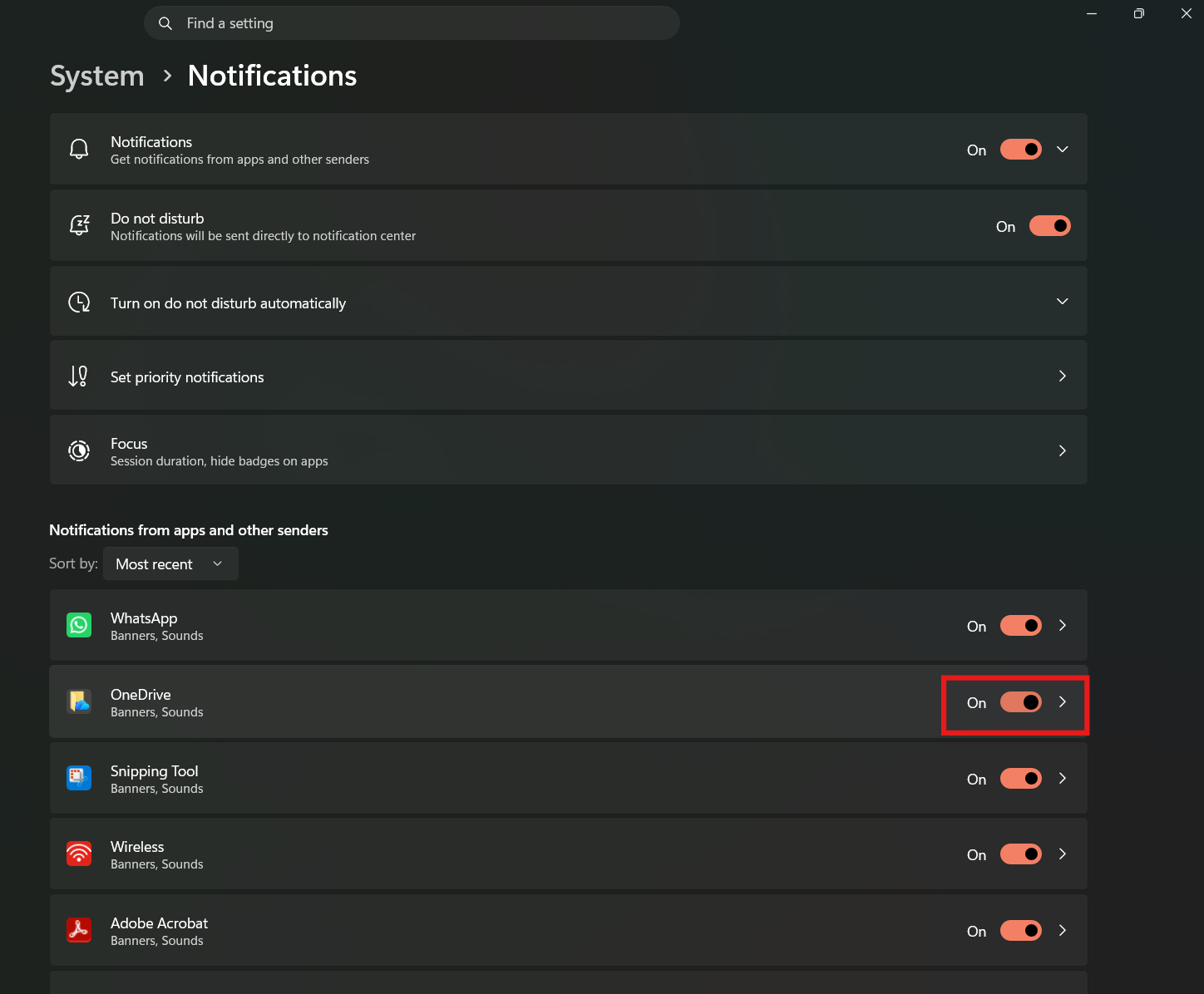
Find OneDrive in the list and turn off notifications.
This completely stops OneDrive from sending alerts through Windows.
It’s effective, but again, you won’t see any notifications from OneDrive at all.
Option 3: Free Up or Manage Storage (The Practical Solution)
The most reliable way to stop the warning is to address the cause.
You can:
- Delete unnecessary files
- Empty the OneDrive recycle bin
- Move large files to local storage
- Upgrade your storage plan
Even small changes can push you below the warning threshold and stop notifications naturally.
Option 4: Use Selective Sync
If your issue is caused by syncing too many files, selective sync can help.
Go to OneDrive settings and choose which folders to sync.
By reducing what’s stored in the cloud, you can manage space more effectively without deleting everything.
Real-World Approach: What Actually Works Best
Disabling notifications works, but it’s more of a workaround.
If you rely on OneDrive heavily, it’s better to manage storage rather than ignore the warning completely.
For most users, a combination works best. Reduce storage usage slightly and limit notifications so they’re not intrusive.
That way, you keep functionality without constant interruptions.
Limitations You Should Know
You can’t completely “fix” this behavior without either:
- Disabling notifications
- Reducing storage usage
OneDrive is designed to warn you when you’re near the limit, and there’s no granular setting to only disable that specific alert in all cases.
So you’re choosing between awareness and convenience.
Final Thoughts
OneDrive’s storage warnings are useful in theory but can become repetitive in practice.
If you just want them gone, disabling notifications is the fastest solution.
If you want a cleaner long-term setup, managing your storage is the better approach.
The key is deciding whether you want to silence the warning or actually remove the reason it exists.
FAQs
Why does OneDrive keep saying storage is almost full?
Because you’re close to your storage limit, which can affect syncing.
Can I disable just this one notification?
Not always. You may need to disable broader OneDrive notifications.
Will turning off notifications affect syncing?
No, syncing continues normally.
What’s the best way to stop the warning permanently?
Free up space or upgrade your storage plan.
Is upgrading storage necessary?
Only if you consistently run out of space and need more capacity.

Discussion (0)
Be the first to comment.