




Slow downloads waste time when you grab large files, game updates, or system patches. Most problems come from weak WiFi, outdated hardware, ISP limits, or software running in the background.
You can fix these issues quickly with the right steps and a simple checklist of actions.
1) Quick ways to boost download speeds
Restart your PC, router, and modem
Rebooting clears stuck processes and resolves temporary network congestion. This step often restores full speed in under a minute.

To restart your PC, click Start, select Power, and choose Restart. You can restart your router and modem by unplugging them for 30 seconds, then plugging them back in.
Pause other devices and apps
Streaming, cloud backups, or downloads on other devices consume bandwidth. When you pause them, your main download receives priority.
Move your device closer to the router
Shorter distance improves WiFi quality and reduces interference. Better signal strength increases real-world download speeds.
Switch to the 5 GHz or 6 GHz WiFi band
Modern bands combat interference and provide cleaner channels. When you switch bands in your router settings, you often see quicker downloads.
2) Windows and macOS settings that increase download speeds
Your operating system includes tools that improve throughput when you configure them correctly. These settings help laptops and desktops use the connection more efficiently.
Close bandwidth-heavy background apps
Windows Task Manager and macOS Activity Monitor show apps using your network. When you stop them, you free bandwidth for your downloads.

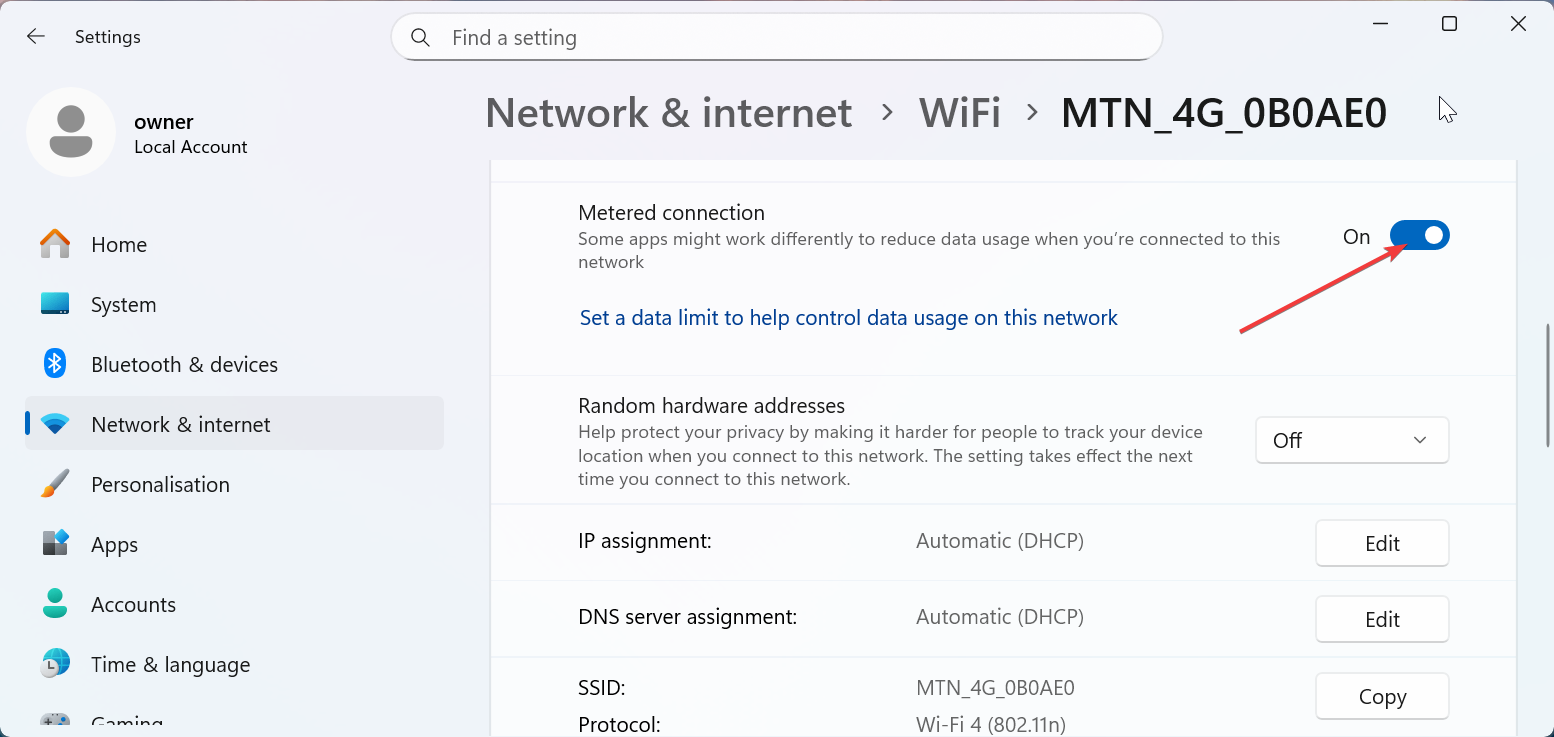
Disable metered connection settings
Windows sometimes limits download activity on metered networks. Removing this setting ensures full-speed downloads on WiFi.
To deactivate this, press the Windows key + I to open Settings and select Network & Internet. Next, select Wi-Fi and turn off Metered connection.
Turn off VPNs, proxies, or firewalls temporarily
Security tools sometimes route traffic through slower paths. When you turn them off briefly, you can see if they create the bottleneck.
Change your DNS server
A faster DNS reduces lookup time when you download large files. This change helps browsers and apps connect to servers more quickly.
3) Router and WiFi optimizations
Your router controls most of your home’s download performance. Small tweaks in this area often create big gains for every device.
Update your router firmware
New firmware improves stability and speed allocation. Most routers offer a simple update button in their admin panel.

Change the WiFi channel
Crowded neighborhoods create interference on popular channels. Switching to a cleaner channel boosts speed consistency and reliability.
Enable QoS (Quality of Service)
QoS prioritizes downloads or specific devices on your network. With QoS rules in place, high-traffic periods affect your downloads less.
Use WPA2 or WPA3 security
Your network slows down when others use it without permission. Strong security keeps bandwidth reserved for your own devices.

4) Switching to wired connections for maximum speed
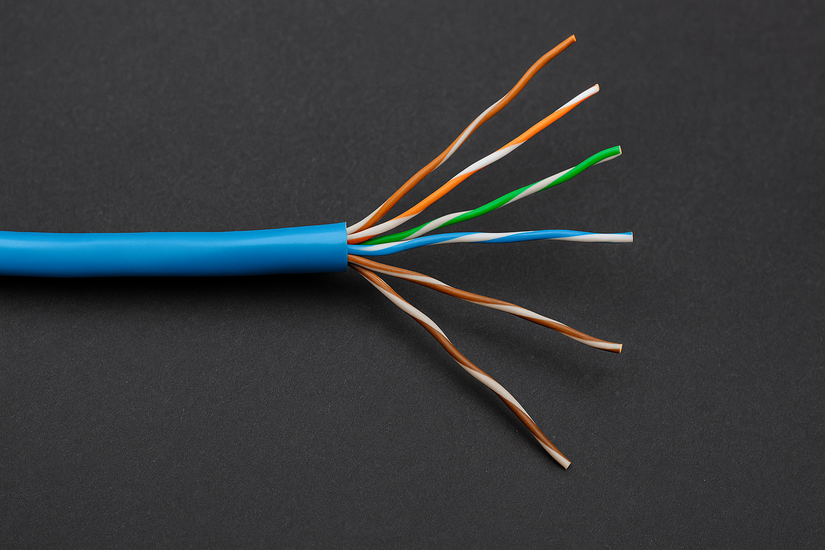
Properly wired ethernet connections offer the fastest and most stable download speeds. Ethernet removes WiFi issues completely for critical devices.
Use Cat5e, Cat6, or Cat7 cables
These cables support high-speed transfers and reduce packet loss. They help your internet plan reach its advertised speeds.
Connect your gaming PC or laptop directly
Ethernet removes WiFi interference and weak signal problems. Direct connections boost large game and file download performance.
5) Advanced methods to speed up download speeds
If you need more speed beyond the basics, these tools help power users push their network further. They work best when you have already optimized WiFi and hardware.
Enable multi-threaded downloads
Browsers and download managers split files into parts that download in parallel. This method increases speed by using multiple connections at once.
Schedule downloads during off-peak hours
Evening hours often slow down networks when many people go online. Downloading late at night or early morning increases speed on most ISPs.
Use a download accelerator
Accelerators retry failed packets and optimize server connections automatically. Consistent throughput keeps large downloads moving steadily.
Check for ISP throttling
Run speed tests at different times of day and compare results. Clear patterns reveal whether your ISP slows certain traffic or heavy usage.
6) Upgrade your internet hardware and plan
When your setup is outdated, no amount of tweaking removes the limit. Upgrading your plan or equipment ensures long-term improvement.
Upgrade to WiFi 6, WiFi 6E, or WiFi 7
New WiFi standards deliver higher bandwidth and stronger reliability. These upgrades help busy homes keep downloads fast even with many devices.
Replace old modems or routers
A router that you bought five to eight years ago cannot handle modern speeds. Newer models remove built-in caps that slow your connection.
Upgrade to a faster internet plan
If you download large files often, higher-tier plans reduce wait times significantly. A faster plan also gives more headroom for streaming and gaming.
7) Troubleshooting slow download speeds
- Run speed tests on multiple devices: This method tells you if the issue affects one device or your entire network. When all devices report slow speeds, you likely see a network or ISP problem.
- Check for malware or system corruption: Malware tools consume bandwidth without warning and slow down everything. Cleaning your system improves network performance and stability.
- Reset network settings: A full reset restores the default configuration and clears corrupted settings. After the reset, you reconnect to WiFi and test download speeds again.
FAQs
Why is my download speed slower than my internet plan? Your download speed drops when multiple devices share bandwidth, your WiFi signal weakens, or background apps use data. Old routers and ISP congestion also create a gap between advertised and real-world speeds.
Does using WiFi 6 or WiFi 6E increase download speeds? Yes. WiFi 6 and 6E reduce interference and handle more devices at once. These standards deliver faster and more stable downloads compared to older 2.4 GHz or basic 5 GHz routers.
Will a VPN make my downloads faster? A VPN sometimes improves speeds when your ISP throttles certain types of traffic. If throttling isn’t the issue, a VPN usually slows downloads because traffic must pass through an encrypted server.
Summary
- Restart your PC, router, and modem.
- Use 5 GHz or 6 GHz WiFi bands.
- Stop bandwidth-heavy background apps.
- Update router firmware and change channels.
- Change DNS settings to faster providers.
- Use Ethernet for critical devices.
Conclusion
The fastest way to increase download speeds starts with simple steps like moving your device closer to the router, switching WiFi bands, and stopping bandwidth-heavy apps. When speeds remain slow, network tuning and hardware upgrades deliver lasting improvements.
With a few targeted changes, you restore stable, high-speed downloads for work, gaming, and everyday use.


Discussion (0)
Be the first to comment.