




Disney Plus lets you stream blockbuster movies and exclusive originals, but many users also want a simple way to save them offline. If you want to learn how to download from Disney Plus on laptop, the app offers a built-in feature that allows offline viewing on both Windows and macOS. This guide shows you the latest working methods, how to manage downloads, and what to do when titles won’t save.
Before You Start: What You Need
You can download Disney Plus content only through the official Disney Plus app on Windows or macOS. The web browser version does not support downloads. Make sure you have an active subscription and enough storage space on your laptop.
How To Install The Disney Plus App On Laptop
Disney Plus offers native apps for Windows and macOS. Install the correct version to enable offline viewing.
On Windows:
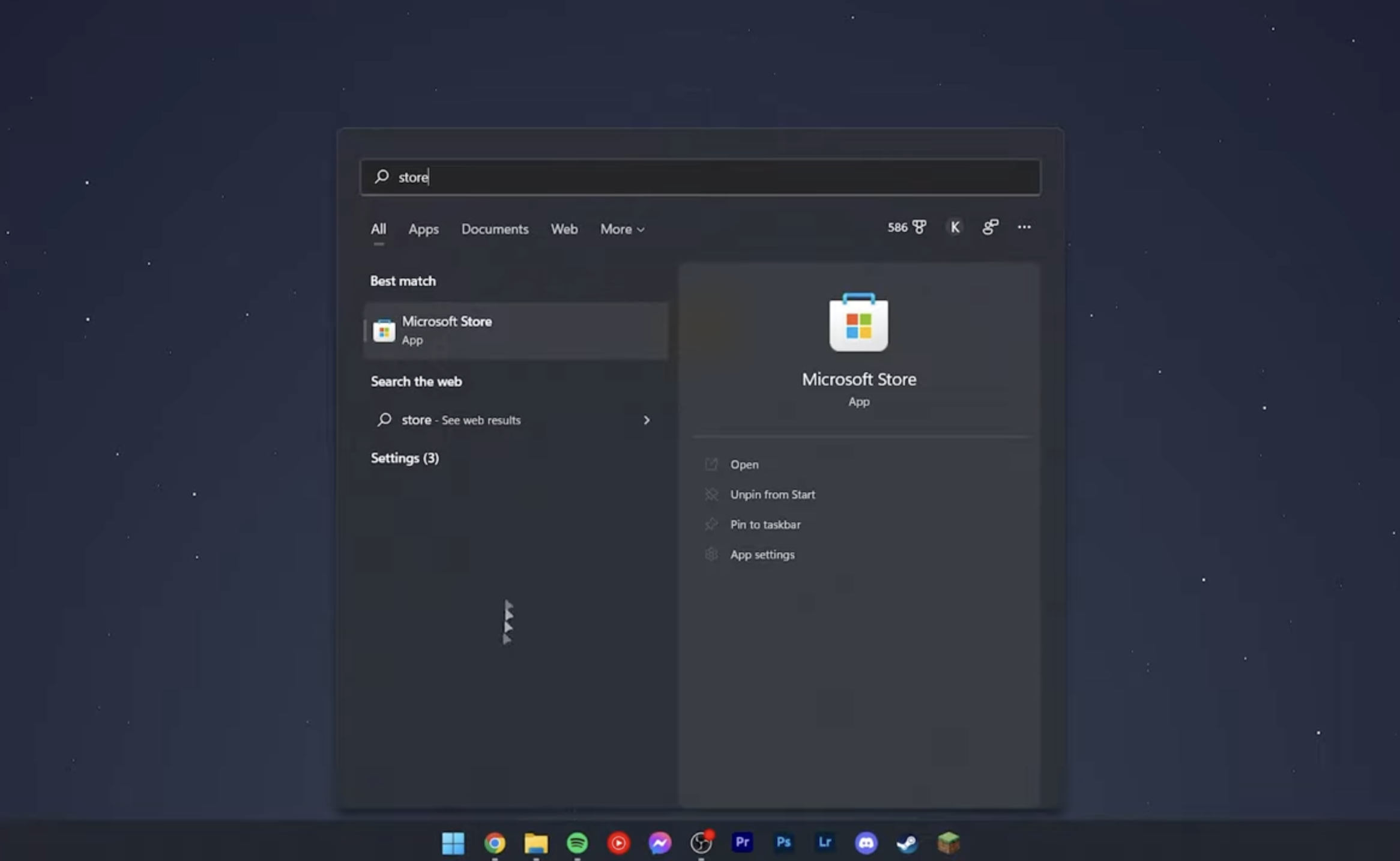
- Open the Microsoft Store from the Start menu.
- Search for Disney+.
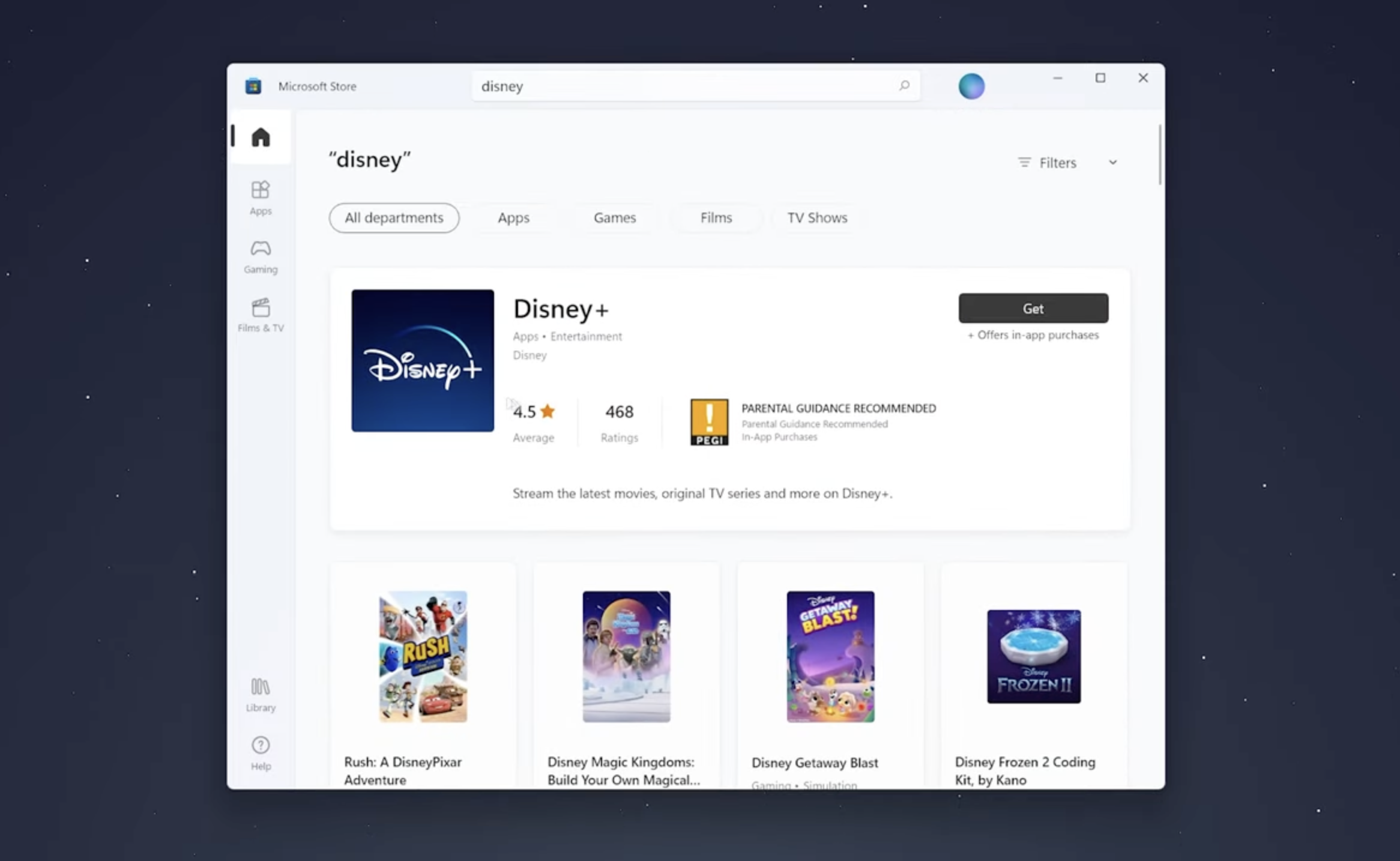
- Select the official app and click Get.
- Open the app once it finishes installing.

On macOS:
- Open the Mac App Store.
- Search for Disney+.
- Click Get and install the app.
- Launch the app from the Applications folder.
After installation, sign in with your Disney Plus account to access the download feature.
How To Download From Disney Plus On Laptop
Once you’re signed in, you can save movies, series, and episodes directly to your laptop for offline viewing.
- Open the Disney Plus app and search for a movie or TV show.
- Click the title to open its detail page.
- Look for the Download icon (a downward arrow).
- Click the icon to start saving the content to your laptop.
- Wait for the checkmark to appear, which confirms a successful download.
TV shows let you download full seasons or individual episodes, depending on your storage needs.
Where To Find Your Disney Plus Downloads On Laptop
Your downloaded content appears in a dedicated section of the app.
- Open the Disney Plus app.
- Select the Downloads tab from the left sidebar.
- Click any title to start offline playback.
Downloads work without Wi-Fi, mobile hotspots, or data connections.
How To Manage Downloaded Disney Plus Content
Since movies and episodes take up storage, you should manage your downloads regularly.
- Open Downloads inside the Disney Plus app.
- Click the small trash icon beside a title to remove it.
- Re-download content anytime as long as it’s still available on the platform.
Disney Plus titles usually stay available offline for around 30 days, depending on licensing rules. Some titles may require occasional reconnection to verify your subscription.
Why Some Disney Plus Titles Won’t Download
Not every title includes the download option. This happens due to streaming rights, regional restrictions, or studio-specific limitations.
- Titles from certain third-party studios may not allow offline viewing.
- Content may temporarily lose download rights during licensing updates.
- Your app may need an update to show the download icon.
- Your laptop storage may be too full to save new files.
Restarting the app or updating it often restores missing download buttons.
Troubleshooting Disney Plus Downloads On Laptop
If downloads fail, move slowly through these quick fixes to restore the feature.
- Check your internet connection before starting a download.
- Close and reopen the Disney Plus app.
- Update the app from the Microsoft Store or Mac App Store.
- Restart your laptop to refresh the download service.
- Free up storage space on your device.
- Log out of Disney Plus and sign back in.
- Turn off VPNs, as some may interfere with download rights.
Can You Download From Disney Plus On Laptop Browser?
No. At the time of writing, browsers like Chrome, Safari, and Firefox do not support offline downloads. You must use the official Disney Plus app for Windows or macOS to access the feature.
How To Enjoy Disney Plus Offline On Laptop
Once downloads complete, you can watch them anywhere without internet access, including on flights, during travel, or in areas with limited connectivity.
- Open the Disney Plus app without Wi-Fi.
- Go to Downloads and pick the movie or episode.
- Play the title directly from local storage.
All features like subtitles, audio languages, and playback controls remain available during offline viewing.
Final Thoughts
Learning how to download from Disney Plus on laptop makes it easy to watch your favorite movies and shows without relying on Wi-Fi. Whether you use a Windows notebook or a MacBook, the official Disney Plus app gives you quick offline access with reliable save options, simple download management, and smooth playback. Keep your app updated, free up storage when needed, and enjoy streaming wherever you go.



Discussion (0)
Be the first to comment.