




Searching for how to download steam games on oculus quest 2? You can’t install Windows-based Steam titles directly on the headset, since it runs Android, but you can still play them by linking the Quest 2 to a PC running SteamVR. You can connect via USB-C or stream wirelessly with Air Link or Steam Link.
Quick Answer
To play SteamVR titles, pair your Quest 2 with a Windows PC running Steam and SteamVR. Use a high-speed USB-C cable (Oculus Link) for the most stable experience, or try Air Link or the Steam Link app for wireless play. All options take only a few minutes to set up if your PC and network meet the required specs.
What You Need
- A Windows 10 or 11 PC that meets VR specs (GTX 1060 / RX 580 GPU or better, 8 GB+ RAM).
- Steam and SteamVR installed for your SteamVR setup.
- One connection method: Oculus Link cable, Air Link Quest 2, or Steam Link Quest 2.
- A 5 GHz or Wi-Fi 6 router for reliable wireless streaming.
- Ethernet connection from PC to router for low-latency wireless play.
Way 1. Connect SteamVR Oculus Quest 2 With a USB-C Cable
This method gives you the most stable connection and lowest latency. Follow these steps to connect Oculus Quest 2 to Steam using a USB-C cable and complete the first-time setup.
- Make sure your Oculus Quest 2 is turned on and connected to your PC with a high-speed USB-C cable.
- Open the Quest 2 desktop app, click Add a New Headset, and choose Quest 2. Follow the on-screen instructions to complete the setup.

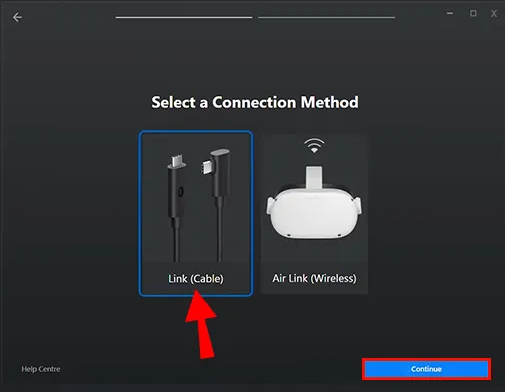
- When prompted, select Link (cable) → Continue. Then, in the Steam desktop client, launch SteamVR. You should now see your SteamVR Library inside the headset.
- To adjust the Oculus Link refresh rate, open the Quest 2 app on your PC, select the Devices tab on the left, and click Graphics Preferences. Choose your preferred refresh rate — 72 Hz (default), 80 Hz, 90 Hz, or 120 Hz — and click OK.
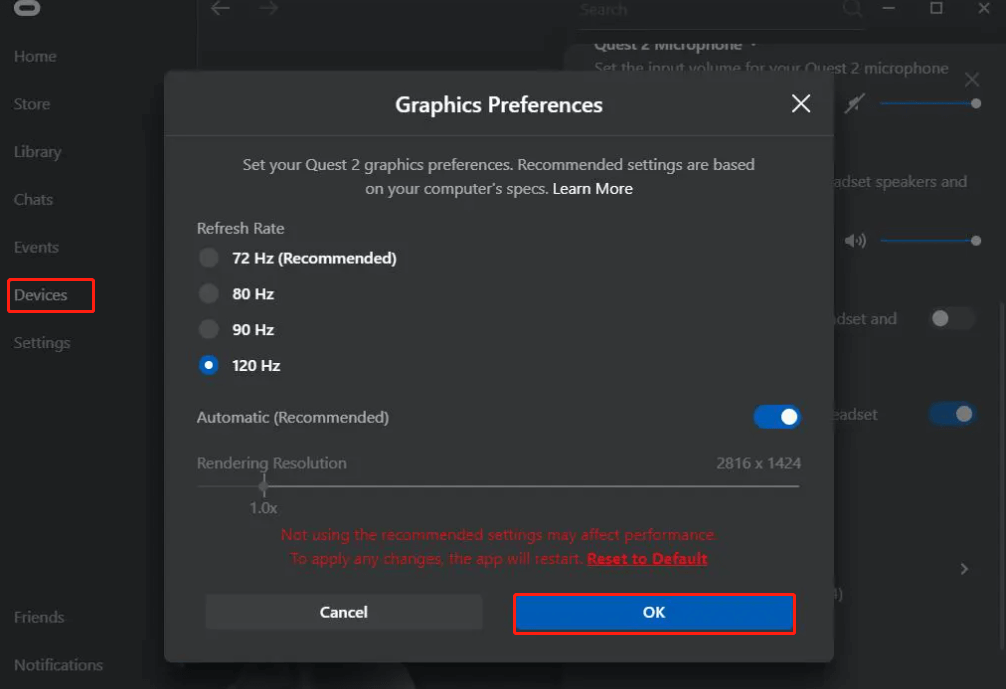
Note: The original Quest 2 refresh rate is capped at 72 Hz, but newer firmware versions support higher rates. Adjusting this can also affect Air Link performance if you switch later.
Once the setup is complete, launch any SteamVR title and you can now play Steam games on Quest 2 smoothly through the USB-C cable connection.
Way 2. Play Wirelessly With Air Link
Air Link Quest 2 streams PC VR games over your local Wi-Fi network. It’s free and built into the Meta software.
- Connect your PC to the router via Ethernet for stability.
- Keep the headset within range of the router on the 5 GHz band.
- Enable Air Link in the Oculus PC app and in the headset’s Experimental Features or Settings menu.
- Pair the headset with the PC and confirm the connection quality.
- Launch SteamVR on your PC and choose any VR title to start playing wirelessly.
Way 3. Use the Steam Link App
Valve’s Steam Link Quest 2 app is an easy wireless option that streams your full Steam library directly to the headset.
- Install Steam and SteamVR on your PC, then sign in.
- Download and install the Steam Link app from the Meta Store on your Quest 2.
- Connect your headset and PC to the same 5 GHz or Wi-Fi 6 network.
- Open Steam Link on the headset and pair it with your PC.
- Launch SteamVR and play any VR title from your library.
Optional: Virtual Desktop Method
Virtual Desktop Quest 2 is a premium alternative with advanced tuning options and strong image quality.
- Install Virtual Desktop on your Quest 2 and its streamer app on your PC.
- Ensure the PC is wired to the router and the headset is near the Wi-Fi access point.
- Open Virtual Desktop, select your PC, then launch SteamVR and play.
Performance Tips
- Lower SteamVR render resolution if you see lag or stutter.
- Use Ethernet on the PC and avoid crowded Wi-Fi channels.
- Adjust bitrate inside Steam Link for smoother wireless frames.
- Keep GPU drivers and the Oculus PC app up to date for stable SteamVR games on Quest 2.
Troubleshooting
- If Link does not appear, try another USB 3 port or different data-capable cable.
- If wireless pairing fails, remove the device and re-pair inside the headset.
- Fix audio issues by selecting the Quest 2 headset as the active device in SteamVR settings.
- Move closer to the router if the picture looks blurry or lags.
- Validate Steam game files and restart the Oculus PC app after crashes.
FAQs
Can I install Steam directly on the Quest 2? No. Quest runs Android and cannot run Steam natively. You must stream from a Windows PC running SteamVR.
Which connection is best? The USB-C cable offers the most stable performance and lowest latency. Wireless methods depend on your network quality.
Do I need Developer Mode? Not for Oculus Link, Air Link, or the Steam Link app methods.
Do all Steam games work? Only SteamVR-compatible titles run in VR. Flat games without VR modes will not display in 3D inside the headset.
Summary
You can’t install Windows games directly on the Quest 2, but you can stream them easily. Use a USB-C cable for plug-and-play reliability, or go wireless with Air Link or the Steam Link app. Either option lets you play Steam games on Quest 2 seamlessly once your PC and network are configured.
Conclusion
Choose the method that fits your space and setup. If you prefer stable performance, stick with the wired USB-C connection through Oculus Link. For untethered play, Air Link and Steam Link both deliver solid wireless results on a strong 5 GHz or Wi-Fi 6 network. At the time of writing, all three options work reliably when your SteamVR setup meets hardware and network standards.


Discussion (0)
Be the first to comment.