




Setting up your Oculus app connection and pairing your headset with ease is the first step toward unlocking the full power of virtual reality. The Oculus app connects your Meta Quest headset to your phone, allowing you to install games, manage settings, and access exclusive features. Whether you’re using a Quest 2, Quest 3, or Meta Quest Pro, this step-by-step guide ensures a smooth start and helps you fix any pairing problems along the way.
Pairing your headset with the app takes only a few minutes when you follow the right process. Let’s go through each step carefully so you can start exploring immersive VR experiences without interruptions.
By the way, the Oculus app is now called Meta Horizon, so that's what you'll see when you search for it on Google Play or the App Store. Make sure you have all these ready:
- Your headset and smartphone are connected to the same Wi-Fi network.
- Bluetooth is enabled on your phone.
- Your Oculus headset is fully charged or plugged in.
- You have the latest version of the Oculus (Meta Horizon) app installed.
- You’re logged into the same Meta account on both devices.
These checks ensure everything runs smoothly and reduce pairing errors that users often encounter when connecting an Oculus headset to a phone for the first time.
Step 1: Download the Oculus App
To begin, download the official Meta Horizon (Oculus) app from the Google Play Store or Apple App Store. This app is essential for managing your VR content and linking it with your headset. Once installed, open the app and log in using your Meta account.
After signing in, you’ll see an option to add a new headset. This is where you’ll start the process to pair Oculus headset with app and create your VR connection. The app will automatically detect nearby devices once Bluetooth is active.

Step 2: Turn On and Prepare Your Headset
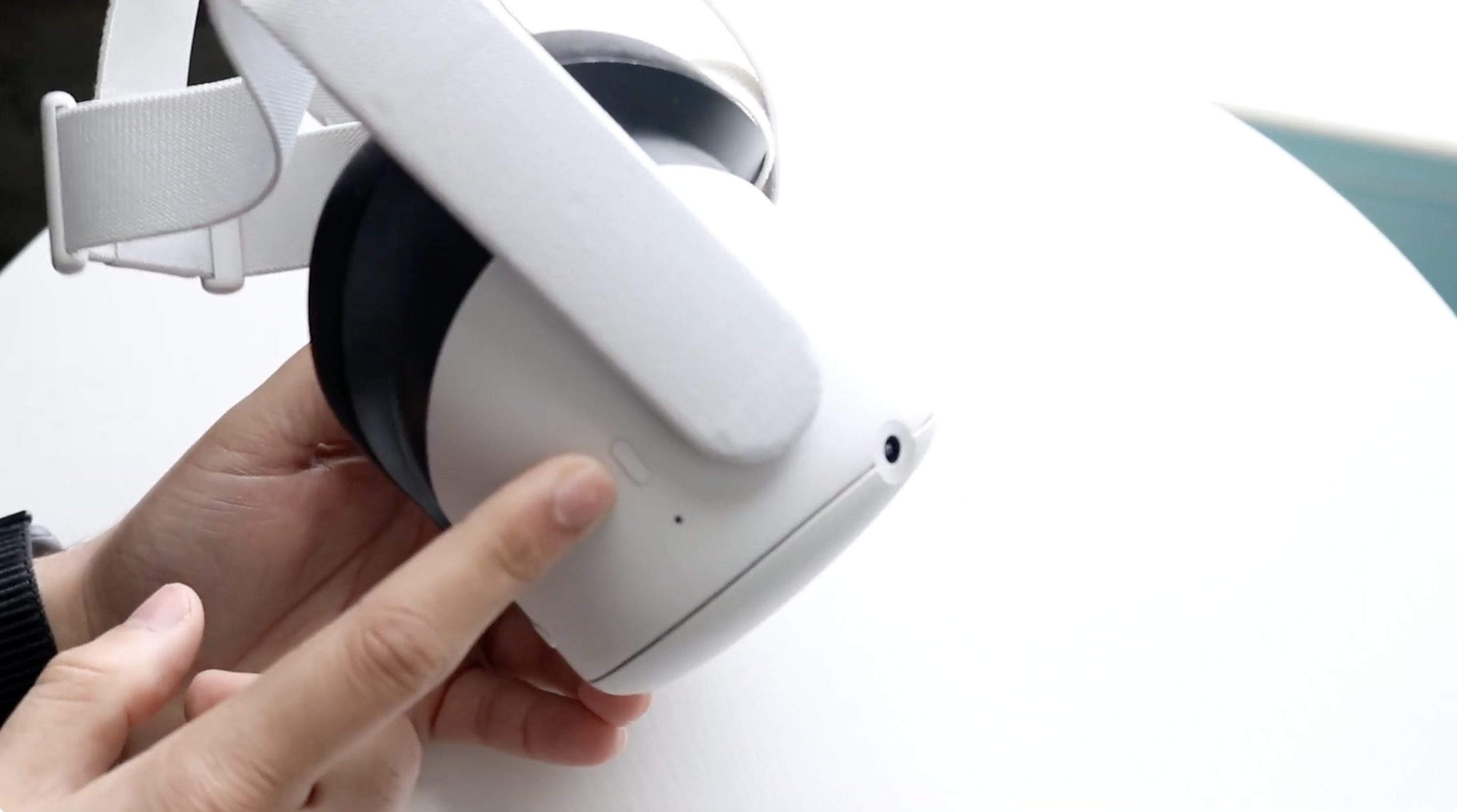
Power on your headset by pressing and holding the side button until the Meta logo appears. Keep your headset close to your phone to ensure a stable Oculus app connection. For Quest 2 or Quest 3, confirm your Wi-Fi network is active and visible. The headset must be online for pairing to succeed.
Once it’s powered on, put on the headset briefly to check for any prompts or updates. A visible pairing code may appear on-screen. You’ll use this code to complete the pairing with ease in the next step.
Step 3: Pair Your Oculus Headset With the App
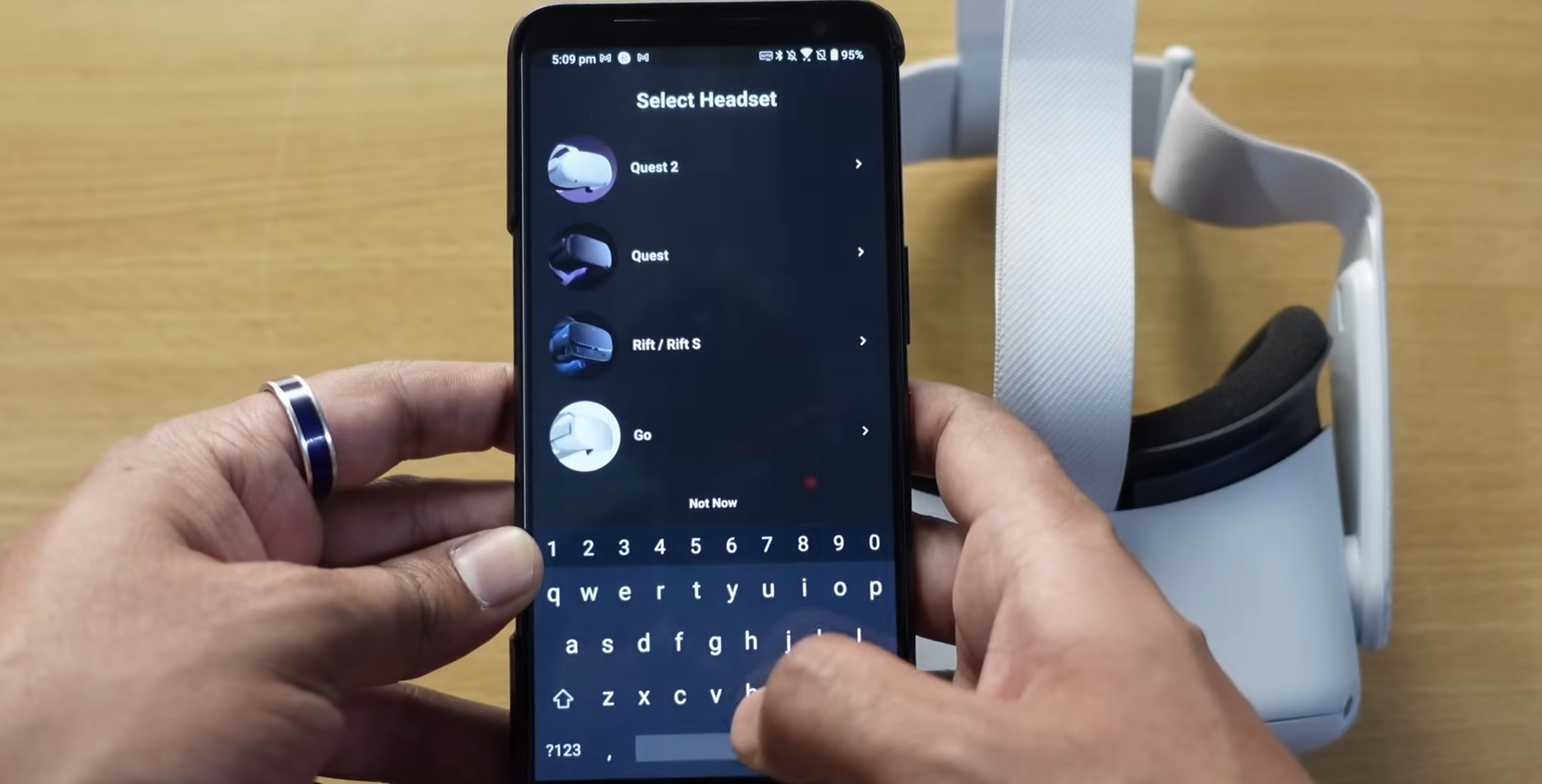
Open the Meta/Oculus app on your smartphone and tap Devices from the bottom menu. Select Add Headset, then choose your headset model (Quest 2, Quest 3, or Meta Quest Pro). The app will search for available devices via Bluetooth and display a 5-digit pairing code request.
Enter the pairing code displayed in your headset to link it with the app. If you don’t see a code, go to your headset’s Settings → About → Pairing Code. This step completes the main Oculus app connection and allows your phone to communicate directly with your headset. When pairing finishes, the app will confirm a successful connection and show your headset listed under “Devices.”
Once paired, you can install VR apps, adjust settings, and manage downloads right from your phone.
Step 4: Fix Oculus Pairing Not Working Issues
If your Oculus is not pairing, don’t worry. These fixes solve most connection errors:
- Restart both devices: Power off the headset and restart your phone, then retry pairing.
- Reinstall the app: Delete and reinstall the Oculus app to refresh the Bluetooth cache and pairing permissions.
- Reset Bluetooth: In your phone’s Bluetooth settings, tap “Forget Device” under the headset entry, then try again.
- Check network frequency: Ensure both devices are on the same 5GHz Wi-Fi band for a faster connection to the Oculus app.
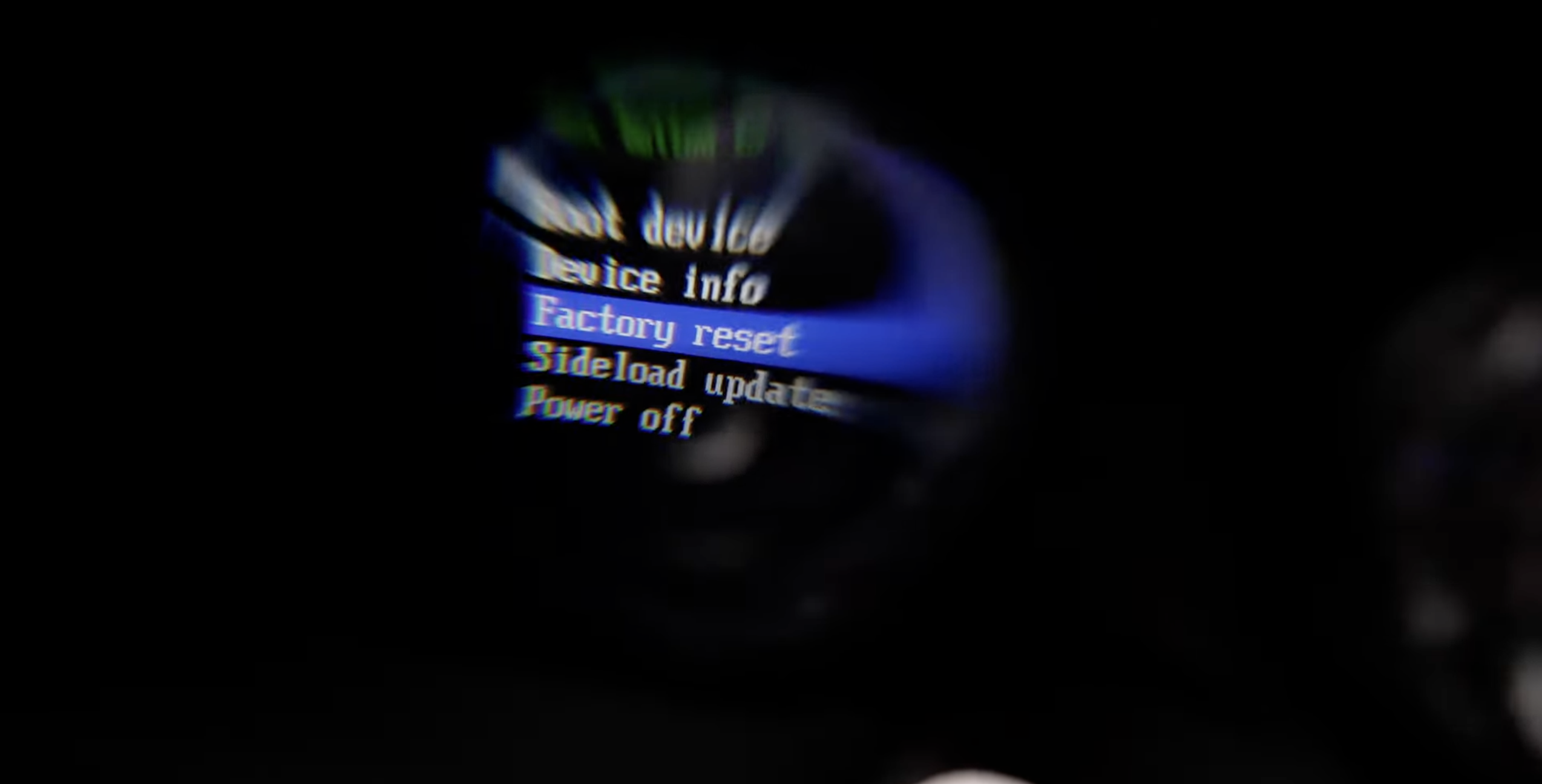
- Factory reset (last resort): Hold down the power and volume buttons on your headset to access the boot menu, then select “Factory Reset.” Re-pair using the app afterward.
If you still face pairing issues, use the Meta Quest Developer Hub on PC as an alternative method to pair your headset. This approach is often helpful if your device is stuck on the pairing screen after a factory reset.
Step 5: Verify the Oculus App Connection
Once pairing is complete, your headset will appear under the Devices section of the app. Tap it to confirm that the battery level, Wi-Fi status, and storage information are displayed correctly.
You can now launch apps, buy games, or invite friends directly from your phone. The ability to connect Oculus headset to phone makes it simple to manage content, install updates, and personalize your VR setup without removing the headset.
FAQs About Oculus App Connection
Where do I find my Oculus pairing code?
To locate your code, put on your headset and go to Settings → About → Pairing Code. This code links your headset to the Oculus app during setup.
Why is my Oculus pairing not working?
Make sure Bluetooth is on, both devices are on the same Wi-Fi, and the Oculus app is updated. If the problem persists, uninstall and reinstall the app to clear cache conflicts.
Can I connect multiple headsets to one app?
Yes. You can manage several devices from the same Meta account using the “Devices” menu inside the app.
Is the Oculus app Connection different for Quest 2 and Quest 3?
The process is nearly identical. The only difference is that Quest 3 may include new firmware updates and faster pairing with Meta Horizon integration.
Conclusion
Doing this right is the foundation for a seamless VR experience. Once your headset and phone are linked, you can explore games, apps, and social spaces effortlessly. If your Oculus app connection ever fails, the troubleshooting steps above will help you reconnect quickly and continue your virtual adventures without interruption.
With your Oculus headset paired and ready, you can dive into immersive worlds, stay connected with friends, and manage your entire VR library right from your smartphone. The setup only takes a few minutes, but the experiences it unlocks are limitless!


Discussion (0)
Be the first to comment.